Associating an Elastic Algorithm Service (EAS) service with a Network Load Balancer (NLB) instance lets you centrally manage and schedule the service. This setup leverages the powerful access control features of NLB, making it ideal for high-traffic services that require load balancing.
NLB association does not currently support LLM intelligent routing.
Billing
Using a Network Load Balancer (NLB) incurs costs. For more information, see NLB billing rules.
How it works

-
After you configure a VPC for an EAS service, the system assigns an IP address from within the VPC to each pod of the service.
-
When you associate an NLB instance from the same VPC with the EAS service, the system adds a TCP listener to the NLB instance. This listener forwards requests received on the listener port directly to the EAS service.
Procedure
Configure in the console
On the deployment configuration page, in the Network Information section, configure the VPC and enable Associate NLB.
-
Configure VPC network: To associate an NLB instance, you must configure a VPC, vSwitch, and security group for the EAS service. If you do not have these resources, see Create and manage a VPC and Manage security groups.
-
VPC: If you associate an existing NLB instance, you must use the same VPC as the NLB instance.
-
vSwitch: Ensure that the vSwitch has enough available IP addresses for the replica count.
-
Security group:
-
Ensure that the security group is not used by other cloud products.
-
The inbound rules of the security group must allow traffic from your authorized IP ranges and ports to the EAS instance on port 8080.
-
-
-
Enable Associate NLB and select a Configuration Method:
-
Use System-Created NLB Instance: The system automatically creates an NLB instance in your account. Its lifecycle is tied to the current service deployment.
-
Associate Existing NLB Instance: Select an existing NLB instance. The EAS service must be configured with the same VPC as the NLB instance. To create an instance, see Create an NLB instance.
-
-
Network Selection:
-
This option is available only when you select Use System-Created NLB Instance.
-
You can select internet or intranet. If you select both, two NLB instances are created.
-
-
Port Number: The listener port for the NLB. This is optional. The value must be between 1 and 65535.
-
If you specify a port, you can access the EAS service at
NLB domain name:listener port.Important-
Do not use port 8080. The EAS engine listens on this port by default. Using it for the listener will cause a port conflict and prevent the service from starting correctly.
-
To avoid conflicts, use a port that is not already in use by another NLB listener.
-
-
If you leave this blank, the system enables the all-port feature for the NLB listener. You can then access the EAS service at
NLB domain name:service port.
-
Configure using JSON
The following JSON parameters are required to associate an NLB instance. For details about how to configure each parameter, see Console configuration.
|
Parameter |
Description |
||
|
cloud |
networking |
vpc_id |
Specifies the VPC ID, vSwitch ID, and security group ID for the EAS service. |
|
vswitch_id |
|||
|
security_group_id |
|||
|
networking |
nlb |
id |
Specifies how to associate the NLB. Valid values:
|
|
net_type |
The network type. This parameter is required only if you use a system-created NLB instance. Valid values:
|
||
|
listener_port |
The listener port for the NLB. |
||
Configuration example:
{
  "cloud": {
    "computing": {
     .... // Deployment resources
    },
    "networking": {
      "security_group_id": "sg-bp1brugkivv2im5738q9",
      "vpc_id": "vpc-bp1uepgqtarjwghnfy9po",
      "vswitch_id": "vsw-bp1glkxasep5isqpvbj0t,vsw-bp1atvza5gzz0hedw2eci"
    }
  },
  "metadata": {
   .... // Other configuration information
  },
  "networking": {
    "nlb": [
      {
        "id": "default",
        "listener_port": 80,
        "net_type": "internet"
      }
    ]
  }
}
Verify network connectivity
After the service is deployed, verify that you can connect to NLB domain name:listener port:
-
Log on to the NLB console. Find the domain name of your target NLB instance in the DNS Name column.
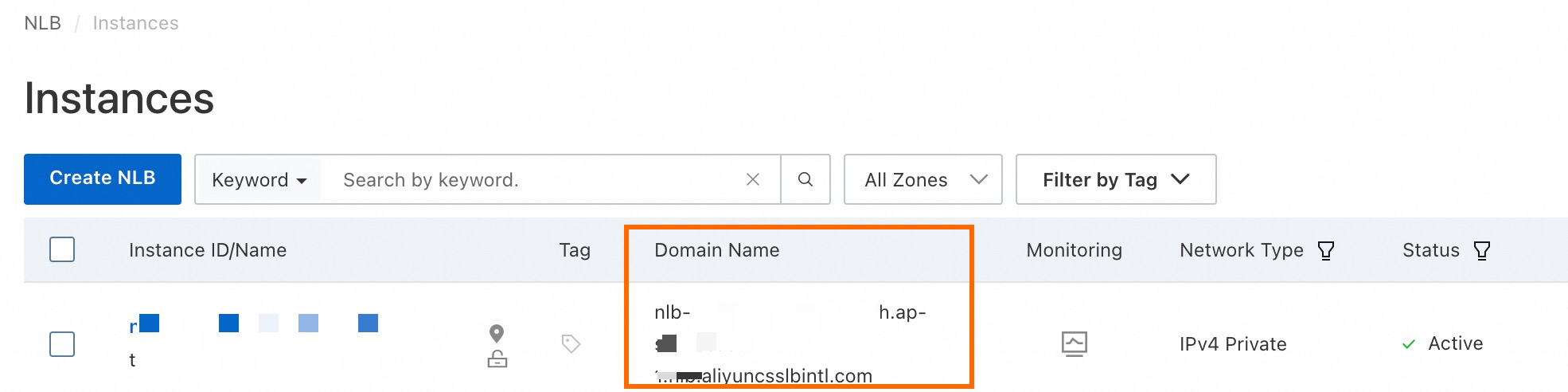
-
Run the command
telnetto verify connectivity.The listener port is the port you specified when associating the NLB instance during deployment. If you did not specify one, use the service port of the EAS service. The domain name is the DNS name that you obtained in the previous step.
-
Internet NLB: Run the command from your local terminal.
-
Intranet NLB: Run the command from a terminal in the VPC.
A successful connection looks similar to the following:

-
-
Invoke the EAS service using its NLB domain name and port. The following example shows a sample command and result. Your command and result may vary.
# Example command
curl http://:/path/to/api -H 'Authorization:' -d '[{"What is the capital of Zhejiang?"}]'
# Example result
{"response":"The capital of Zhejiang is Hangzhou.","history":[["[{\"What is the capital of Zhejiang?\"}]","The capital of Zhejiang is Hangzhou."]]}
The
:part replaces the gateway domain name in the service endpoint. For example, if the original service endpoint ishttp://123456***.cn-hangzhou.pai-eas.aliyuncs.com/api/predict/your-service-name, the corresponding request URL using the NLB ishttp://:/api/predict/your-service-name.