After you create a DSW instance, you can access it from the PAI console, explore the interface, and stop, delete, or change the instance configuration.
Access from the console
The DSW console provides a visual interface for monitoring and managing all your instances. Compared to remote connections, console access requires no complex network or permission setup. It also gives you access to DSW-specific features such as resource usage monitoring and the DSW Gallery.
-
Log in to the PAI console.
-
In the left navigation pane, click Workspaces, then click the target workspace to enter it.
-
In the upper-left corner of the page, select the region where the service is deployed.
-
In the left navigation pane, choose Model Training > Data Science Workshop (DSW).
-
Optional: On the Data Science Workshop (DSW) page, use the search box to find an instance by name or keyword.
-
In the Actions column for the target instance, click Open.
-
The DSW programming environment opens and is ready to use.
DSW interface overview
New interface
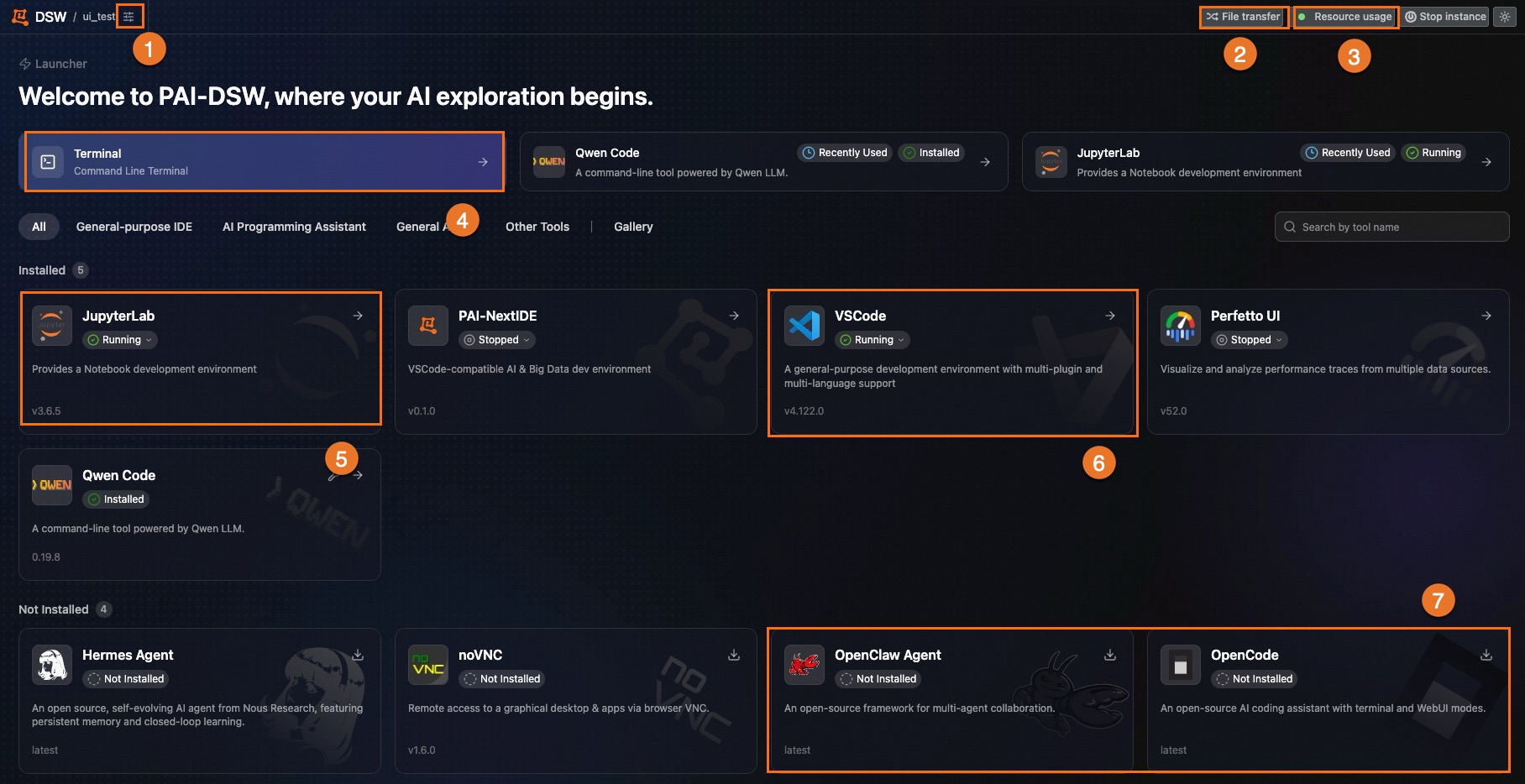
|
Area |
Description |
|
① |
Configuration panel — view and modify instance settings, including basic information, image, and resources. |
|
② |
File transfer station — view the upload list, and delete or save files. |
|
③ |
Resource usage — monitor current CPU and memory utilization. |
|
④ |
Terminal — a command-line interface for installing packages, managing the file system, accessing server resources, and running shell scripts. |
|
⑤ |
Notebook — an interactive programming environment for writing and running code, reading data, developing algorithms, and training and deploying models. |
|
⑥ |
VS Code — a browser-based IDE with a full set of developer tools. Create, edit, and run script files without installing a local development environment. |
|
⑦ |
AI agents — tools for efficient model development and training. |
Legacy interface
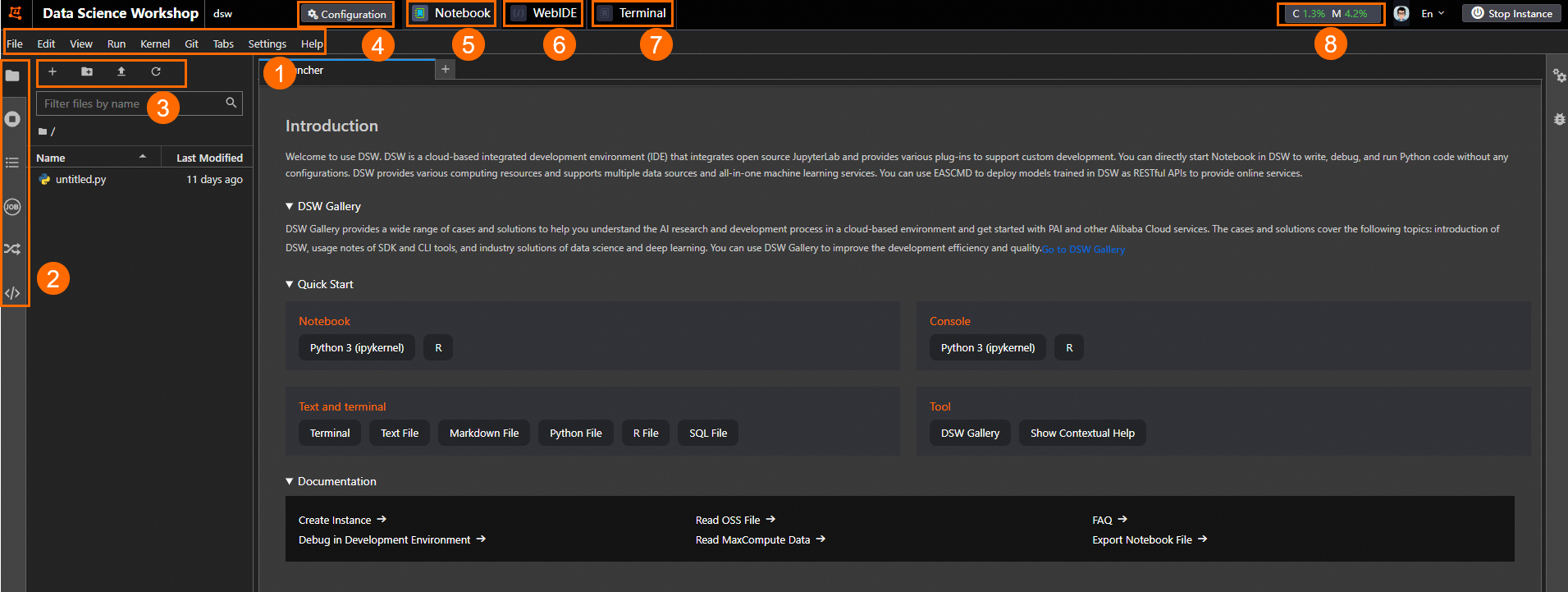
|
Area |
Description |
|
① |
Top menu bar. |
|
② |
Left toolbar. |
|
③ |
Notebook tool. |
|
④ |
Configuration panel — view and modify instance settings, including basic information, image, and resources. |
|
⑤ |
Notebook — an interactive programming environment for writing and running code, reading data, developing algorithms, and training and deploying models. |
|
⑥ |
WebIDE — a browser-based IDE with a full set of developer tools. Create, edit, and run script files without installing a local development environment. |
|
⑦ |
Terminal — a command-line interface for installing packages, managing the file system, accessing server resources, and running shell scripts. |
|
⑧ |
Resource usage — monitor current CPU and memory utilization. |
Instance management
On the Data Science Workshop (DSW) page, the instance list displays each instance's name, status (such as Stopped), and resource type (such as CPU):
-
Click an instance name to view its details.
-
In the Actions column, click Open or Start to open or start the instance.
-
Click Change Settings or Scheduled Stop to adjust the instance configuration.
-
Click the more icon (⋮) at the end of the Actions column, then select Delete to delete the instance.
View and modify instance details
Click a DSW instance name to open the instance details page, where you can view and modify the basic information and configuration of the instance.
-
In the Basic Information section, modify the instance name.
-
On the Events tab, view events related to the DSW instance.
-
On the Lifecycle tab, view the lifecycle history of the DSW instance.
-
Click Share Instance to make the instance visible to all members in the workspace.
ImportantOnce made public, an instance can't be reverted to private. Proceed with caution.
-
Click Change Settings to modify the resource configuration, environment settings, and network configuration.
View the instance ID
View and copy the DSW instance ID from the instance list.
View lifecycle and resource details
Hover over a target instance to view its lifecycle history and resource type details.
Instance operations
-
Open a DSW instance
Click Open to open the DSW instance and enter the programming environment.
-
Stop a DSW instance
Click Stop to stop the DSW instance.
Important-
For instances created using a dedicated resource group without a mounted dataset, the instance uses its own system disk as temporary storage. Stopping or deleting the instance permanently deletes all data on that disk. Back up any important data before proceeding.
-
For instances created using a public resource group, the free cloud disk preserves your environment after the instance is stopped. However, if the instance isn't restarted within 15 days, the cloud disk is deallocated and all data on it is permanently deleted.
-
If you expanded the system disk when creating the instance, the system disk continues to incur charges even after the instance is stopped. To stop all billing for the instance, delete it. Back up all necessary data before deleting.
-
-
Start a DSW instance
Click Start to restart a stopped instance. The instance is ready when the Status changes from Starting to Running.
-
Click Create Image and follow the on-screen instructions to save the current DSW instance environment to a personal or enterprise Alibaba Container Registry (ACR) repository for future reuse.
-
Change the configuration
Click Change Settings to modify the resource configuration, environment settings, and network configuration.
-
Set a timed shutdown
Click Scheduled Stop, then enable Enable Scheduled stop in the dialog box and set the Stop the Instance At. The instance stops automatically at the specified time. To configure DSW auto-reclaim policies, go to the workspace scheduling center.
Delete an instance
Click  , then click Delete to delete the DSW instance.
Deleted instances can't be recovered. Proceed with caution.