OSS malicious file detection scans objects in a bucket for threats such as webshells, ransomware, and trojans. If a malicious object is detected, follow the recommendations in the event description to address the risk.
Supported threat types
Supported virus types
Virus type (virus_type) | Virus name |
Backdoor | Reverse shell backdoor |
DDoS | DDoS Trojan |
Downloader | Downloader Trojan |
Engtest | Engine test program |
Hacktool | Hacking tool |
Trojan | High-risk program |
Malbaseware | Contaminated base software |
MalScript | Malicious script |
Malware | Malware |
Miner | Mining program |
Proxytool | Proxy tool |
RansomWare | Ransomware |
RiskWare | Riskware |
Rootkit | Rootkit |
Stealer | Stealer |
Scanner | Scanner |
Suspicious | Suspicious program |
Virus | Infectious virus |
WebShell | Web shell |
Worm | Worm |
AdWare | Adware |
Patcher | Patcher |
Gametool | Game tool |
Prerequisites
A RAM user must have the oss:ActivateProduct permission. For more information, see Common examples of RAM policies.
Billing
Malicious file detection is billed based on the number of objects scanned. The rate is USD 1.42 per 10,000 scans.
Malicious file detection calls APIs such as ListBuckets (GetService), GetBucketStat, ListObjectsV2 (GetBucketV2), GetObjectMeta, and GetObject. OSS charges request fees based on the number of API calls. For more information, see Request fees.
This feature is pay-as-you-go and is billed hourly. Bills are typically generated after the current billing cycle ends. The actual bill generation time is determined by the system.
Limitations
Supported regions
The malicious file detection feature is available in the following regions: China (Qingdao), China (Beijing), China (Zhangjiakou), China (Hohhot), China (Ulanqab), China (Hangzhou), China (Shanghai), China (Shenzhen), China (Heyuan), China (Guangzhou), China (Chengdu), China (Hong Kong), Singapore, Indonesia (Jakarta), Thailand (Bangkok), Philippines (Manila), Malaysia (Kuala Lumpur), South Korea (Seoul), Japan (Tokyo), US (Silicon Valley), UK (London), US (Virginia), and Germany (Frankfurt).
Detection task completion time
By default, there is no limit on the number of objects scanned in a bucket. Detection runs as an asynchronous queue. When the queue is not busy, scanning hundreds of thousands of objects completes within one hour, and scanning millions of objects completes within 24 hours.
Bucket storage class
Only buckets with the Standard or Infrequent Access (IA) storage class support malicious file detection. Buckets with the Archive, Cold Archive, or Deep Cold Archive storage class do not support malicious file detection.
Object storage class
Only objects in the Standard or Infrequent Access (IA) storage class are scanned. Objects in the Archive, Cold Archive, or Deep Cold Archive storage class are not scanned.
Single object size limit
The maximum size of a single object that can be scanned is 500 MB.
Archive limits
Supported archive types include
.7z,.zip,.tar,.gz,.rar,.ar,.bz2,.xz, and.lzma.An archive supports up to five levels of decompression. After decompression, the number of files is limited to 1,000, and their total size cannot exceed 1 GB. Files that exceed these limits are not scanned.
OSS built-in malicious file detection supports only console operations. It does not support API calls or event notifications. To scan OSS objects by using APIs or SDKs, use the malicious file detection service of Security Center.
OSS console
Before you scan a bucket for malicious objects for the first time, you must authorize the AliyunServiceRoleForOssMfd role.
-
Log on to the OSS console.
-
In the left-side navigation pane, click Buckets. On the page that appears, click the name of the target bucket.
In the left navigation pane, choose .
On the Malicious Object Detection page, click Buy Now. Follow the on-screen instructions to claim your free trial quota. Usage exceeding the free trial quota is billed on a pay-as-you-go basis.
On the Malicious Object Detection page, click OK.
After the authorization is complete, the system automatically creates an access policy named AliyunServiceRolePolicyForOssMfd for the role. This policy grants permissions to read bucket and object lists, access KMS, and decrypt objects.
-
Configure a malicious file detection rule.
Immediate detection
Full detection
Full detection comprehensively checks the data in an OSS bucket, helping you identify security risks and ensure that your object content meets compliance requirements.
On the Malicious Object Detection page, click Detect in the upper-right corner.
In the Detect dialog box, select the File Detection Type and Scan Path.
File Detection Type
You can choose to scan all file types or only specific file types.
Scan Path
Select Configure For The Entire Bucket to scan all objects in the bucket. Select Object Prefix and specify a prefix to scan only the objects that match the prefix.
Click OK.
Incremental detection
After completing a full detection on a bucket or path, you can use incremental detection to scan only new or modified objects. This saves time and computing resources.
NoteIncremental detection is currently supported only in the following regions: Chinese mainland regions (China (Qingdao), China (Beijing), China (Zhangjiakou), China (Hohhot), China (Ulanqab), China (Hangzhou), China (Shanghai), China (Shenzhen), China (Heyuan), China (Guangzhou), China (Chengdu)), Singapore, and Malaysia (Kuala Lumpur). Incremental detection is not supported in other regions outside China.
On the Malicious Object Detection page, click Incremental Detection in the upper-right corner.
In the Detect dialog box, select the File Detection Type and Scan Path.
File Detection Type
You can choose to scan all file types or only specific file types.
Scan Path
Select Configure For The Entire Bucket to scan all objects in the bucket. Select Object Prefix and specify a prefix to scan only the objects that match the prefix.
Click OK.
Scheduled detection
In the basic information section of the bucket, click the icon to the right of Policy Configuration Status
 .
.In the Create Policy dialog box, configure the following parameters.
Parameter
Description
Policy Name
Specify a custom name for the policy.
Policy Status
Enable the policy.
Scan Path
Match By Prefix
To scan only objects that match a specific prefix, select this option and specify the prefix, such as dir.
Configure For The Entire Bucket
Select this option to scan all objects in the bucket.
Detection Cycle
Set the detection frequency. You can select multiple days, for example, every Monday and Tuesday.
File Detection Time
Specify the start and end times for the detection task. The time is accurate to the second.
File Detection Type
Choose to scan all file types or only specific types. If you choose the latter, you must select them from the drop-down list, such as files with the .7z suffix.
Click OK.
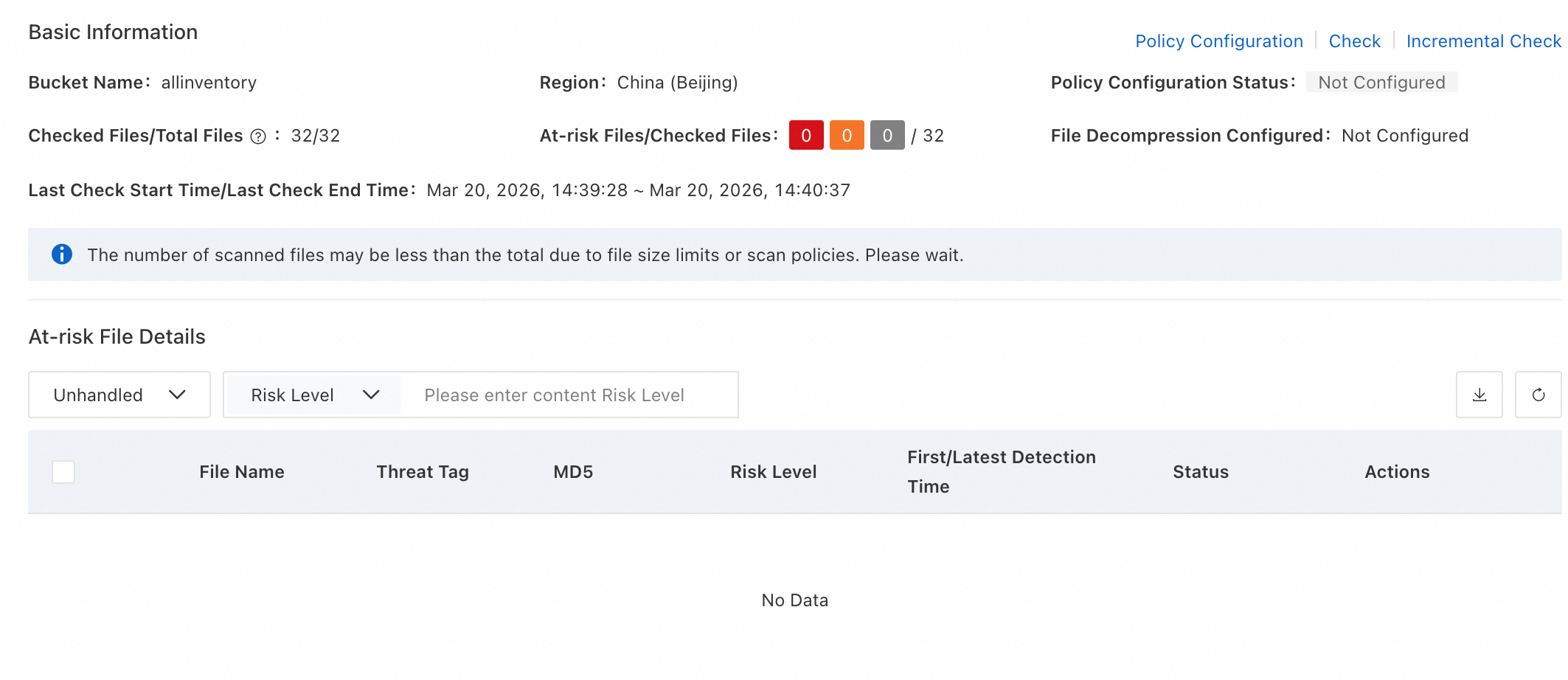
View detection results.
If no risk files are detected, the risk file details area is empty.
If risk files are detected, you can view the object name, threat label, file MD5, risk level, first discovery time, and latest scan time for each risk file in the risk file details area.
Handle risk files.
You can click View Details in the Actions column of a risk file to view its event description. Handle the risk file promptly based on the handling suggestions provided in the description.