When an ECS instance is placed under blackhole filtering, Alibaba Cloud discards all inbound traffic to its public IP address, making the instance unreachable from the public internet. You can restore service by changing the public IP address of the ECS instance or migrating your workload to another ECS instance. If your business can wait, estimate when blackhole filtering will be automatically deactivated first.
Changing the public IP address of an ECS instance or switching to a different server doesn't stop the attacker. Attackers can resolve your domain name to discover the new IP address and launch another attack. To address the root cause, purchase Anti-DDoS Origin or Anti-DDoS Pro.
Estimate the automatic blackhole filtering deactivation time
If you haven't purchased Anti-DDoS Origin or Anti-DDoS Pro, you must wait for blackhole filtering to expire automatically. If you have purchased either product and your workload is protected, you can deactivate blackhole filtering manually without waiting. For instructions, see Deactivate blackhole filtering and Configure the blackhole filtering deactivation feature.
-
Check the time of the last attack on the ECS instance.
Log in to the Traffic Security console, go to the Event Center page, locate the public IP address of the ECS instance, and click View Details to view the time of the last attack.
NoteIf the asset has been attacked multiple times, the blackhole filtering deactivation time is calculated from when the last DDoS attack ended.
-
Check the current blackhole filtering deactivation time.
On the Assets page, find the current blackhole filtering deactivation time. The total blackhole filtering duration defaults to 2.5 hours, but varies based on attack frequency — typically between 30 minutes and 24 hours, and occasionally longer.
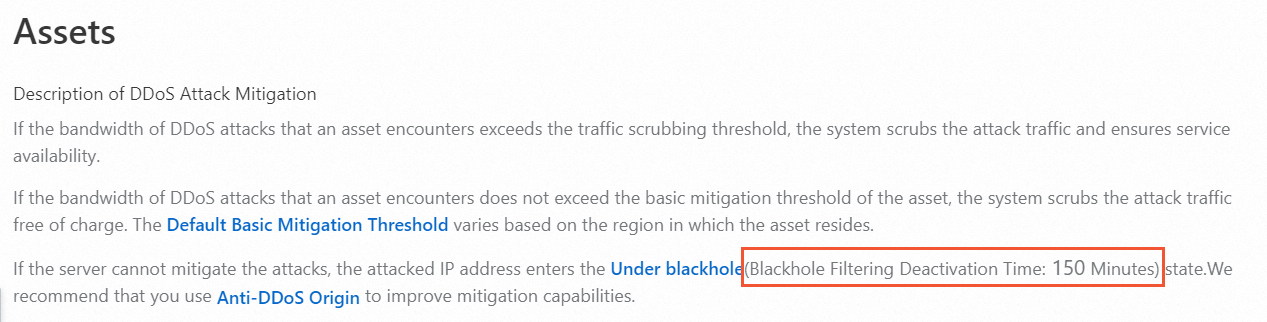
-
Estimate when blackhole filtering will be automatically deactivated.
For example, if the last attack occurred at 12:30 and the current blackhole filtering deactivation time is 150 minutes, blackhole filtering will be deactivated at approximately 15:00.
NoteThis is an estimate. If your public IP address continues to receive DDoS attacks, the deactivation time may be extended.
When blackhole filtering expires, it is automatically deactivated. If your business is time-sensitive, use one of the following options to restore service immediately.
After changing the public IP address of an ECS instance or switching servers, update your DNS records, database connection strings, and any other configurations that reference the old IP address.
Option 1: Change the public IP address of the ECS instance
Changing the public IP address repeatedly while the instance is under attack puts the Alibaba Cloud platform at risk. Alibaba Cloud may impose account-level restrictions in response, such as blocking new instance purchases.
Change the EIP
-
(Optional) Apply for a new EIP.
For more information, see Apply for an EIP.
-
Disassociate the current EIP from the ECS instance.
For more information, see Disassociate an EIP from a cloud resource.
Important-
After you disassociate a pay-as-you-go EIP from a cloud resource, you are still charged an EIP configuration fee. To avoid unnecessary fees, release the EIP.
-
For information about EIP configuration fees, see Pay-as-you-go.
-
For information about how to release a pay-as-you-go EIP, see Release a pay-as-you-go EIP.
-
-
If you no longer require a subscription EIP after you disassociate the EIP from a cloud resource, you can unsubscribe from the EIP. For more information, see Rules for unsubscribing from resources.
-
-
Associate the new EIP with the ECS instance.
For more information, see Associate an EIP with an ECS instance.
Change the static public IP address
-
Instance created less than 6 hours ago
Log in to the ECS console. In the left navigation pane, click Instances.
In the Actions column for the ECS instance, choose .
-
Instance created more than 6 hours ago
-
If the instance is a subscription instance billed by fixed bandwidth, change the billing method to pay-by-traffic first.
For instructions, see Change from fixed bandwidth to pay-by-traffic.
-
Convert the static public IP address of the ECS instance (in a VPC) to an elastic IP address (EIP).
For instructions, see Convert the static public IP address of a VPC-type ECS instance to an EIP.
-
Disassociate the EIP from the ECS instance.
For instructions, see Disassociate an EIP from a cloud resource.
__
Important
After disassociating a pay-as-you-go EIP, you will continue to be charged the EIP configuration fee. Release the EIP if you no longer need it.
For EIP configuration fee details, see Pay-as-you-go.
To release a pay-as-you-go EIP, see Release a pay-as-you-go EIP.
After disassociating a subscription EIP, you can unsubscribe from it directly if you no longer need it. For more information, see Unsubscription rules.
-
Adjust the public bandwidth of the ECS instance to above 1 Mbps to get a new static public IP address assigned.
For instructions, see Modify bandwidth for subscription instances or Modify bandwidth for pay-as-you-go instances.
-
Option 2: Create an identical ECS instance from a custom image and switch your workload to it
-
Create a custom image from the blackholed ECS instance. For instructions, see Create custom image.
NoteAs a best practice, create snapshots of your ECS instances regularly during routine operations. When you need to restore service quickly, create a custom image from a snapshot. For instructions, see Create an automatic snapshot policy and Create a custom image from a snapshot.
Use the custom image to create a new ECS instance with the same configuration. For instructions, see Create an ECS instance from a custom or shared image.
Option 3: Migrate using Server Migration Center and switch your workload to a new instance
Use Server Migration Center (SMC) to migrate the blackholed ECS instance into a custom image, then create a new ECS instance from that image.
Add the blackholed ECS instance to SMC as a migration source. For instructions, see Step 1: Import the information of a migration source.
Create a migration job to package the system configuration and business data into a custom image. For instructions, see Step 2: Create and start a migration task.
Use the custom image to create a new ECS instance with the same configuration. For instructions, see Create an ECS instance from a custom or shared image.
Option 4: Connect to the blackholed ECS instance and migrate your data
A blackholed ECS instance cannot be reached over the public internet, but you may be able to connect to it via Workbench, session management, VNC, or from another ECS instance in the same VPC.
For instructions on connecting via Workbench, session management, or VNC, see Connect to your instance. The following steps use another ECS instance in the same VPC to connect.
Prerequisites
The connecting ECS instance must be in the same region, VPC, and security group as the blackholed instance, and you must confirm network connectivity. For details on security groups, see Security group overview.
Steps
Log in to the healthy ECS instance using its private or public IP address.
-
From the healthy ECS instance, connect to the blackholed instance using its private or public IP address.
The following table lists common connection methods.
Blackholed ECS instance OS
Healthy ECS instance OS
Connection method
Reference
Windows
Windows
Connect using Remote Desktop Connection (MSTSC).
Connect to a Windows instance with Remote Desktop or the Windows App
Linux
Connect using rdesktop.
Linux
Windows
Connect using PuTTY.
Linux
Connect using SSH.
ssh root@<static public IP address or EIP> Transfer your files to the healthy ECS instance.
References
For details on Alibaba Cloud's blackhole policy, see Alibaba Cloud blackhole policy.
For blackhole thresholds for ECS and other cloud products, see View the thresholds that trigger blackhole filtering in Anti-DDoS Basic.
For an overview of DDoS protection products, see What is Anti-DDoS Origin and What is Anti-DDoS Proxy?.