For a bucket with millions or billions of objects, listing objects with the ListObjects API operation is inefficient and costly. The bucket inventory feature manages objects at this scale by asynchronously and periodically scanning the bucket and generating inventory files that contain the object metadata you specify, such as object size and storage class.
Use cases
Object Storage Service (OSS) provides full inventories and incremental inventories. You can configure one or both inventory types, and deliver the generated inventory files to a specified bucket. Choose an inventory type based on whether you also need to track changes to your objects:
One-time data analysis and statistics — If you only need to analyze historical objects, configure a full inventory rule to generate a single list of object metadata for offline data analysis.
Continuous data analysis and statistics — If you need to analyze historical objects and track subsequent changes, use both full and incremental inventories to build a unified metadata table. For example, you can write all existing and incremental metadata into your own table and use your own Spark cluster to retrieve, query, and analyze the metadata.
How it works
After you create an inventory rule, OSS automatically runs the inventory task periodically. The task runs asynchronously and does not affect normal access to the bucket.
Full inventory — A snapshot of all existing objects in a bucket at a specific point in time. OSS generates full inventories periodically — daily, weekly, or monthly — with one run per cycle. The workflow is as follows:
Obtain permissions: OSS assumes a pre-authorized RAM role to scan the source bucket and write inventory reports to the destination bucket.
Scan objects: OSS scans objects in the source bucket that match the inventory rule's filter criteria, such as object prefix, version status, creation time, or size.
Generate inventory report: OSS aggregates the scan results into an inventory report and writes it to the destination bucket. The report is in CSV format (Gzip-compressed) or Parquet format. The Parquet format is supported only in the UK (London) region.
Incremental inventory — Records the metadata of objects that are created, updated, or deleted within a specified period. Incremental inventories capture all object change events, including creations, metadata updates, and deletions, and are typically generated every 10 minutes. The workflow is as follows:
Obtain permissions: OSS assumes a pre-authorized RAM role to scan the source bucket logs and write inventory reports to the destination bucket.
Scan objects: OSS scans records in the incremental logs that match the inventory rule's filter criteria, such as the object prefix.
Generate inventory report: OSS uses backend partitioning to aggregate the scan results and writes the inventory report to the destination bucket in CSV format.
Prerequisites
Before you configure a bucket inventory, make sure that the following requirements are met:
The source bucket has the regional attribute. The bucket inventory feature is supported only for buckets that have a regional attribute.
To use the incremental inventory feature, contact technical support to apply.
A RAM role is available for the inventory service to read from the source bucket and write to the destination bucket. You can use the default role
AliyunOSSRolethat the console creates, or create a dedicated least-privilege role. For instructions, see Create and authorize a service role.If the bucket policy of the destination bucket contains Deny statements that restrict access to specified network IP addresses or VPCs, allow inventory writes over the classic intranet of OSS. For instructions, see Allow inventory writes to a network-restricted destination bucket.
If you want to encrypt inventory reports with KMS, use an OSS-managed KMS key or create a KMS key in the same region as the destination bucket.
If you want to export the Last Accessed Time and Last Accessed Timestamp fields, enable Access Tracking for the source bucket.
Create and authorize a service role
The OSS inventory service must assume a RAM role to obtain permissions to read from the source bucket and write to the destination bucket. To ensure account security, follow the principle of least privilege and create a dedicated service role for the inventory feature.
When you quickly configure an inventory on the console, the system prompts you to automatically create a role named AliyunOSSRole. You can use this default role without creating a service role. However, this role grants full management permissions on all buckets in your Alibaba Cloud account. For production environments, do not use AliyunOSSRole. Follow the steps in this section to manually create a least-privilege role.
(Optional) Grant a RAM user the permissions to configure inventories
An Alibaba Cloud account has all permissions by default. If you use an Alibaba Cloud account, you can skip this step. This step authorizes a RAM user, such as an operations administrator, to configure inventory rules. It does not grant permissions to the inventory service itself. As a security best practice, an Alibaba Cloud account owner or an administrator with elevated permissions should create the required RAM role for the inventory service in advance. This allows a regular RAM user to configure the inventory by using this role, instead of needing the permissions to create it themselves.
To grant a RAM user permissions to create and manage inventory rules, grant the user a custom policy with the following permissions. The oss:ListBuckets permission in the following policy is required only for operations in the console. This permission is not required when you use tools such as SDKs or ossutil.
{
    "Statement": [
        {
            "Effect": "Allow",
            "Action": [
                "oss:PutBucketInventory",
                "oss:GetBucketInventory",
                "oss:DeleteBucketInventory",
                "oss:ListBuckets",
                "ram:CreateRole",
                "ram:AttachPolicyToRole",
                "ram:GetRole",
                "ram:ListPoliciesForRole"
            ],
            "Resource": "*"
        }
    ],
    "Version": "1"
}If the current RAM user already has the AliyunOSSFullAccess system policy, you only need to grant the following permissions for role management:
{
    "Statement": [
        {
            "Effect": "Allow",
            "Action": [
                "ram:CreateRole",
                "ram:AttachPolicyToRole",
                "ram:GetRole",
                "ram:ListPoliciesForRole"
            ],
            "Resource": "*"
        }
    ],
    "Version": "1"
}
Create the service role
Create a RAM role. Go to the Create RAM Role page. For Select Trusted Entity, select Alibaba Cloud Service. For Trusted Service, select Object Storage Service.
Grant the RAM role the permissions to write to the destination bucket. On the Create Policy page, click the Script tab. Paste the following policy into the policy editor and replace
dest-bucketwith the name of your destination bucket.{ "Version": "1", "Statement": [ { "Effect": "Allow", "Action": "oss:PutObject", "Resource": [ "acs:oss:*:*:dest-bucket/*" ] } ] }AliyunKMSCryptoUserAccesspermission or more granular KMS permissions.Attach the policy to the RAM role. On the Permissions page, click Add Permissions. For Principal, select the RAM role that you created. For Policy, select the policy that you just created, and then click OK.
Record the role ARN. On the Roles page, find the RAM role that you created. Go to the Basic Information page and copy the role ARN for use when you create the inventory rule. The ARN is in the format
acs:ram::{source-account-id}:role/{role-name}.
Verify that the trusted service of the RAM role is Object Storage Service and that the policy resource covers the path of the destination bucket. Otherwise, the inventory service cannot write inventory reports to the destination bucket.
Allow inventory writes to a network-restricted destination bucket
This section applies only if the bucket policy of the destination bucket contains Deny statements that restrict access to specified network IP addresses or VPCs. If no such Deny statements exist, skip this section.
The destination bucket must allow access over the classic intranet of OSS so that the inventory service can write the exported inventory files.
If you must restrict the destination bucket to access only from specified network IP addresses or VPCs for security reasons, add the following condition to the Condition element of every Deny statement in the bucket policy of the destination bucket, so that the inventory service can write to the bucket over the classic network.
"StringNotEquals": {
    "oss:ClassicIntranet": [
        "true"
    ]
}
Full inventory
A full inventory periodically scans and exports a complete list of all objects in a bucket or under a specified prefix. Note the following:
Report snapshot — An inventory report provides a snapshot of objects when a scan task starts. Changes to objects, such as additions or deletions, during the scan might not be included in the current report.
Report schedule — The first inventory report runs immediately after you configure the rule. If you schedule monthly exports on a specified day of the month, the inventory task starts on that day instead. Subsequent reports run in batches during the early morning hours (UTC+8) daily, weekly, or monthly, depending on your configuration. Export latency depends on the number of objects and the task queue.
Configure an inventory rule
Console
Log on to the OSS console.
Navigate to the source bucket for which you want to generate an inventory. In the left-side navigation pane, choose Data Management > Bucket Inventory.
On the Bucket Inventory page, click Create Inventory.
In the Create Inventory panel, configure the following parameters.
Parameter Description Status Select Start to enable the inventory task. Rule Name The name of the inventory task. The name can contain only lowercase letters, digits, and hyphens (-). It cannot start or end with a hyphen (-). Inventory Report Destination The destination for the inventory reports. The destination bucket must be in the same region and belong to the same account as the source bucket. To save the report to the exampledir1/path in the examplebucket bucket, enterexampledir1/. If the specified path does not exist in the bucket, OSS creates it automatically. If you leave this field empty, the report is saved to the root directory. If the OSS-HDFS service is enabled for a bucket, do not set the inventory report directory to.dlsdata/. This prevents interference with the service and avoids data contamination.Inventory file scan scope The scope of objects to scan. Scan entire bucket: scans all objects in the bucket. Object Prefix: scans only objects that match the specified prefix, such as exampledir1/. Encryption Method The encryption method for the inventory report. None: no encryption. AES256: encrypts the report by using AES256. KMS: encrypts the inventory file by using a KMS key. You can use an OSS-managed KMS key or create a KMS key in the same region as the destination bucket in the KMS console. Using the KMS key feature incurs a small fee for KMS key API calls. For more information about pricing, see . Frequency The frequency at which OSS generates inventory reports. You can select Weekly, Daily, Monthly, or One-time Export. For buckets with over 10 billion objects, select Weekly to reduce costs and scanning overhead. The Monthly schedule is not supported in all regions. For more information, see Quotas and limitations. {mode, select, NOT_SPECIFY {Unspecified Date} SPECIFY {Specified Date} other{--}} When you set the export cycle to Monthly, you can specify the day of the month on which to start the inventory task. The value must be an integer from 1 to 31. If you select {mode, select, NOT_SPECIFY {Unspecified Date} SPECIFY {Specified Date} other{--}}, OSS exports the inventory on a fixed 30-day interval by default. The first scan starts on the day you configure the rule, and the inventory is exported every 30 days after that. If you specify a day from 1 to 28, the inventory task starts on that day of each month. If you specify a day from 29 to 31, the task starts on that day if it exists in the current month. If the day does not exist, the task starts on the last day of the month. For example, if you specify the 31st of each month, the inventory task for April starts on the 30th. The specified date is when the inventory task begins, not when the report is delivered. Report generation is an asynchronous task, and its completion time depends on the number of objects in the bucket. Delivery occurs after the specified date. Inventory format The file format of the inventory report. You can select CSV or Parquet. The Parquet format is currently supported only in the UK (London) region. Optional Fields The object information to include in the report. System Metadata: object size, storage class, Last Modified Date, ETag, TransitionTime, multipart upload status, Encryption Status, Object ACL, Object Type, CRC64, Last Accessed Time, and Last Accessed Timestamp. Last Accessed Time and Last Accessed Timestamp can be exported only when Access Tracking is enabled for the bucket. If Access Tracking is disabled, the values of these two fields are no longer meaningful and are usually displayed as null. Custom Metadata: Number of Tags. Advanced Filtering If you need to filter exported files based on conditions such as file size or storage class, turn on the Advanced Filtering switch. The filter options are supported only in the China (Qingdao), China (Hohhot), and Germany (Frankfurt) regions. The supported filter options are as follows. Time Range: the start date and end date of the last modification for the objects to be exported. The time is accurate to the second. Object Size Range: the minimum and maximum size of the objects to be exported. The minimum and maximum sizes must be greater than 0 B. The maximum size cannot exceed 48.8 TB. Storage Class: the storage classes of the objects to be exported. You can choose to export objects of the Standard, Infrequent Access, Archive, Cold Archive, and Deep Cold Archive storage classes. Object Versions If versioning is enabled for the bucket, select Current Version or All Versions. Select I acknowledge and agree to grant the Alibaba Cloud OSS service permission to access resources in this bucket., and then click OK.
The new inventory rule appears on the Bucket Inventory page with the status Start. Generating the inventory file may take some time if the bucket contains many objects. To learn how to check whether the file is ready, see How do I determine whether an inventory file has been generated?.
SDK
The following sample code shows how to configure an inventory rule by using OSS SDKs for different languages.
import com.aliyun.oss.*;
import com.aliyun.oss.common.auth.*;
import com.aliyun.oss.common.comm.SignVersion;
import com.aliyun.oss.model.*;
import java.util.ArrayList;
import java.util.List;

public class Demo {

    public static void main(String[] args) throws Exception {
        // In this example, the endpoint of the China (Hangzhou) region is used. Specify your actual endpoint.
        String endpoint = "https://oss-cn-hangzhou.aliyuncs.com";
        // Obtain access credentials from environment variables. Before you run the sample code, make sure that the OSS_ACCESS_KEY_ID and OSS_ACCESS_KEY_SECRET environment variables are configured.
        EnvironmentVariableCredentialsProvider credentialsProvider = CredentialsProviderFactory.newEnvironmentVariableCredentialsProvider();
        // Specify the name of the bucket. Example: examplebucket.
        String bucketName = "examplebucket";
        // Specify the name of the bucket in which you want to store the generated inventory lists.
        String destBucketName ="yourDestinationBucketName";
        // Specify the account ID granted by the bucket owner.
        String accountId ="yourDestinationBucketAccountId";
        // Specify the name of the RAM role that is granted the permissions to read all objects in the bucket for which you want to configure the inventory and the permissions to write data to the bucket in which you want to store the generated inventory lists.
        String roleArn ="yourDestinationBucketRoleArn";
        // Specify the region in which the bucket is located. For example, if the bucket is located in the China (Hangzhou) region, set the region to cn-hangzhou.
        String region = "cn-hangzhou";

        // Create an OSS Client instance.
        // Call the shutdown method to release associated resources when the OSS Client is no longer in use.
        ClientBuilderConfiguration clientBuilderConfiguration = new ClientBuilderConfiguration();
        clientBuilderConfiguration.setSignatureVersion(SignVersion.V4);
        OSS ossClient = OSSClientBuilder.create()
        .endpoint(endpoint)
        .credentialsProvider(credentialsProvider)
        .clientConfiguration(clientBuilderConfiguration)
        .region(region)
        .build();

        try {
            // Create an inventory.
            InventoryConfiguration inventoryConfiguration = new InventoryConfiguration();

            // Specify the inventory name.
            String inventoryId = "testid";
            inventoryConfiguration.setInventoryId(inventoryId);

            // Specify the object attributes that are included in inventory lists.
            List<String> fields = new ArrayList<String>();
            fields.add(InventoryOptionalFields.Size);
            fields.add(InventoryOptionalFields.LastModifiedDate);
            fields.add(InventoryOptionalFields.IsMultipartUploaded);
            fields.add(InventoryOptionalFields.StorageClass);
            fields.add(InventoryOptionalFields.ETag);
            fields.add(InventoryOptionalFields.EncryptionStatus);
            inventoryConfiguration.setOptionalFields(fields);

            // Specify whether to generate inventory lists on a daily or weekly basis. The following code provides an example on how to generate the inventory lists on a weekly basis. Weekly indicates that the inventory lists are generated once a week and Daily indicates that the inventory lists are generated once a day.
            inventoryConfiguration.setSchedule(new InventorySchedule().withFrequency(InventoryFrequency.Weekly));

            // Specify that the inventory lists include only the current version of objects. If you set the InventoryIncludedObjectVersions parameter to All, all versions of objects are included in the inventory lists. This configuration takes effect only when you enable versioning for the bucket.
            inventoryConfiguration.setIncludedObjectVersions(InventoryIncludedObjectVersions.Current);

            // Specify whether the inventory is enabled. Valid values: true and false. Set the value to true to enable the inventory. Set the value to false to disable the inventory.
            inventoryConfiguration.setEnabled(true);

            // Specify the rule used to filter the objects to include in the inventory lists. The following code provides an example on how to filter the objects by prefix.
            InventoryFilter inventoryFilter = new InventoryFilter().withPrefix("obj-prefix");
            inventoryConfiguration.setInventoryFilter(inventoryFilter);

            // Specify the destination bucket in which you want to store the generated inventory lists.
            InventoryOSSBucketDestination ossInvDest = new InventoryOSSBucketDestination();
            // Specify the prefix of the path in which you want to store the generated inventory lists.
            ossInvDest.setPrefix("destination-prefix");
            // Specify the format of the inventory lists.
            ossInvDest.setFormat(InventoryFormat.CSV);
            // Specify the ID of the account to which the destination bucket belongs.
            ossInvDest.setAccountId(accountId);
            // Specify the role ARN of the destination bucket.
            ossInvDest.setRoleArn(roleArn);
            // Specify the name of the destination bucket.
            ossInvDest.setBucket(destBucketName);

            // The following code provides an example on how to encrypt the inventory lists by using customer master keys (CMKs) hosted in Key Management System (KMS).
            // InventoryEncryption inventoryEncryption = new InventoryEncryption();
            // InventoryServerSideEncryptionKMS serverSideKmsEncryption = new InventoryServerSideEncryptionKMS().withKeyId("test-kms-id");
            // inventoryEncryption.setServerSideKmsEncryption(serverSideKmsEncryption);
            // ossInvDest.setEncryption(inventoryEncryption);

            // The following code provides an example on how to encrypt the inventory lists on the OSS server.
            // InventoryEncryption inventoryEncryption = new InventoryEncryption();
            // inventoryEncryption.setServerSideOssEncryption(new InventoryServerSideEncryptionOSS());
            // ossInvDest.setEncryption(inventoryEncryption);

            // Specify the destination for the generated inventory lists.
            InventoryDestination destination = new InventoryDestination();
            destination.setOssBucketDestination(ossInvDest);
            inventoryConfiguration.setDestination(destination);

            // Configure the inventory for the bucket.
            ossClient.setBucketInventoryConfiguration(bucketName, inventoryConfiguration);
        } catch (OSSException oe) {
            System.out.println("Caught an OSSException, which means your request made it to OSS, "
                    + "but was rejected with an error response for some reason.");
            System.out.println("Error Message:" + oe.getErrorMessage());
            System.out.println("Error Code:" + oe.getErrorCode());
            System.out.println("Request ID:" + oe.getRequestId());
            System.out.println("Host ID:" + oe.getHostId());
        } catch (ClientException ce) {
            System.out.println("Caught an ClientException, which means the client encountered "
                    + "a serious internal problem while trying to communicate with OSS, "
                    + "such as not being able to access the network.");
            System.out.println("Error Message:" + ce.getMessage());
        } finally {
            if (ossClient != null) {
                ossClient.shutdown();
            }
        }
    }
}
public class Demo {
public static void main(String[] args) throws Exception {
    // In this example, the endpoint of the China (Hangzhou) region is used. Specify your actual endpoint.
    String endpoint = </span>
const OSS = require('ali-oss');
const client = new OSS({
// The region where the bucket is located. Replace yourregion with the actual region. For example, if the bucket is in the China (Hangzhou) region, set this parameter to oss-cn-hangzhou.
region: 'yourregion',
// Obtain access credentials from environment variables. Before you run this sample code, make sure that you have configured the OSS_ACCESS_KEY_ID and OSS_ACCESS_KEY_SECRET environment variables.
accessKeyId: process.env.OSS_ACCESS_KEY_ID,
accessKeySecret: process.env.OSS_ACCESS_KEY_SECRET,
// The bucket name.
bucket: 'yourbucketname'
});
const inventory = {
// The ID of the inventory configuration.
id: 'default',
// Specifies whether to enable the inventory. Valid values: true and false.
isEnabled: true,
// (Optional) The inventory filter. Specify a prefix for the objects to be inventoried.
prefix: 'ttt',
OSSBucketDestination: {
// The format of the inventory report.
format: 'CSV',
// The account ID of the owner of the destination bucket.
accountId: '<Your AccountId>',
// The name of the role for the destination bucket.
rolename: 'AliyunOSSRole',
// The name of the destination bucket.
bucket: '<Your BucketName>',
// (Optional) A prefix for the path where the inventory report is stored.
prefix: '<Your Prefix>',
// If you want to use server-side encryption with OSS-managed keys to encrypt the inventory report, see the following code.
//encryption: {'SSE-OSS': ''},
// If you want to use server-side encryption with KMS keys (SSE-KMS) to encrypt the inventory report, see the following code.
//encryption: {
// 'SSE-KMS': {
// keyId: 'test-kms-id',
// },
//},
},
// The inventory generation schedule. Valid values: Daily and Weekly.
frequency: 'Daily',
// The object versions to include in the inventory. In this example, all versions of objects are included. If you set this parameter to Current, only the current version of objects is included.
includedObjectVersions: 'All',
optionalFields: {
// (Optional) The object attributes to include in the inventory report.
field: ["Size", "LastModifiedDate", "ETag", "StorageClass", "IsMultipartUploaded", "EncryptionStatus"]
},
}
async function putInventory(){
// The name of the bucket for which to add the inventory configuration.
const bucket = '<Your BucketName>';
try {
await client.putBucketInventory(bucket, inventory);
console.log('The inventory configuration was added.')
} catch(err) {
console.log('Failed to add the inventory configuration: ', err);
}
}
putInventory()import argparse
import alibabacloud_oss_v2 as oss
# Create a command line parameter parser and describe the purpose of the script. The example describes how to create an inventory for a bucket.
parser = argparse.ArgumentParser(description="put bucket inventory sample")
# Specify the command line parameters, including the required region, bucket name, endpoint, user ID, Alibaba Cloud Resource Name (ARN) of the RAM role, and inventory name.
parser.add_argument('--region', help='The region in which the bucket is located.', required=True)
parser.add_argument('--bucket', help='The name of the bucket.', required=True)
parser.add_argument('--endpoint', help='The domain names that other services can use to access OSS')
parser.add_argument('--user_id', help='User account ID.', required=True)
parser.add_argument('--arn', help='The Alibaba Cloud Resource Name (ARN) of the role that has the permissions to read all objects from the source bucket and write objects to the destination bucket. Format: `acs:ram::uid:role/rolename`.', required=True)
parser.add_argument('--inventory_id', help='The name of the inventory.', required=True)
def main():
# Parse the command line parameters to obtain the values specified by the user.
args = parser.parse_args()
# Obtain access credentials from environment variables for authentication.
credentials_provider = oss.credentials.EnvironmentVariableCredentialsProvider()
# Use the default configurations of the SDK to create a configuration object and specify the credential provider.
cfg = oss.config.load_default()
cfg.credentials_provider = credentials_provider
# Specify the region attribute of the configuration object based on the command line parameters specified by the user.
cfg.region = args.region
# If a custom endpoint is provided, modify the endpoint parameter in the configuration object.
if args.endpoint is not None:
cfg.endpoint = args.endpoint
# Use the preceding configurations to initialize the OSSClient instance and allow the instance to interact with OSS.
client = oss.Client(cfg)
# Send a request to create an inventory for a bucket.
result = client.put_bucket_inventory(oss.PutBucketInventoryRequest(
bucket=args.bucket, # The name of the bucket.
inventory_id=args.inventory_id, # The ID of the inventory.
inventory_configuration=oss.InventoryConfiguration(
included_object_versions='All', # Specify that inventory lists include all versions of objects.
optional_fields=oss.OptionalFields(
fields=[ # The optional fields, such as the size and last modified time of objects.
oss.InventoryOptionalFieldType.SIZE,
oss.InventoryOptionalFieldType.LAST_MODIFIED_DATE,
],
),
id=args.inventory_id, # The ID of the inventory.
is_enabled=True, # Specify whether to enable the inventory feature for the bucket. In this example, the inventory feature is enabled.
destination=oss.InventoryDestination(
oss_bucket_destination=oss.InventoryOSSBucketDestination(
format=oss. InventoryFormatType.CSV, # Specify that the output format of the inventory lists is CSV.
account_id=args.user_id, # The account ID of the user.
role_arn=args.arn, # The ARN of the RAM role, which has the permissions to read the objects in the source bucket and write objects to the destination bucket.
bucket=f'acs:oss:::{args.bucket}', # The name of the destination bucket.
prefix='aaa', # Specify the prefix contained in the names of the objects that you want to include in inventory lists.
),
),
schedule=oss.InventorySchedule(
frequency=oss. InventoryFrequencyType.DAILY, # Specify whether to generate inventory lists on a daily or weekly basis. In this example, inventory lists are generated on a daily basis.
),
filter=oss.InventoryFilter(
lower_size_bound=1024, # Specify the minimum size of the object that you want to include in inventory lists. Unit: bytes.
upper_size_bound=1048576, # Specify the maximum size of the object that you want to include in inventory lists. Unit: bytes.
storage_class='ColdArchive', # # Specify the storage classes of objects that you want to include in inventory lists.
prefix='aaa', # Specify the prefix that is used to filter inventories.
last_modify_begin_time_stamp=1637883649, # Specify the beginning of the time range during which the object was last modified.
last_modify_end_time_stamp=1638347592, # Specify the end of the time range during which the object was last modified.
),
),
))
# Display the HTTP status code of the operation and request ID to check the request status.
print(f'status code: {result.status_code},'
f' request id: {result.request_id},'
)
# Call the main function to start the processing logic when the script is directly run.
if __name__ == "__main__":
main() # Specify the entry points in the functions of the script. The control program flow starts here.Create a command line parameter parser and describe the purpose of the script. The example describes how to create an inventory for a bucket.
parser = argparse.ArgumentParser(description=
using Aliyun.OSS;
using Aliyun.OSS.Common;

// Specify the endpoint of the region in which the bucket is located. For example, if the bucket is located in the China (Hangzhou) region, set the endpoint to https://oss-cn-hangzhou.aliyuncs.com.
var endpoint = "yourEndpoint";
// Obtain access credentials from environment variables. Before you run the sample code, make sure that the OSS_ACCESS_KEY_ID and OSS_ACCESS_KEY_SECRET environment variables are configured.
var accessKeyId = Environment.GetEnvironmentVariable("OSS_ACCESS_KEY_ID");
var accessKeySecret = Environment.GetEnvironmentVariable("OSS_ACCESS_KEY_SECRET");
// Specify the name of the bucket.
var bucketName = "examplebucket";
// Specify the account ID granted by the bucket owner.
var accountId ="yourDestinationBucketAccountId";
// Specify the name of the RAM role that is granted the permissions to read all objects in the bucket for which you want to configure the inventory and the permissions to write data to the bucket in which you want to store the generated inventory lists.
var roleArn ="yourDestinationBucketRoleArn";
// Specify the name of the bucket in which you want to store the generated inventory lists.
var destBucketName ="yourDestinationBucketName";
// Specify the region in which the bucket is located. For example, if the bucket is located in the China (Hangzhou) region, set the region to cn-hangzhou.
const string region = "cn-hangzhou";

// Create a ClientConfiguration instance and modify the default parameters based on your requirements.
var conf = new ClientConfiguration();

// Use the signature algorithm V4.
conf.SignatureVersion = SignatureVersion.V4;

// Create an OSSClient instance.
var client = new OssClient(endpoint, accessKeyId, accessKeySecret, conf);
client.SetRegion(region);
try
{
    // Create an inventory for the bucket.
    var config = new InventoryConfiguration();
    // Specify the name of the inventory.
    config.Id = "report1";
    // Specify whether to enable the inventory for the bucket. Valid values: true and false. If this parameter is set to true, the inventory is enabled.
    config.IsEnabled = true;
    // Specify the rule that is used to filter the objects included in inventory lists. The following code provides an example on how to filter the objects by prefix.
    config.Filter = new InventoryFilter("filterPrefix");
    // Configure the bucket in which you want to store the generated inventory lists.
    config.Destination = new InventoryDestination();
    config.Destination.OSSBucketDestination = new InventoryOSSBucketDestination();
    // Specify the format of the inventory lists.
    config.Destination.OSSBucketDestination.Format = InventoryFormat.CSV;
    // Specify the ID of the account to which the destination bucket belongs.
    config.Destination.OSSBucketDestination.AccountId = accountId;
    // Specify the Alibaba Cloud Resource Name (ARN) of the RAM role that is used to access the destination bucket.
    config.Destination.OSSBucketDestination.RoleArn = roleArn;
    // Specify the name of the bucket in which you want to store the generated inventory lists.
    config.Destination.OSSBucketDestination.Bucket = destBucketName;
    // Specify the prefix of the path in which you want to store the generated inventory lists.
    config.Destination.OSSBucketDestination.Prefix = "prefix1";

    // Specify whether to generate the inventory lists on a daily or weekly basis. The following code provides an example on how to generate the inventory lists on a weekly basis. A value of Weekly indicates that the inventory lists are generated on a weekly basis. A value of Daily indicates that the inventory lists are generated on a daily basis.
    config.Schedule = new InventorySchedule(InventoryFrequency.Daily);
    // Specify that the inventory lists include only the current versions of objects. If you set the InventoryIncludedObjectVersions parameter to All, all versions of objects are included in the inventory lists. This configuration takes effect only when versioning is enabled for the bucket.
    config.IncludedObjectVersions = InventoryIncludedObjectVersions.All;

    // Specify the object attributes that are included in the inventory lists.
    config.OptionalFields.Add(InventoryOptionalField.Size);
    config.OptionalFields.Add(InventoryOptionalField.LastModifiedDate);
    config.OptionalFields.Add(InventoryOptionalField.StorageClass);
    config.OptionalFields.Add(InventoryOptionalField.IsMultipartUploaded);
    config.OptionalFields.Add(InventoryOptionalField.EncryptionStatus);
    config.OptionalFields.Add(InventoryOptionalField.ETag);
    var req = new SetBucketInventoryConfigurationRequest(bucketName, config);
    client.SetBucketInventoryConfiguration(req);
    Console.WriteLine("Set bucket:{0} InventoryConfiguration succeeded", bucketName);
}
catch (OssException ex)
{
    Console.WriteLine("Failed with error code: {0}; Error info: {1}. \nRequestID:{2}\tHostID:{3}",
        ex.ErrorCode, ex.Message, ex.RequestId, ex.HostId);
}
// Specify the endpoint of the region in which the bucket is located. For example, if the bucket is located in the China (Hangzhou) region, set the endpoint to https://oss-cn-hangzhou.aliyuncs.com. var endpoint =
#include <alibabacloud/oss/OssClient.h>
using namespace AlibabaCloud::OSS;

int main(void)
{
    /* Initialize information about the account that is used to access OSS. */

    /* Specify the endpoint of the region in which the bucket is located. For example, if the bucket is located in the China (Hangzhou) region, set the endpoint to https://oss-cn-hangzhou.aliyuncs.com. */
    std::string Endpoint = "yourEndpoint";
    /* Specify the region in which the bucket is located. For example, if the bucket is located in the China (Hangzhou) region, set the region to cn-hangzhou. */
    std::string Region = "yourRegion";
    /* Specify the name of the bucket. Example: examplebucket. */
    std::string BucketName = "examplebucket";

    /* Initialize resources, such as network resources. */
    InitializeSdk();

    ClientConfiguration conf;
    conf.signatureVersion = SignatureVersionType::V4;
    /* Obtain access credentials from environment variables. Before you run the sample code, make sure that the OSS_ACCESS_KEY_ID and OSS_ACCESS_KEY_SECRET environment variables are configured. */
    auto credentialsProvider = std::make_shared<EnvironmentVariableCredentialsProvider>();
    OssClient client(Endpoint, credentialsProvider, conf);
    client.SetRegion(Region);

    InventoryConfiguration inventoryConf;
    /* Specify the name of the inventory. The name must be globally unique in the current bucket. */
    inventoryConf.setId("inventoryId");

    /* Specify whether to enable inventory for the bucket. Valid values: true and false. */
    inventoryConf.setIsEnabled(true);

    /* (Optional) Specify the prefix in the names of the objects. After you specify the prefix, information about the objects whose names contain the prefix is included in the inventory lists. */
    inventoryConf.setFilter(InventoryFilter("objectPrefix"));

    InventoryOSSBucketDestination dest;
    /* Specify the format of the exported inventory lists. */
    dest.setFormat(InventoryFormat::CSV);
    /* Specify the ID of the Alibaba Cloud account to which the bucket owner grants the permissions to perform the operation. */
    dest.setAccountId("10988548********");
    /* Specify the name of the RAM role to which the bucket owner grants permissions to perform the operation. */
    dest.setRoleArn("acs:ram::10988548********:role/inventory-test");
    /* Specify the bucket in which you want to store the generated inventory lists. */
    dest.setBucket("yourDstBucketName");
    /* Specify the prefix of the path in which you want to store the generated inventory lists. */
    dest.setPrefix("yourPrefix");
    /* (Optional) Specify the method that is used to encrypt inventory lists. Valid values: SSEOSS and SSEKMS. */
    //dest.setEncryption(InventoryEncryption(InventorySSEOSS()));
    //dest.setEncryption(InventoryEncryption(InventorySSEKMS("yourKmskeyId")));
    inventoryConf.setDestination(dest);

    /* Specify the time interval at which inventory lists are exported. Valid values: Daily and Weekly. */
    inventoryConf.setSchedule(InventoryFrequency::Daily);

    /* Specify whether to include all versions of objects or only the current versions of objects in the inventory lists. Valid values: All and Current. */
    inventoryConf.setIncludedObjectVersions(InventoryIncludedObjectVersions::All);

    /* (Optional) Specify the fields that are included in inventory lists based on your requirements. */
    InventoryOptionalFields field {
        InventoryOptionalField::Size, InventoryOptionalField::LastModifiedDate,
        InventoryOptionalField::ETag, InventoryOptionalField::StorageClass,
        InventoryOptionalField::IsMultipartUploaded, InventoryOptionalField::EncryptionStatus
    };
    inventoryConf.setOptionalFields(field);

    /* Configure the inventory. */
    auto outcome = client.SetBucketInventoryConfiguration(
        SetBucketInventoryConfigurationRequest(BucketName, inventoryConf));

    if (!outcome.isSuccess()) {
        /* Handle exceptions. */
        std::cout << "Set Bucket Inventory fail" <<
        ",code:" << outcome.error().Code() <<
        ",message:" << outcome.error().Message() <<
        ",requestId:" << outcome.error().RequestId() << std::endl;
        return -1;
    }

    /* Release resources, such as network resources. */
    ShutdownSdk();
    return 0;
}
int main(void) { / Initialize information about the account that is used to access OSS. /
/* Specify the endpoint of the region in which the bucket is located. For example, if the bucket is located in the China (Hangzhou) region, set the endpoint to https://oss-cn-hangzhou.aliyuncs.com. */
std::string Endpoint = </span>
package main
import (
"context"
"flag"
"log"
"github.com/aliyun/alibabacloud-oss-go-sdk-v2/oss"
"github.com/aliyun/alibabacloud-oss-go-sdk-v2/oss/credentials"
)
// Define global variables.
var (
region string // The region in which the bucket is located.
bucketName string // The name of the bucket.
)
// Specify the init function used to initialize command line parameters.
func init() {
flag.StringVar(®ion, "region", "", "The region in which the bucket is located.")
flag.StringVar(&bucketName, "bucket", "", "The name of the bucket.")
}
func main() {
// Parse command line parameters.
flag.Parse()
var (
accountId = "account id of the bucket" // Specify the ID of the Alibaba Cloud account to which the bucket owner grants permissions to perform the operation. Example: 109885487000****.
inventoryId = "inventory id" // The name of the inventory. The name must be globally unique in the bucket.
)
// Check whether the name of the bucket is specified.
if len(bucketName) == 0 {
flag.PrintDefaults()
log.Fatalf("invalid parameters, bucket name required")
}
// Check whether the region is specified.
if len(region) == 0 {
flag.PrintDefaults()
log.Fatalf("invalid parameters, region required")
}
// Load the default configurations and specify the credential provider and region.
cfg := oss.LoadDefaultConfig().
WithCredentialsProvider(credentials.NewEnvironmentVariableCredentialsProvider()).
WithRegion(region)
// Create an OSS client.
client := oss.NewClient(cfg)
// Create a request to configure an inventory for the bucket.
putRequest := &oss.PutBucketInventoryRequest{
Bucket: oss.Ptr(bucketName), // The name of the bucket.
InventoryId: oss.Ptr(inventoryId), // The name of the inventory specified by the user.
InventoryConfiguration: &oss.InventoryConfiguration{
Id: oss.Ptr(inventoryId), // The name of the inventory specified by the user.
IsEnabled: oss.Ptr(true), // Enable the inventory.
Filter: &oss.InventoryFilter{
Prefix: oss.Ptr("filterPrefix"), // Specify the rule that is used to filter the objects included in inventories.
LastModifyBeginTimeStamp: oss.Ptr(int64(1637883649)), // The timestamp that specifies the start time of the last modification.
LastModifyEndTimeStamp: oss.Ptr(int64(1638347592)), // The timestamp that specifies the end time of the last modification.
LowerSizeBound: oss.Ptr(int64(1024)), // The lower size limit of files (unit: bytes).
UpperSizeBound: oss.Ptr(int64(1048576)), // The upper size limit of files (unit: bytes).
StorageClass: oss.Ptr("Standard,IA"), // The storage class.
},
Destination: &oss.InventoryDestination{
OSSBucketDestination: &oss.InventoryOSSBucketDestination{
Format: oss.InventoryFormatCSV, // The format of the exported inventory lists.
AccountId: oss.Ptr(accountId), // Specify the ID of the account that is granted permissions by the bucket owner to perform the operation. Example: 109885487000****.
RoleArn: oss.Ptr("acs:ram::" + accountId + ":role/AliyunOSSRole"), // Specify the name of the RAM role that is granted permissions by the bucket owner to perform the operation. Example: acs:ram::109885487000****:role/ram-test.
Bucket: oss.Ptr("acs:oss:::" + bucketName), // Specify the name of the bucket in which you want to store the generated inventory lists.
Prefix: oss.Ptr("export/"), // Specify the prefix of the path in which you want to store the generated inventory lists.
},
},
Schedule: &oss.InventorySchedule{
Frequency: oss.InventoryFrequencyDaily, // The frequency at which the inventory list is exported (daily).
},
IncludedObjectVersions: oss.Ptr("All"), // Specify whether to include all versions of objects or only the current versions of objects in the inventory list.
},
}
// Execute the request.
putResult, err := client.PutBucketInventory(context.TODO(), putRequest)
if err != nil {
log.Fatalf("failed to put bucket inventory %v", err)
}
// Display the result.
log.Printf("put bucket inventory result:%#v\n", putResult)
}
import (
After the sample code runs, verify that the inventory rule appears on the Bucket Inventory page of the console, or call the GetBucketInventory API operation to query the rule.
ossutil
Create a file named inventory-configuration.xml with the following content:
<?xml version="1.0" encoding="UTF-8"?>
<InventoryConfiguration>
  <Id>report1</Id>
    <IsEnabled>true</IsEnabled>
  <Destination>
    <OSSBucketDestination>
      <Format>CSV</Format>
      <AccountId>100000000000000</AccountId>
      <RoleArn>acs:ram::100000000000000:role/AliyunOSSRole</RoleArn>
      <Bucket>acs:oss:::destbucket</Bucket>
      <Prefix>prefix1/</Prefix>
      <Encryption>
        <SSE-KMS>
          <KeyId>keyId</KeyId>
        </SSE-KMS>
      </Encryption>
    </OSSBucketDestination>
  </Destination>
  <Schedule>
    <Frequency>Daily</Frequency>
  </Schedule>
    <IncludedObjectVersions>All</IncludedObjectVersions>
  <OptionalFields>
    <Field>Size</Field>
    <Field>LastModifiedDate</Field>
    <Field>ETag</Field>
    <Field>StorageClass</Field>
    <Field>IsMultipartUploaded</Field>
    <Field>EncryptionStatus</Field>
  </OptionalFields>
</InventoryConfiguration>
Run the following command:
ossutil api put-bucket-inventory --bucket examplebucket --inventory-id report1 --inventory-configuration file://inventory-configuration.xmlAfter the command runs, verify that the inventory rule appears on the Bucket Inventory page of the console.
For more information about the put-bucket-inventory command, see put-bucket-inventory.
API
Call the PutBucketInventory operation to configure or modify an inventory rule. This method requires you to manually construct the HTTP request and calculate the signature, making it suitable for highly customized scenarios. After the request succeeds, you can call the GetBucketInventory operation to query the inventory rule.
Full inventory files
Once an inventory task is configured, OSS generates inventory files at the interval specified in the inventory rule. The directory structure for the inventory files is as follows:
<dest-bucket-name>/
└── <dest-prefix>/
    └── <source-bucket-name>/
        └── <inventory-id>/
            ├── YYYY-MM-DDTHH-MMZ/  (UTC time when the scan started)
            │   ├── manifest.json   (Metadata file for the inventory task)
            │   └── manifest.checksum (MD5 checksum of the manifest.json file)
            └── data/
└── <uuid>.csv.gz (Multiple GZIP-compressed inventory data files)| Directory structure | Description |
| dest-prefix | This directory is named after the inventory report prefix you specify. If you do not specify a prefix, this directory is omitted. |
| source-bucket-name | This directory is named after the source bucket of the inventory report. |
| inventory-id | This directory is named after the inventory rule name. |
| YYYY-MM-DDTHH-MMZ | The directory name is a UTC timestamp that indicates when the bucket scan began, for example, 2025-05-17T16-00Z. This directory contains the manifest.json and manifest.checksum files. |
| data | This directory contains GZIP-compressed CSV inventory files that list the objects in the source bucket and the metadata for each object. If the source bucket contains many objects, the inventory is automatically split into multiple compressed CSV files for easier downloading and processing. The compressed CSV files are named sequentially, such as uuid.csv.gz, uuid-1.csv.gz, and uuid-2.csv.gz. You can retrieve the list of CSV files from the manifest.json file, then decompress and read them to get the complete inventory data. A complete object record is always contained within a single inventory file. |
Manifest file
The manifest file comprises manifest.json and manifest.checksum.
The manifest.json file contains metadata about the inventory:
{
    "creationTimestamp": "1642994594",
    "destinationBucket": "dest-bucket-name",
    "fileFormat": "CSV",
    "fileSchema": "Bucket, Key, VersionId, IsLatest, IsDeleteMarker, Size, StorageClass, LastModifiedDate, ETag, IsMultipartUploaded, EncryptionStatus, ObjectAcl, TaggingCount, ObjectType, CRC64",
    "files": [{
            "MD5checksum": "F77449179760C3B13F1E76110F07****",
            "key": "dest-prefix/source-bucket-name/inventory-id/data/a1574226-b5e5-40ee-91df-356845777c04.csv.gz",
            "size": 2046}],
    "sourceBucket": "source-bucket-name",
    "version": "2019-09-01"
}
The following table describes each field:
| Field | Description |
| creationTimestamp | The timestamp indicating when the scan of the source bucket started. |
| destinationBucket | The destination bucket where the inventory file is stored. |
| fileFormat | The format of the inventory file. |
| fileSchema | Lists the fields in the inventory file, which are divided into fixed and optional fields. The order of the fixed fields is constant. The order of the optional fields depends on their arrangement in the inventory configuration. For example, if you use the console, the order is determined by the sequence in which you select the Optional Fields. To avoid column-to-field mismatches, parse the data columns in the .csv.gz file according to the field order specified in fileSchema. If you select the current version for the object version when you configure an inventory rule, the fileSchema lists the fixed fields Bucket, Key first, followed by the optional fields. If you select all versions for the object version when you configure an inventory rule, the fileSchema lists the fixed fields Bucket, Key, VersionId, IsLatest, IsDeleteMarker first, followed by the optional fields. |
| files | Contains the MD5 checksum, key, and size of the inventory file. |
| sourceBucket | The source bucket being inventoried. |
| version | The inventory version. |
The manifest.checksum file contains the MD5 hash of the manifest.json file, used to verify the integrity of the manifest.json file. For example, F77449179760C3B13F1E76110F07****.
Full inventory report
The inventory report is stored in the data/ directory and contains object information from the inventory feature. For example:
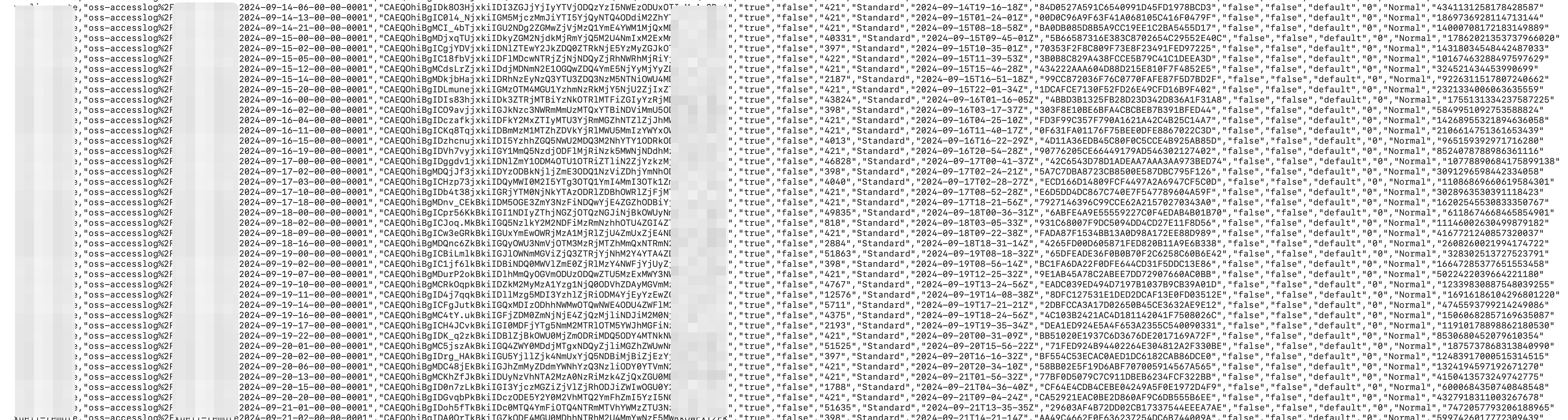
| Field | Description |
| Bucket | The name of the source bucket for which the inventory task is run. |
| Key | The name of the object in the bucket. The object name is URL-encoded. |
| VersionId | The version ID of the object. This field appears only when the inventory is configured to include all versions. If versioning is not enabled for the bucket, this field is empty. If versioning is enabled, this field contains the version ID of the object. |
| IsLatest | Indicates whether the object is the latest version. This field appears only when the inventory is configured to include all versions. If versioning is not enabled for the bucket, this field is displayed as true. If versioning is enabled for the bucket and the object is the latest version, this field is true. If the object is a previous version, this field is false. |
| IsDeleteMarker | Indicates whether the object version is a delete marker. This field appears only when the inventory is configured to include all versions. If versioning is not enabled for the bucket, this field defaults to false. If versioning is enabled for the bucket and the object is a delete marker, this field is true. If the object is not a delete marker, this field is false. |
| Size | The size of the object in bytes. |
| StorageClass | The storage class of the object. |
| LastModifiedDate | The time when the object was last modified, in Coordinated Universal Time (UTC). |
| TransitionTime | The time when a lifecycle rule transitioned the object to the Cold Archive or Deep Cold Archive storage class. |
| ETag | The ETag of the object. An ETag is generated for each object to identify its content. For an object created by using the PutObject API operation, the ETag is the MD5 hash of its content. For objects created by other methods, the ETag is a unique calculated value, not the MD5 hash of the content. |
| IsMultipartUploaded | Indicates whether the object was created by using a multipart upload. If the object was created by using a multipart upload, the value of this field is true. Otherwise, the value is false. |
| EncryptionStatus | Indicates whether the object is encrypted. If the object is encrypted, the value of this field is true. Otherwise, the value is false. |
| ObjectAcl | The object ACL. For more information, see Object ACL. |
| TaggingCount | The number of tags associated with the object. |
| ObjectType | The type of the object. For more information, see Object type. |
| Crc64 | The CRC-64 of the object. |
| LastAccessDate | The last access time of the object, in Coordinated Universal Time (UTC). This field is exported only when access tracking is enabled for the bucket. If disabled, this field is typically null. |
| LastAccessTimestamp | The last access timestamp of the object (Unix timestamp). This field is exported only when access tracking is enabled for the bucket. If disabled, this field is typically null. |
Incremental inventory
An incremental inventory typically captures and reports all object change events, including creations, metadata updates, and deletions, that occur within a 10-minute time window.
Configure an inventory rule
Console
Log on to the OSS console.
Navigate to the source bucket for which you want to generate an inventory. In the left-side navigation pane, choose Data Management > Bucket Inventory.
On the Bucket Inventory page, click Create Inventory.
In the Create Inventory panel, configure the Basic Settings parameters.
Parameter Description Status The status of the incremental inventory task. Select Start. Rule Name The name of the inventory task. The name can contain only lowercase letters, digits, and hyphens (-) and cannot start or end with a hyphen (-). Inventory Report Destination The path where the inventory report is stored. The source bucket and the destination bucket must belong to the same account and be in the same region. To save the report to the exampledir1path in the examplebucket bucket, enterexampledir1/. If the specified path does not exist in the bucket, OSS automatically creates the path. The length of the target path prefix cannot exceed 128 characters. If you leave this field empty, the report is saved to the root directory. To prevent disruptions to the OSS-HDFS service or the risk of data corruption, do not set the inventory report directory to.dlsdata/when you configure an inventory report rule for a bucket that has the OSS-HDFS service enabled.Scan Scope {status, select, BUCKET{Scan Entire Bucket} BUCKET_PATH{Match by Prefix} other{--}}: scans all objects in the bucket. Object Prefix: scans only objects that match a specified prefix, such as exampledir1/. In the Track and Generate Incremental Metadata Updates section, turn on Get Incremental Metadata Updates, and then select the Metadata Fields that you want to export.
Parameter Description Metadata Fields The object information that you want to export. Event Metadata: {type, select, SEQUENCE_NUMBER{Serial Number} RECORD_TYPE{Event Type} RECORD_TIMESTAMP{Timestamp} REQUESTER{User ID} REQUEST_ID{Request ID} SOURCE_IP{Source IP} other{type}}, {type, select, SEQUENCE_NUMBER{Serial Number} RECORD_TYPE{Event Type} RECORD_TIMESTAMP{Timestamp} REQUESTER{User ID} REQUEST_ID{Request ID} SOURCE_IP{Source IP} other{type}}, {type, select, SEQUENCE_NUMBER{Serial Number} RECORD_TYPE{Event Type} RECORD_TIMESTAMP{Timestamp} REQUESTER{User ID} REQUEST_ID{Request ID} SOURCE_IP{Source IP} other{type}}, {type, select, SEQUENCE_NUMBER{Serial Number} RECORD_TYPE{Event Type} RECORD_TIMESTAMP{Timestamp} REQUESTER{User ID} REQUEST_ID{Request ID} SOURCE_IP{Source IP} other{type}}, Request ID, and {type, select, SEQUENCE_NUMBER{Serial Number} RECORD_TYPE{Event Type} RECORD_TIMESTAMP{Timestamp} REQUESTER{User ID} REQUEST_ID{Request ID} SOURCE_IP{Source IP} other{type}}. System Metadata: {type, select, SIZE{Object Size} STORAGE_CLASS{Storage Class} LAST_MODIFIED_DATE{Last Modified Date} ETAG{ETag} IS_MULTIPART_UPLOADED{Multipart Upload Status} ENCRYPTION_STATUS{Encryption Status} OBJECT_ACL{Object ACL} OBJECT_TYPE{File Type} CRC64{CRC64} USER_META_COUNT{User-Defined Metadata Count} TAGGING_COUNT{Tag Count} KMS_KEY_ARN{SSE-KMS Master Key} IS_SSE_KMS_ENABLED{SSE-KMS Encryption Status} other{type}}, {type, select, SIZE{Object Size} STORAGE_CLASS{Storage Class} LAST_MODIFIED_DATE{Last Modified Date} ETAG{ETag} IS_MULTIPART_UPLOADED{Multipart Upload Status} ENCRYPTION_STATUS{Encryption Status} OBJECT_ACL{Object ACL} OBJECT_TYPE{File Type} CRC64{CRC64} USER_META_COUNT{User-Defined Metadata Count} TAGGING_COUNT{Tag Count} KMS_KEY_ARN{SSE-KMS Master Key} IS_SSE_KMS_ENABLED{SSE-KMS Encryption Status} other{type}}, {type, select, SIZE{Object Size} STORAGE_CLASS{Storage Class} LAST_MODIFIED_DATE{Last Modified Date} ETAG{ETag} IS_MULTIPART_UPLOADED{Multipart Upload Status} ENCRYPTION_STATUS{Encryption Status} OBJECT_ACL{Object ACL} OBJECT_TYPE{File Type} CRC64{CRC64} USER_META_COUNT{User-Defined Metadata Count} TAGGING_COUNT{Tag Count} KMS_KEY_ARN{SSE-KMS Master Key} IS_SSE_KMS_ENABLED{SSE-KMS Encryption Status} other{type}}, ETag, {type, select, SIZE{Object Size} STORAGE_CLASS{Storage Class} LAST_MODIFIED_DATE{Last Modified Date} ETAG{ETag} IS_MULTIPART_UPLOADED{Multipart Upload Status} ENCRYPTION_STATUS{Encryption Status} OBJECT_ACL{Object ACL} OBJECT_TYPE{File Type} CRC64{CRC64} USER_META_COUNT{User-Defined Metadata Count} TAGGING_COUNT{Tag Count} KMS_KEY_ARN{SSE-KMS Master Key} IS_SSE_KMS_ENABLED{SSE-KMS Encryption Status} other{type}}, object type, object ACL, CRC64, and {type, select, SIZE{Object Size} STORAGE_CLASS{Storage Class} LAST_MODIFIED_DATE{Last Modified Date} ETAG{ETag} IS_MULTIPART_UPLOADED{Multipart Upload Status} ENCRYPTION_STATUS{Encryption Status} OBJECT_ACL{Object ACL} OBJECT_TYPE{File Type} CRC64{CRC64} USER_META_COUNT{User-Defined Metadata Count} TAGGING_COUNT{Tag Count} KMS_KEY_ARN{SSE-KMS Master Key} IS_SSE_KMS_ENABLED{SSE-KMS Encryption Status} other{type}}. Select I acknowledge and agree to grant the Alibaba Cloud OSS service permission to access resources in this bucket., and then click OK.
The new inventory rule appears on the Bucket Inventory page with the status Start.
Ossutil
Create a file named incremental-inventory.xml. The key difference from the full inventory configuration is the addition of the <IncrementalInventory> section.
<?xml version="1.0" encoding="UTF-8"?>
<InventoryConfiguration>
    <Id>report-1</Id>
    <IsEnabled>true</IsEnabled>
    <Filter>
      <Prefix>test</Prefix>
    </Filter>
    <Destination>
      <OSSBucketDestination>
        <Format>CSV</Format>
        <AccountId>12xxxxxx29</AccountId>
        <RoleArn>acs:ram::12xxxxxx29:role/AliyunOSSRole</RoleArn>
        <Bucket>acs:oss:::test-inc-bi-bj</Bucket>
        <Prefix>Report-1</Prefix>
      </OSSBucketDestination>
    </Destination>
    <Schedule>
      <Frequency>Weekly</Frequency>
    </Schedule>
    <IncludedObjectVersions>All</IncludedObjectVersions>
    <OptionalFields>
      <Field>Size</Field>
      <Field>LastModifiedDate</Field>
      <Field>ETag</Field>
      <Field>StorageClass</Field>
    </OptionalFields>
    <IncrementalInventory>
      <IsEnabled>true</IsEnabled>
      <Schedule>
        <Frequency>600</Frequency>
      </Schedule>
      <OptionalFields>
        <Field>SequenceNumber</Field>
        <Field>RecordType</Field>
        <Field>RecordTimestamp</Field>
        <Field>Requester</Field>
        <Field>RequestId</Field>
        <Field>SourceIp</Field>
        <Field>Size</Field>
        <Field>StorageClass</Field>
        <Field>LastModifiedDate</Field>
        <Field>ETag</Field>
        <Field>IsMultipartUploaded</Field>
        <Field>ObjectType</Field>
        <Field>ObjectAcl</Field>
        <Field>CRC64</Field>
        <Field>EncryptionStatus</Field>
      </OptionalFields>
    </IncrementalInventory>
  </InventoryConfiguration>
In the <IncrementalInventory> section, <Frequency> specifies the export interval for incremental inventory files. In this example, the value 600 corresponds to the approximately 10-minute interval at which incremental inventories are generated.
Run the following command:
ossutil api put-bucket-inventory --bucket examplebucket --inventory-id report-1 --inventory-configuration file://incremental-inventory.xmlAfter the command runs, verify that the inventory rule appears on the Bucket Inventory page of the console.
For more information about the put-bucket-inventory command, see put-bucket-inventory.
API
To configure or modify an inventory rule, call the PutBucketInventory API operation. This method is ideal for highly customized scenarios but requires you to manually construct and sign the HTTP request. After the request succeeds, you can call the GetBucketInventory operation to query the inventory rule.
Incremental inventory files
After you configure an inventory task, OSS generates inventory files based on the export schedule specified in the inventory rule. The directory structure of the inventory files is as follows:
<dest-bucket-name>/
└── <dest-prefix>/
    └── <source-bucket-name>/
       └── <inventory-id>/
          └── incremental_inventory/
             └── YYYY-MM-DDTHH-MMSSZ/
                 ├── manifest.json
                 └── data/
                     ├── uuid1_0.csv
└── ......| Directory component | Description |
| dest-prefix | This directory is named after the prefix that you specify for the inventory report. If you do not specify a prefix, this directory is omitted. |
| source-bucket-name | This directory is named after the source bucket for which the inventory rule is configured. |
| inventory-id | This directory is named after the inventory rule name. |
| incremental_inventory | A fixed prefix for incremental inventory reports, used to distinguish them from full inventory exports. |
| YYYY-MM-DDTHH-MMSSZ | This directory is named with a UTC timestamp that indicates when the bucket scan starts, for example, 2020-05-17T16-0000Z. |
| data | This directory stores inventory files in CSV format. These files list the objects and their metadata that were modified in the source bucket during the specified time window. |
Manifest file
{
    "startTimestamp": "1759320000",
    "endTimestamp": "1759320600",
    "destinationBucket": "destbucket",
    "fileFormat": "CSV",
    "fileSchema": "Bucket, Key, VersionId, IsDeleteMarker, SequenceNumber, RecordType, RecordTimestamp, Requester, RequestId, SourceIp, Size, StorageClass, LastModifiedDate, ETag, IsMultipartUploaded, ObjectType, ObjectAcl, CRC64, EncryptionStatus",
    "files": [{
            "MD5checksum": "60463A9A34019CF448A730EB2CB3****",
            "key": "dest-prefix/source-bucket-name/inventory-id/incremental_inventory/2025-09-28T07-4000Z/data/5b7c6cf0db490db906c60e87b917b148_5550506986a37a62abce56a83db6736d_0.csv",
            "size": 2046}],
    "sourceBucket": "srcbucket",
    "version": "2025-09-30"
}
The following table describes the fields.
| Field | Description |
| startTimestamp | A timestamp that indicates the start time of the incremental inventory window. |
| endTimestamp | A timestamp that indicates the end time of the incremental inventory window. |
| destinationBucket | The destination bucket that stores the inventory files. |
| fileFormat | The format of the inventory files. |
| fileSchema | Defines the fields in the inventory file, which are either fixed or optional. The order of fixed fields is constant, but the order of optional fields depends on the sequence in which you select the Metadata Fields during configuration. To parse the data correctly, always use the field order defined in fileSchema. If you select current version for the object version when you configure an inventory rule, the fileSchema first lists the fixed fields Bucket, Key, followed by the optional fields. When you configure an inventory rule, if you select all versions for the object version, the fileSchema lists the fixed fields Bucket, Key, VersionId, IsDeleteMarker first, followed by the optional fields. |
| files | Contains the MD5 checksum, key, and size of each inventory file. |
| sourceBucket | The source bucket being inventoried. |
| version | The version of the manifest file. |
Incremental inventory report fields
| Metadata type | Field | Description |
| System Metadata | Bucket | The name of the source bucket. |
| Event Metadata | SequenceNumber | A unique sequence number for each record. For records that belong to the same object in the same bucket, sorting by SequenceNumber generally ensures a logical time order. |
| RecordType | The event type. Valid values: CREATE, UPDATE_METADATA, and DELETE. CREATE: all upload methods under the selected prefix, such as Put, Post, Append, MultipartUpload, and Copy. UPDATE_METADATA: records all metadata updates under the selected prefix. DELETE: all methods for deleting objects under the selected prefix, such as DeleteObject and DeleteMultipleObjects, creating a delete marker when versioning is enabled, and lifecycle deletions. There are two types of deletion records: delete marker and permanent deletion. For permanent deletion records, only the core fields Bucket, Key, SequenceNumber, RecordType, RecordTimestamp, and VersionId are retained, and the remaining columns are empty (null). | |
| RecordTimestamp | The UTC timestamp of the event, with millisecond precision. Example: "2024-08-25 18:08:01.024". | |
| Requester | The Alibaba Cloud account ID or Principal ID of the requester. | |
| RequestId | The unique identifier of the request. | |
| SourceIp | The source IP address of the requester. | |
| System Metadata | Key | The name of the object in the bucket, URL-encoded. |
| VersionId | The version ID of the object. This field is included only if the inventory rule is configured to export all versions. If versioning is not enabled for the source bucket, this field is empty. If versioning is enabled for the source bucket, this field contains the VersionId of the object. | |
| IsDeleteMarker | Indicates whether the object version is a delete marker. This field is included only if the inventory rule is configured to export all versions. If versioning is not enabled for the bucket, this field defaults to false. If versioning is enabled for the bucket, this field is true if the object is a delete marker, and false otherwise. | |
| Size | The size of the object in bytes. | |
| StorageClass | The storage class of the object. | |
| LastModifiedDate | The UTC time when the object was last modified. | |
| ETag | An ETag is created when an object is generated to identify its content. For an object created by using the PutObject operation, the ETag is the MD5 hash of its content. For an object created by other means, the ETag is a unique value generated based on a specific calculation rule but is not the MD5 hash of its content. | |
| IsMultipartUploaded | Indicates whether the object was created by using a multipart upload. If so, this field is true; otherwise, it is false. | |
| EncryptionStatus | Indicates whether the object is encrypted. If the object is encrypted, this field is true; otherwise, it is false. | |
| ObjectAcl | The access control list (ACL) of the object. For more information, see Object ACL. | |
| ObjectType | The type of the object. For more information, see Object Type. | |
| Crc64 | The CRC-64 value of the object. |
Parse inventory reports
An inventory task runs asynchronously. After a task completes, OSS generates the report files in the specified path of the destination bucket. All files for an inventory report are stored in a folder named after the task's start time. To verify that a task is complete, check whether the manifest.json file has been generated in the target location.
The key files of both full and incremental inventory reports are:
The
manifest.jsonfile.The data files in the
To parse an inventory report, follow these steps:data/directory: GZIP-compressed.csv.gzfiles for full inventories, and uncompressed.csvfiles for incremental inventories.
Read the
manifest.jsonfile to obtain the column order and data file information. The column order of an inventory report is dynamic and depends on the fields that you select when you configure the inventory rule. Focus on the following two fields:fileSchema: a string that defines the names and exact order of the columns in the CSV file.files: an array that lists details about all data files generated for this report, includingkey(the path to the data file),size(the size of the data file), andMD5checksum(the MD5 checksum of the data file).
Retrieve and decompress the data files. Retrieve the
keyfor each data file from thefilesarray inmanifest.json, and use this key to download the corresponding file. If the file is a.csv.gzfile, decompress it to get the data in CSV format.Parse the data in order. Use the column names from the
fileSchemafield as the CSV column headers, preserving their order. Read the CSV file line by line. Each row represents a complete record for an object, and each column corresponds to a field specified infileSchema.
Example CSV content
If fileSchema is "Bucket,Key,Size,StorageClass,LastModifiedDate", the decompressed CSV content is formatted as follows:
source-bucket,"dir%2Fbody.xml","102400","Standard","2025-04-14T07-06-00Z"
source-bucket,"dest.png","312049","Standard","2025-04-14T07-05-59Z"
The key field is URL-encoded. Decode it as needed.
Quotas and limitations
The following quotas and limitations apply to bucket inventories:
| Item | Limit |
| Inventory rules per bucket | Up to 1,000 rules via the API or SDK, or 10 rules via the console |
| Inventory report format | CSV or Parquet. The Parquet format is supported only in the UK (London) region. |
| Monthly schedule | Not supported in the following regions: China (Zhangjiakou), China (Zhongwei), US (Virginia), US (Silicon Valley), Mexico, and France (Paris). |
| Advanced Filtering | Supported only in the China (Qingdao), China (Hohhot), and Germany (Frankfurt) regions |
| Object size filter | The minimum and maximum sizes must be greater than 0 B, and the maximum size cannot exceed 48.8 TB |
| Destination path prefix for incremental inventories | Up to 128 characters |
Billing
The bucket inventory feature is free of charge, but the following fees apply:
API request fees —
Putrequest fees andGetrequest fees are incurred when you configure and retrieve inventory rules. PUT request fees are incurred when OSS writes an inventory report to the destination bucket. GET request fees are incurred when you download and read an inventory report.Storage fees — The generated inventory reports (
manifestfiles,csv.gzfiles, andcsvfiles) consume storage space in the destination bucket and are billed at Standard storage fees.Outbound traffic fees — When you download and read inventory reports by using an Internet endpoint, fees for outbound traffic over the Internet are incurred.
To avoid unnecessary costs, delete unneeded inventory rules and use lifecycle rules to automatically delete expired inventory report files.
Production use
Best practices
Least privilege — Always use a dedicated RAM role with the minimum required permissions. Never use
AliyunOSSRolein a production environment.Performance — For high-traffic source buckets, store inventory reports in a separate, dedicated destination bucket to avoid write contention that can impact the performance of your production applications.
Cost optimization — Bucket inventory supports daily, weekly, and monthly exports. For buckets with over 10 billion objects, use a weekly inventory. Additionally, configure a lifecycle rule on the destination bucket to automatically delete inventory reports older than a specified number of days (for example, 30) to reduce storage costs.
| Object count | Export recommendation |
| Fewer than 10 billion objects | Configure daily or weekly exports as needed |
| 10 billion to 50 billion objects | Weekly export |
| 50 billion objects or more | Export in batches by matching prefixes. |
Prefix partitioning — For extremely large buckets, such as those with hundreds of billions of objects, you can create multiple inventory rules based on business prefixes. This approach generates partitioned reports that are easier to manage and process.
Risk prevention
Data auditing — Because objects can be created, deleted, or overwritten while an inventory file is being exported, the final inventory list may not include all objects. Objects with a last modified time earlier than the time specified in the
creationTimestampfield of the manifest.json file will be included in the inventory file. Objects with a last modified time later than the time specified in thecreationTimestampfield may not be included in the inventory file. Before you perform an operation on an object in the inventory list, use the HeadObject API operation to check the properties of the object.Monitoring and alerts — Monitor the storage usage of the destination bucket to prevent cost overruns caused by accumulated inventory files. Also, monitor API calls, such as
PutBucketInventory, to track configuration changes.Change management — Any changes to inventory rules, such as modifying a prefix or frequency, can impact downstream data analytics workflows. These changes should go through a formal review process and be managed in version control.