When you install Optimization Solver SDK V0.19.0 and earlier, you must manually set environment variables. This topic describes how to install Optimization Solver SDK V0.19.0 and earlier.
For Optimization Solver SDK V0.20.0 and later, the SDK installation packages for Linux and macOS operating systems support automatic installation steps to simplify the installation process. If you want to install Optimization Solver SDK V0.19.0 and earlier, use the following steps to replace the "Step 2: Install the Optimization Solver SDK (C and C++ APIs supported)" section and the "Step 3: Check environment variables and test the running of Optimization Solver" section of the Download and install the latest Optimization Solver SDK topic.
Use this step to replace Step 2 of the Download and install the latest Optimization Solver SDK topic
Before the Optimization Solver SDK is installed, clear or back up the previous Optimization Solver SDKs. For more information, see the "Step 7: Uninstall and reinstall one or more Optimization Solver SDK versions" section of the Download and install the latest Optimization Solver SDK topic. Note that the 0.19.0 version in the following sample code needs to be replaced with the version that you want to install.
Before you install Java and Python APIs, you must complete this step.
Windows operating systems:
Double-click the SDK installation package and install the SDK as prompted.
If you want to install the SDK for all users, you can use one of the following methods. The first installation method: Select the SDK installation package, hold the Shift key, and then right-click the installation package. Then, select Run as administrator and clear Install MindOpt for current user only. The second installation method: Run the command prompt as an administrator, switch to the folder where the installation package resides, and then execute the installation package file.
Linux operating systems:
To install the SDK, run one of the following commands in the system command line.
Run the following command by using a Bash shell:
bash mindopt-install-linux-0.19.0.sh --target $HOME/mindoptRun the following command by using a Zsh shell:
zsh mindopt-install-linux-0.19.0.sh --target $HOME/mindoptmacOS operating systems:
The installation method of the SDK for macOS operating systems is the same as that of the SDK for Linux operating systems. To install the SDK, run one of the following commands in the system command line. The destination address can be changed to the desired installation address.
Run the following command by using a Bash shell:
bash mindopt-install-osx-0.19.0.sh --target $HOME/mindoptRun the following command by using a Zsh shell:
zsh mindopt-install-osx-0.19.0.sh --target $HOME/mindoptThe following figure shows the file directory structure after the Optimization Solver SDK is installed. The file directory structure includes:
0.19.0root folder. 0.19.0 indicates the Optimization Solver SDK version. Multiple Optimization Solver SDK versions can be installed at the same time.osx64-x86folder. Executable files, dynamic libraries, and other data are stored in this folder. This folder has the following names that correspond to different operating systems:win64-x86,linux64-x86, andosx64-x86. You can use a name of the folder to check whether the desired Optimization Solver SDK version is installed.examplesfolder. A variety of programming languages, modeling tools, and input sampledataare stored in this folder. This help you quickly understand Optimization Solver.fl_client.inifile: the license file that you need to create.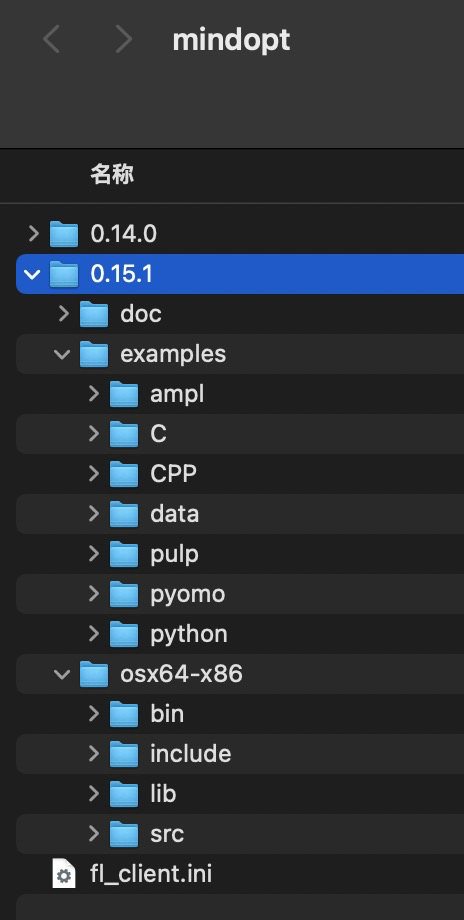
Use this step to replace Step 3 of the Download and install the latest Optimization Solver SDK topic
After the Optimization Solver SDK is installed, the file directory structure is <MDOHOME>/<VERSION>/<PLATFORM>/. Replace MDOHOME with the installation directory of Optimization Solver, replace VERSION with the version of Optimization Solver, and replace PLATFORM with your operating system. The following sample code shows how to set environment variables. If multiple Optimization Solver SDK versions are reinstalled or installed, you need to change the effective SDK version based on your business requirements.
Linux operating systems:
The following sample code shows how to set environment variables. The following section describes how to modify an environment variable file.
export MINDOPT_HOME=$HOME/mindopt/0.19.0/
export LD_LIBRARY_PATH="$MINDOPT_HOME/linux64-x86/lib/"${LD_LIBRARY_PATH:+:$LD_LIBRARY_PATH}
export PATH="$MINDOPT_HOME/linux64-x86/bin/"${PATH:+:$PATH}
macOS operating systems:
The following sample code shows how to set environment variables. The following section describes how to modify an environment variable file.
export MINDOPT_HOME=$HOME/mindopt/0.19.0/
export DYLD_LIBRARY_PATH="$MINDOPT_HOME/osx64-x86/lib/"${DYLD_LIBRARY_PATH:+:$DYLD_LIBRARY_PATH}
export PATH="$MINDOPT_HOME/osx64-x86/bin/"${PATH:+:$PATH}
Modification of an environment variable file in Linux and macOS operating systems:
Run the following commands by using a Bash shell:
nano ~/.bashrc
source ~/.bashrc
Run the following commands by using a Zsh shell:
nano ~/.zshrc
source ~/.zshrc
After you set environment variables, enter minopt in the command line to check whether the Optimization Solver SDK is installed.
Optimization Solver running failure and troubleshooting:
If Optimization Solver fails to be run, the possible cause is that the execution of an executable file is not supported in your operating system. You can run one of the following commands to modify the permissions of the executable file.
Linux operating systems:
chmod u+x $MINDOPT_HOME/linux64-x86/bin/mindoptmacOS operating systems:
chmod u+x $MINDOPT_HOME/osx64-x86/bin/mindoptSome operating systems may reject the running of Optimization Solver because the software of developers does not pass security verification. For example, if this issue occurs in macOS operating systems, you can click Still Permit in the Security and Privacy Settings.