The Kong OpenTelemetry plug-in collects traces from Kong Gateway and reports them to Managed Service for OpenTelemetry over HTTP. Enable tracing with a few configuration changes -- no code modifications required.
Quick start: Set KONG_TRACING_INSTRUMENTATIONS=all and KONG_TRACING_SAMPLING_RATE=1.0 as environment variables, enable the OpenTelemetry plug-in with your HTTP endpoint and a service.name resource attribute, then restart Kong Gateway.
Limits
Kong Gateway 3.1.x or later is required.
Tracing supports only HTTP and HTTPS. TCP and UDP are not supported.
The Kong OpenTelemetry plug-in reports trace data only over HTTP. Google Remote Procedure Call (gRPC) is not supported.
Prerequisites
Get an HTTP endpoint from the Managed Service for OpenTelemetry console. You use this endpoint to configure the OpenTelemetry plug-in.
New console
Log on to the Managed Service for OpenTelemetry console.
In the left-side navigation pane, click Integration Center.
In the Open Source Frameworks section, click the OpenTelemetry card.
In the OpenTelemetry panel, click the Start Integration tab, and then select a region.
Note Resources are automatically initialized in a region that you access for the first time.Set Connection Type and Export Protocol, and then copy the endpoint.
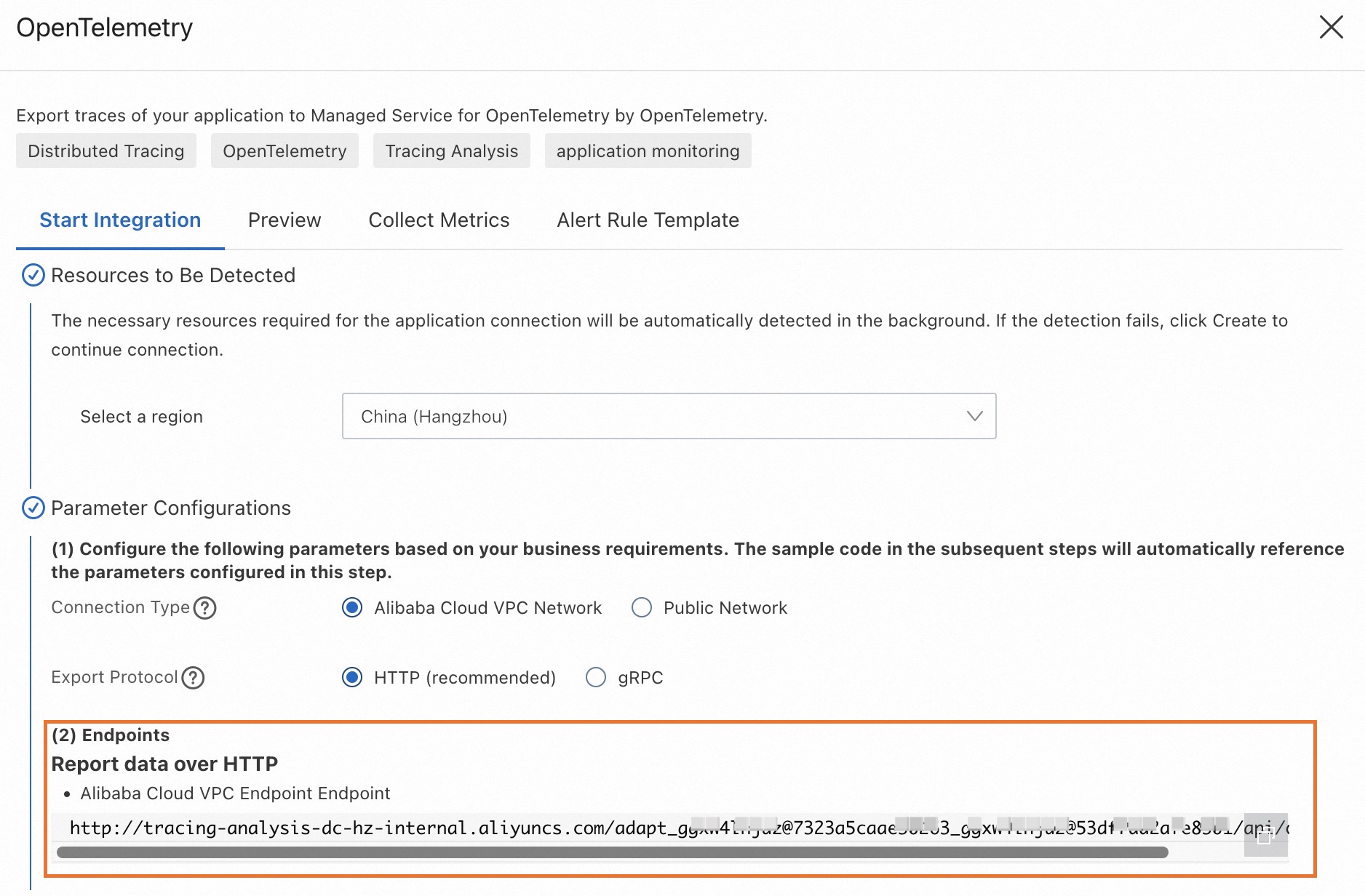
Connection Type: If your service runs on Alibaba Cloud in the selected region, select Alibaba Cloud VPC Network. Otherwise, select Public Network.
Export Protocol: Select HTTP (recommended).
Old console
Log on to the Managed Service for OpenTelemetry console.
In the left-side navigation pane, click Cluster Configurations. On the page that appears, click the Access point information tab.
In the top navigation bar, select a region. Turn on Show Token next to Cluster Information.
Set Client to OpenTelemetry.
In the Related Information column, copy the endpoint.
Note If your application runs in an Alibaba Cloud production environment, use a VPC endpoint. Otherwise, use a public endpoint.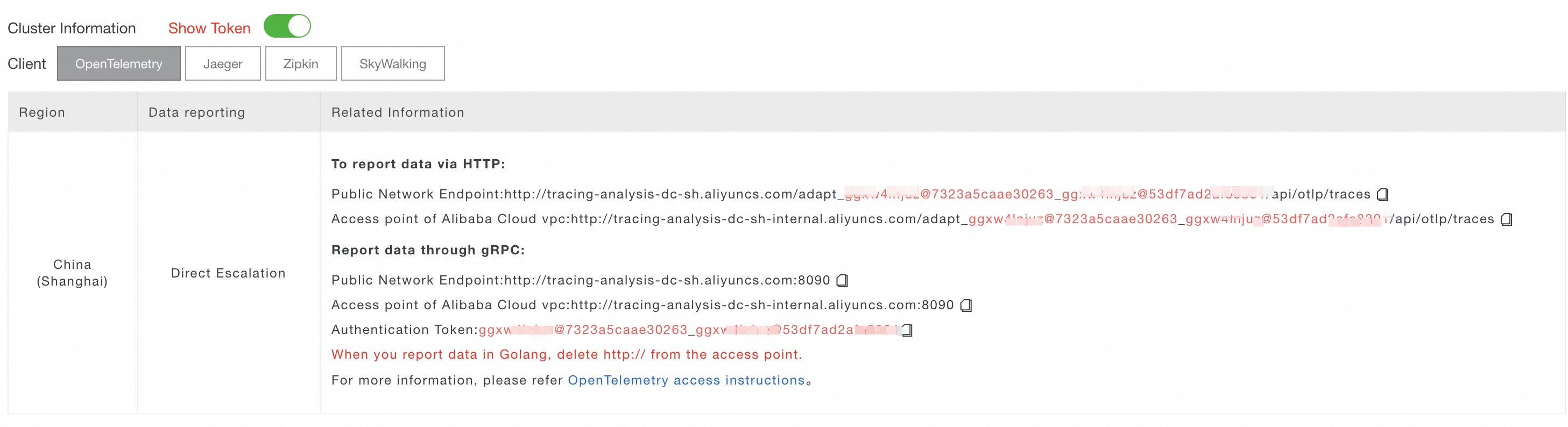
Set up automatic instrumentation
Enable tracing by configuring Kong Gateway and the OpenTelemetry plug-in. No code changes are required.
Step 1: Enable tracing
Choose one of the following methods to enable tracing.
Method 1: Environment variables
Set the following environment variables:
KONG_TRACING_INSTRUMENTATIONS=all
KONG_TRACING_SAMPLING_RATE=1| Variable | Description |
|---|---|
KONG_TRACING_INSTRUMENTATIONS | Type of traces to collect. Set to all to collect all types. |
KONG_TRACING_SAMPLING_RATE | Sampling rate from 0 to 1.0. 1.0 samples all requests. 0 disables sampling. |
Method 2: kong.conf file
Add the following settings to your kong.conf file:
# kong.conf
tracing_instrumentations = all
tracing_sampling_rate = 1.0
Step 2: Configure the OpenTelemetry plug-in
Before you begin, replace the following placeholders with actual values:
| Placeholder | Description | Example |
|---|---|---|
<HTTP_ENDPOINT> | HTTP endpoint obtained in the Prerequisites section | http://tracing-analysis-dc-hk.aliyuncs.com/adapt_xxxxx/api/otlp/traces |
<SERVICE_NAME> | Custom application name displayed in the Managed Service for OpenTelemetry console | kong-dev |
For the full parameter reference, see OpenTelemetry plug-in reference.
Configure the endpoint and service name by using one of the following methods.
Method 1: kong.yaml configuration file
Kong Gateway 3.8 or later
# kong.yaml
plugins:
  - name: opentelemetry
    config:
      traces_endpoint: <HTTP_ENDPOINT>
      resource_attributes:
        service.name: <SERVICE_NAME>
Kong Gateway earlier than 3.8
# kong.yaml
plugins:
  - name: opentelemetry
    config:
      endpoint: <HTTP_ENDPOINT>
      resource_attributes:
service.name: <SERVICE_NAME>endpoint field to traces_endpoint.Method 2: Kong Admin API
Kong Gateway 3.8 or later
curl -X POST http://localhost:8001/plugins/ \
    --header "accept: application/json" \
    --header "Content-Type: application/json" \
    --data '
    {
      "name": "opentelemetry",
      "config": {
        "traces_endpoint": "<HTTP_ENDPOINT>",
        "resource_attributes": {
          "service.name": "<SERVICE_NAME>"
        }
      }
    }
    '
Kong Gateway earlier than 3.8
curl -X POST http://localhost:8001/plugins/ \
    --header "accept: application/json" \
    --header "Content-Type: application/json" \
    --data '
    {
      "name": "opentelemetry",
      "config": {
        "endpoint": "<HTTP_ENDPOINT>",
        "resource_attributes": {
          "service.name": "<SERVICE_NAME>"
        }
      }
    }
    '
Method 3: Kubernetes KongClusterPlugin resource
apiVersion: configuration.konghq.com/v1
kind: KongClusterPlugin
metadata:
  name: <global-opentelemetry>
  annotations:
    kubernetes.io/ingress.class: kong
  labels:
    global: "true"
config:
  traces_endpoint: <HTTP_ENDPOINT>
  resource_attributes:
    service.name: <SERVICE_NAME>
plugin: opentelemetryStep 3: Verify traces
After configuration, create routes in Kong Gateway and send requests through the gateway to generate traces.
Log on to the Managed Service for OpenTelemetry console.
Go to the Applications page to verify that the Kong Gateway application appears.

Go to the Trace Explorer page and open a trace to view details such as request duration, client IP address, HTTP status code, and HTTP route.

Step 4: (Optional) Advanced settings
Configure trace context propagation
By default, the Kong OpenTelemetry plug-in uses W3C as the trace propagation format. It extracts only W3C headers from incoming requests and injects W3C headers into outgoing requests.
To support additional formats, configure the propagation settings. The following example extracts trace context from request headers in this order: W3C, B3 (Zipkin), Jaeger, and OpenTracing. The preserve inject mode passes the extracted data as-is to downstream nodes. If no context is found, the plug-in generates a new trace in the W3C format.
# kong.yaml
plugins:
  - name: opentelemetry
    config:
      # ...
      propagation:
        extract: [ w3c, b3, jaeger, ot ]
        inject: [ preserve ]
default_format: "w3c"| Parameter | Description |
|---|---|
propagation.extract | Ordered list of formats to try when extracting trace context from incoming requests. Supported values: w3c, b3, jaeger, ot. |
propagation.inject | Format to use when injecting trace context into outgoing requests. Set to preserve to keep the extracted format. |
propagation.default_format | Fallback format when no context is found in incoming requests. |
Scope the plug-in to specific entities
By default, the OpenTelemetry plug-in applies globally. To scope it to a specific service, route, or consumer, add the corresponding field to the plug-in configuration.
Scope to a service:
Replace <SERVICE_NAME|ID> with the service name or ID.
# kong.yaml
plugins:
  - name: opentelemetry
    service: <SERVICE_NAME|ID>
    config:
      traces_endpoint: <HTTP_ENDPOINT>
      resource_attributes:
        service.name: <SERVICE_NAME>
Scope to a route:
Replace <ROUTE_NAME|ID> with the route name or ID.
# kong.yaml
plugins:
  - name: opentelemetry
    route: <ROUTE_NAME|ID>
    config:
      traces_endpoint: <HTTP_ENDPOINT>
      resource_attributes:
        service.name: <SERVICE_NAME>
Scope to a consumer:
Replace <CONSUMER_NAME|ID> with the consumer name or ID.
# kong.yaml
plugins:
  - name: opentelemetry
    consumer: <CONSUMER_NAME|ID>
    config:
      traces_endpoint: <HTTP_ENDPOINT>
      resource_attributes:
        service.name: <SERVICE_NAME>
Instrumentation types
Control the granularity of tracing by setting tracing_instrumentations (or the KONG_TRACING_INSTRUMENTATIONS environment variable) to one or more of the following values:
| Value | Traces collected |
|---|---|
off | None (tracing disabled) |
all | All types |
request | Incoming requests |
db_query | Database queries |
dns_query | DNS queries |
router | Router operations, including reconnections |
http_client | OpenResty HTTP client requests |
balancer | Load balancing retries |
plugin_rewrite | Plug-in iterator execution in the rewrite phase |
plugin_access | Plug-in iterator execution in the access phase |
plugin_header_filter | Plug-in iterator execution in the header filter phase |
End-to-end example
This example deploys Kong Gateway with a Node.js backend service by using Docker Compose, and reports traces from both to Managed Service for OpenTelemetry.
Prerequisites
Before you begin, make sure that you have:
Git, Docker, and Docker Compose installed (Docker 20.10.0 or later)
An HTTP endpoint from the Managed Service for OpenTelemetry console
Project structure
docker-kong/compose/
├── docker-compose.yml          # Docker Compose configuration
├── config/
│   └── kong.yaml               # Kong Gateway declarative configuration
└── backend/
    ├── Dockerfile              # Backend service Dockerfile
    ├── main.js
    ├── package.json
    └── package-lock.json
Procedure
1. Clone the project
git clone https://github.com/Kong/docker-kong.git && cd docker-kong/compose2. Create a backend service
Create a Node.js application that uses the Express framework, listens on port 7001, and exposes a /hello endpoint.
Create the application directory:
mkdir backend && cd backendCreate the
package.jsonfile:{ "name": "backend", "version": "1.0.0", "main": "index.js", "scripts": {}, "keywords": [], "author": "", "license": "ISC", "description": "", "dependencies": { "@opentelemetry/api": "^1.9.0", "@opentelemetry/auto-instrumentations-node": "^0.52.0", "axios": "^1.7.7", "express": "^4.21.1" } }Create the
main.jsfile:"use strict"; const axios = require("axios").default; const express = require("express"); const app = express(); app.get("/", async (req, res) => { const result = await axios.get("http://localhost:7001/hello"); return res.status(201).send(result.data); }); app.get("/hello", async (req, res) => { console.log("hello world!") res.json({ code: 200, msg: "success" }); }); app.use(express.json()); app.listen(7001, () => { console.log("Listening on http://localhost:7001"); });Create the
Dockerfile:Note Replace<HTTP_ENDPOINT>with the HTTP endpoint you obtained earlier.FROM node:20.16.0 WORKDIR /app COPY package*.json ./ RUN npm install COPY . . ENV OTEL_TRACES_EXPORTER="otlp" ENV OTEL_LOGS_EXPORTER=none ENV OTEL_METRICS_EXPORTER=none ENV OTEL_EXPORTER_OTLP_TRACES_ENDPOINT="<HTTP_ENDPOINT>" ENV OTEL_NODE_RESOURCE_DETECTORS="env,host,os" ENV OTEL_SERVICE_NAME="ot-nodejs-demo" ENV NODE_OPTIONS="--require @opentelemetry/auto-instrumentations-node/register" EXPOSE 7001 CMD ["node", "main.js"]
3. Configure Docker Compose
Return to the compose directory:
cd ..In
docker-compose.yml, add environment variables to enable tracing for Kong Gateway:services: kong: # ...existing configuration... environment: # ...existing variables... KONG_TRACING_INSTRUMENTATIONS: all KONG_TRACING_SAMPLING_RATE: 1.0In the same file, add the backend service definition:
   services:
     # ...existing services...
     backend-api:
       build:
         context: ./backend
         dockerfile: Dockerfile
       environment:
         NODE_ENV: production
       ports:
         - "7001:7001"
       networks:
         - kong-net
4. Configure Kong Gateway routing and the OpenTelemetry plug-in
Navigate to the
configdirectory:cd configAppend the following to
kong.yaml. Replace<HTTP_ENDPOINT>with your endpoint.services: - name: backend-api url: http://backend-api:7001 routes: - name: main-route paths: - /hello plugins: - name: opentelemetry config: traces_endpoint: <HTTP_ENDPOINT> headers: X-Auth-Token: secret-token resource_attributes: service.name: kong-dev
5. Start the services
Return to the compose directory and start all services:
cd ..
docker compose up -d
6. Send a test request
curl http://localhost:8000/helloExpected output:
{"code":200,"msg":"success"}7. View traces in the console
Log on to the Managed Service for OpenTelemetry console to view traces from both Kong Gateway and the backend service.
kong-dev and the backend service appears as ot-nodejs-demo on the Applications page.FAQ
No traces appear after enabling the plug-in
Set the log level to debug to inspect trace output:
Environment variable:
KONG_LOG_LEVEL=debugConfiguration file: add
log_level=debugtokong.conf
Send a request to Kong Gateway and check the logs for trace-related entries.
Traces from Kong Gateway are not correlated with other services
Check that all services use the same trace propagation format. Kong Gateway defaults to W3C. If other services use a different format (such as B3 or Jaeger), configure the propagation settings as described in Configure trace context propagation.
Does the OpenTelemetry plug-in affect Kong Gateway performance?
The plug-in adds some overhead. To minimize impact in production:
Lower the sampling rate (for example,
0.1to sample 10% of requests).Tune the plug-in's batch processing parameters: batch size, retry count, and retry interval.
For step-by-step configuration, see Enable tracing for sampling rate adjustments, and Kong OpenTelemetry configuration for batch processing options.