After you instrument your application with OpenTelemetry and report trace data to Managed Service for OpenTelemetry, Managed Service for OpenTelemetry starts monitoring your application. You can then view monitoring data, including application topology, traces, transaction errors, slow transactions, and SQL analysis. This article explains how to automatically or manually instrument a .NET application with OpenTelemetry and report its trace data.
Prerequisites
New console
-
Log on to the Managed Service for OpenTelemetry console. In the left-side navigation pane, click Integration Center.
-
On the Integration Center page, click the OpenTelemetry card in the Open Source Frameworks section.
-
In the OpenTelemetry panel, click the Start Integration tab, and then select a region in which you want to report data.
NoteWhen you access a region for the first time, resources are automatically initialized there.
-
Configure the Connection Type and Export Protocol parameters and copy an endpoint.
-
Connection Type: If your service is deployed on Alibaba Cloud and resides in the region that you selected, we recommend that you set this parameter to Alibaba Cloud VPC Network. Otherwise, set this parameter to Public Network.
-
Export Protocol: Set this parameter to HTTP (recommended) or gRPC based on the protocol that is supported by the client.

-
Old console
-
Log on to the Managed Service for OpenTelemetry console.
-
In the left-side navigation pane, click Cluster Configurations. On the page that appears, click the Access point information tab.
-
In the top navigation bar, select a region in which you want to report data. In the Cluster Information section, turn on Show Token.
-
Set the Client parameter to OpenTelemetry.
In the Related Information column of the table, copy an endpoint.
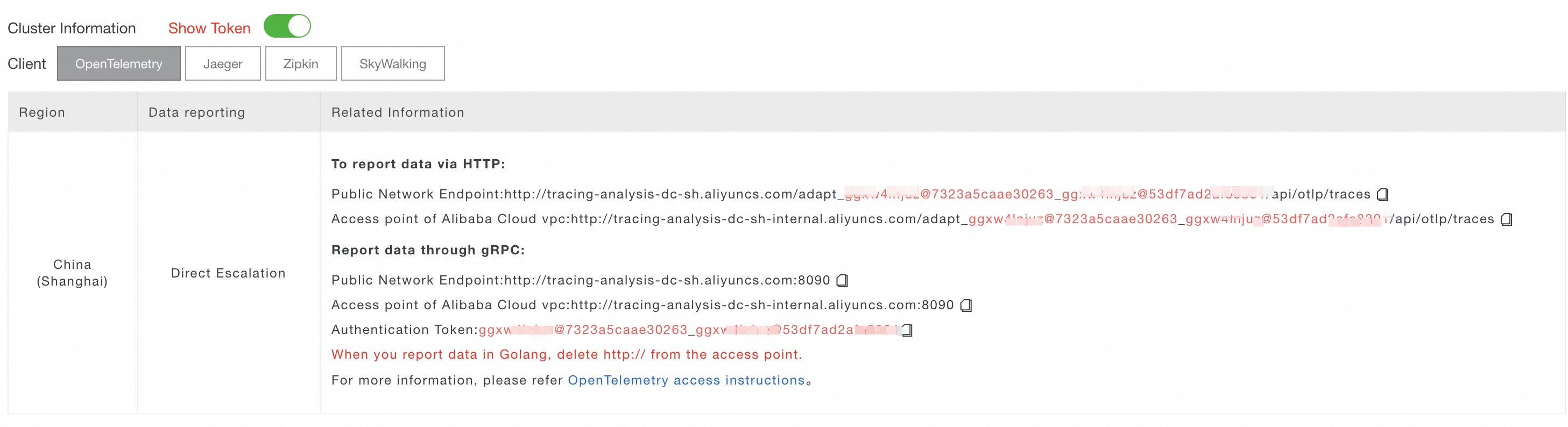 Note
NoteIf your application is deployed in an Alibaba Cloud production environment, use a virtual private cloud (VPC) endpoint. Otherwise, use a public endpoint.
Background
OpenTelemetry .NET supports automatic instrumentation and manual instrumentation.
-
Automatic instrumentation
-
Supported .NET and .NET Framework versions:
-
.NET SDK 6+
-
Not currently supported for .NET Framework.
-
-
For a list of supported frameworks, see the OpenTelemetry official documentation.
-
-
Manual and semi-automatic instrumentation
-
Supported versions:
-
.NET ≥ 5.0
-
.NET Core ≥ 2.0
-
.NET Framework ≥ 4.6.1
-
-
Supported frameworks:
-
Sample demo
Repository: dotnet-demo
Method 1: Automatic instrumentation
Version requirements
-
.NET SDK 6+
-
Automatic instrumentation is not currently supported for .NET Framework.
-
Create a web application with ASP.NET Core.
-
Create a demo application.
mkdir dotnet-simple-demo cd dotnet-simple-demo dotnet new web -
Replace the content of Properties/launchSettings.json with the following configuration.
{ "$schema": "http://json.schemastore.org/launchsettings.json", "profiles": { "http": { "commandName": "Project", "dotnetRunMessages": true, "launchBrowser": true, "applicationUrl": "http://localhost:8080", "environmentVariables": { "ASPNETCORE_ENVIRONMENT": "Development" } } } } -
Build the application.
dotnet build
-
-
Configure automatic instrumentation for the application.
-
Download and run the OpenTelemetry .NET automatic instrumentation installation script.
curl -L -O https://github.com/open-telemetry/opentelemetry-dotnet-instrumentation/releases/latest/download/otel-dotnet-auto-install.sh ./otel-dotnet-auto-install.sh -
Set the environment variables and run the OpenTelemetry .NET automatic instrumentation script.
Replace
<serviceName>with your service name. Replace<endpoint>and<token>with the endpoint and authentication token from the Prerequisites section.export OTEL_TRACES_EXPORTER=otlp \ OTEL_METRICS_EXPORTER=none \ OTEL_LOGS_EXPORTER=none \ OTEL_SERVICE_NAME=<serviceName> \ OTEL_EXPORTER_OTLP_PROTOCOL=grpc OTEL_EXPORTER_OTLP_ENDPOINT=<endpoint> \ OTEL_EXPORTER_OTLP_HEADERS="Authentication=<token>" . $HOME/.otel-dotnet-auto/instrument.shNoteFor additional environment variables for OpenTelemetry .NET automatic instrumentation, see OpenTelemetry .NET automatic instrumentation environment variables.
-
-
Run and access the application.
-
Run the application.
dotnet run -
Run the following command to access the application. The generated traces are automatically reported to Managed Service for OpenTelemetry.
curl localhost:8080/
-
Method 2: Manual instrumentation
-
In the dotnet-demo/opentelemetry-demo/manual-demo directory of the sample code repository, install the OpenTelemetry dependencies for manual instrumentation.
dotnet add package OpenTelemetry dotnet add package OpenTelemetry.Exporter.OpenTelemetryProtocol dotnet add package OpenTelemetry.Exporter.Console # Optional, to export data to the console. dotnet add package OpenTelemetry.Extensions.Hosting -
In the OpentelemetryExporterDemo.cs file, create an OpenTelemetry TracerProvider, add an OTLP exporter using the HTTP protocol, and configure the service name and endpoint.
using System.Diagnostics; using OpenTelemetry; using OpenTelemetry.Trace; using OpenTelemetry.Resources; using OpenTelemetry.Exporter; namespace Demo { internal static class OpentelemetryExporterDemo { internal static void Run() { Console.WriteLine("otlp running"); // Set the service name for your application. var serviceName = "otlp-test"; using var tracerProvider = Sdk.CreateTracerProviderBuilder() .AddSource(serviceName) .SetResourceBuilder( ResourceBuilder.CreateDefault().AddService(serviceName)) .AddOtlpExporter(opt => { // Replace with the endpoint obtained from the Prerequisites section. opt.Endpoint = new Uri("<endpoint>"); // Use the HTTP protocol to report data. opt.Protocol = OtlpExportProtocol.HttpProtobuf; }) .AddConsoleExporter() // Optional: Exports data to the console. .Build(); for(int i = 0; i<10; i++) { var MyActivitySource = new ActivitySource(serviceName); using var activity = MyActivitySource.StartActivity("SayHello"); activity?.SetTag("bar", "Hello World"); } } } } -
Modify the Program.cs file to call OpentelemetryExporterDemo in the Main method.
using System.Diagnostics; using System.Net.Http; using OpenTelemetry; using OpenTelemetry.Resources; using OpenTelemetry.Trace; namespace Demo { public class Otlp { public static void Main(string[] args) { OpentelemetryExporterDemo.Run(); } } } -
Run the following command in the current directory.
dotnet run
Method 3: Semi-automatic instrumentation
OpenTelemetry supports automatic instrumentation for dozens of .NET libraries to collect trace data. For a complete list of supported libraries, see Supported Libraries.
-
Go to the dotnet-demo/opentelemetry-demo/auto-demo directory in the sample code repository and create an ASP.NET Core web application.
Replace
<your-project-name>in the command with your application name.mkdir <your-project-name> cd <your-project-name> dotnet new mvc -
Add the required OpenTelemetry dependencies to observe your .NET application.
dotnet add package OpenTelemetry.Exporter.Console # Export collected data to the console dotnet add package OpenTelemetry.Extensions.Hosting dotnet add package OpenTelemetry.Exporter.OpenTelemetryProtocol # Export data using the OTLP protocol -
Add the automatic instrumentation dependency.
Add the ASP.NET Core instrumentation dependency. It automatically generates and reports spans when the application receives an HTTP request. To automatically instrument other frameworks, see Supported Libraries and add the corresponding dependency.
dotnet add package OpenTelemetry.Instrumentation.AspNetCore -
Modify the code in the <your-project-name>/Program.cs file.
-
Import the required packages at the beginning of the source file.
using System.Diagnostics; using OpenTelemetry.Exporter; using OpenTelemetry.Resources; using OpenTelemetry.Trace; -
Add the
DiagnosticsConfigclass at the end of the source file.Replace
<your-service-name>and<your-host-name>with your service name and host name.public static class DiagnosticsConfig { public const string ServiceName = "<your-service-name>"; public const string HostName = "<your-host-name>"; public static ActivitySource ActivitySource = new ActivitySource(ServiceName); } -
Add the OpenTelemetry initialization code.
-
Export data over HTTP
Replace
<http_endpoint>in the following code with the endpoint from the Prerequisites section.// ... builder.Services.AddOpenTelemetry() .WithTracing(tracerProviderBuilder => tracerProviderBuilder .AddSource(DiagnosticsConfig.ActivitySource.Name) .SetResourceBuilder(OpenTelemetry.Resources.ResourceBuilder.CreateDefault() .AddAttributes(new Dictionary<string, object> { {"service.name", DiagnosticsConfig.ServiceName}, {"host.name",DiagnosticsConfig.HostName} })) .AddAspNetCoreInstrumentation() .AddConsoleExporter() // Optional: Export trace data to the console. .AddOtlpExporter(opt => { // Export data over HTTP. opt.Endpoint = new Uri("<http_endpoint>"); opt.Protocol = OtlpExportProtocol.HttpProtobuf; }) ); // ... -
Export data over gRPC
Replace
<grpc_endpoint>and<token>in the following code with the endpoint and token from the Prerequisites section.// ... builder.Services.AddOpenTelemetry() .WithTracing(tracerProviderBuilder => tracerProviderBuilder .AddSource(DiagnosticsConfig.ActivitySource.Name) .SetResourceBuilder(OpenTelemetry.Resources.ResourceBuilder.CreateDefault() .AddAttributes(new Dictionary<string, object> { {"service.name", DiagnosticsConfig.ServiceName}, {"host.name",DiagnosticsConfig.HostName} })) .AddAspNetCoreInstrumentation() .AddConsoleExporter() // Optional: Export trace data to the console. .AddOtlpExporter(opt => { // Export data over gRPC. opt.Endpoint = new Uri("<grpc_endpoint>"); opt.Headers = "Authentication=<token>"; opt.Protocol = OtlpExportProtocol.Grpc; }) ); // ...
-
-
-
Run the project from your terminal.
dotnet runSample output:
Find the URL in the output, such as
http://localhost:5107.Building... info: Microsoft.Hosting.Lifetime[14] Now listening on: http://localhost:5107 info: Microsoft.Hosting.Lifetime[0] Application started. Press Ctrl+C to shut down. info: Microsoft.Hosting.Lifetime[0] Hosting environment: Development info: Microsoft.Hosting.Lifetime[0] Content root path: /path/to/<your-project-name> -
Open
http://localhost:5107in a browser. If the following page is displayed, it confirms that data has been reported to the Managed Service for OpenTelemetry console.This page is the default ASP.NET Core welcome page for the semi_auto_demo application. The application name semi_auto_demo appears in the top navigation bar, and the page displays a Welcome title.
View monitoring data
On the Applications page of the Managed Service for OpenTelemetry console, click the name of the application. On the page that appears, view the trace data.