All Products
Search
Document Center

OpenAPI Explorer:Use Terraform tools in OpenAPI MCP Server

Last Updated:Jan 27, 2026

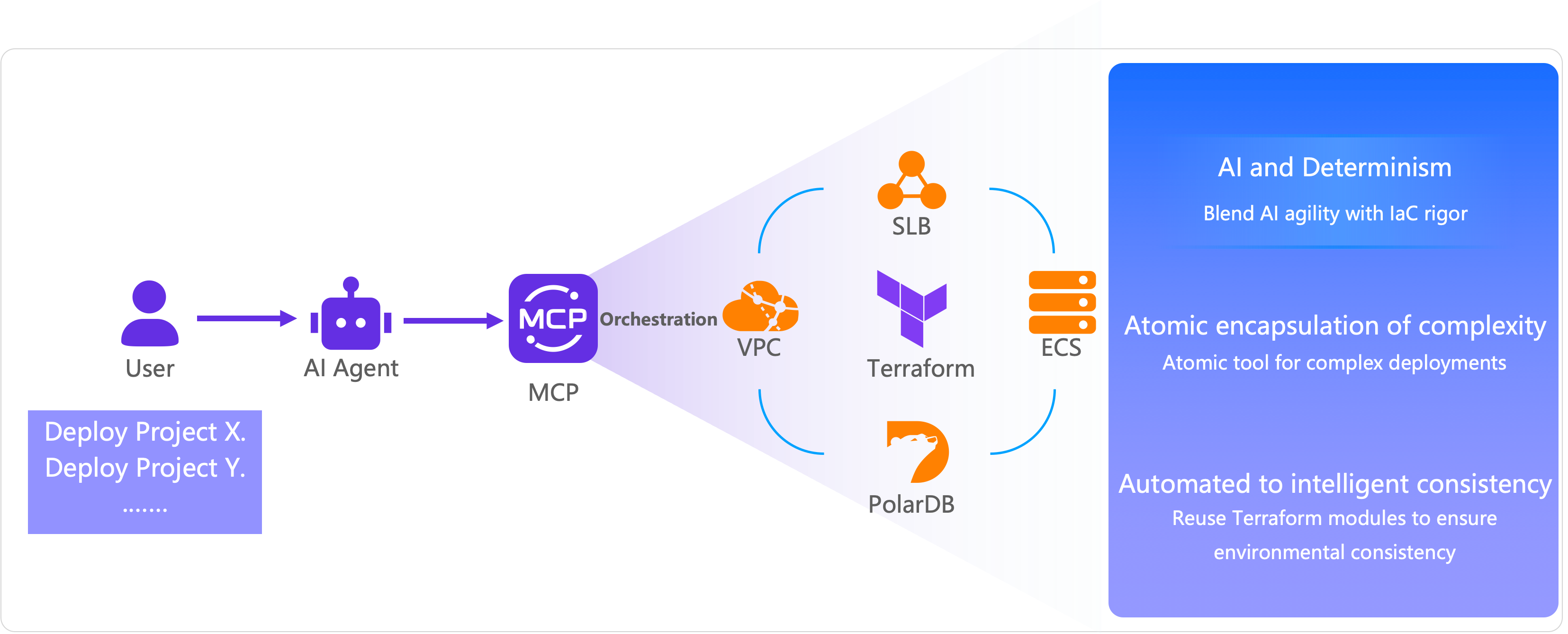
Terraform is an infrastructure as code (IaC) tool that lets you define and provision cloud resources using the HashiCorp Configuration Language (HCL). OpenAPI Model Context Protocol (MCP) Server integrates with Terraform, allowing you to create Terraform tools that AI agents can execute. This combines the flexibility of an AI agent with the deterministic orchestration of IaC.

lQLPJwKcU7tGQHnNBTrNDOSw-Nwm2-VZSyoIqf0EaSNnAA_3300_1338

Overview

The MCP is an open standard that enables AI models to securely connect with external tools, applications, and data sources. OpenAPI MCP Server implements this protocol for Alibaba Cloud services, providing a bridge between AI agents and cloud infrastructure management.

How it works

When you create a Terraform tool in OpenAPI MCP Server, the system:

  1. Stores your Terraform code as an executable tool.

  2. Makes the tool available to AI agents through the MCP protocol.

  3. Executes the Terraform code when an AI agent calls the tool.

  4. Returns execution results or task status to the agent.

This ensures that AI agents use current Alibaba Cloud provider information and best practices, rather than potentially outdated training data.

What you can do

With Terraform tools in OpenAPI MCP Server, you can:

  • Create reusable Terraform configurations that AI agents can execute.

  • Automate infrastructure provisioning through natural language commands.

  • Manage cloud resources with deterministic, version-controlled configurations.

  • Combine AI flexibility with IaC reliability.

Prerequisites

Before you begin, ensure that you have:

  • An Alibaba Cloud account with appropriate permissions.

  • Access to the OpenAPI MCP Server page.

  • Basic understanding of Terraform and HCL syntax.

  • (Optional) An IDE client (such as AI coding assistant Lingma) configured to use OpenAPI MCP Server.

Create a Terraform tool

  1. Go to the OpenAPI MCP Server page, on the Create an MCP Server tab, click Add Terraform Tools.

  2. In the Add Terraform Tool panel, configure the following parameters.

    Parameter

    Description

    Terraform Tool Name

    The name of the Terraform tool.

    Terraform Tool Description

    A description of the Terraform tool's function or any important notes.

    Terraform Tool

    The Terraform code for the tool. You can use the built-in Terraform AI assistant to generate the code or write it yourself.

    Asynchronous Execution

    The execution mode for the Terraform tool. Valid values:

    • No: The agent waits for the task to complete before returning the results. Use this mode for simple, fast-running configurations (typically completes in less than 30 seconds).

    • Yes: The agent call returns a TaskId immediately. OpenAPI MCP Server automatically adds the QueryTerraformTaskStatus system tool, which you can then call with the TaskId to check the task's status.

    Note

    We recommend selecting Yes for complex or long-running Terraform configurations to prevent model invocation timeouts.

    Deletion Policy

    The resource cleanup behavior after execution. Valid values:

    • Never Delete: Resources are not deleted after the task runs, regardless of success or failure. Use this option when you want to keep resources for further use or manual cleanup.

    • Always Delete: All created resources are immediately deleted after the task runs, regardless of success or failure. Use this option for temporary test environments.

    • Delete on Failure: Created resources are deleted only if the task fails. Use this option to clean up resources when deployment fails, while preserving successful deployments.

    Note

    If you select Never Delete or Delete on Failure, this tool cannot be used to release the resources later. Running the tool again will attempt to create a new set of resources.

  3. Write the Terraform code. This topic provides an example of Terraform code to deploy Dify for testing. For more Terraform examples, see Terraform tutorials.

    Example: Deploy Dify

    The following example creates a complete Dify deployment on Alibaba Cloud, including VPC, vSwitch (equivalent to subnet in AWS, Google Cloud, and Azure), security group, and ECS instance:

    provider "alicloud" {
      region = var.region
    }
    
    variable "region" {
      description = "The Alibaba Cloud region"
      type        = string
      default     = "cn-hongkong"
    }
    
    variable "instance_type" {
      description = "The ECS instance type"
      type        = string
      default     = "ecs.c9i.xlarge"
    
      validation {
        condition     = can(regex("^ecs\\.", var.instance_type))
        error_message = "The instance type must start with 'ecs.'"
      }
    }
    
    variable "system_disk_category" {
      description = "The system disk type"
      type        = string
      default     = "cloud_essd"
    
      validation {
        condition     = contains(["cloud_efficiency", "cloud_ssd", "cloud_essd"], var.system_disk_category)
        error_message = "The system disk type must be one of cloud_efficiency, cloud_ssd, or cloud_essd."
      }
    }
    
    variable "system_disk_size" {
      description = "The system disk size in GB"
      type        = number
      default     = 40
    
      validation {
        condition     = var.system_disk_size >= 20 && var.system_disk_size <= 500
        error_message = "The system disk size must be between 20 GB and 500 GB."
      }
    }
    
    variable "instance_password" {
      description = "The password for the ECS instance. It must be at least 8 characters long and contain an uppercase letter, a lowercase letter, and a number."
      type        = string
      sensitive   = true
    
      validation {
        condition = (
          length(var.instance_password) >= 8 &&
          length(var.instance_password) <= 30 &&
          can(regex("[a-z]", var.instance_password)) &&
          can(regex("[A-Z]", var.instance_password)) &&
          can(regex("[0-9]", var.instance_password))
        )
        error_message = "The password must be at least 8 characters long and contain an uppercase letter, a lowercase letter, and a number."
      }
    }
    
    variable "vpc_cidr" {
      description = "The CIDR block for the VPC"
      type        = string
      default     = "192.168.0.0/16"
    }
    
    variable "vswitch_cidr" {
      description = "The CIDR block for the vSwitch"
      type        = string
      default     = "192.168.1.0/24"
    }
    
    variable "project_name" {
      description = "The project name, used for naming resources"
      type        = string
      default     = "dify-deployment"
    }
    
    variable "internet_max_bandwidth_out" {
      description = "The maximum public bandwidth in Mbit/s"
      type        = number
      default     = 5
    
      validation {
        condition     = var.internet_max_bandwidth_out >= 1 && var.internet_max_bandwidth_out <= 200
        error_message = "The public bandwidth must be between 1 Mbit/s and 200 Mbit/s."
      }
    }
    
    data "alicloud_zones" "default" {
      available_disk_category     = var.system_disk_category
      available_resource_creation = "VSwitch"
      available_instance_type     = var.instance_type
    }
    
    # Get the latest CentOS 7 image
    data "alicloud_images" "centos" {
      owners        = "system"
      name_regex    = "^centos_7"
      most_recent   = true
      instance_type = var.instance_type
    }
    
    # Create a VPC
    resource "alicloud_vpc" "main" {
      vpc_name   = "${var.project_name}-vpc"
      cidr_block = var.vpc_cidr
    }
    
    # Create a vSwitch
    resource "alicloud_vswitch" "main" {
      vpc_id       = alicloud_vpc.main.id
      cidr_block   = var.vswitch_cidr
      zone_id      = data.alicloud_zones.default.zones.0.id
      vswitch_name = "${var.project_name}-vswitch"
    }
    
    # Create a security group
    resource "alicloud_security_group" "main" {
      security_group_name = "${var.project_name}-sg"
      description         = "Security group for Dify deployment"
      vpc_id              = alicloud_vpc.main.id
    }
    
    # Security group rule - HTTP
    resource "alicloud_security_group_rule" "http" {
      type              = "ingress"
      ip_protocol       = "tcp"
      nic_type          = "intranet"
      policy            = "accept"
      port_range        = "80/80"
      priority          = 1
      security_group_id = alicloud_security_group.main.id
      cidr_ip           = "0.0.0.0/0"
      description       = "Allow HTTP traffic"
    }
    
    # Security group ruls - SSH
    resource "alicloud_security_group_rule" "ssh" {
      type              = "ingress"
      ip_protocol       = "tcp"
      nic_type          = "intranet"
      policy            = "accept"
      port_range        = "22/22"
      priority          = 1
      security_group_id = alicloud_security_group.main.id
      cidr_ip           = "0.0.0.0/0"
      description       = "Allow SSH traffic"
    }
    
    # Security group ruls - HTTPS
    resource "alicloud_security_group_rule" "https" {
      type              = "ingress"
      ip_protocol       = "tcp"
      nic_type          = "intranet"
      policy            = "accept"
      port_range        = "443/443"
      priority          = 1
      security_group_id = alicloud_security_group.main.id
      cidr_ip           = "0.0.0.0/0"
      description       = "Allow HTTPS traffic"
    }
    
    # Create an ECS instance
    resource "alicloud_instance" "dify" {
      instance_name              = "${var.project_name}-instance"
      image_id                   = data.alicloud_images.centos.images[0].id
      instance_type              = var.instance_type
      system_disk_category       = var.system_disk_category
      system_disk_size           = var.system_disk_size
      password                   = var.instance_password
      vswitch_id                 = alicloud_vswitch.main.id
      security_groups            = [alicloud_security_group.main.id]
      internet_max_bandwidth_out = var.internet_max_bandwidth_out
    }
    
    locals {
      # Install and configure Dify
      deploy_dify = base64encode(<<-EOF
    #!/bin/bash
    # Dify auto-installation script
    set -e
    
    # Record function logs
    log() {
        echo "[$(date '+%Y-%m-%d %H:%M:%S')] $1" >> /var/log/dify-install.log
        echo "[$(date '+%Y-%m-%d %H:%M:%S')] $1"
    }
    
    # Handle errors
    error_exit() {
        log "ERROR: $1"
        exit 1
    }
    
    log "Updating system packages..."
    yum update -y | | error_exit "Failed to update system"
    yum install -y git
    
    log "Installing Docker..."
    sudo wget -O /etc/yum.repos.d/docker-ce.repo http://mirrors.cloud.aliyuncs.com/docker-ce/linux/centos/docker-ce.repo
    sudo sed -i 's|https://mirrors.aliyun.com|http://mirrors.cloud.aliyuncs.com|g' /etc/yum.repos.d/docker-ce.repo
    sudo yum -y install docker-ce docker-ce-cli containerd.io docker-buildx-plugin docker-compose-plugin
    
    log "Starting Docker service..."
    systemctl start docker | | error_exit "Failed to start Docker"
    systemctl enable docker | | error_exit "Failed to enable Docker to start on boot"
    
    log "Creating application directory..."
    mkdir -p /opt/dify
    cd /opt/dify
    git clone https://github.com/langgenius/dify.git . | | error_exit "Failed to clone dify"
    
    log "Copying environment configuration file..."
    cd docker
    cp .env.example .env | | error_exit "Failed to copy environment configuration file"
    
    log "Starting Dify service..."
    docker compose up -d | | error_exit "Failed to start Dify service"
    
    log "Dify installation complete!"
    log "URL: http://$(curl -s ipinfo.io/ip):80"
    Log "The default administrator account must be created on the first visit."
    EOF
      )
    }
    
    resource "alicloud_ecs_command" "deploy_dify" {
      name            = "deploy_dify"
      type            = "RunShellScript"
      command_content = local.deploy_dify
      timeout         = 600
      working_dir     = "/root"
    }
    
    resource "alicloud_ecs_invocation" "invocation" {
      instance_id = [alicloud_instance.dify.id]
      command_id  = alicloud_ecs_command.deploy_dify.id
      timeouts {
        create = "10m"
      }
    }
    
    # Obtain instance information
    data "alicloud_instances" "dify" {
      ids        = [alicloud_instance.dify.id]
      depends_on = [alicloud_instance.dify]
    }
    

    image

Test the Terraform tool on a client

This section describes how to test the Terraform tool in AI Coding Assistant Lingma.

Step 1: Configure OpenAPI MCP Server in Lingma

Configure OpenAPI MCP Server in Lingma. After the configuration is applied, information about the tool is displayed in Lingma.

image

Step 2: Run the Terraform tool

  1. Enter a natural language command to run OpenAPI MCP Server. For example, enter "Help me deploy Dify in China (Hong Kong)".

  2. The AI agent processes your request and calls the Terraform tool.

Step 3: Query task status (asynchronous execution)

If you set Asynchronous Execution to Yes:

  1. The agent returns a TaskId immediately after calling the Terraform tool.

  2. Use this TaskId to call the QueryTerraformTaskStatus system tool to query the task status.

  3. Monitor the task status until it completes or fails.

    image

Step 4: Verify deployment

  1. After the Terraform execution completes, obtain the public IP address of the created ECS instance:

    • Log on to the Elastic Compute Service (ECS) console. In the left-side navigation pane, choose Instances & Images > Instances.

    • Find the instance created by the Terraform tool.

    • Copy the public IP address from the instance details page.

    Alternatively, you can add an output to your Terraform code to automatically return the public IP address:

    output "public_ip" {
      value = alicloud_instance.dify.public_ip
    }
    
  2. In a browser, enter http://<Public IP address>.

  3. If you see the Dify setup page, the deployment is successful and the Terraform tool ran correctly.

    image