Background
When you perform full indexing on data from an API data source, you can only retrieve data that was pushed within the last three days. To maintain data integrity, OpenSearch Retrieval Engine Edition lets you restore data from an index. This ensures all data from your API data source is retained in the next index version created by full indexing. The following diagram illustrates how this works.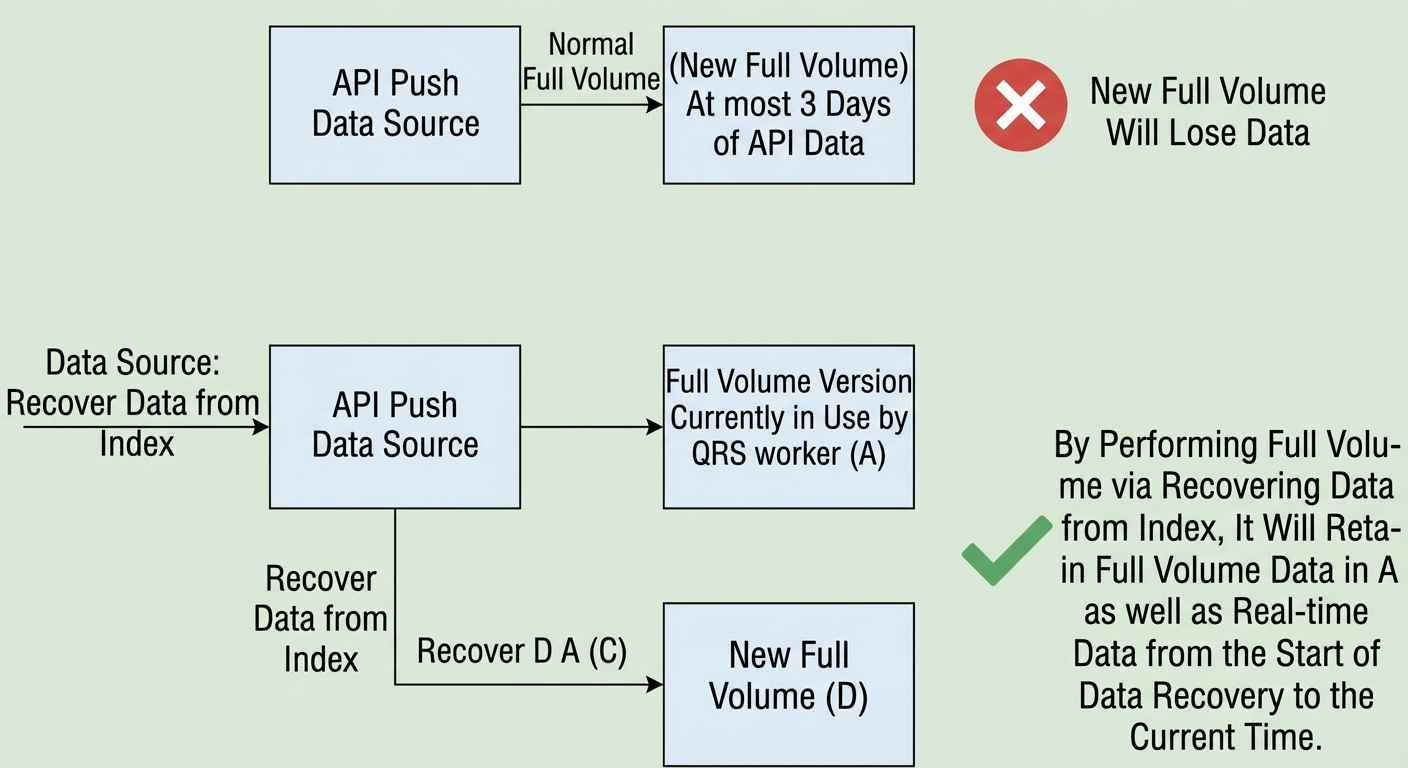
Procedure
Scenario: You need to perform full indexing on an API data source, for example, after you modify an index table or a dictionary. You must ensure that all data from the old index version is preserved in the new version.
Steps:
-
On the Instance Management page, navigate to O&M Center > O&M Management and click Restore Data from Index.
-
Select an existing data source to restore.
In the Restore Data from Index dialog box, a table lists the available data sources with the Data Source, Index Table, and Index Version to Restore columns. Select the radio button for the target data source.
Note:
-
Only
API data sources are displayed. Thedata sourceyou select must have completedfull indexingat least once. -
You can restore data from only one
data sourceat a time.
-
If the conditions are met, click OK to submit the request.
Note:
-
To
restore data from an index, ensure that all fields are included in thesummary. -
If you submit the request when the conditions are not met, the restore process clears the content of any field that is not an
attribute fieldor asearch result field.
-
After you submit the request, you can monitor the restore progress on the Data Source Changes tab in O&M Center > Change History:
The page displays the progress of the Recover FSM in Index process. The process includes stages such as init, create snapshot, generate data, check gen_data status, prepare bs build data, bs build check, update finished time, and kill build task. A green checkmark is displayed after each stage is complete. You can click Details to view the execution details for each stage.
-
When the FSM workflow on the Data Source Changes tab is complete, you can perform other operations that require
full indexing, such as modifying an index table or adding a custom intervention entry. During thefull indexingprocess, select Restore Data from Index as thedata sourceto retain all data from the previousindex version.
Usage notes
-
The
restore data from an indexfeature supports onlyAPI data sources. -
To ensure the integrity of the restored data, all data fields must be configured as
attribute fields orsearch result fields. When yourestore data from an index, any field not configured as anattribute fieldor asearch result fieldis cleared.