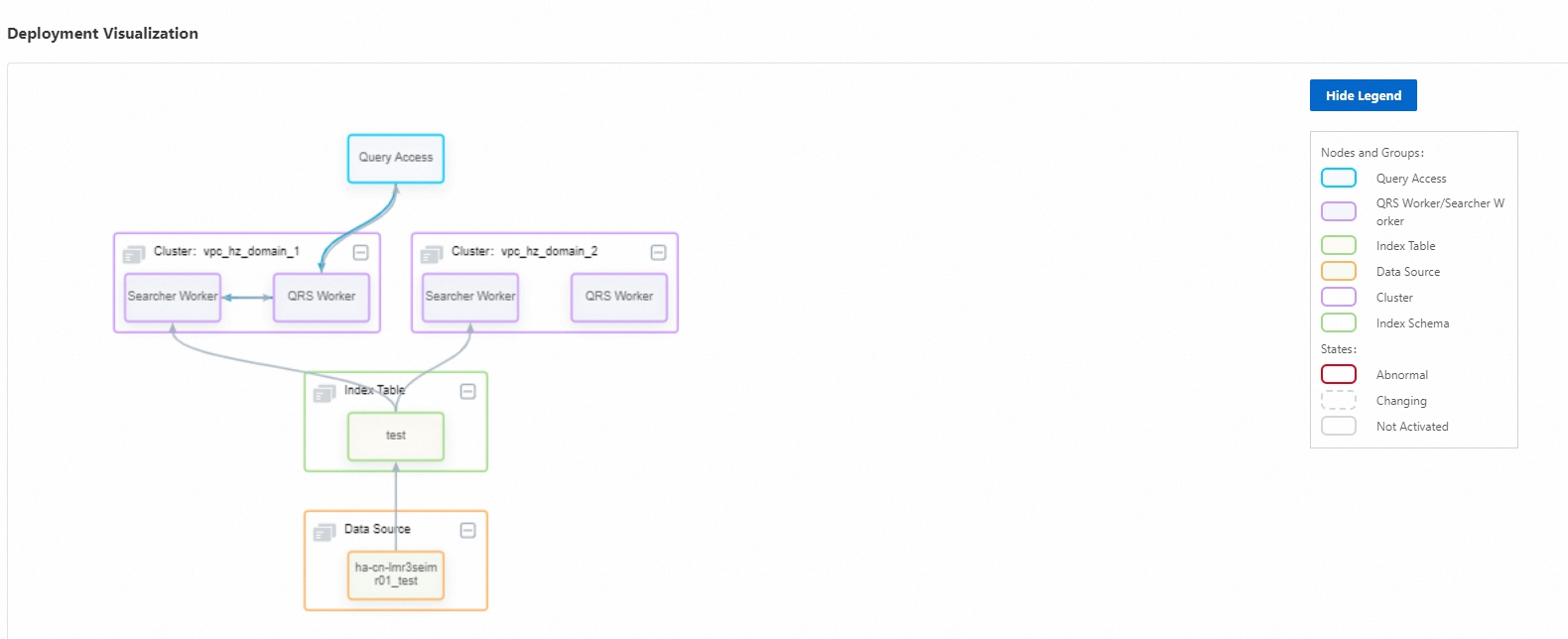
Instances page
On the Instances page, find the instance that you want to manage and click the drop-down arrow to view the cluster configurations. You can also modify the number of Query Result Searcher (QRS) worker replicas, number of Searcher worker replicas, and number of Searcher worker shards based on your business requirements.

For a High-availability Edition instance, you can perform dual-zone deployment to implement cross-zone disaster recovery, which enables higher availability. If a zone fails, traffic can be switched to the other zone.
You cannot manually add or delete clusters.
Each cluster has homogeneous resources, heterogeneous configurations, and switchable traffic.
The Instances page displays all OpenSearch Retrieval Engine Edition instances that you have purchased. You can perform the following operations by clicking buttons in the Actions column.
Manage: After you click Manage, you are navigated to the Instance Details page by default.
Test Query: You can click Test Query to perform a simple query test on the instance that is providing services online.
Upgrade/Downgrade: You can adjust the resources of the instance.
Basic Information section
To go to the details page of an instance, find the instance on the Instances page and click Manage in the Actions column. On the instance details page, you can view the basic information about the instance in the Basic Information section.
Parameter | Description |
Instance ID and Instance Name | The ID and name of the instance. The instance ID is automatically generated after the instance is purchased. By default, the instance name is the instance ID. The names of the instances of the same user can be duplicated. |
Instance Status | The status of the instance. Valid values: Normal and Frozen. A pay-as-you-go instance is frozen if your account has overdue payments for the instance. |
Tags | The tags of the instance. The tags are used to mark the business to which the instance belongs. |
Created At | The time when the instance was created. |
Service Edition | The OpenSearch edition of the instance. The value is Retrieval Engine Edition. |
Current Engine Version | The current engine version of the instance. |
Current Offline Version | The version of the index that is built based on offline data in the instance. |
Billing Method | The billing method of the instance. Valid values: Pay-as-you-go and Subscription. |
Total QRS Workers | The number of QRS workers in the instance. |
QRS Worker Specifications | The specifications of QRS workers in the instance. |
Total Searcher Workers | The number of Searcher workers in the instance. |
Searcher Worker Specifications | The specifications of Searcher workers in the instance. |
Storage Space of Single Searcher Worker | If the total storage space of a Searcher worker that uses SSDs exceeds the free quota for storage space, you are charged for the excess storage space. No free storage space quota is provided for Searcher workers that use cloud disks or GPU-accelerated Searcher workers. You are charged for all the used storage space. |
Region | The region where the instance resides. |
Resource Group ID and Resource Group Name | The ID and name of the resource group to which the instance belongs. Resource groups allow you to manage resources within an Alibaba Cloud account by group. You can manage permissions, deploy resources, and monitor resources by resource group. You do not need to manage resources separately. |
Availability Edition | Standard Edition: Workers are deployed in a single zone. In this case, cross-zone disaster recovery is not supported. High-availability Edition: Workers are deployed in multiple zones. In this case, cross-zone disaster recovery is supported, which enables higher availability. If a zone fails, traffic can be switched to another zone. |
Network Information section
VPC and vSwitch ID specify the virtual private cloud (VPC) and vSwitch that you selected to access the instance when you purchased the instance. Public Access specifies whether the instance is accessible over the Internet.
You can configure an IP address whitelist for access to the instance over the Internet. By default, Public Access is turned off. You can turn on it based on your business requirements. After it is turned on, the entry for configuring the IP address whitelist is displayed.

Click Public Access Whitelist on the right side of Public Access to configure a whitelist. If you do not click Save before you close the Modify Public Access Whitelist panel, a message appears. After you confirm the message, the modifications are not saved.
When you configure the whitelist, enter the IP addresses or CIDR blocks of the devices from which you want to access the instance over the Internet. Separate multiple IP addresses or CIDR blocks with commas (,). 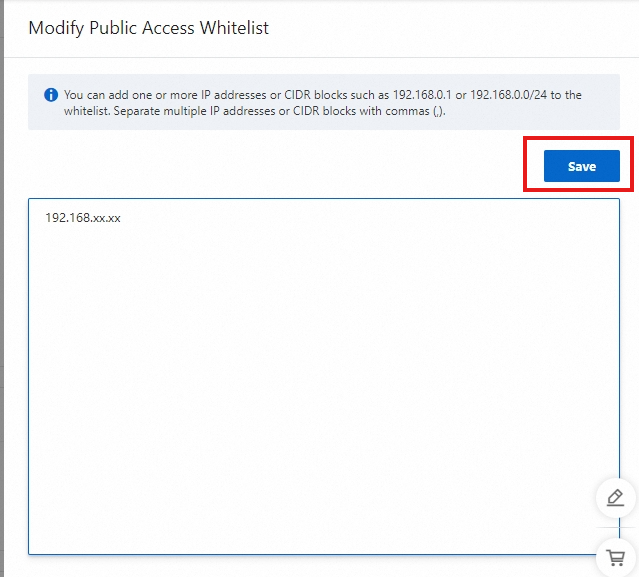
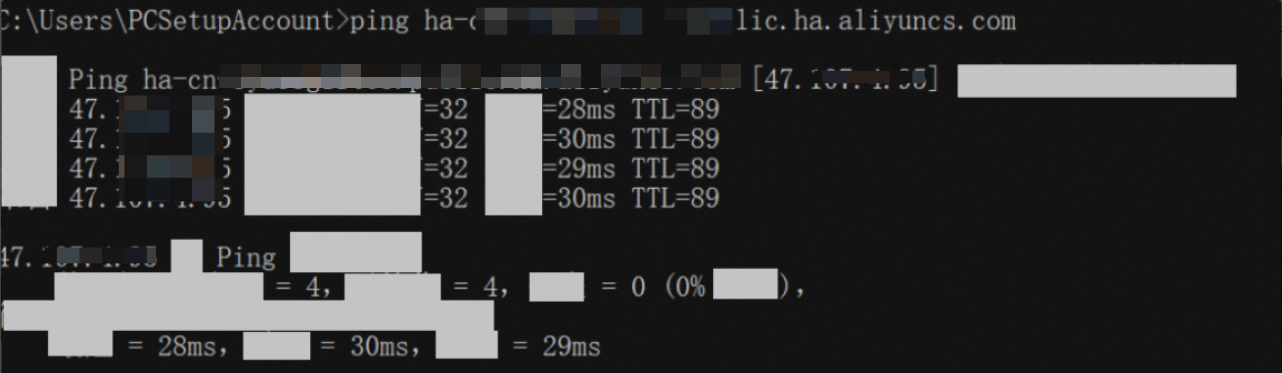
You can log on to the device whose IP address is added to the whitelist of the instance and ping the endpoint of the instance to check whether the IP address is added to the whitelist.
You can obtain the endpoint in the API Endpoint section. When you ping the endpoint, add public to the endpoint, such as ha-cn-*******.public.ha.aliyuncs.com. If the endpoint can be pinged, the IP address of your device is added to the whitelist of the instance.
API Endpoint section
API endpoints are used for access from Elastic Compute Service (ECS) instances that reside in the same region or VPC as the OpenSearch instance. API endpoints vary by region. If you want to use the OpenSearch API or SDKs to access an OpenSearch instance, you must use the API endpoint that is displayed in this section. You can select the API endpoint of an instance based on your business requirements. You must ping the endpoint to verify the accessibility of the instance.
You can use the API endpoint to access the OpenSearch instance only in the VPC that you specified when you purchased the instance.

Username and Password: The username and password that are used to access the instance. You can click the icon next to Configured to modify the username and password.
Limits on username and password modification:
The username must be 1 to 30 characters in length and can contain letters, digits, and underscores (_). The username must start with a letter.
The password must be at least 13 characters in length and must contain uppercase letters, lowercase letters, digits, and special characters. Valid special characters include ! @ # $ % ^ & * ( ) _ + - =
An API endpoint can be used to access an OpenSearch instance only over a VPC. If you need a public API endpoint, contact technical support.
Deployment Visualization section
The Deployment Visualization section displays a read-only visualized deployment diagram. You can view the status of each worker in the diagram.