This topic describes how to approve operations that incur fees in automated O&M of CloudOps Orchestration Service (OOS). You can define the ACS::Approve action in a template before a task that may incur fees. When a task that incurs fees is to be executed, the ACS::Approve action is triggered and OOS sends a notification that contains an approval link to approvers. The approvers determine whether to approve the task. If the task is approved, OOS continues to perform the subsequent operations. Otherwise, the execution changes to the Waiting state.
Prerequisites
A DingTalk group used to receive alert notifications is created. The webhook URL of the DingTalk chatbot that you want to configure for the DingTalk group is obtained. For more information, see Obtain the webhook URL of a DingTalk chatbot.
Solution
When you use OOS to call Resource Orchestration Service (ROS) to create Elastic Compute Service (ECS) instances, you can define an approval task before the task that uses ROS to create ECS instances. When the task that uses ROS to create ECS instances is to be executed, the approval task is triggered. Approvers determine whether to approve the task that uses ROS to create ECS instances.
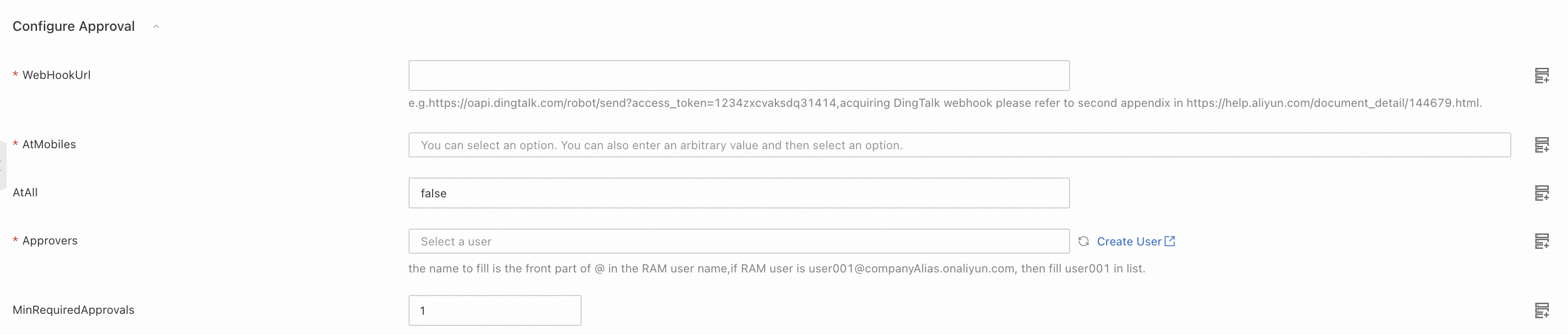
If you want multiple approvers to approve or reject an O&M task, you can configure the Approvers and MinRequiredApprovals parameters when you define an approval task in a template. If you do not configure the MinRequiredApprovals parameter, the default value 1 is used. The task to be approved can be executed only if the number of approvers who approve the task is greater than or equal to the minimum number of approvers who are required to approve the task.
Procedure
Log on to the CloudOps Orchestration Service console.
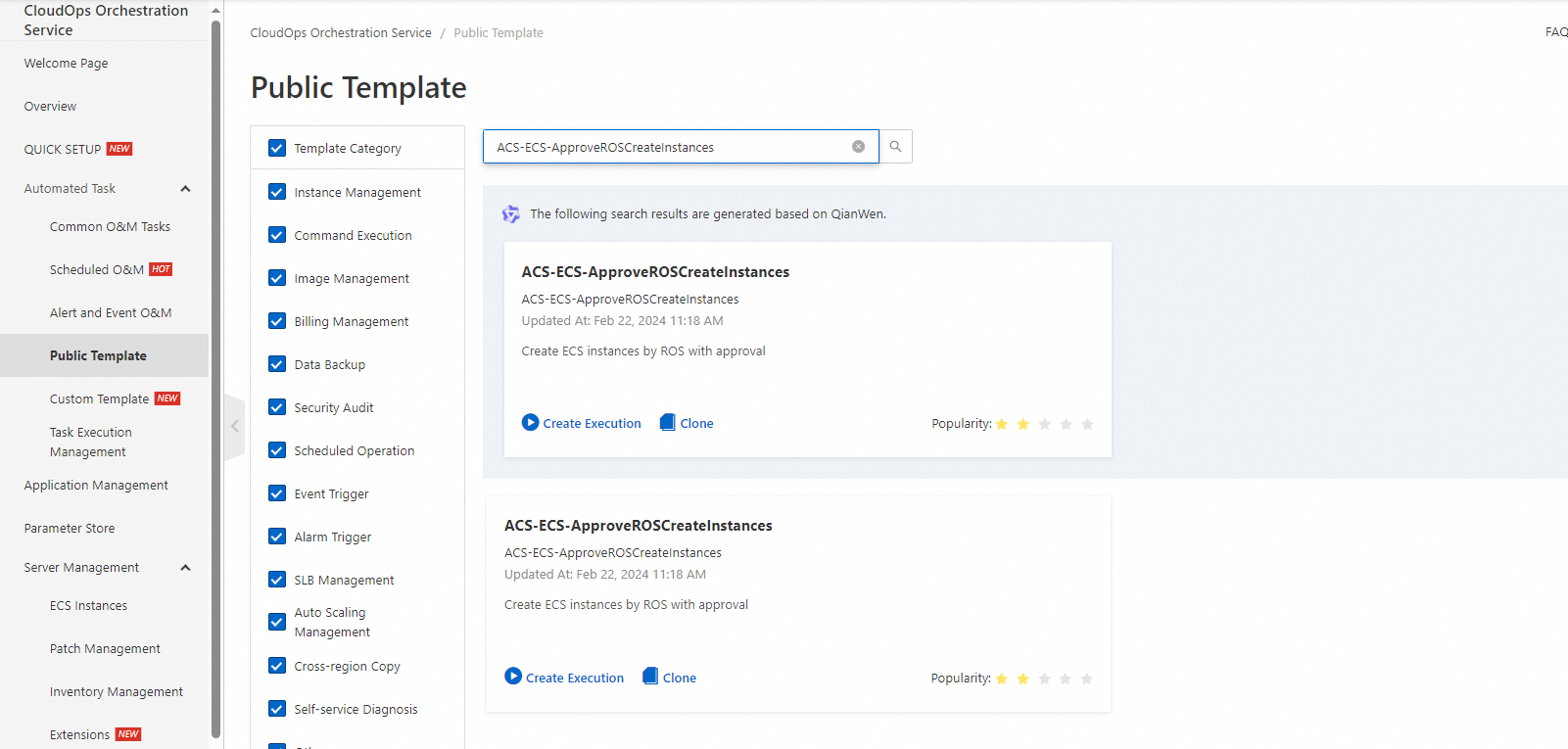
In the left-side navigation pane, choose Automated Task > Public Template. On the Public Template page, find the ACS-ECS-ApproveROSCreateInstances template and click Create Execution.
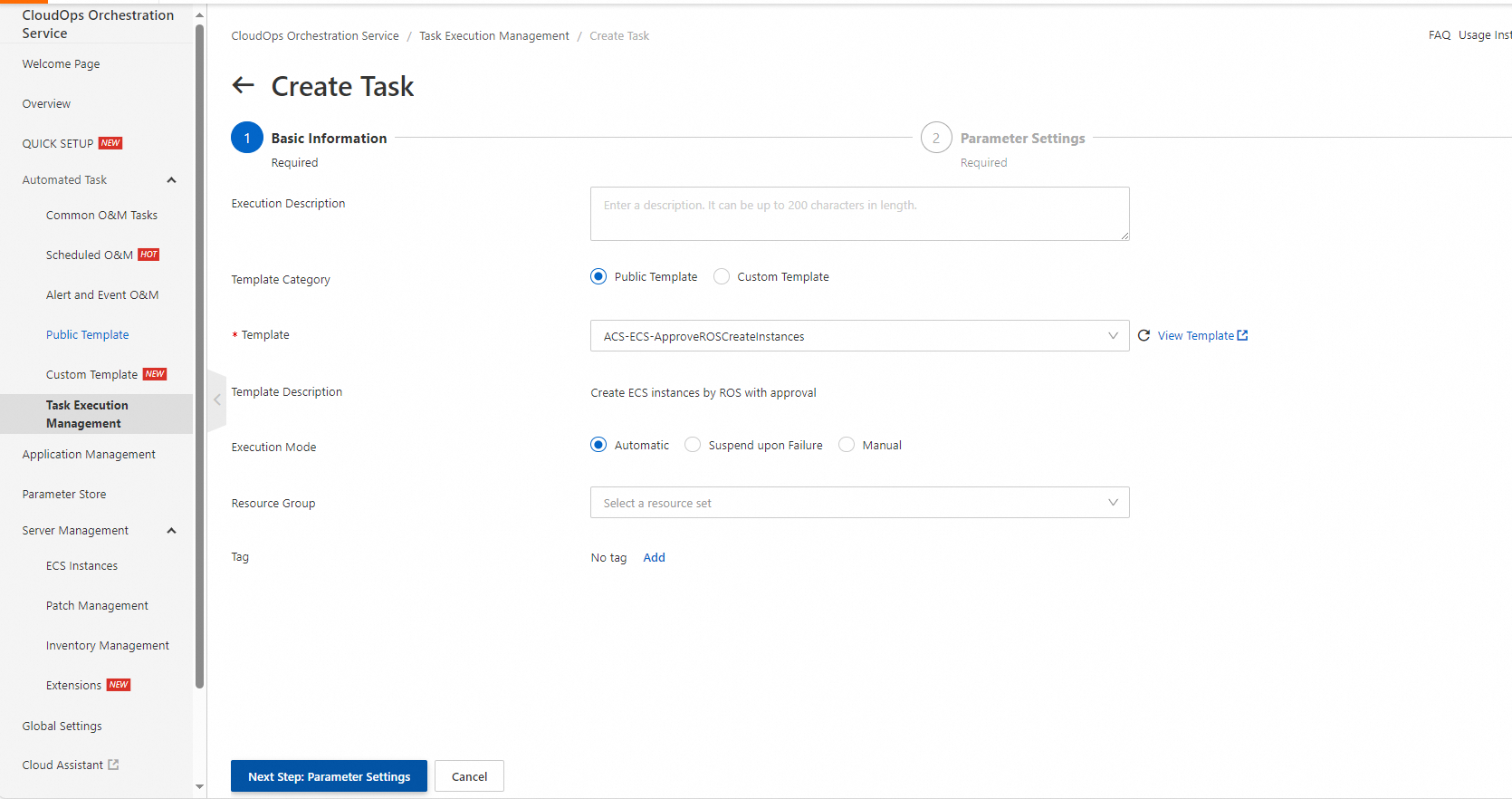
On the Create Task page, configure the required parameters in the Basic Information step. Then, click Next Step: Parameter Settings.
In the Parameter Settings step, configure the parameters in the Configure Approval section.
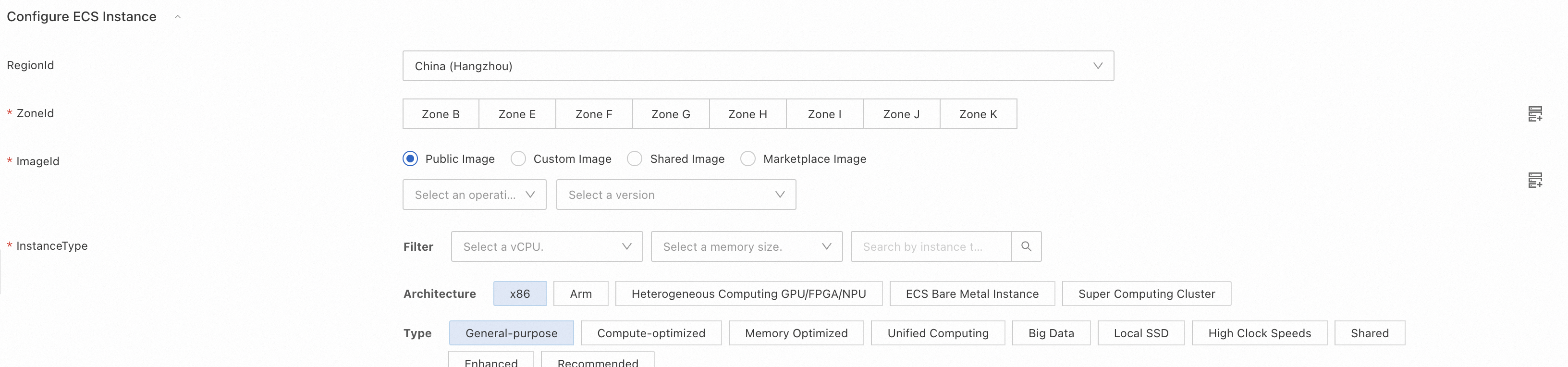
Configure the parameters in the Configure ECS Instance section.
Click Next Step: OK. In the OK step, click Create.
On the Task Execution Management page, view the created execution. If the execution is in the Waiting state, the users whose mobile numbers are specified are notified in the DingTalk group. The users can click the approval link in the approval notification to approve or reject the O&M task based on the business requirements.
For example, two approvers are specified and the required minimum number of approvers is 2. The following cases may occur:
The O&M task is approved:
approver1 approves the O&M task. OOS does not execute the task and waits for approver2 to approve the task.
If approver1 repeatedly approves the task, an error message is returned to indicate that approve1 has approved the task.
approver2 approves the task. OOS executes the subsequent tasks until all tasks are executed.
The O&M task is rejected:
approver1 rejects the task. OOS stops the execution and does not execute subsequent tasks.