Background information
For large-sized enterprises, Elastic Compute Service (ECS) instances of different departments may be distributed across multiple Alibaba Cloud accounts. Centralized management of operating system patches for ECS instances across accounts has become an important issue for enterprise asset managers. This topic describes how to use the patch management feature to install operating system patches on ECS instances across accounts and regions in a centralized manner.
How it works
When you use the cross-account patch management feature, the following types of Alibaba Cloud accounts are involved:
Management account
Resource account
One or more resource accounts are involved. The management account can also be a resource account.
You can first create Resource Access Management (RAM) roles that can be assumed by the management account for all resource accounts. Then, grant the RAM roles the required permissions to install operating system patches. This way, you can use the management account to install operating system patches on ECS instances across accounts and regions in a centralized manner.

Prerequisites
ALIYUN::OOS::PatchBaseline or Terraform is used to manage custom patch baselines within all resource accounts in a centralized manner if you need to configure custom patch baselines.
Procedure
Create RAM roles for resource accounts
You must create RAM roles to which a patch management policy is attached for all resource accounts and assign the RAM roles to the management account. To create a RAM role for a resource account, perform the following steps:
Log on to the CloudOps Orchestration Service (OOS) console.
In the left-side navigation pane, choose Automated Task > Public Template. On the Public Template page, find the ACS-RAM-CreateRoleAndAttachCustomPolicy template.
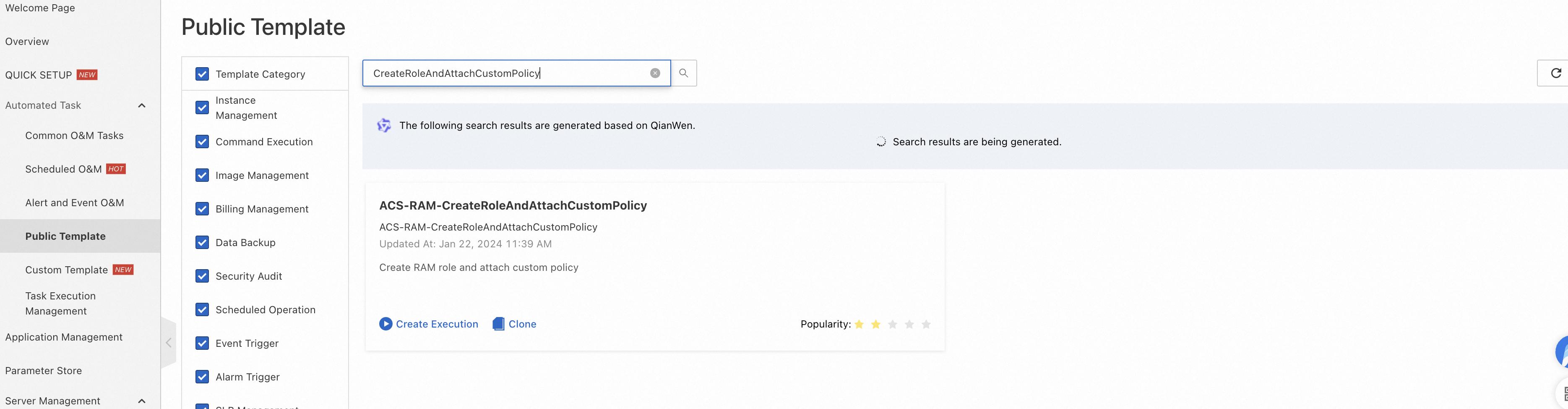
Click Create Execution.
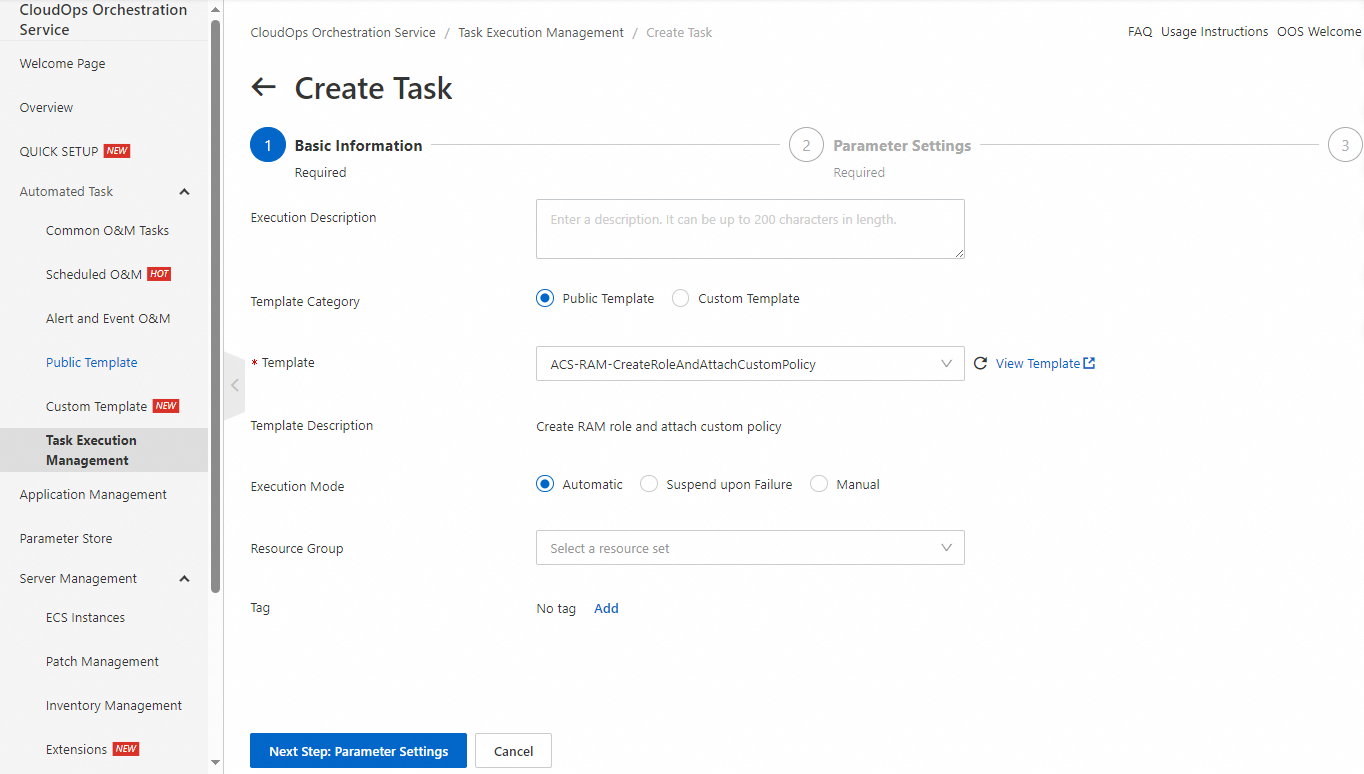
Click Next Step: Parameter Settings.
Enter a role name in the RoleName field. You can customize the role name, such as PatchRole.
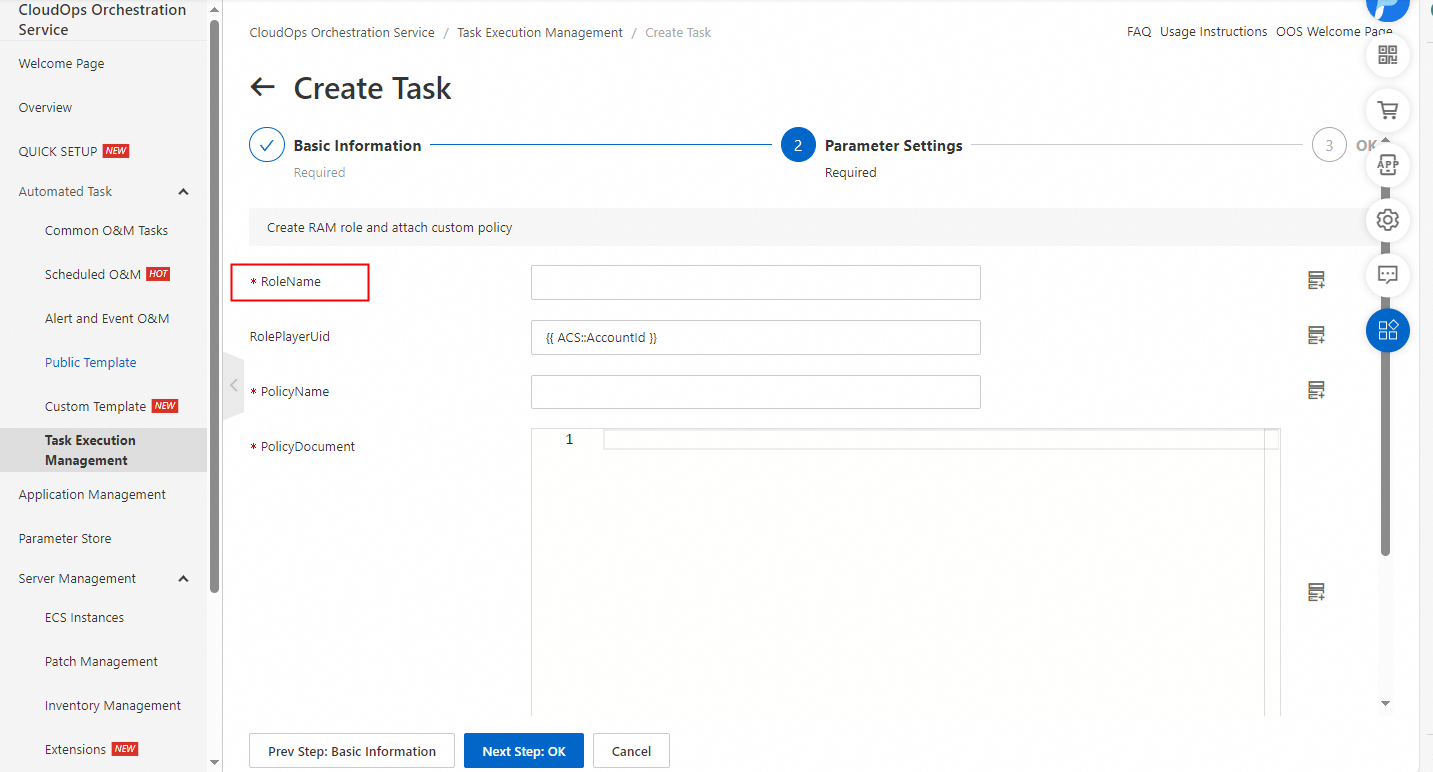
Enter the unique ID (UID) of the management account in the RolePlayerUid field. The default value is {{ ACS::AccountId }}, which indicates the UID of the current resource account.
Enter the name of a policy that you want to attach to the RAM role in the PolicyName field. You can customize the policy name, such as PatchPolicy.
Enter the policy content in the PolicyDocument field. You can copy the following code to the editor.
{
  "Version": "1",
  "Statement": [
    {
      "Action": [
        "ecs:DescribeInvocationResults",
        "ecs:DescribeInstances",
        "ecs:RunCommand",
        "ecs:RebootInstance",
        "ecs:DescribeCloudAssistantStatus",
        "ecs:DescribeInvocations"
      ],
      "Resource": "*",
      "Effect": "Allow"
    },
    {
      "Action": [
        "oos:ListInstancePatchStates"
      ],
      "Resource": "*",
      "Effect": "Allow"
    }
  ]
}
Click Next Step: OK. Then, click Create. Wait until the template is executed.
Install operating system patches
Log on to the OOS console.
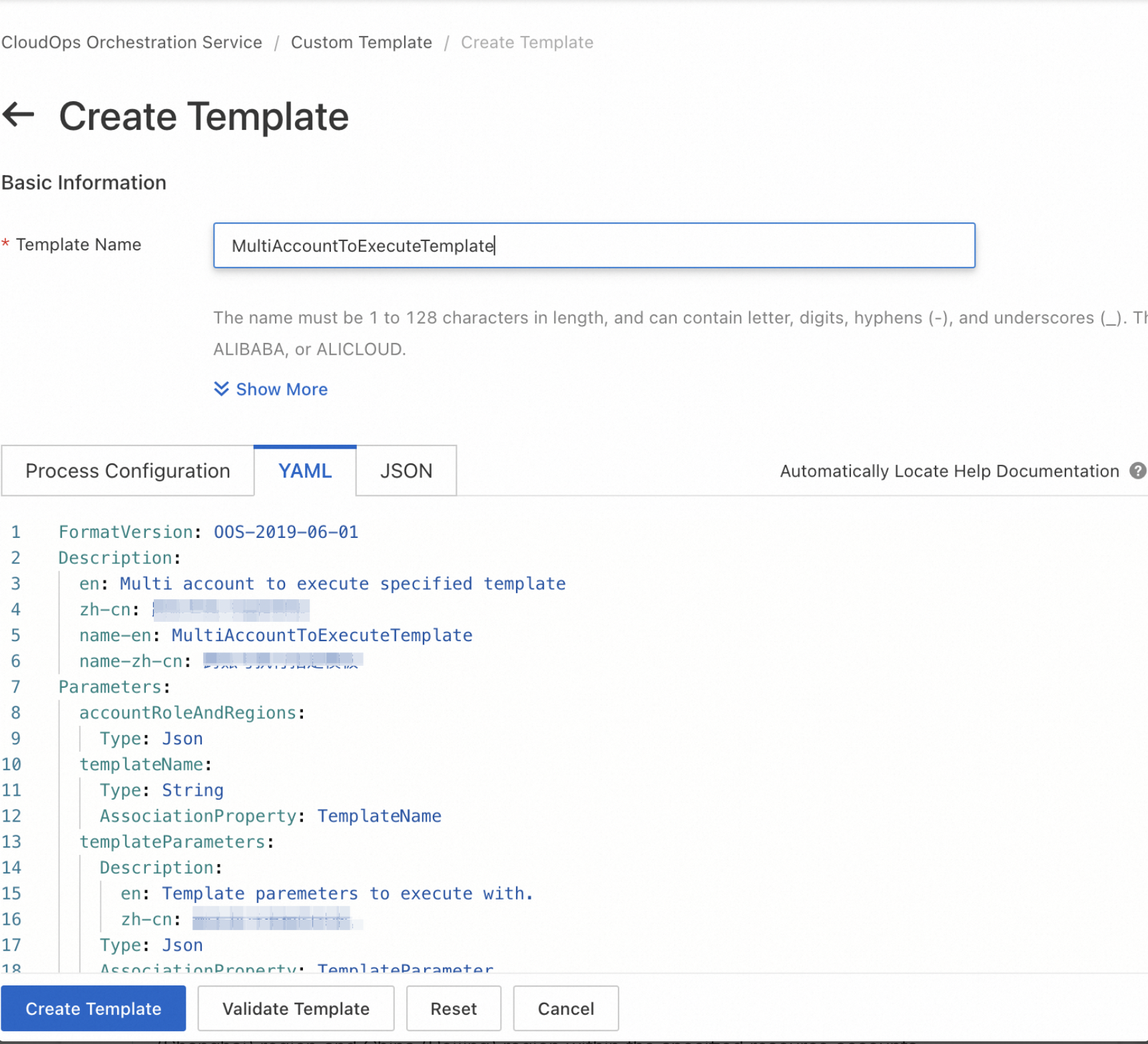
In the left-side navigation pane, choose Automated Task > Custom Template. Click Create Template in the upper-left corner. On the YAML tab of the Create Template page, copy the template content in the Appendix section of this topic to the template editor. Then, click Create Template in the lower part of the page. The created template is used to execute a template across accounts and regions.
On the Custom Template page, find the template that you created and click Create Execution in the Actions column to execute the template.
Click Next Step: Parameter Settings. Enter the following sample code in the accountRoleAndRegions field. This way, you can install operating system patches in the China (Shanghai) region and China (Beijing) region within the specified resource accounts.
[
  {
    "OOSAssumeRole": "|${Resource account UID}/PatchRole",
    "RegionId": "cn-shanghai"
  },
  {
    "OOSAssumeRole": "|${Resource account UID}/PatchRole",
    "RegionId": "cn-beijing"
  }
]
From the templateName drop-down list, select ACS-ECS-BulkyApplyPatchBaseline.
In the templateParameters section, configure the parameters. For more information, see Immediate fix.
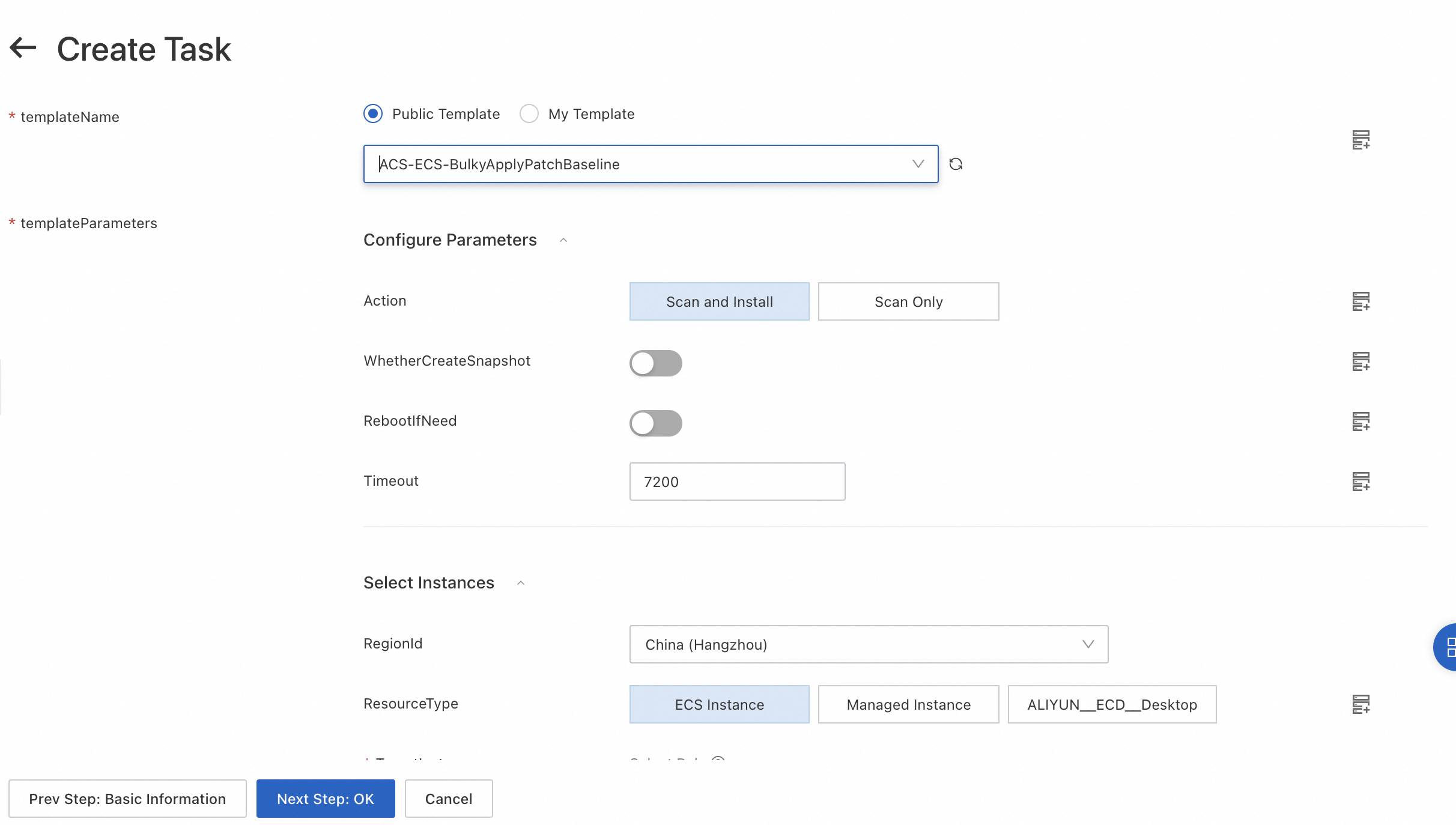
{
  "regionId": "{{ regionId }}",
  "targets": {
    "Type": "All",
    "RegionId": "{{ regionId }}",
    "Parameters": {
      "RegionId": "{{ regionId }}",
      "Status": "Running"
    }
  },
  "action": "install",
  "rebootIfNeed": true,
  "rateControl": {
    "Mode": "Concurrency",
    "MaxErrors": 0,
    "Concurrency": 10
  },
  "OOSAssumeRole": "",
  "timeout": 86400
}
Click Next Step: OK. Then, click Create.
After the template is executed, find the execution on the Task Execution Management page and click Details in the Actions column. Then, click the Log tab to view the logs of the execution. This allows you to check real-time execution progress and status.
Appendix
The following template content is used to execute a template across accounts and regions:
FormatVersion: OOS-2019-06-01
Description:
  en: Multi account to execute specified template
  name-en: MultiAccountToExecuteTemplate
Parameters:
  accountRoleAndRegions:
    Type: Json
  templateName:
    Type: String
    AssociationProperty: TemplateName
  templateParameters:
    Description:
      en: Template paremeters to execute with.
    Type: Json
    AssociationProperty: TemplateParameter
    AssociationPropertyMetadata:
      TemplateName: $templateName
  rateControl:
    Description:
      en: Concurrency ratio of task execution.
    Type: Json
    AssociationProperty: RateControl
    Default:
      Mode: Concurrency
      MaxErrors: 0
      Concurrency: 10
  OOSAssumeRole:
    Description:
      en: The RAM role to be assumed by OOS.
    Type: String
    Default: OOSServiceRole
RamRole: '{{ OOSAssumeRole }}'
Tasks:
  - Name: executeTemplate
    Action: 'ACS::Template'
    Description:
      en: Execute template.
    Properties:
      TemplateName: '{{ templateName }}'
      Parameters:
        'Fn::MergeMap':
          - '{{ templateParameters }}'
          - regionId:
              'Fn::Select':
                - RegionId
                - '{{ACS::TaskLoopItem}}'
          - OOSAssumeRole:
              'Fn::Select':
                - OOSAssumeRole
                - '{{ACS::TaskLoopItem}}'
    Loop:
      RateControl: '{{ rateControl }}'
      Items: '{{ accountRoleAndRegions }}'