High CPU utilization on an ECS instance can degrade application performance, causing slowdowns or unresponsiveness. To mitigate the impact on your applications, you can restart the instance to lower its CPU utilization. CloudOps Orchestration Service (OOS) provides an alert-triggered feature that can automatically restart an ECS instance when high CPU utilization is detected, eliminating manual intervention. This topic describes how to configure this feature to automatically restart an ECS instance when its CPU utilization exceeds a specified threshold, quickly restoring service performance.
Prerequisites
Create a RAM role for CloudOps Orchestration Service with permissions to restart ECS instances.
-
Create a custom policy that includes the permissions to restart instances (
ecs:RebootInstance) and query instances (ecs:DescribeInstances). For more information, see Create a custom policy. -
Create a regular service role and specify CloudOps Orchestration Service as the trusted service. For detailed steps on how to select a trusted service, see Create a RAM role for a trusted Alibaba Cloud service.
-
Attach the custom policy to the newly created service role to grant the role the permissions to perform the required operations. For detailed steps, see Manage the permissions of a RAM role.
Procedure
-
Log in to the CloudOps Orchestration Service console. In the left-side navigation pane, choose .
-
On the Alert and Event O&M page, click Create and select Threshold Alert.

-
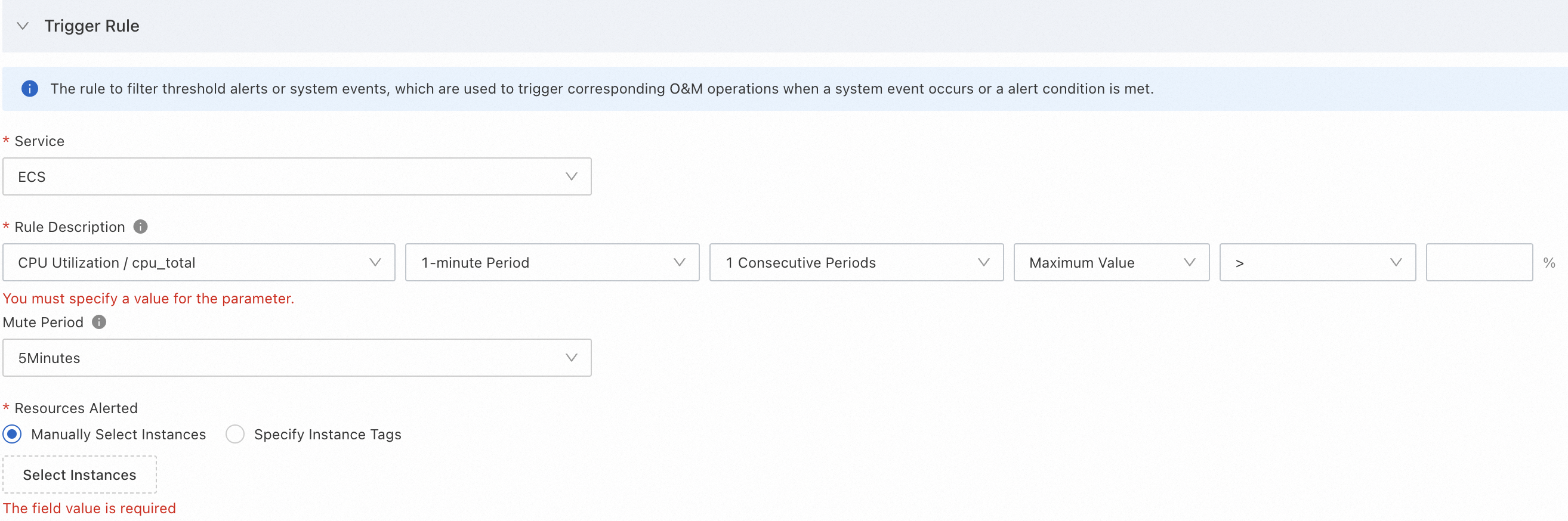
In the Trigger Rule section, configure the rule and select the target instances.
-
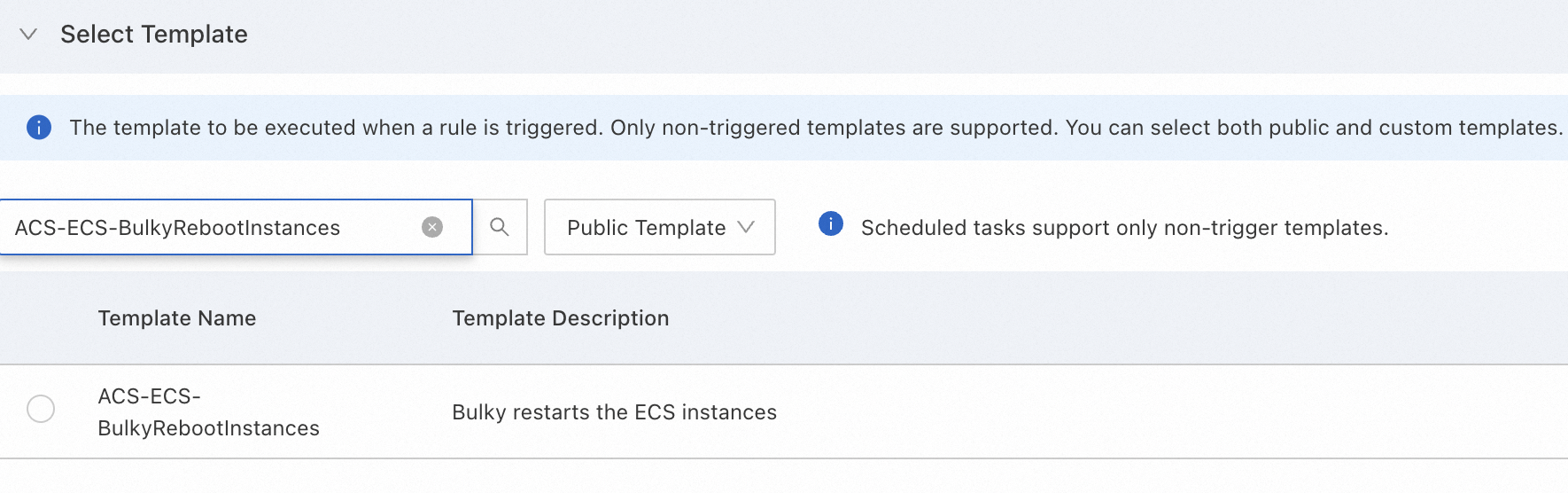
Select a template, set Template Type to Public Template, and select the ACS-ECS-BulkyRebootInstances template.
-
Keep the default values for RegionId, TargetInstance, and RateConsole. For Permissions, select a RAM role that has permissions to restart ECS instances.

-
Click Create. In the confirmation dialog box, click Confirm.
Verify the results
This example uses the open-source stress testing tool stress-ng to simulate a high CPU utilization scenario.
-
Connect to the monitored ECS instance. For more information, see Select a method to connect to an ECS instance.
-
Install stress-ng.
Alibaba Cloud Linux, CentOS, and RHEL
yum install stress-ng -yUbuntu and Debian
apt-get install stress-ng -y -
Use stress-ng to run a 5-minute stress test on two CPU cores with a CPU load of 85%.
stress-ng --cpu 2 --cpu-load 85 --timeout 5m -
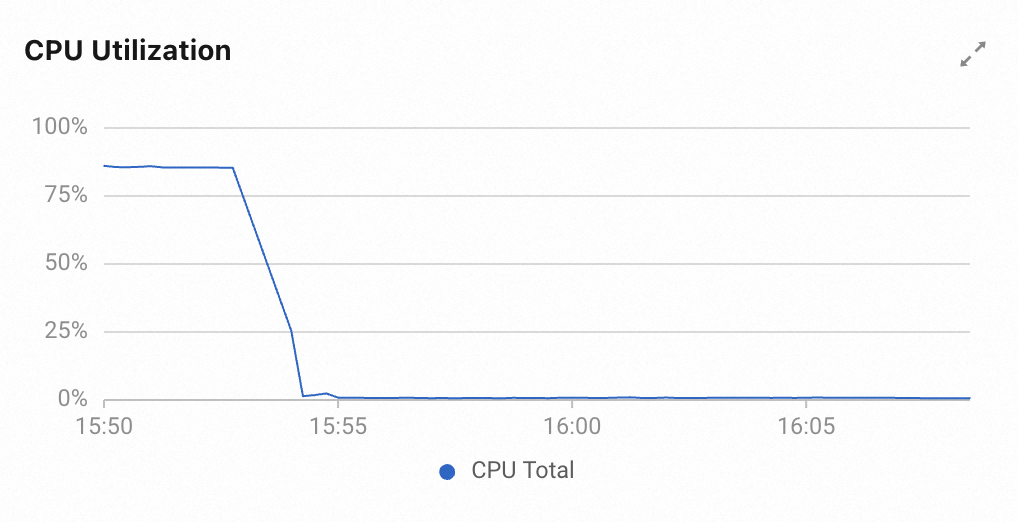
Observe the CPU utilization. After the instance restarts, its CPU utilization decreases.