Background
When you create a custom template, you no longer need to define task outputs. Previously, you had to define the output for each task before it could be referenced in subsequent tasks. Now, you can directly reference outputs from preceding tasks.
Details
When editing a custom template in the console, you no longer need to separately define the task output for each task.

For the input of a subsequent task, select Reference Parameter/Task Output, and then select a Task Output Parameter from the drop-down list. The Task Output Parameter list automatically displays all available outputs from your configured tasks.
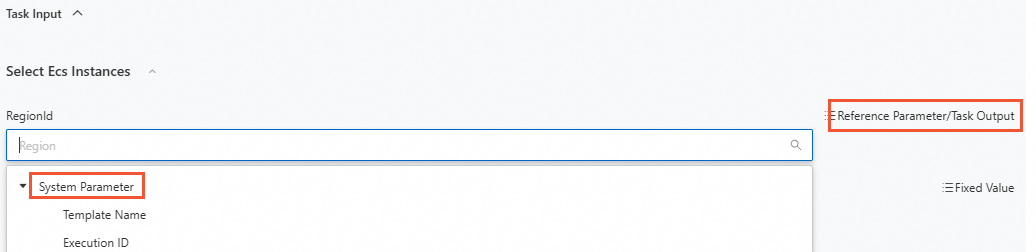
Template syntax example:
  - Name: ExecuteApi
    Action: ACS::ExecuteApi
    Description: ''
    Properties:
      Service: oos
      API: DescribeRegions
    Outputs: {}
  - Action: ACS::ECS::StartInstance
    Name: StartInstance
    Description: ''
    Properties:
      regionId: '{{ ExecuteApi.Regions[]?.RegionId }}' # Directly references RegionId, an output from the preceding ExecuteApi task.
      instanceId: i-xxxxxxxxx
Example
Scenario
Provisioning ECS instances across regions with identical environments typically requires running commands on an existing instance, creating an image, and distributing it to other regions — a process that is complex, involves multiple asynchronous operations, and is difficult to manage centrally. CloudOps Orchestration Service (OOS) provides unified orchestration and management for this workflow. You can create a custom OOS template that builds an image from an existing ECS instance, runs specified commands, and clones the image to other regions — all in a single execution.
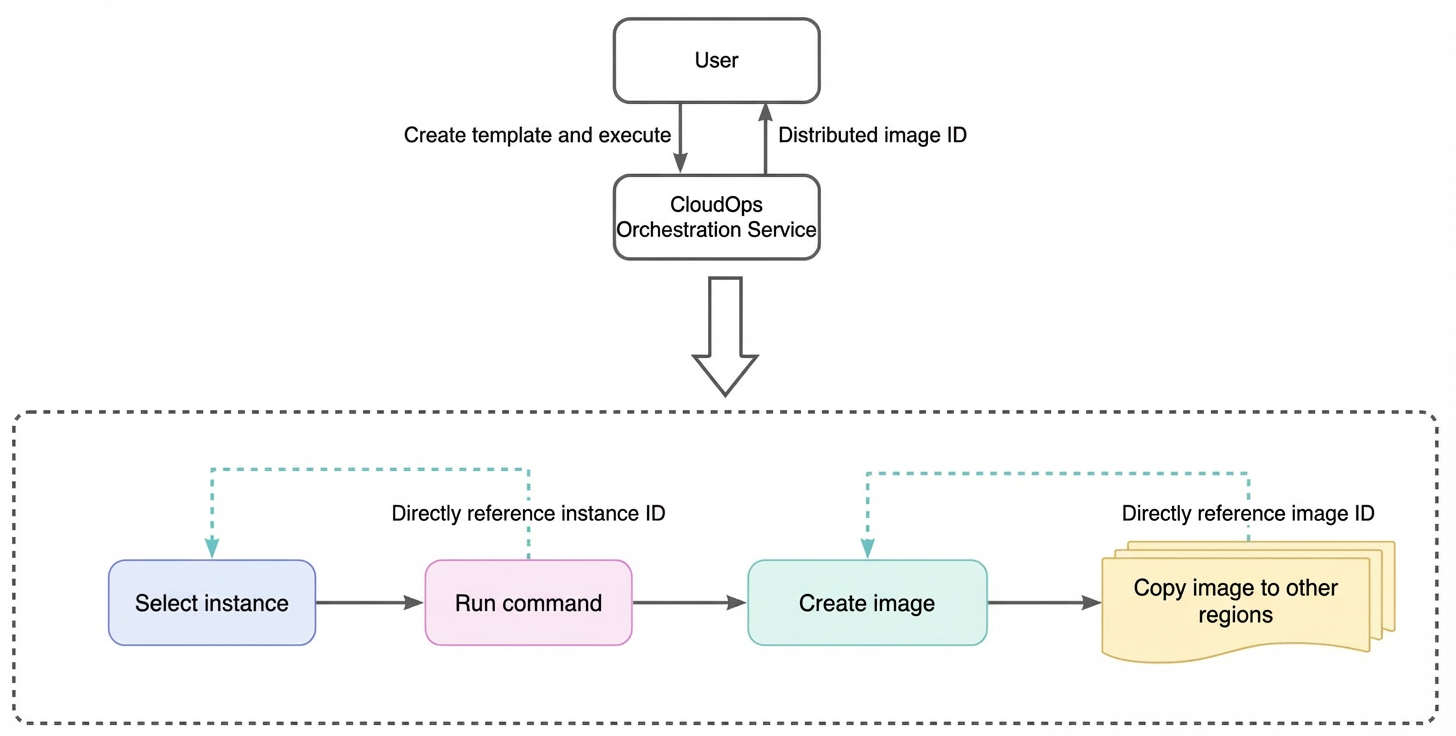
Prerequisites
-
A running ECS instance in the same region where you will run the OOS template.
-
The command you need to run.
-
The actions involved in the workflow.
-
ACS::ECS::RunCommand: runs a command.
-
ACS::ECS::CreateImage: creates an image.
-
ACS::ECS::CopyImage: copies an image.
For more information about actions, see the Action catalog.
Procedure
0. Prepare the template
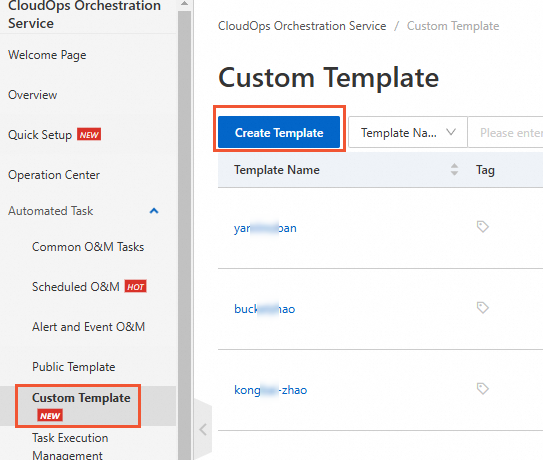
In the sidebar of the OOS homepage, go to Custom Template and click Create Template to open the operation page.
Select a blank template.
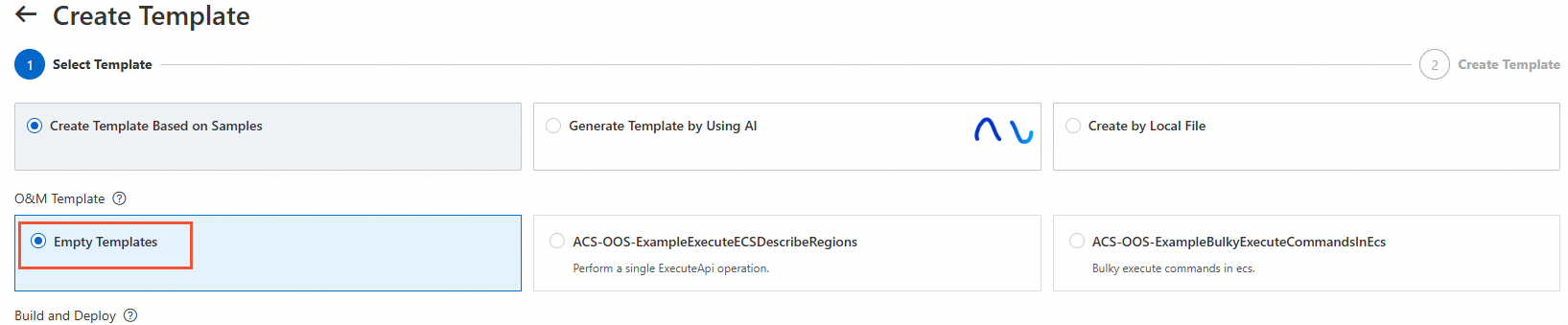
Then, click Add New Task to start the creation process.
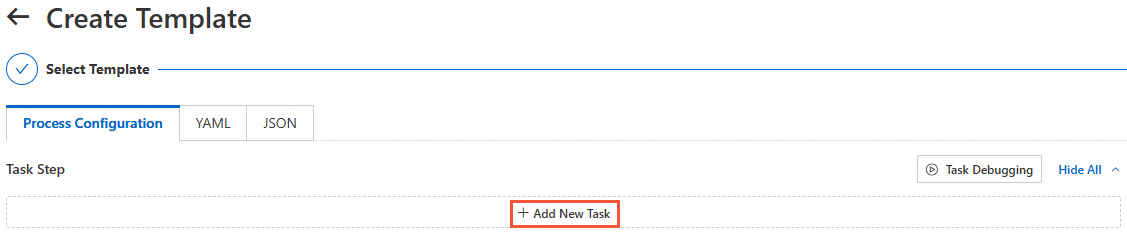
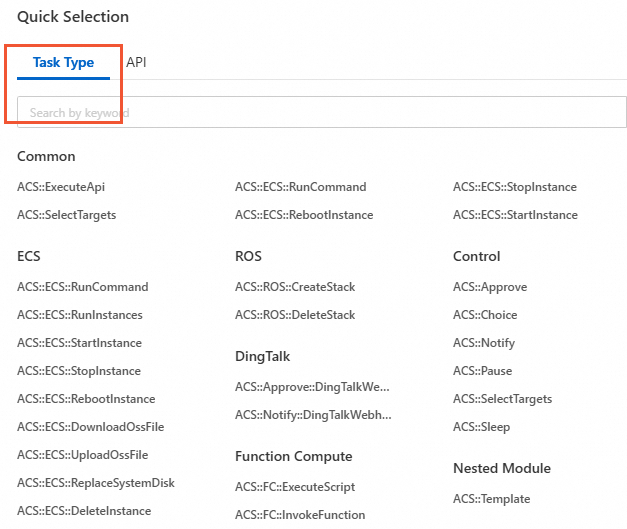
For Task Type, select a specific Action. If you cannot find the action, search for it directly.
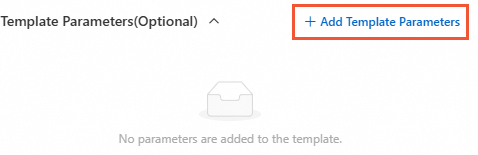
In the Template Parameters column on the right, click Add Template Parameter,
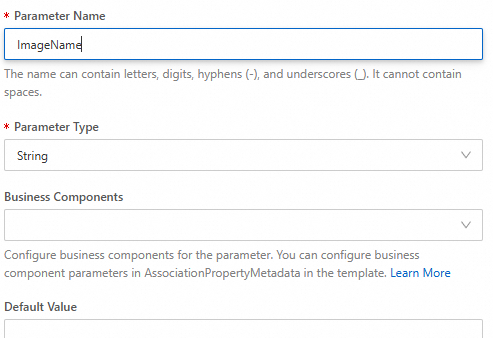
Add three required parameters for the template to run: InstanceId, ImageName, and TargetRegionId. Set the parameter type for all to string. The default value for ImageName uses a system parameter. For details, see pseudo parameters.
The expression CreateImage_from_{{ACS::ExecutionId}} appends the current execution ID to the string CreateImage_from_, producing a result like CreateImage_from_exec-xxxxxxx.
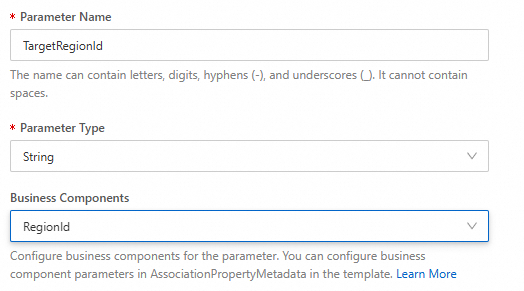
Note that TargetRegionId must be set to the RegionId of the Business Components.
For InstanceId, select the Business Components ALIYUN::ECS::Instance::InstanceId.
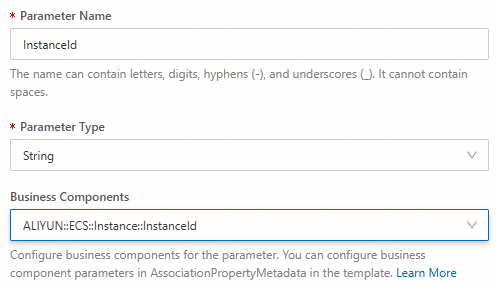
Business Components simplify parameter configuration during execution. For more information, see AssociationProperty and AssociationPropertyMetadata.
1. Configure the RunCommand task
Add a new task, set the Task Type to ACS::ECS::RunCommand, and in the task input, select Reference Parameter/Task Output to use parameters set by the template and outputs from preceding tasks.

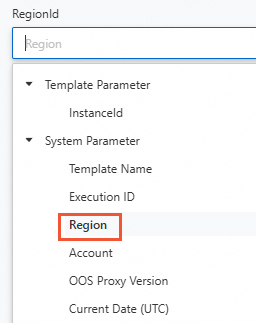
For Region ID, select Execution Region from System Parameter.
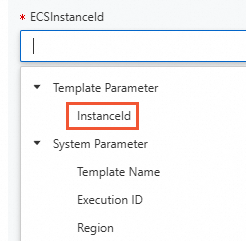
The ECS Instance ID can directly reference template parameters by clicking them.
Enter the Command Content that you prepared in advance, and select an appropriate Command Type based on the instance type and command language.
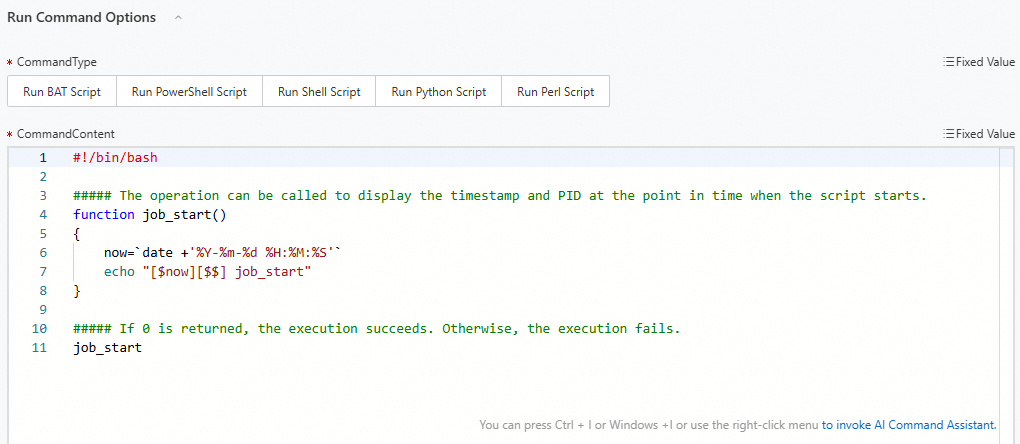 To view the script output, configure it in the template output.
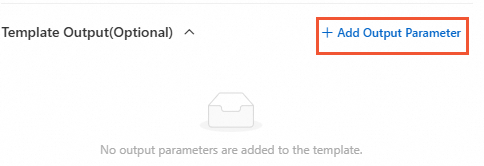
The output of the RunCommand task can be selected directly.
Previously, you had to define this task's output to use its execution result in the template's final output. This is no longer necessary.

2. Configure the CreateImage task
For Task type, select ACS::ECS::CreateImage. For all task input parameters, select Reference Parameter/Task Output.
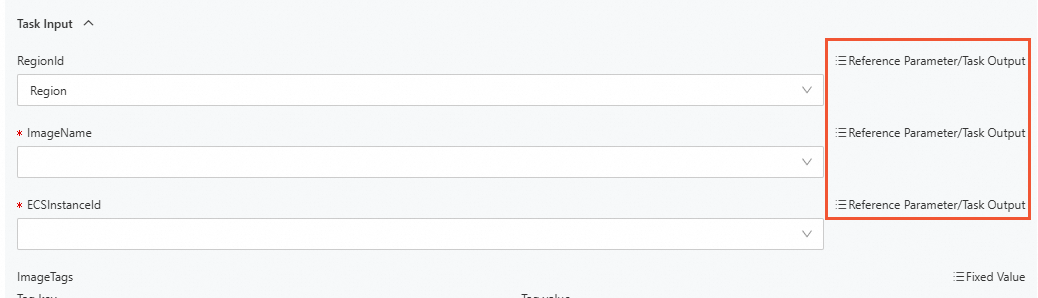
The dropdown list allows you to select different types of parameters, including Task Output Parameter, Template Parameter, and System Parameter.
For Region ID, select Execution Region from System Parameter. For Image Name, select ImageName from Template Parameter. For ECS Instance ID, select Instances.Instance[].InstanceId from Task Output Parameter.
Configure other parameters as needed.
Previously, you had to define this task's output to get the generated image ID. This is no longer required.
3. Configure the CopyImage task
For Task Type, select ACS::ECS::CopyImage, and for Image ID, directly select the imageId output parameter of the CreateImage task.
For the Source Region ID, select the System Parameter: Execution Region.
For Target Region ID, select Template Parameters' TargetRegionId.
You can specify a custom name for the Destination Image Name. In this example, the name is set to '{{ CreateImage.imageId }}-{{ACS::ExecutionId}}', which means Image ID-Execution ID. The name is created by referencing the output of the CreateImage task and combining it with the {{ACS::ExecutionId}} system parameter to form the final Destination Image Name.
Previously, you had to define this task's output to reference it later. Now, you can reference it directly.
4. Set the template output
On the Template Output tab, you can select which task outputs are displayed after an execution. For example, selecting the imageIdsWithRegion output from the CopyImage task allows you to directly retrieve the image ID for each corresponding region when the execution is complete.
Select the desired output parameters to easily review the results after the template runs.
Example of selected outputs:
The custom template is now complete. Run it from the console to retrieve the new image ID after distribution.
After execution, view the image ID and command execution result on the Outputs tab.
Template comparison
The following code shows the template created in the preceding steps:
FormatVersion: OOS-2019-06-01
Description: ''
Parameters:
  ImageName:
    Type: string
    Default: CreateImage_from_{{ACS::ExecutionId}}
  TargetRegionId:
    Label:
      en: TargetRegionIds
    Type: string
    AssociationProperty: RegionId
  InstanceId:
    Type: string
    AssociationProperty: ALIYUN::ECS::Instance::InstanceId
Tasks:
  - Action: ACS::ECS::RunCommand
    Name: RunCommand
    Description: ''
    Properties:
      regionId: '{{ ACS::RegionId }}'
      commandContent: |-
        #!/bin/bash

        ##### You can call the function at the start of the script to print the timestamp and PID.
        function job_start()
        {
            now=`date +'%Y-%m-%d %H:%M:%S'`
            echo "[$now][$$] job_start"
        }

        ##### If the return value is 0, the execution succeeds. Otherwise, the execution fails.
        job_start
      contentEncoding: PlainText
      workingDir: /root
      timeout: 600
      enableParameter: false
      parameters: {}
      username: ''
      windowsPasswordName: ''
      maxRetryInterval: 300
      instanceId: '{{ InstanceId }}'
      commandType: RunShellScript
  - Action: ACS::ECS::CreateImage
    Name: CreateImage
    Description: ''
    Properties:
      regionId: '{{ ACS::RegionId }}'
      tags: []
      imageFamily: ''
      imageDescription: ''
      resourceGroupId: ''
      detectionStrategy: ''
      instanceId: '{{ InstanceId }}'
      imageName: '{{ ImageName }}'
  - Action: ACS::ECS::CopyImage
    Name: CopyImage
    Description: ''
    Properties:
      targetImageName: '{{ CreateImage.imageId }}-{{ACS::ExecutionId}}'
      encrypted: false
      KMSKeyId: ''
      targetImageDescription: ''
      tags: []
      regionId: '{{ ACS::RegionId }}'
      targetRegionId: '{{ TargetRegionId }}'
      imageId: '{{ CreateImage.imageId }}'
Outputs:
  CommandOutput:
    Type: string
    Value: '{{ RunCommand.invocationOutput }}'
    Description: Command execution result
  ImageIdWithRegion:
    Type: string
    Value: '{{ CopyImage.imageIdWithRegion }}'
Metadata:
  ALIYUN::OOS::Interface:
    ParameterGroups:
      - Parameters:
          - regionId
          - instanceId
        Label:
          default:
            en: Select ECS instances
      - Parameters:
          - targetImageName
          - tags
        Label:
          default:
            en: Image configuration
      - Parameters:
          - commandType
          - commandContent
        Label:
          default:
            en: Run command
      - Parameters:
          - targetRegionIds
          - accountIds
        Label:
          default:
            en: Copy image
      - Parameters:
          - scalingConfigurationIds
          - launchTemplateNames
          - rateControl
          - OOSAssumeRole
        Label:
          default:
            en: Control options
For comparison, the following code shows what the same template logic looked like before this optimization:
FormatVersion: OOS-2019-06-01
Description: ''
Parameters:
  ImageName:
    Type: string
    Default: CreateImage_from_{{ACS::ExecutionId}}
  TargetRegionId:
    Label:
      en: TargetRegionIds
    Type: string
    AssociationProperty: RegionId
  InstanceId:
    Type: string
    AssociationProperty: ALIYUN::ECS::Instance::InstanceId
Tasks:
  - Action: ACS::ECS::RunCommand
    Name: RunCommand
    Description: ''
    Properties:
      regionId: '{{ ACS::RegionId }}'
      commandContent: |-
        #!/bin/bash

        ##### You can call the function at the start of the script to print the timestamp and PID.
        function job_start()
        {
            now=`date +'%Y-%m-%d %H:%M:%S'`
            echo "[$now][$$] job_start"
        }

        ##### If the return value is 0, the execution succeeds. Otherwise, the execution fails.
        job_start
      contentEncoding: PlainText
      workingDir: /root
      timeout: 600
      enableParameter: false
      parameters: {}
      username: ''
      windowsPasswordName: ''
      maxRetryInterval: 300
      instanceId: '{{ InstanceId }}'
      commandType: RunShellScript
    Outputs:
      commandOutput:
        Type: string
        ValueSelector: invocationOutput
  - Action: ACS::ECS::CreateImage
    Name: CreateImage
    Description: ''
    Properties:
      regionId: '{{ ACS::RegionId }}'
      tags: []
      imageFamily: ''
      imageDescription: ''
      resourceGroupId: ''
      detectionStrategy: ''
      instanceId: '{{ InstanceId }}'
      imageName: '{{ ImageName }}'
    Outputs:
      ImageId:
        Type: string
        ValueSelector: imageId
  - Action: ACS::ECS::CopyImage
    Name: CopyImage
    Description: ''
    Properties:
      targetImageName: '{{ CreateImage.imageId }}-{{ACS::ExecutionId}}'
      encrypted: false
      KMSKeyId: ''
      targetImageDescription: ''
      tags: []
      regionId: '{{ ACS::RegionId }}'
      targetRegionId: '{{ TargetRegionId }}'
      imageId: '{{ CreateImage.ImageId }}'
    Outputs:
      CopyImageId:
        Type: string
        ValueSelector: imageId
      CopyImageIdWithRegion:
        Type: list
        ValueSelector: imageIdWithRegion
Outputs:
  CommandOutput:
    Type: string
    Value: '{{ RunCommand.commandOutput }}'
    Description: Command execution result
  ImageIdWithRegion:
    Type: string
    Value: '{{ CopyImage.CopyImageIdWithRegion }}'
Metadata:
  ALIYUN::OOS::Interface:
    ParameterGroups:
      - Parameters:
          - regionId
          - instanceId
        Label:
          default:
            en: Select ECS instances
      - Parameters:
          - targetImageName
          - tags
        Label:
          default:
            en: Image configuration
      - Parameters:
          - commandType
          - commandContent
        Label:
          default:
            en: Run command
      - Parameters:
          - targetRegionIds
          - accountIds
        Label:
          default:
            en: Copy image
      - Parameters:
          - scalingConfigurationIds
          - launchTemplateNames
          - rateControl
          - OOSAssumeRole
        Label:
          default:
            en: Control options
This comparison shows that you can directly reference all task outputs without defining them, which reduces preparation work and simplifies custom template creation.