If multiple task templates share the same configuration, you can store the value in Parameter Store to be used as a global variable. This value can be reused across templates to improve operational efficiency and consistency. This topic describes how to use common parameters in task templates.
Prerequisites
A common parameter must be created in Parameter Store. For more information, see Create a common parameter.
Procedure
Use in the OOS console
This example uses the Send Remote Command common task template. The template timeout is set to 600 using the common parameter time_out, which has a value of 600.
Log on to the CloudOps Orchestration Service console.
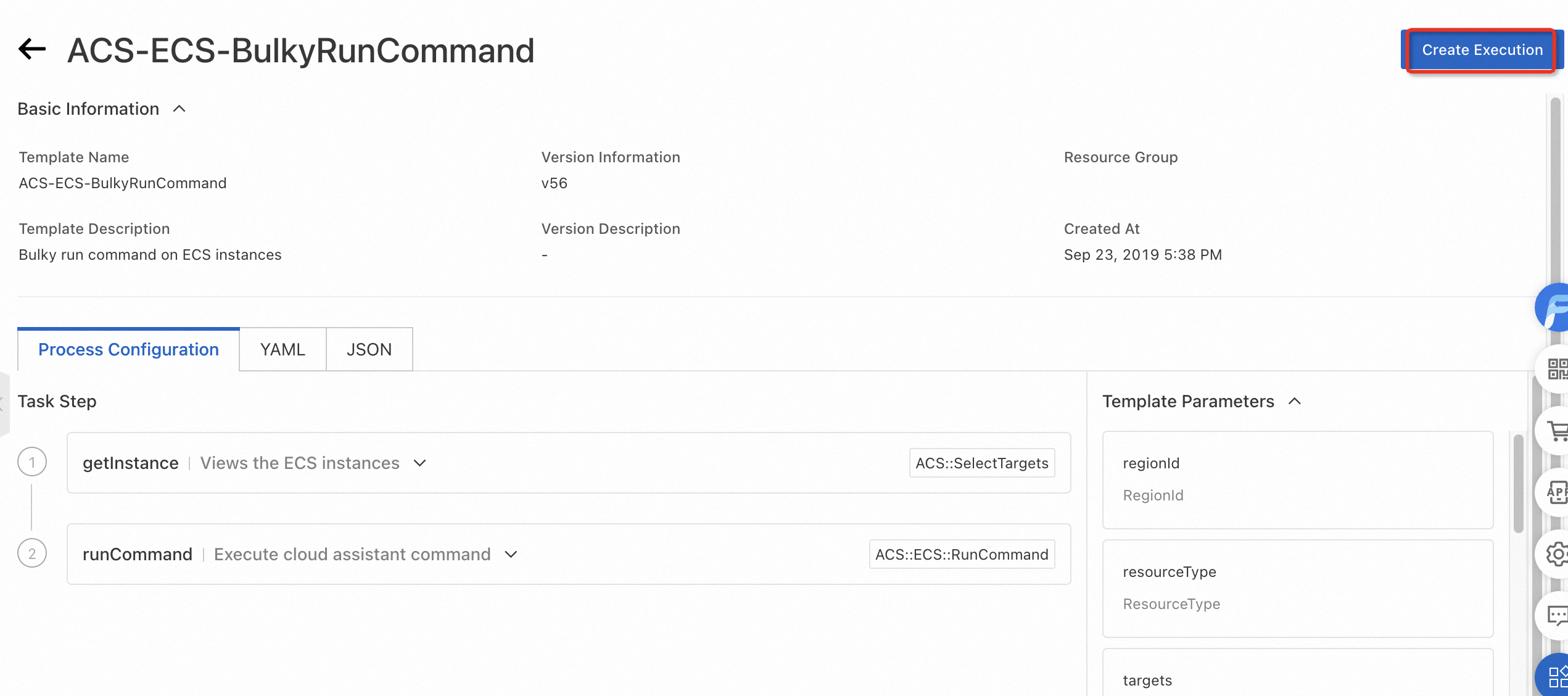
In the navigation pane on the left, choose . Find the target common template and click Create Execution.
Enter the basic information and click Next: Set Parameters.
Click the
 icon to the left of Timeout. Select a common parameter, such as time_out, to set the timeout to 500. Then, select the target instances and click Next.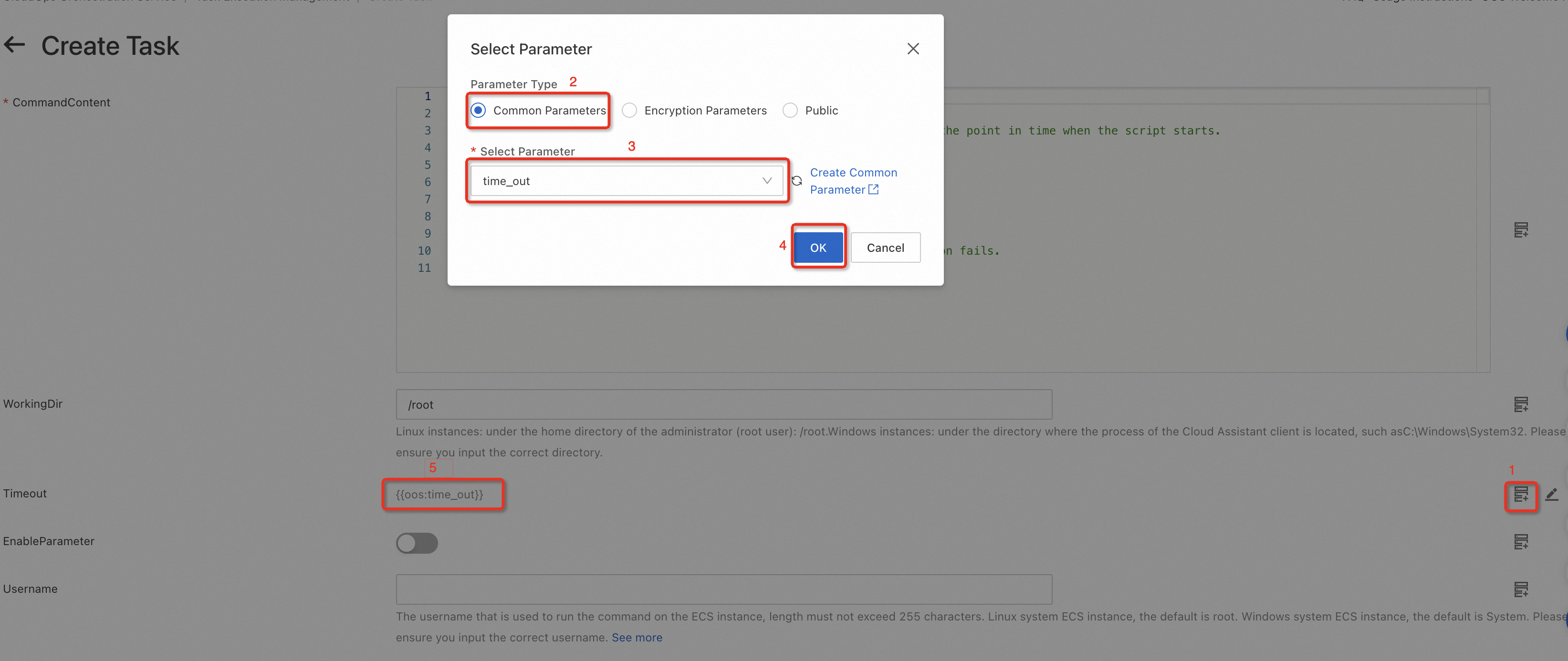
Verify that the task information is correct and click Create.
After you click Create, the execution details page is displayed. Verify that the target field is set to the expected value.

Use in a template
To use a common parameter in a template, reference the parameter using the format {{ oos:parameter_name }}.
This example shows how to create a template that runs a Cloud Assistant command on an ECS instance. In this example, the common parameter time_out is used to set the timeout to 600.
Log on to the CloudOps Orchestration Service console.
In the navigation pane on the left, choose and click Create Template. In the template, the `timeout` parameter on line 98 uses the `{{ oos:time_out }}` format to reference the `time_out` common parameter.
FormatVersion: OOS-2019-06-01
Description: Runs Cloud Assistant commands on multiple ECS instances in batches. This is useful for managing multiple ECS instances at once for tasks such as application management and resource tagging. During configuration, provide the following required parameters. Region ID (regionId) to specify the region of the target ECS instances. Resource Type (resourceType) to determine the target instance type, such as an ECS instance or a managed instance. Targets (targets) to select the specific instances. Other parameters include Command Type (commandType) to specify the command type, such as Shell or Python, and Command Content (commandContent) for the script content. After execution, the template returns the batch operation output so you can verify the execution status.
Parameters:
  regionId:
    Type: String
    Label: Region ID
    AssociationProperty: RegionId
    Default: '{{ ACS::RegionId }}'
  resourceType:
    Type: String
    Label: Resource Type
    AssociationPropertyMetadata:
      LocaleKey: TargetResourceType
    AllowedValues:
      - ALIYUN::ECS::Instance
      - ALIYUN::ECS::ManagedInstance
    Default: ALIYUN::ECS::Instance
  targets:
    Type: Json
    Label: Target Instances
    AssociationProperty: Targets
    AssociationPropertyMetadata:
      ResourceType: resourceType
      RegionId: regionId
      Status: Running
  commandType:
    Label: Command Type
    AssociationPropertyMetadata:
      LocaleKey: ECSCommandType
    Type: String
    AllowedValues:
      - RunShellScript
      - RunPythonScript
      - RunPerlScript
      - RunBatScript
      - RunPowerShellScript
    Default: RunShellScript
  commandContent:
    Label: Command Content
    Type: String
    MaxLength: 16384
    AssociationProperty: ALIYUN::OOS::Command::CommandContent
    AssociationPropertyMetadata:
      CommandType: ${commandType}
  workingDir:
    Description: 'For Linux instances, the default directory is the home directory of the administrator (root user), which is /root. For Windows instances, the default directory is where the Cloud Assistant client process is located, such as C:\Windows\System32. Make sure that the directory you enter is correct.'
    Label: Working Directory
    Type: String
    Default: ''
  enableParameter:
    Label: Does the command contain encrypted or custom parameters
    Type: Boolean
    Default: false
  username:
    Description: The username to use when running the command on the ECS instance. The username cannot exceed 255 characters. On Linux instances, the command is run as the root user by default. On Windows instances, the command is run as the System user by default. Make sure that the username you enter is correct. <a href="https://www.alibabacloud.com/help/doc-detail/203771.html" target="_blank">Learn more</a>
    Label: Username for command execution
    Type: String
    Default: ''
  windowsPasswordName:
    Label: Password name for the user on Windows instances
    Type: String
    Default: ''
  rateControl:
    Label: Task execution concurrency ratio
    Type: Json
    AssociationProperty: RateControl
    Default:
      Mode: Concurrency
      MaxErrors: 0
      Concurrency: 10
  OOSAssumeRole:
    Label: RAM role assumed by OOS
    Type: String
    Default: ''
RamRole: '{{ OOSAssumeRole }}'
Tasks:
  - Name: getInstance
    Description: Get ECS instances
    Action: ACS::SelectTargets
    Properties:
      ResourceType: '{{ resourceType }}'
      RegionId: '{{ regionId }}'
      Filters:
        - '{{ targets }}'
    Outputs:
      instanceIds:
        Type: List
        ValueSelector: Instances.Instance[].InstanceId
  - Name: runCommand
    Action: ACS::ECS::RunCommand
    Description: Run Cloud Assistant command
    Properties:
      regionId: '{{ regionId }}'
      commandContent: '{{ commandContent }}'
      instanceId: '{{ ACS::TaskLoopItem }}'
      commandType: '{{ commandType }}'
      workingDir: '{{ workingDir }}'
      timeout: '{{ oos:time_out }}'
      enableParameter: '{{ enableParameter }}'
      username: '{{ username }}'
      windowsPasswordName: '{{ windowsPasswordName }}'
    Loop:
      RateControl: '{{ rateControl }}'
      Items: '{{ getInstance.instanceIds }}'
      Outputs:
        commandOutputs:
          AggregateType: Fn::ListJoin
          AggregateField: commandOutput
    Outputs:
      commandOutput:
        Type: String
        ValueSelector: invocationOutput
Outputs:
  commandOutputs:
    Type: List
    Value: '{{ runCommand.commandOutputs }}'
After you create the template, click Execute. Enter the required parameters and start the execution.
Click the Run Cloud Assistant Command task, and then click Child Executions. Click an execution ID to view the details of the child execution.
In the Execution Steps and Results section, click Input. The `timeout` parameter is replaced with 600, which is the value of the `time_out` common parameter.