The patch management service provides a predefined default patch baseline for each supported operating system. To create custom rules to scan for and install patches for a specific operating system, you can use patch baselines to specify the operating system type, patch types, severity levels, and auto-approval conditions. After you create a custom baseline, you can set it as the new default for that operating system to apply these custom rules.
Create a patch baseline
-
Log on to the CloudOps Orchestration Service console. In the left-side navigation pane, choose .
-
Click Configure Patch Baseline. On the Patch Baseline page, click Create.
-
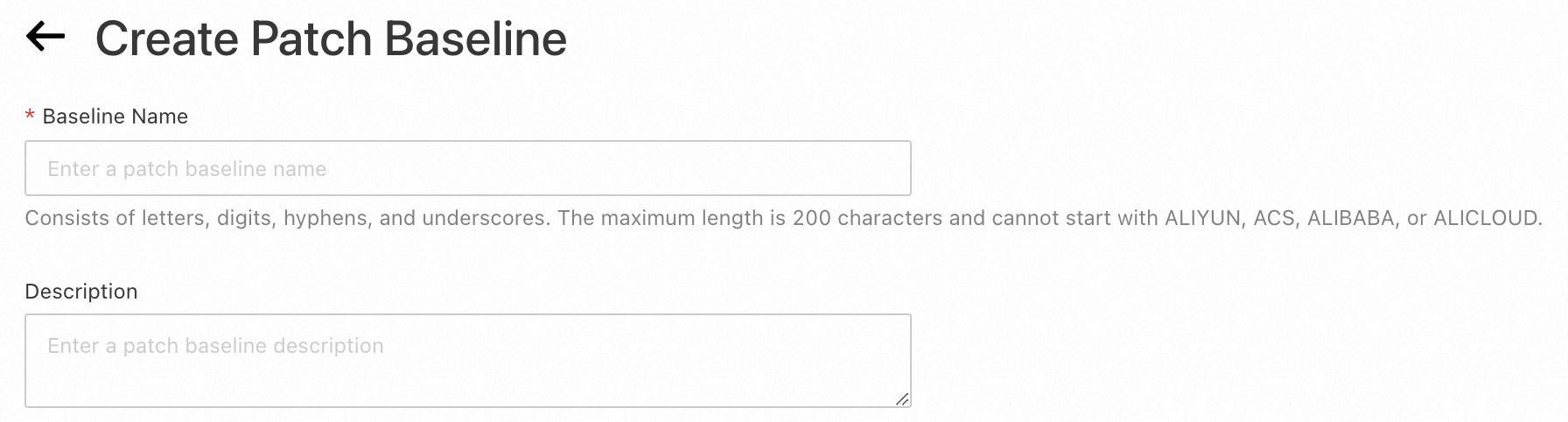
Enter a name and description for the baseline.
-
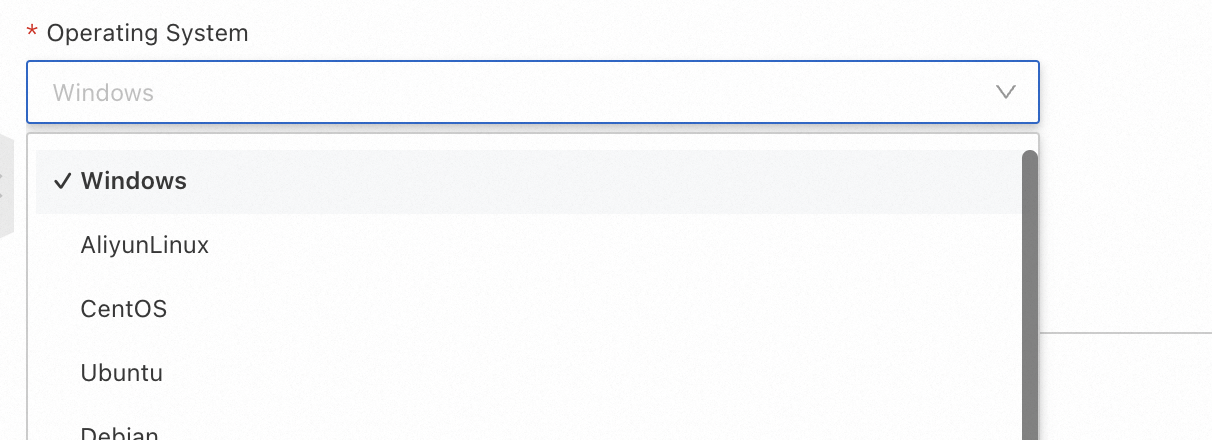
Select the target operating system.
-
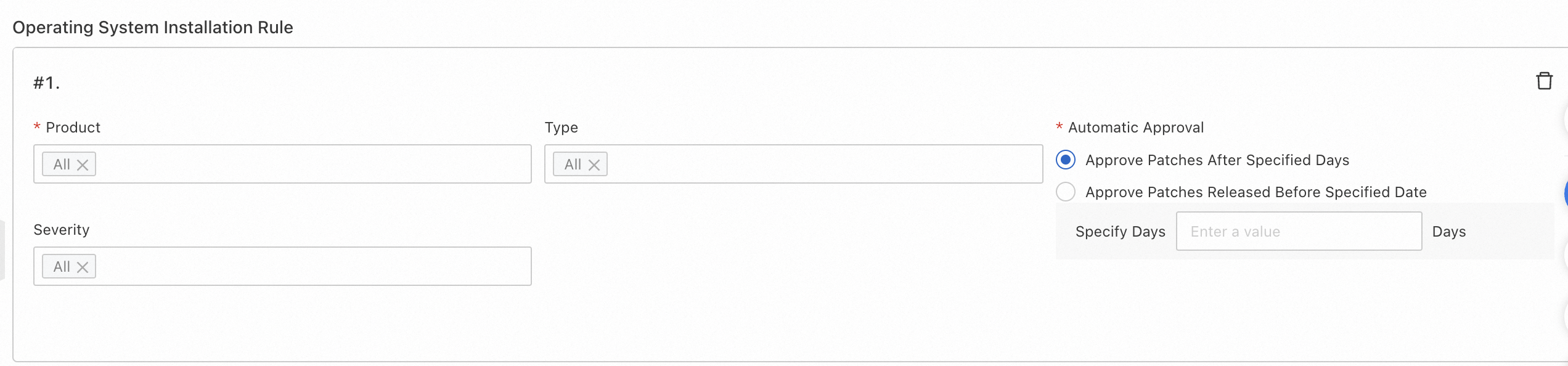
Define patch rules, including the patch type, severity, and approval conditions.
The default patch baseline
ACS-Windows-DefaultPatchBaselinefor Windows instances includes only the Security Updates and Critical Updates patch types. To scan for and install other patch types, such as Definition Updates and Update Rollups, create a custom patch baseline, set its patch type to all, and then callRegisterDefaultPatchBaselineto register the custom baseline as the default baseline. -
(Optional) If the defined rules cannot handle certain patches for specific reasons, you can configure patch exceptions to explicitly approve or reject them.
-
Click Create.
Related operations
-
Set the default patch baseline: In the list of patch baselines, find the baseline that you want to set as the default, click Set as Default Baseline in the Actions column, and then click Confirm.
ImportantThe default patch baseline serves as the reference for patch scanning. Therefore, choose the default baseline with caution.
-
View patch baseline details: In the list of patch baselines, find the target baseline and click Details in the Actions column.
-
Update a patch baseline: In the list of patch baselines, find the target baseline and click Update in the Actions column.
-
Delete a patch baseline: In the list of patch baselines, find the target baseline, click the
 icon in the Actions column, click Delete, and then click Confirm.Important
Before you delete a patch baseline, make sure that no instances are using it. This prevents disruptions to patch scanning.