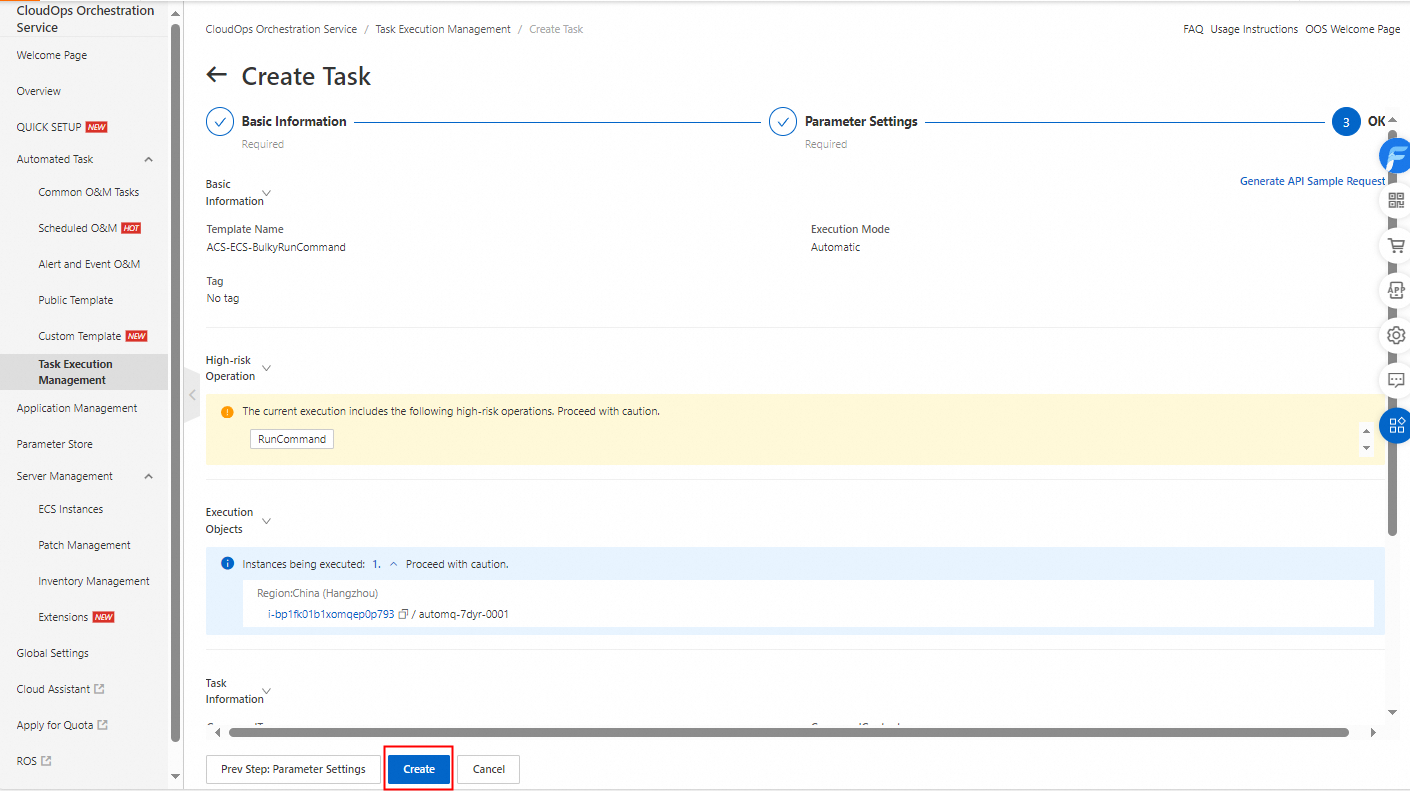
After creating a template, you can run an execution based on it. This topic shows you how to create an execution in the CloudOps Orchestration Service (OOS) console.
Procedure
-
Log in to the CloudOps Orchestration Service console.
-
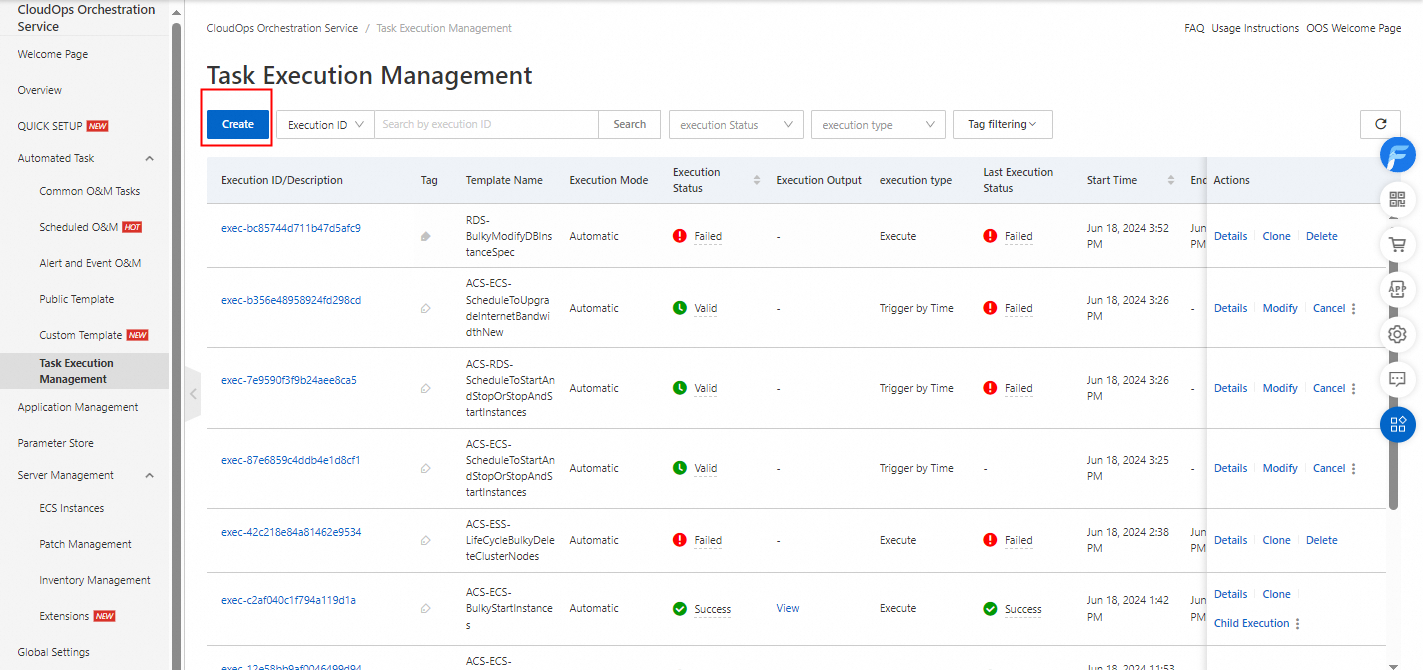
On the page, click Create.
-
On the Create Task page, configure the basic settings and click Next: Set Parameters.
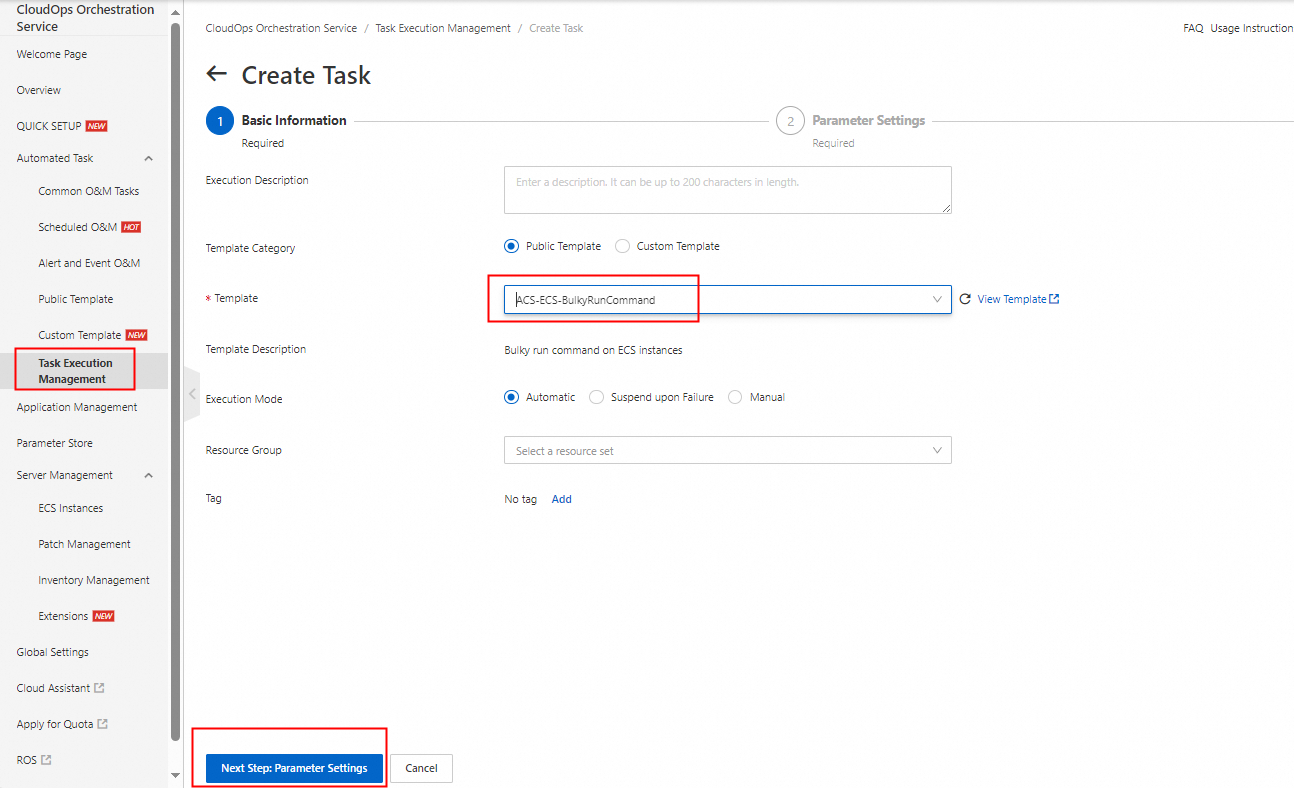
In this example, Execution Mode is set to Automatic. The following table describes the parameters.
Parameter
Description
Execution Mode
-
Automatic: The execution starts automatically.
-
Manual: You must manually start the execution.
Suspend upon Failure
For loop tasks, if a subtask fails, the execution pauses. This allows you to make adjustments and resume the execution.
Template Category
-
Public Template: A template provided by OOS for common use cases.
-
Custom Template: A template that you create for your specific business requirements.
-
-
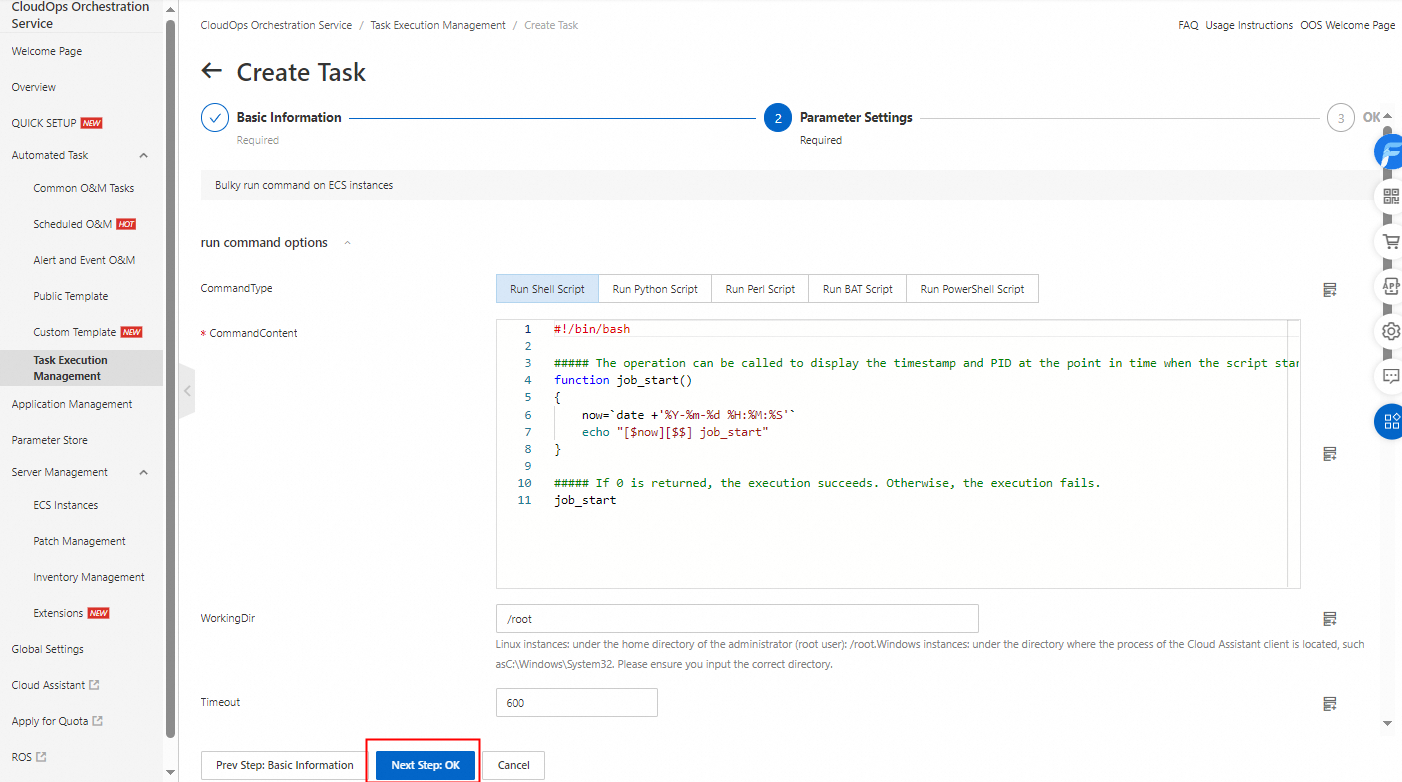
Set the required template parameters and click Next: Confirm.
-
Review your parameter settings and click Create.