After you add TR flow logs as a data source to NIS Traffic Analyzer, the analyzer automatically analyzes TR traffic and generates charts, helping you monitor your network usage and health in real time.
CEN traffic overview
On the details page of the target NIS Traffic Analyzer, click the CEN Traffic tab. In the left-side navigation pane, click CEN traffic overview, and then select the target CEN instance from the drop-down list.
CEN overview
View the network topology and traffic metrics for network instance connections, such as inter-region connections. You can select a metric type from the Metrics drop-down list. The supported metrics include Traffic Statistics, Bandwidth Utilization, Average Latency, Dropped Packets, Number of Packets, Blackhole Drops, and No-route Drops. For Traffic Statistics, as an example, the metric data is displayed on the connection line of the corresponding network instance. You can click the metric data to view details.
The data in the CEN Overview section is sourced from Transit Router monitoring and does not rely on TR flow logs.
You can select a Time Granularity (5 minutes, 30 minutes, 1 hour, 2 hours, 12 hours, 1 day, 3 days, 7 days, or custom). The topology diagram displays the inter-region connection traffic between Transit Routers, and the connection traffic between Transit Routers and network instances such as VPC, VBR, VPN, and ECR.
CEN traffic analysis coverage statistics
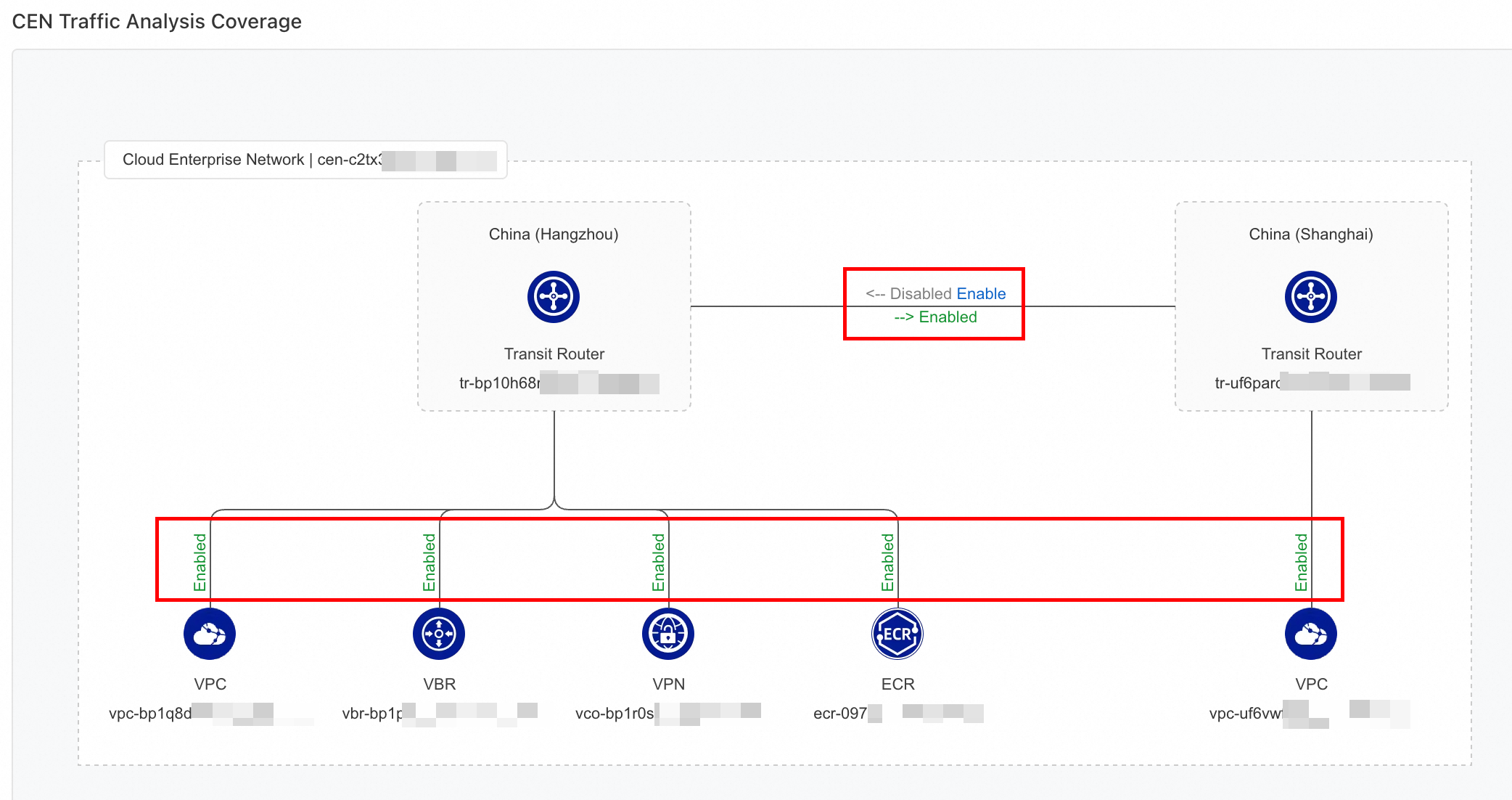
For the added TR flow log data sources, view their coverage for each network instance connection.
-
You can view detailed traffic analysis data, such as data aggregated by metric, the Top N traffic list, and the Top N traffic trend, only when the data source for the corresponding network instance connection is collecting traffic and has a status of Enabled.
When you create a flow log for an inter-region connection, only one-way traffic is collected—from the current Transit Router to the peer Transit Router. To perform detailed analysis, you must enable flow logs and add data sources for both directions of traffic.
-
If the status is Disabled, click Enable to add the corresponding data source.
TR connection traffic
You can analyze traffic for the following network instance connections: inter-region connections, VPC connections, VBR connections, ECR connections, and VPN connections. This guide uses Inter-region connection traffic as an example.
On the details page of the target NIS Traffic Analyzer, click the CEN Traffic tab. In the left-side navigation pane, click TR connection traffic > Inter-region connection traffic. From the drop-down lists, select the target CEN Instance and Inter-region Connection.
Basic information
View or change the basic information of the current network instance connection:
-
You can click an Instance ID to go to the CEN console to view or change the Transit Router connection configuration.
-
You can click the ID next to Associated Route Table to view or change the route table configuration.
Inter-region traffic distribution
Filter metric information for a specific time period based on a Metrics. Supported data dimensions include Traffic Statistics, Bandwidth Utilization, Average Latency, and Dropped Packets.
You can view data by time granularity (5 minutes, 30 minutes, 1 hour, 2 hours, 12 hours, 1 day, 3 days, 7 days, or custom). After you select a data dimension and a time granularity, the page displays a network topology diagram below. The diagram shows the Transit Routers in each region of the Cloud Enterprise Network instance and the inter-region traffic statistics between them, such as the bidirectional traffic between China (Qingdao) and China (Shanghai), as well as the network instances (VPC, VBR, VPN, ECR, etc.) connected to each Transit Router.
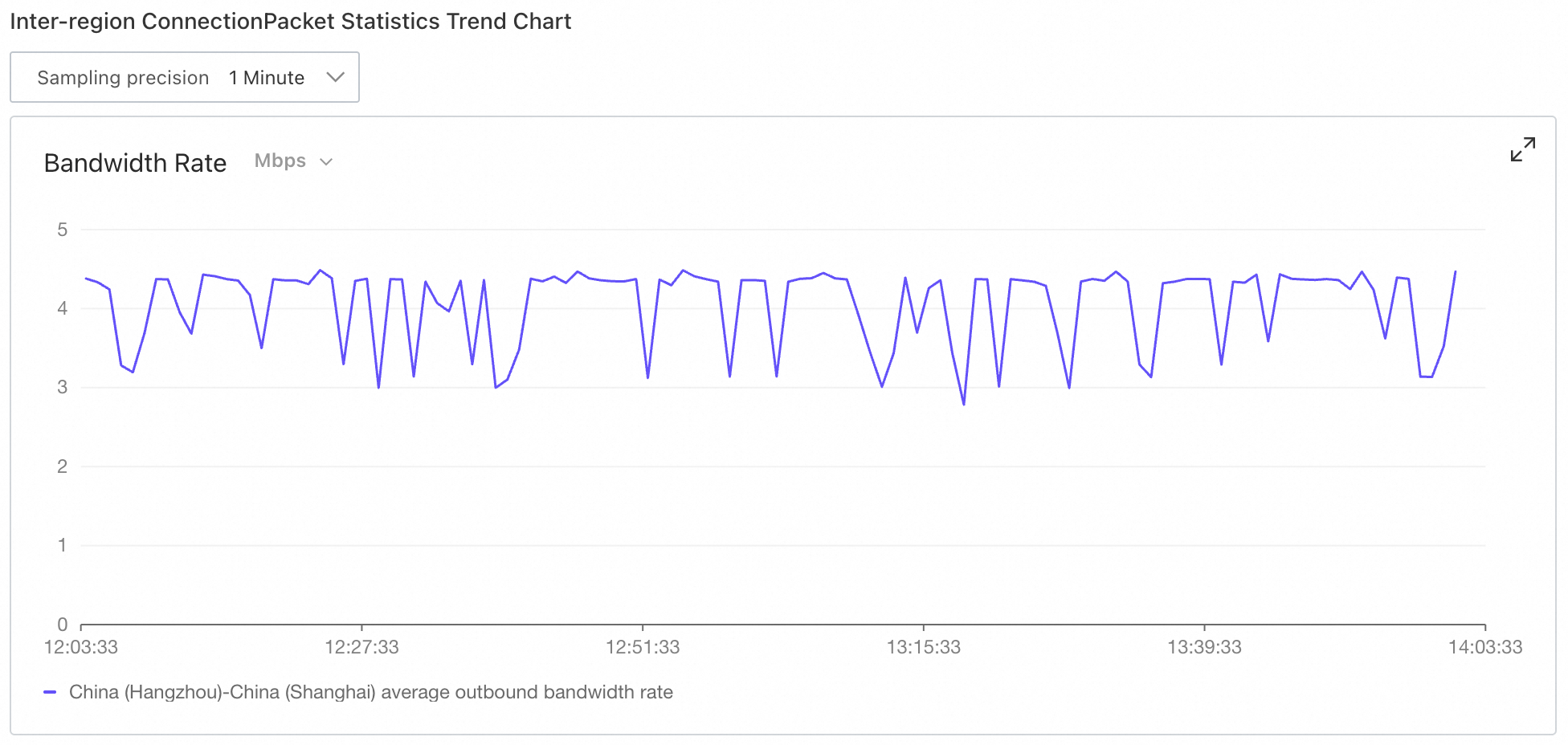
Inter-region connection traffic trend
This chart shows the trend of the target Metrics over a specific time period. The minimum data sampling granularity is 1 Minute. The available sampling granularities vary based on the selected time period. For example, if you select a 7-day period, the available sampling granularities are 10 Minutes and 30 Minutes. In the upper-left corner of the trend chart, you can select a unit for the bandwidth rate, such as bps, Kbps, Mbps, or Gbit/s.
Traffic analysis
After you set filter conditions and an aggregation dimension, the Top N traffic list and Top N traffic trend are displayed.
Before you can perform an analysis, you must add the flow log of the network instance connection as a data source.
A single query can scan up to 10 million logs. To avoid exceeding this limit, shorten the time range or use a step-by-step aggregation strategy: first, analyze the 2-tuple to identify the target, and then drill down from the 2-tuple to the 5-tuple to analyze the details.
-
Set Filter Conditions:
-
Filter traffic analysis scope: To view traffic with specific characteristics, you can filter by field. You can set multiple filter conditions as needed. Each filter condition is displayed above the Top N traffic list, and you can remove specific conditions. The filtered results are shown in the Top N traffic list. Supported fields include source IP address, destination IP address, DSCP, protocol, destination port, source port, and peer network instance connection ID. Take source IP address as an example:
-
Source IP Address=10.0.0.1: matches traffic whose source IP address is10.0.0.1. -
Source IP Address:10.0.: matches traffic whose source IP address string contains10.0., such as10.0.0.1and10.0.1.1. -
Source IP Address!=10.0.0.1: matches traffic whose source IP address is not 10.0.0.1, such as10.0.0.2and172.16.0.1. If you enterSource IP Address!=10., the query matches traffic whose source IP address string does not contain10., such as172.16.0.1.
-
-
Filter by range: You can filter traffic within a specific metric range by setting a minimum value, a maximum value, or both. Supported metrics include: traffic (bytes), packets, no-route packet loss, blackhole route packet loss, and TTL timeout packet loss.
-
-
Set Traffic Aggregation Dimension: To categorize and analyze traffic, you can set an aggregation dimension. This is equivalent to the
GROUP BYclause in SQL and groups the entries in the Top N traffic list by the specified dimension. The system automatically aggregates traffic that shares the same grouping criteria and displays the results in rows. Supported dimensions: source IP address, destination IP address, DSCP, protocol, destination port, source port, and peer network instance connection ID.For example, if you do not set an aggregation dimension, the filtered result list is as follows:
Source IP address
Destination IP address
Traffic (bytes)
10.0.0.1
172.16.0.1
1000
10.0.0.1
172.16.0.2
1000
10.0.0.2
172.16.0.3
1000
If you set source IP address as the aggregation dimension, the system aggregates entries with the same source IP address:
Source IP address
Traffic (bytes)
10.0.0.1
2000
10.0.0.2
1000
-
Set TopN and Time Period:
-
For the metric specified in the filter range, show the TOP20, TOP50, or TOP100 traffic entries, or show all.
-
Query traffic for a specific time period. You can select a predefined recent period, from 5 Minutes to 7 days, or specify a custom time range with minute-level granularity.
-
-
Set Bucket Granularity: Two precision types are supported: high precision (for example, 1 minute) and long-period (for example, 1 day). The specific precision available depends on the Traffic Analysis Sampling Interval that you configure for High-precision Traffic Statistics or Long-period Traffic Statistics when you create or edit a traffic analyzer.
Top N traffic list
After you set the filter conditions, aggregation dimension, and time period, the corresponding Top N traffic list is displayed. The list displays the following fields: TR ID, Network Instance Connection ID, Source region, Direction, Peer Region, Packets, Data Transfer, Traffic Rate, No-route drops, Blackhole drops, and TTL expired drops.
-
Trend chart
In the Actions column of an entry, click View Trend to view the trend chart of the current traffic within the specified time period. Supported metrics include Bandwidth, Packet Rate, No-route Drop Rate, Blackhole Drop Rate, and TTL Expired Drop Rate.
-
Trend comparison
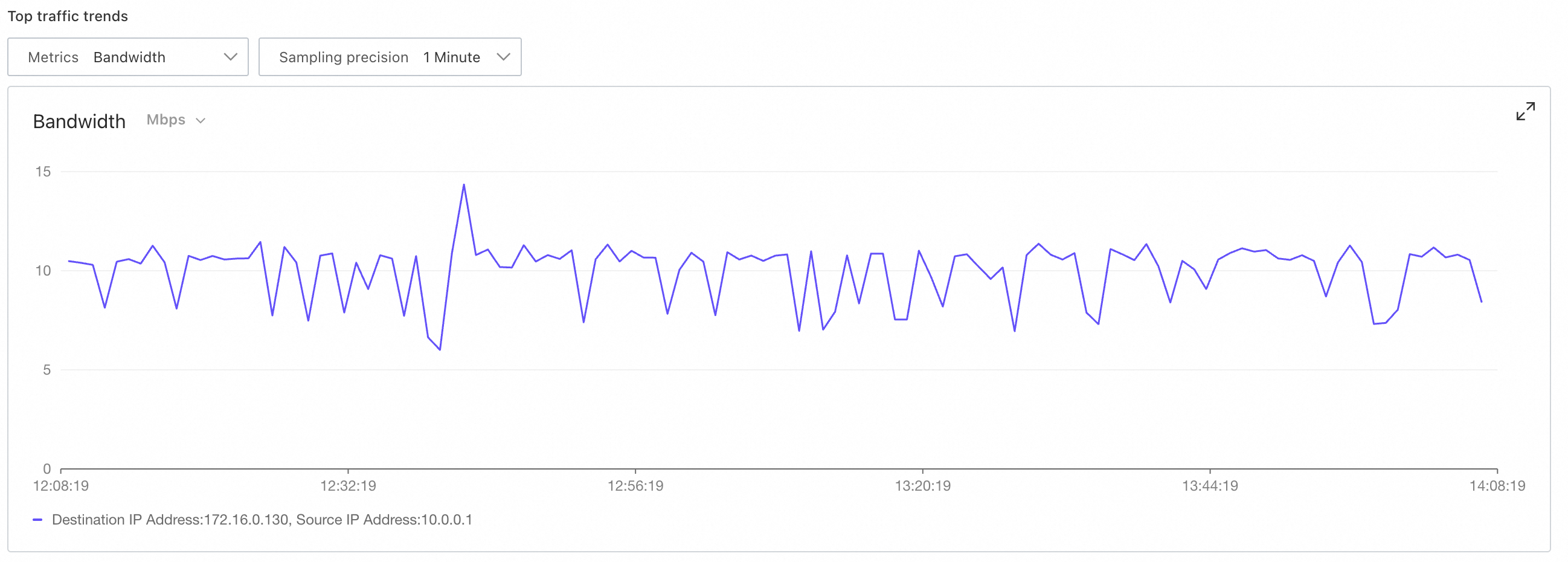
By default, the Top N traffic trend chart below the traffic list displays a trend comparison of all list items. In the Actions column of an entry, click Add to Top Traffic Trend or Remove from Trend to control its appearance in the Top N traffic trend chart.
-
Drill-down analysis
In the Actions column of an entry, click Details to view detailed information about the corresponding traffic.
Top N traffic trend
By analyzing the traffic trend chart, you can locate time periods with abnormal traffic spikes. In the Top N traffic list, click Add to Top Traffic Trend in the Actions column of an entry to view its traffic trend. Supported data metrics: Bandwidth, Packet Rate, No-route Drop Rate, Blackhole Drop Rate, and TTL Expired Drop Rate. Supported data sampling granularities: 10 Minutes, 30 Minutes, 1 Hour, 6 Hours, 12 Hours, and 1 Day.
Limitations
A single query can scan a maximum of 10 million raw logs. If this limit is exceeded, the system returns a QuotaExceeded.CheckRowReadLimit error. To avoid this, optimize your queries to scan fewer logs by taking one of the following actions:
-
Shorten the query time range: Focus on the specific time period when the business activity occurred. A longer time span requires a larger volume of logs to be scanned.
-
Refine the traffic scope: Filter the analysis based on specific traffic parameters related to your business. You can also first analyze by 2-tuple to identify the target traffic, and then drill down to the 5-tuple for a more detailed analysis.