When a scheduled job produces incorrect results, misses a run, or uses outdated logic, you need to reprocess its historical outputs. SchedulerX backfill re-runs a job over a specified date range, generating one instance per day with the original scheduling parameters but a different data timestamp.
When to backfill
Backfill a job when historical outputs need to be corrected or regenerated:
Data errors: A job produced incorrect results on specific dates, and the underlying data has since been fixed.
Logic changes: You updated the job logic (for example, added a new database field) and need to reprocess past dates with the new logic.
Backfill supports both jobs and workflows. The interval of the data points that you want to backfill must be one day -- each data point in the backfill range corresponds to a single calendar day.
If the output of a job contains deviations or some values in the output are missing, you can modify the scheduling parameters of the job and configure a specific job property to update the job output.
Prerequisites
Before you begin, make sure that you have access to the SchedulerX console.
Backfill a job
Log on to the SchedulerX console.
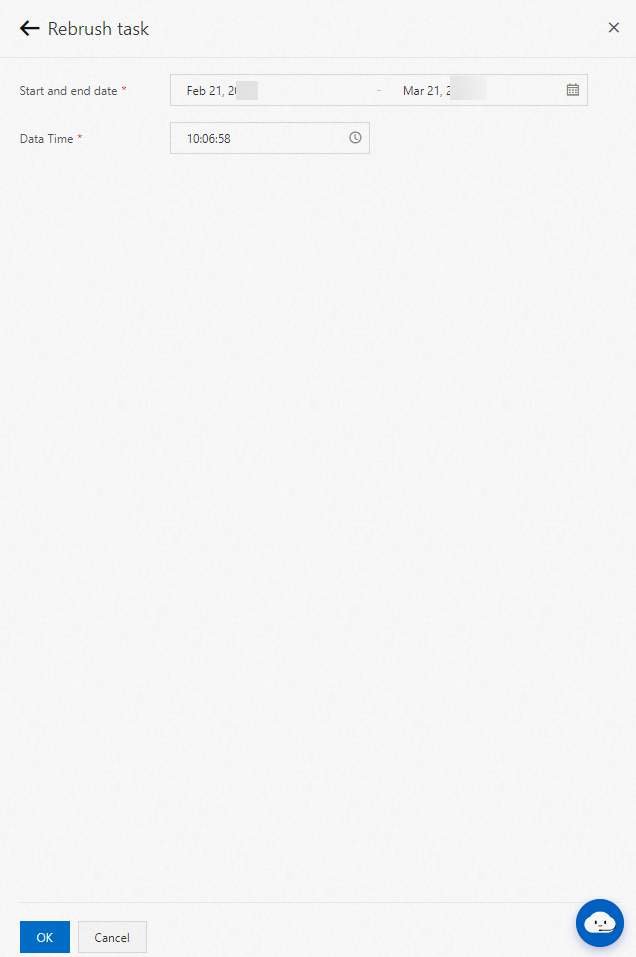
On the Task Management page, find the target job. Click more in the Operation column, then click Rebrush task.
In the Rebrush task panel, configure the following parameters:
Parameter Description Start and end date The date range to backfill. SchedulerX generates one job instance for each day in this range. Data Time The time-of-day component of the data timestamp. SchedulerX combines this value with each date in the range to produce the full data-processing timestamp for each instance. Click OK. SchedulerX immediately triggers one job instance per day in the specified range. All instances share the same scheduling time (the current time) but target different data timestamps.
Backfill behavior: a seven-day reprocessing example
Suppose the current time is 10:00:00 on January 1, 2019 and a job produced incorrect outputs during the first week of October 2018. To reprocess that week:
Set Start and end date to
October 1, 2018throughOctober 7, 2018. The default start time is00:00:00on the first day and the default end time is23:59:59on the last day.Set Data Time to
11:11:11.
SchedulerX generates seven job instances:
| Instance | Scheduling time | Data timestamp |
|---|---|---|
| 1 | 2019-01-01 10:00:00 | 2018-10-01 11:11:11 |
| 2 | 2019-01-01 10:00:00 | 2018-10-02 11:11:11 |
| 3 | 2019-01-01 10:00:00 | 2018-10-03 11:11:11 |
| 4 | 2019-01-01 10:00:00 | 2018-10-04 11:11:11 |
| 5 | 2019-01-01 10:00:00 | 2018-10-05 11:11:11 |
| 6 | 2019-01-01 10:00:00 | 2018-10-06 11:11:11 |
| 7 | 2019-01-01 10:00:00 | 2018-10-07 11:11:11 |
All seven instances are triggered at the current time (2019-01-01 10:00:00). The Data Time value (11:11:11) is combined with each date in the range to produce distinct data timestamps.