To ensure service stability, you can deploy multiple Container Service for Kubernetes (ACK) clusters in a peer-to-peer manner to achieve high availability. A cloud-native gateway supports access from multiple ACK clusters. A gateway is associated with multiple clusters, combines services with identical names, and implements load balancing among multiple services. You can use the feature together with the health check feature of the gateway to automatically detect service availability and implement automatic traffic switching upon failures in an efficient manner. This topic describes how to use a cloud-native gateway to manage two ACK clusters.
Prerequisites
Two ACK clusters are created. For more information about how to create an ACK cluster, see Create an ACK managed cluster.
-
Deploy a service with the same name in both clusters. This topic uses the
httpbinservice as an example. The following YAML shows the sample configuration.
Background information
In production practices, if high business stability is required, you can deploy multiple ACK clusters in a peer-to-peer manner to ensure high availability. For example, Cluster A is deployed in Zone A and Cluster B is deployed in Zone B. The same services are deployed in the two clusters. If a cluster fails, traffic is switched to services in the other cluster.
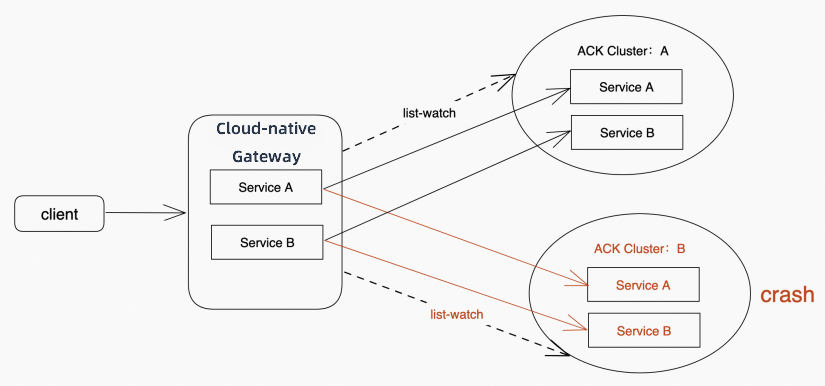
Cloud-native gateways provide the multi-cluster access feature to meet the high-availability deployment requirements of your business. If a cloud-native gateway is associated with both Cluster A and Cluster B, the gateway combines the services with identical names in the two clusters into one service. The name of the combined service is the same as the original service names, but the IP address list of the combined service contains all the IP addresses of the two services. If Cluster A or B fails, all traffic is automatically distributed to the normal cluster by using the routing capability of the cloud-native gateway. We recommend that you use this feature together with the active health check feature of the gateway. The active health check feature allows the gateway to actively detect the IP address availability of services. This helps implement automatic traffic switchover.
In the following figure, a cloud-native gateway manages Services A and B in two ACK clusters. If a crash occurs in Cluster B, you can still access Services A and B in Cluster A by using the gateway. All traffic is automatically switched to Cluster A without human intervention.
Step 1: Add ACK service sources to the cloud-native gateway
-
Log on to the MSE console. In the top navigation bar, select a region.
-
In the left-side navigation pane, choose Cloud-native Gateway > Gateways. On the Gateways page, click the ID of the gateway.
-
In the left-side navigation pane, click Routes. Then, click the Source tab.
-
On the Sources tab, click Add Source. In the Add Source panel, configure the parameters and click OK. For more information, see Add a service source.
After the service source is created, you can view it in the source list. The list displays information such as Name/ID, Source Type, Associated Information, Ingress Listening Status, and Change Time. You can also click Edit or Delete to manage the source.
Step 2: Add Services A and B to the cloud-native gateway
-
In the left-side navigation pane, click Routes. Then, click the Services tab.
-
On the Services tab, click Add Service. In the Add Service panel, configure the parameters and click OK. For more information, see Add a service.
After the service is created, you can find it (for example, httpbin) in the service list. The health check status is displayed as Healthy.
Step 3: Add a routing rule for the services in the cloud-native gateway
-
In the left-side navigation pane, click Routes. Then, click the Routes tab.
-
On the Routes tab, click Add Route. On the Add Route page, configure the parameters and click Save and Release. For more information, see Create a route.
After the route is created, the new route, testt, appears in the route list. Its route condition is an exact match for
/test, the destination service type is Single Service, the destination service is httpbin, and the status is Published.
Verify the result
Clusters A and B are normal
-
On the Services tab, view the IP addresses of the service.
The service address list contains two records. The health check status for the httpbin service is Healthy, and the list shows two IP addresses, for example, 192.168.xxx.xxx. This indicates that both clusters are providing the service.
Access the gateway multiple times to generate access logs. Sample code:
while :; do curl http://<IP address of the SLB instance associated with the gateway>/test ; done-
Query and analyze gateway logs.
-
Log on to the MSE console.
-
In the left-side navigation pane, choose Cloud-native Gateway > Gateways. In the top navigation bar, select a region.
-
On the Gateways page, click the ID of the gateway.
-
In the left-side navigation pane, choose Observation Analysis > Log Center. In the upper-right corner of the Log Center page, select Log Service.
In the search box, enter
route_name : test | SELECT COUNT(*) GROUP BY upstream_hostand click the Statistics/Chart tab to view the results.You can query the IP addresses of the service in the clusters based on upstream_host. upstream_host has two values, as shown in the following figure. This indicates that traffic is evenly distributed to two ACK clusters.
Run the query
route_name : test | SELECT DISTINCT upstream_hostin themse_gw_access_logLogstore. On the Statistics/Chart tab, you can see twoupstream_hostvalues:192.168.15.82:8080(Cluster A) and192.168.15.52:8080(Cluster B).
-
Cluster A fails
-
Remove the httpbin service from Cluster A.
In this case, only one IP address is available, as shown in the following figure.
On the service management console, the Service Address column for the httpbin service now shows only one IP address.
Access the gateway multiple times to generate access logs. Sample code:
while :; do curl http://<IP address of the SLB instance associated with the gateway>/test ; done-
Query and analyze gateway logs.
-
Log on to the MSE console.
-
In the left-side navigation pane, choose Cloud-native Gateway > Gateways. In the top navigation bar, select a region.
-
On the Gateways page, click the ID of the gateway.
-
In the left-side navigation pane, choose Observation Analysis > Log Center. In the upper-right corner of the Log Center page, select Log Service.
In the search box, run the query
route_name : test | SELECT COUNT(*) GROUP BY upstream_hostand switch to the Statistics/Chart tab to view the results.upstream_host has only one value, as shown in the following figure. The value indicates the IP address of the service in Cluster B. This indicates that the gateway distributes all traffic to Cluster B.
-