When multiple teams modify Nacos configurations in Microservices Engine (MSE), tracking who changed what -- and alerting stakeholders in real time -- becomes difficult without a centralized audit mechanism. ActionTrail captures every Nacos configuration change as an auditable event and delivers it to Simple Log Service (SLS), where an alert rule forwards formatted notifications to a webhook endpoint such as DingTalk.
This audit-trail approach is suited for scenarios where you need:
Compliance and audit trails -- a tamper-proof record of who changed what and when
Cross-service visibility -- a single notification pipeline that covers Nacos and other Alibaba Cloud services
Separation of concerns -- configuration change monitoring independent of application code
If you only need in-application callbacks for configuration changes (lower latency, simpler setup), use the native Nacos SDK listener (@NacosConfigListener) instead. The ActionTrail approach described here is designed for organization-wide auditing and compliance.
How it works
The notification pipeline connects four services:
MSE Nacos --> ActionTrail --> SLS alert rule --> DingTalk webhookA user or API call modifies a Nacos configuration in MSE.
ActionTrail captures the change as an
UpdateNacosConfigevent.An SLS alert rule queries ActionTrail events at a fixed interval.
When the rule matches, SLS sends a formatted notification to a DingTalk webhook.
Prerequisites
Before you begin, make sure that you have:
An MSE Nacos instance
Access to the ActionTrail console
Access to the SLS console
A DingTalk group with a custom robot webhook configured
Step 1: Create a Nacos configuration
Create a sample configuration to use throughout this tutorial.
Go to the Instances page of the MSE console and click your target Nacos instance.
Click Configurations, then click Add Configuration.
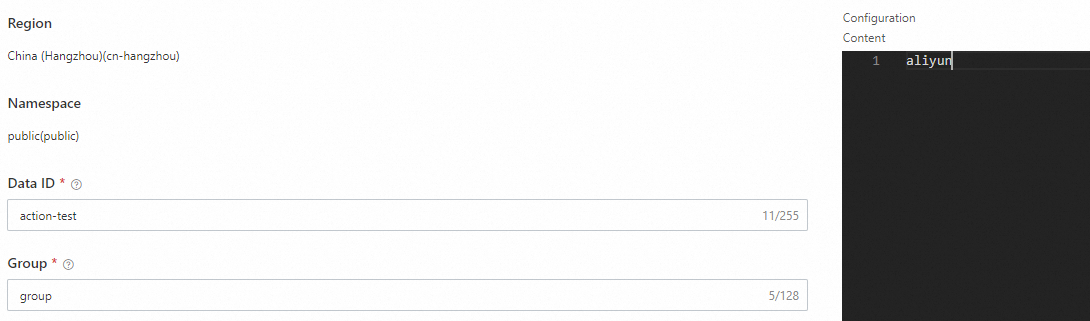
In the Add Configuration pane, set the following parameters and keep the defaults for everything else:
Parameter Value Data ID action-testGroup actionConfiguration Content aliyunClick Release.
Step 2: Create a trail to capture Nacos events
A trail defines which events ActionTrail captures and delivers to SLS for querying and alerting.
Go to the Trails page of the ActionTrail console and click Create Trail.
In the Basic Information area, set Trail Name to
nacos-test. For Trail Event Type, select both Management Event and Data Event.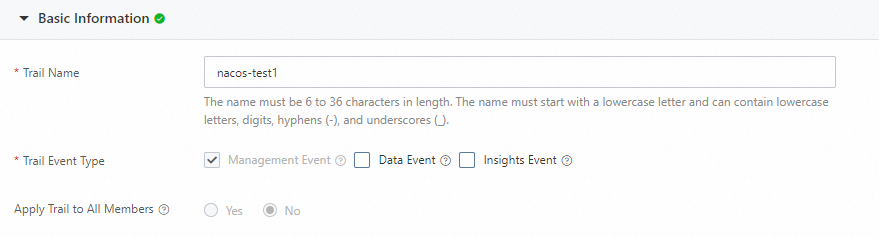
In the Data Event Delivery Settings area, search for
MSE, find Microservices Engine, and select it.In the Data Event Selector section, leave the filters blank to deliver all MSE events by default, then click Confirm.
Step 3: Verify that ActionTrail captures configuration changes
Before setting up notifications, confirm that ActionTrail records Nacos configuration changes correctly.
Go to the Instances page of the MSE console and click your target Nacos instance.
Click Configurations, then click Edit next to the configuration you created in Step 1.
Change the configuration content from
aliyuntoAlibaba Cloud Native, then click Release.Go to the Advanced Event Query page of the ActionTrail console. For Trail, select
nacos-test.Set Service Name to Microservices Engine (MSE) and Event Name to UpdateNacosConfig, then click Run.
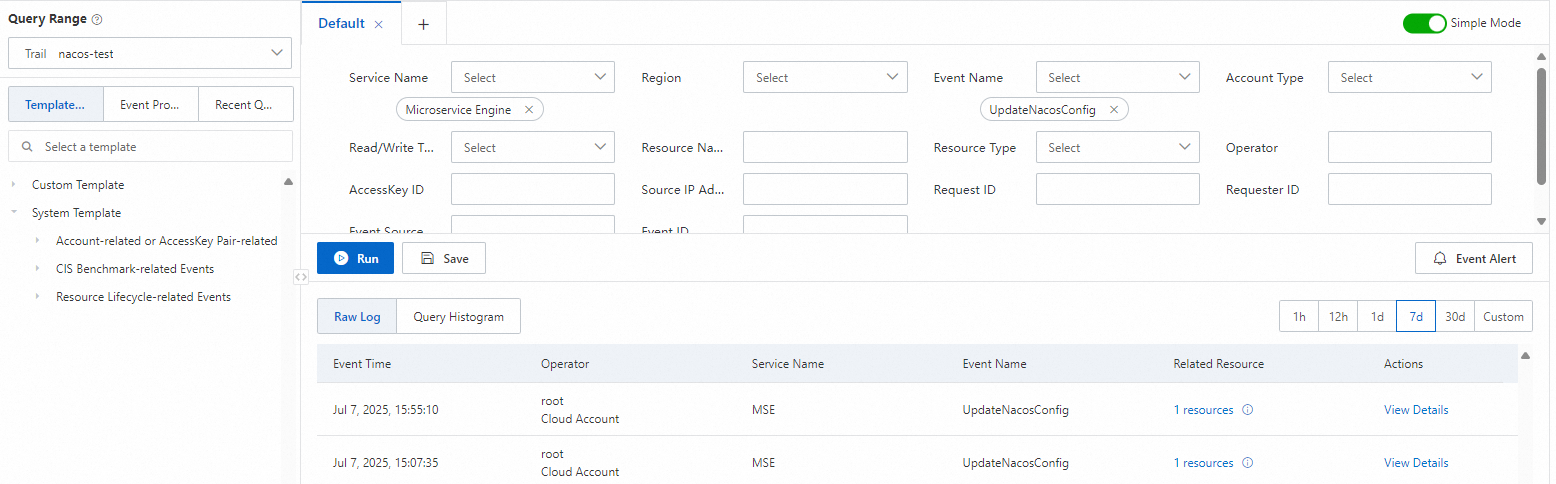
Click View Details to inspect the full event record for the configuration change.
Step 4: Configure a DingTalk webhook notification
This step connects a webhook endpoint, a message template, and an alert rule into an end-to-end notification pipeline.
4.1 Create a webhook
Go to the Event Alerting page of the ActionTrail console. Click .
In the Create Webhook panel, set the following parameters:
Parameter Value ID mse-test-dingdingName DingTalk RobotType DingTalk Request URL https://oapi.dingtalk.com/robot/send?access_token=xxxxClick OK.
Replace the Request URL with the actual webhook address from your DingTalk custom robot. For setup instructions, see Custom Robot Access.
4.2 Create a content template
Click .
In the Add Alert Template dialog box, set ID to
Nacosand Name toNacos Change.Select DingTalk. Set Title to
Nacos configuration change alertand enter the following content:Nacos configuration changed by ID {{ alert.aliuid }} Change details: {{ alert.results[0].raw_results }}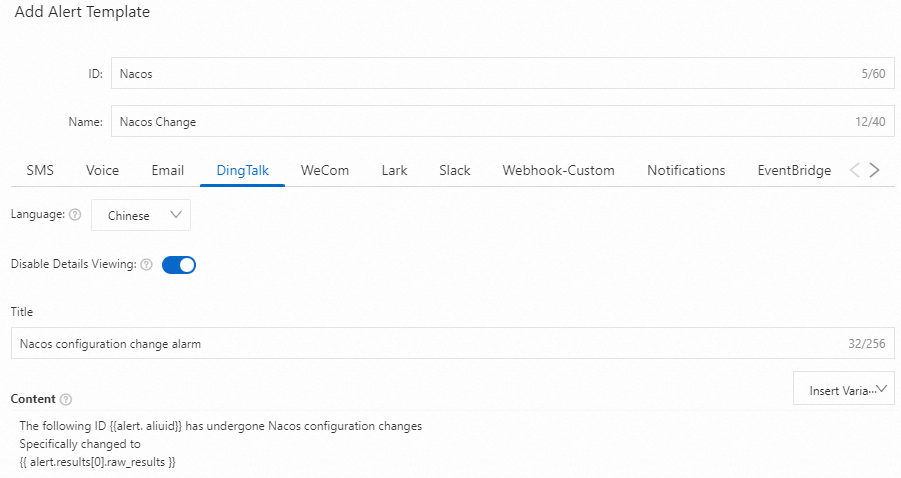
4.3 Create an alert rule
Click . Set Rule Name to
Nacosand Check Frequency to a fixed interval of 1 minute.In the Query Statistics section, add two rules. For JOIN between the two rules, select Concatenate:
Rule 1: Click Add, set Time Range to 1 minute (relative), and enter the following search statement:
* AND (event.serviceName: "MSE") AND (event.acsRegion: "cn-beijing") AND (event.eventName: "UpdateNacosConfig")Rule 2: Click Add and set Time Range to 15 minutes (relative).
NoteYou can configure the rules as needed.
For Group Evaluation, select Custom Label. For Tags, select
event.eventname. Set Trigger Condition to data matches the expression and enter:event.eventname == UpdateNacosConfigAdd an Annotation with name
mseand value${event.requestparameter}.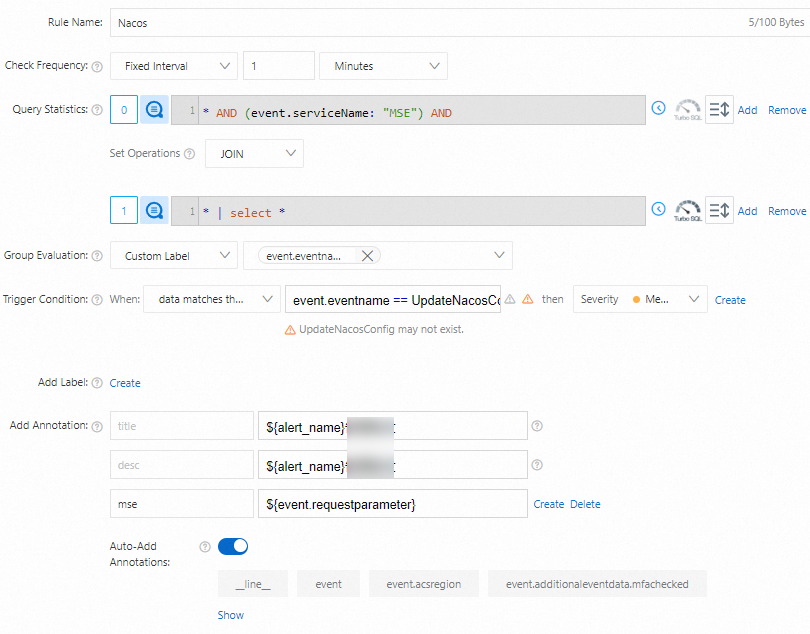
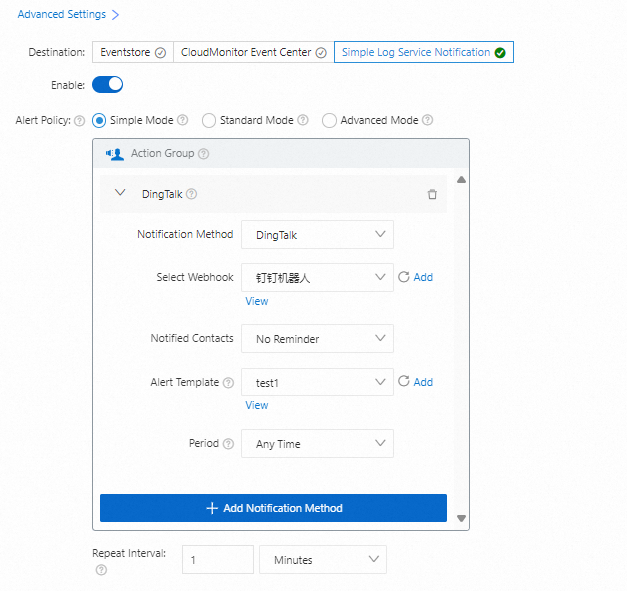
In Advanced Setting, set Destination to Simple Log Service Notification. Click Enable and select Simple Mode.
For Channel, select DingTalk. Select the webhook and content template you created earlier, then click OK.
4.4 Test the notification pipeline
Go to the Instances page of the MSE console and click your target Nacos instance.
Click Configurations, then click Edit next to the configuration you created.
Change the configuration content from
Alibaba Cloud NativetoAlibaba Cloud, then click Release.Open your DingTalk group. Within a few minutes, the webhook delivers a notification with the change details. To include additional fields in the notification, update the content template in Step 4.2 with other event attributes.