Connect via an agent (script, big data, and SQL jobs)
This topic describes how to install an agent on an Elastic Compute Service (ECS) instance or in Container Service to connect to MSE-XXLJOB.
Overview
You can dynamically write or modify scripts and SQL in the MSE console to schedule and execute jobs.
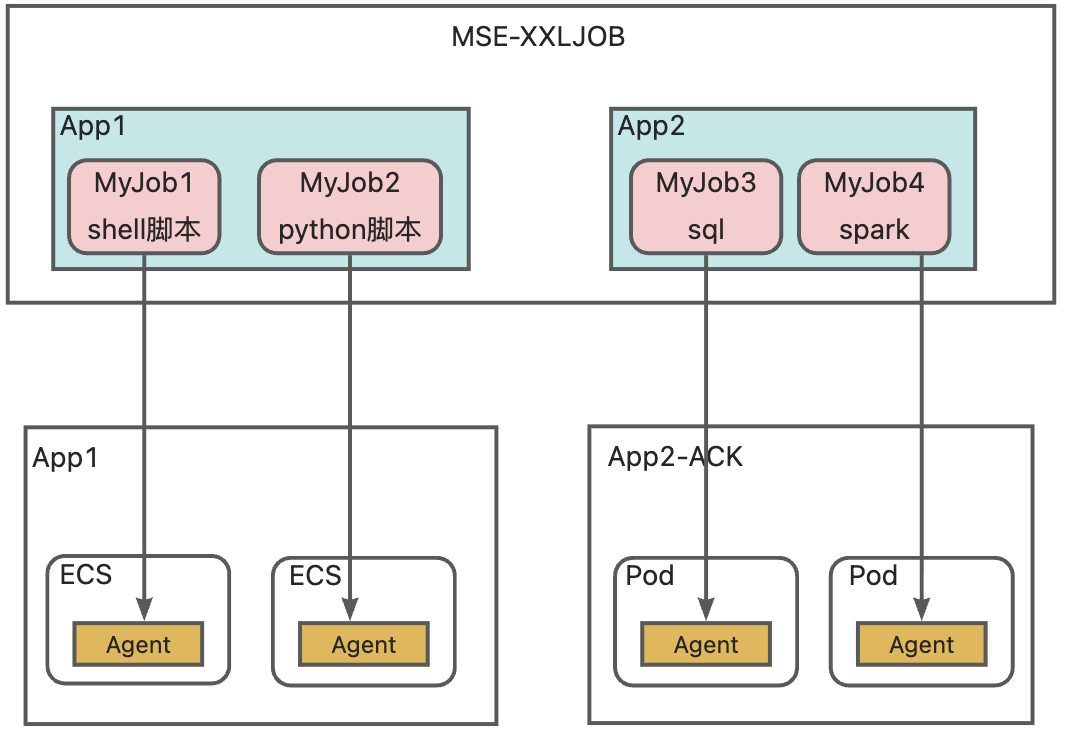
Procedure
Create a normal app
Log on to the XXL-JOB console and select a region from the top menu bar.
Click the target instance to open its details page.
In the left-side navigation pane, choose Application Management, and then click Create Application.
For Application Type, select Standard Application. Configure the other parameters as needed, and then click OK.
Connect an executor via an agent
You can deploy the agent using an installation package, a Docker image, or a Kubernetes manifest.
Installation package
Prerequisites
JDK 17 or later is installed.
Download the installation package.
wget https://schedulerx3.oss-cn-hangzhou.aliyuncs.com/xxljob/schedulerx3-agent-1.0.0-bin.tar.gzDecompress and configure the package:
# Decompress the package
tar -zxvf schedulerx3-agent-1.0.0-bin.tar.gz
cd schedulerx3-agent-1.0.0-bin
The decompressed directory structure is as follows:
schedulerx3-worker-2.4.2-jdk17-bin/
├── bin/              # Directory for startup scripts
├── conf/             # Directory for configuration files
│   ├── application.yml      # Application configuration
│   └── logback-spring.xml   # Log configuration
├── lib/              # Directory for dependent JAR packages
└── logs/             # Log directory (automatically created at runtime)
    ├── stdout.log    # Standard output log
    ├── stderr.log    # Standard error log
    ├── worker.log    # Application log
    ├── error.log     # Error log
    ├── gc.log        # GC log
    └── archive/      # Archived log directory
Edit the
conf/application.ymlfile and set the following parameters for your XXL-JOB instance:xxl: job: admin-addresses: {service access address} access-token: {access token} executor: appname: {application name}Start the service.
Linux/macOS
# Start in the background
./bin/start.sh

# Start in the foreground (for debugging)
./bin/start.sh -f

# Stop
./bin/stop.sh

# Restart
./bin/restart.sh

# Check status
./bin/status.sh

# View logs
tail -f logs/worker.log
Windows
REM Start in the background
.\bin\start.cmd

REM Start in the foreground (for debugging)
.\bin\start.cmd -f

REM Stop
.\bin\stop.cmd

REM Restart
.\bin\restart.cmd

REM Check status
.\bin\status.cmd

REM View logs
type logs\worker.log
(Optional) Logging configuration
The main log files are located in the
logs/directory. By default, job execution logs are stored in${user.home}/applogs/xxl-job/jobhandler.Log file
Description
Rotation policy
stdout.logStandard output log (startup log)
Redirected by script
stderr.logStandard error log (exception stack traces)
Redirected by script
worker.logApplication log (INFO level and higher)
100 MB per file, retained for 30 days
error.logError log (ERROR level)
50 MB per file, retained for 60 days
gc.logGC log
Configured by JVM parameters
heap_dump.hprofHeap dump file (generated during an OOM event)
-
archive/Archived log directory (automatically compressed to .gz)
-
Edit the
conf/logback-spring.xmlfile to adjust the log output.<!-- Modify the root log level --> <root level="INFO"> <appender-ref ref="STDOUT" /> <appender-ref ref="FILE" /> </root> <!-- Modify the log level for a specific package --> <logger name="com.aliyun.schedulerx" level="DEBUG" /> <logger name="com.xxl.job" level="DEBUG" />
(Optional) JVM parameter configuration. Adjust the JVM heap size to match your workload.
# Linux/macOS - Specify temporarily
JAVA_OPTS="-Xms2g -Xmx4g" ./bin/start.sh

# Linux/macOS - Modify permanently
vim bin/start.sh  # Edit the JAVA_OPTS variable

# Windows - Specify temporarily
set JAVA_OPTS=-Xms2g -Xmx4g
.\bin\start.cmd

# Windows - Modify permanently
notepad bin\start.cmd  # Edit the JAVA_OPTS variable
Docker
Method 1: Public image
The public image provides the runtime environment for common scripts and includes Python, Node.js, and Go. You can pull the image directly from the image repository and run it without building it.
# Pull the image
docker pull schedulerx-registry.cn-hangzhou.cr.aliyuncs.com/schedulerx3/schedulerx3-agent:1.0.0

# Run with custom configurations
docker run -d \
  --name schedulerx3-agent \
  -p 9999:9999 \
  # Configure JVM parameters as needed
  -e JAVA_OPTS="-Xms1g -Xmx2g" \
  -e SCHEDULERX3_ADMIN_ADDRESSES="{service access address}" \
  -e SCHEDULERX3_EXECUTOR_APPNAME="{application name}" \
  -e SCHEDULERX3_ACCESS_TOKEN="{access token}" \
  -v $(pwd)/logs:/opt/schedulerx3-agent/logs \
  --restart unless-stopped \
  schedulerx-registry.cn-hangzhou.cr.aliyuncs.com/schedulerx3/schedulerx3-agent:1.0.0
Method 2: Build a custom image from .tar package
If you need additional external components or a custom base image, you can build your own image from the downloaded .tar package and push it to your private image registry.
# Download the installation package
wget https://schedulerx3.oss-cn-hangzhou.aliyuncs.com/xxljob/schedulerx3-agent-1.0.0-bin.tar.gz
# Build the Docker image
docker build -t schedulerx3-agent:1.0.0 -f Dockerfile .
Sample Dockerfile:
############################################
### Install required components.
############################################

# Configure your custom base image
FROM hub.docker.xxx.com/library/openjdk:17.0.1-jdk-bullseye

LABEL maintainer="SchedulerX Team"
LABEL description="SchedulerX3 Agent - XXL-Job Executor"
LABEL version="2.4.2"

# Configure Alibaba Cloud mirror sources
RUN sed -i 's/deb.debian.org/mirrors.aliyun.com/g' /etc/apt/sources.list && \
    sed -i 's|security.debian.org/debian-security|mirrors.aliyun.com/debian-security|g' /etc/apt/sources.list

# Install basic tools, Python 3, Node.js, and Go
RUN apt-get update && \
    apt-get install -y python3 python3-distutils curl wget ca-certificates nodejs npm golang-go && \
    apt-get clean && \
    rm -rf /var/lib/apt/lists/*

# Use the official script to install pip
RUN curl https://bootstrap.pypa.io/get-pip.py -o /tmp/get-pip.py && \
    python3 /tmp/get-pip.py && \
    rm -f /tmp/get-pip.py && \
    ln -sf /usr/bin/python3 /usr/bin/python

# Set Go environment variables
ENV GOPATH=/root/go
ENV PATH=$GOPATH/bin:$PATH
ENV GO111MODULE=on

# Copy the tar package to the image
COPY schedulerx3-agent-*-bin.tar.gz /tmp/schedulerx3-agent.tar.gz

# Decompress the tar package to the specified directory (stripping the top-level directory)
RUN mkdir -p /opt/schedulerx3-agent && \
    tar -xzf /tmp/schedulerx3-agent.tar.gz --strip-components=1 -C /opt/schedulerx3-worker && \
    chmod +x /opt/schedulerx3-agent/bin/*.sh && \
    mkdir -p /opt/schedulerx3-agent/logs && \
    rm -f /tmp/schedulerx3-agent.tar.gz

# Set the working directory
WORKDIR /opt/schedulerx3-agent

# Expose the port
EXPOSE 9999

# Startup command (using the foreground mode of start.sh)
CMD ["bin/start.sh", "-f"]
Kubernetes
Create a
schedulerx3-agent.yamlfile to deploy the agent as a Deployment.apiVersion: apps/v1 kind: Deployment metadata: name: schedulerx3-agent labels: app: schedulerx3-agent spec: replicas: 1 selector: matchLabels: app: schedulerx3-agent template: metadata: labels: app: schedulerx3-agent spec: containers: - name: schedulerx3-agent image: schedulerx-registry.cn-hangzhou.cr.aliyuncs.com/schedulerx3/schedulerx3-agent:1.0.0 imagePullPolicy: Always ports: - containerPort: 9999 env: - name: "SCHEDULERX3_ADMIN_ADDRESSES" value: "{service access address}" - name: "SCHEDULERX3_EXECUTOR_APPNAME" value: "{application name}" - name: "SCHEDULERX3_ACCESS_TOKEN" value: "{access token}" livenessProbe: tcpSocket: port: 9999 timeoutSeconds: 30 initialDelaySeconds: 30Deploy the agent to Kubernetes.
# Deploy
kubectl apply -f schedulerx3-agent.yaml
Create a job
Script job
On the instance details page, in the left-side navigation pane, choose .
Click Add Task. The following steps demonstrate the configuration using a Shell script example. For other parameters, use the default values or configure them as needed.
NoteIf the agent is deployed on a Unix or Linux system, select Unix for the file format.
For AppName, select the application that you created.
For Task Type, select Shell.
On the Task Management page, find the job you created and click Run once in the Actions column to test the job.
In the left-side navigation pane, choose Job Instances to view the job execution history. Click Log to view the script's detailed execution log.