Edit images with text instructions using Wan models. Supports multi-image input/output, image fusion, subject preservation, and object detection.
Getting started
Generate an edited image from two input images and a text prompt with wan2.7-image-pro.
Prompt: Spray the graffiti from image 2 onto the car in image 1
Input image 1 | Input image 2 | Output image (wan2.7-image-pro) |
|---|---|---|
|
|
|
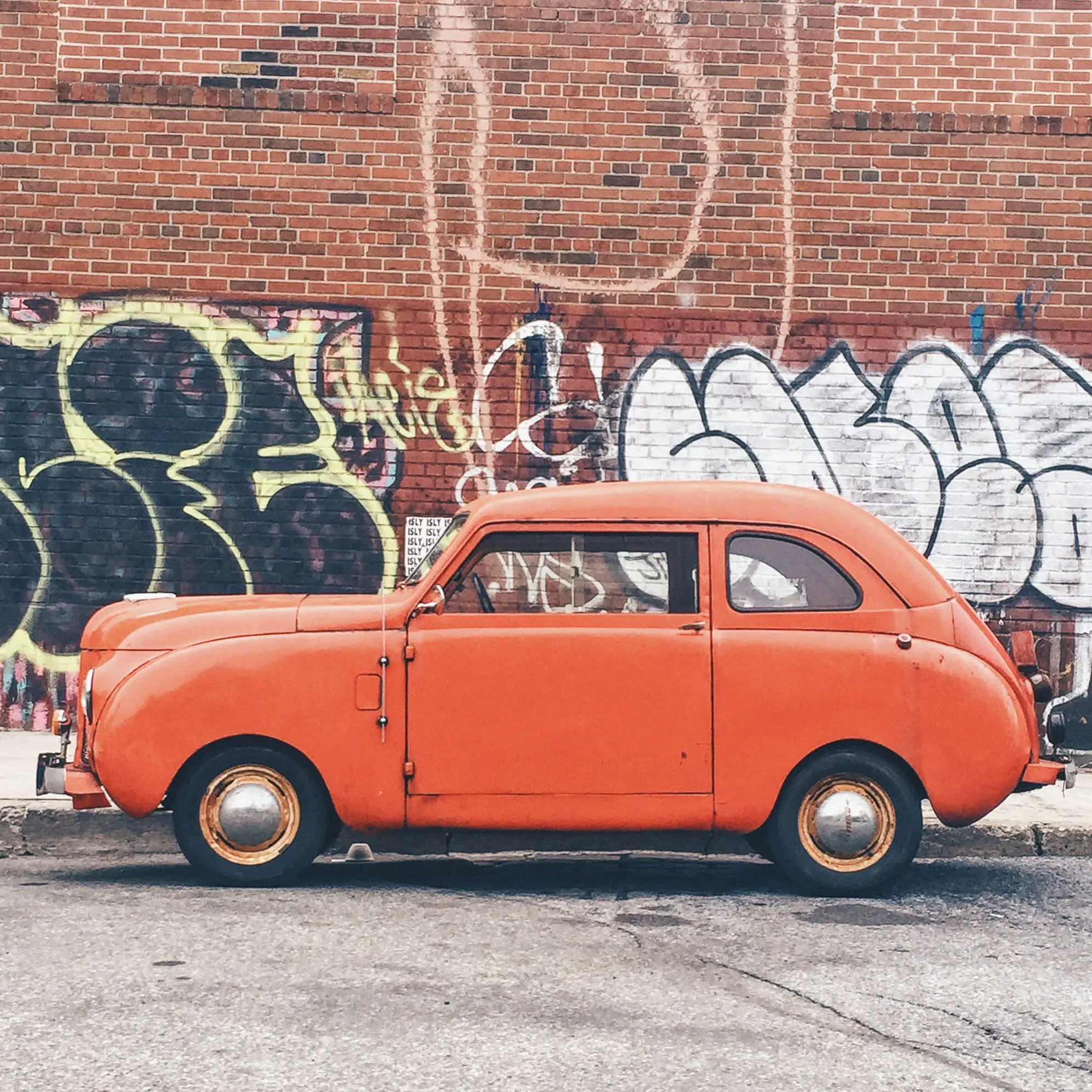
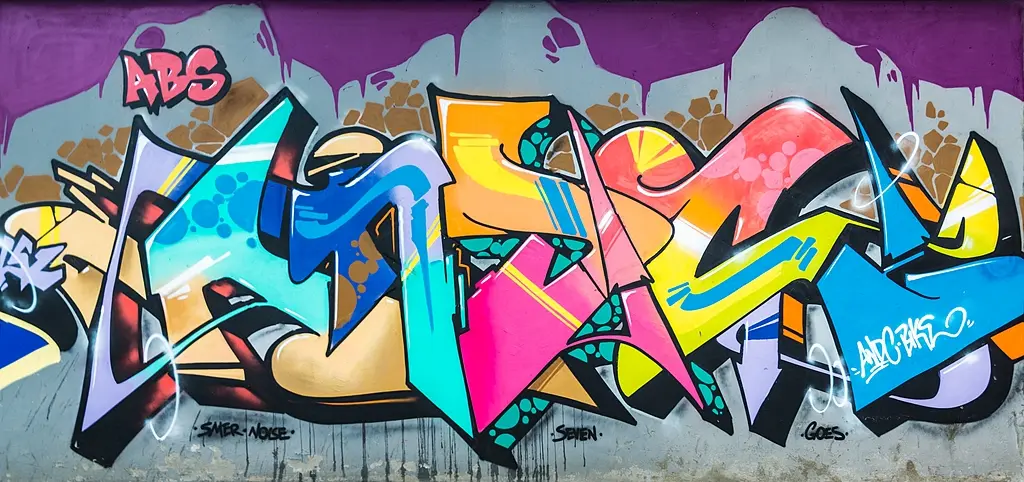
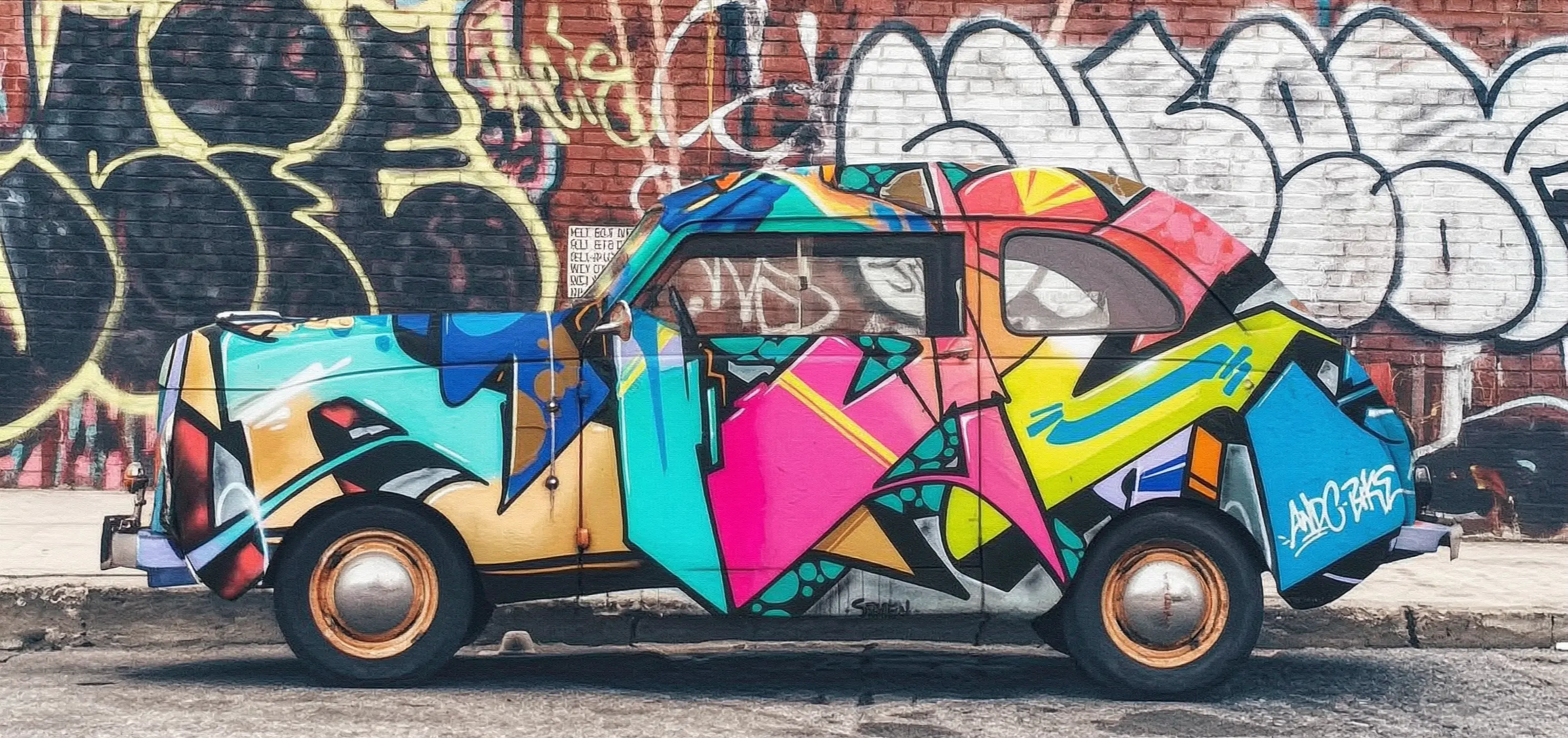
Before making a call, get an API key and export the API key as an environment variable. To make calls using the SDK, install the DashScope SDK.
Synchronous call
ImportantEnsure that the DashScope Python SDK version is1.25.15or later, and the DashScope Java SDK version is2.22.13or later.
Python
Request example
import os
import base64
import mimetypes
import urllib.request
import dashscope
from dashscope.aigc.image_generation import ImageGeneration
from dashscope.api_entities.dashscope_response import Message

# The following base_url is for the Singapore region. Replace {WorkspaceId} with your Bailian workspace ID. The base_url varies by region.
dashscope.base_http_api_url = "https://{WorkspaceId}.ap-southeast-1.maas.aliyuncs.com/api/v1"

# If you have not configured environment variables, replace the following line with your Model Studio API key: api_key="sk-xxx"
# The API key varies by region. To obtain an API key, visit: https://www.alibabacloud.com/help/model-studio/get-api-key
api_key = os.getenv("DASHSCOPE_API_KEY")

# --- Base64 encoding function ---
# The Base64 encoding format is data:{MIME_type};base64,{base64_data}
def encode_file(file_path):
    mime_type, _ = mimetypes.guess_type(file_path)
    if not mime_type or not mime_type.startswith("image/"):
        raise ValueError("Unsupported or unrecognized image format")
    with open(file_path, "rb") as image_file:
        encoded_string = base64.b64encode(image_file.read()).decode("utf-8")
    return f"data:{mime_type};base64,{encoded_string}"

"""
Image input methods:
The following are three methods for image input. You need to choose only one.
1. Use a public URL: This method is suitable for publicly accessible images.
2. Use a local file: This method is suitable for local development and testing.
3. Use Base64 encoding: This method is suitable for private images or scenarios that require encrypted transmission.
"""
# [Method 1] Use a public image URL
image_1 = "https://help-static-aliyun-doc.aliyuncs.com/file-manage-files/zh-CN/20251229/pjeqdf/car.webp"
image_2 = "https://help-static-aliyun-doc.aliyuncs.com/file-manage-files/zh-CN/20251229/xsunlm/paint.webp"

# [Method 2] Use a local file (supports absolute and relative paths)
# image_1 = "file:///path/to/your/car.png"
# image_2 = "file:///path/to/your/paint.png"

# [Method 3] Use a Base64-encoded image
# image_1 = encode_file("/path/to/your/car.png")
# image_2 = encode_file("/path/to/your/paint.png")

message = Message(
    role="user",
    content=[
        {"text": "Spray the graffiti from image 2 onto the car in image 1"},
        {"image": image_1},
        {"image": image_2},
    ],
)
print("----sync call, please wait a moment----")
rsp = ImageGeneration.call(
    model="wan2.7-image-pro",
    api_key=api_key,
    messages=[message],
    watermark=False,
    n=1,
    size="2K",  # wan2.7-image-pro supports 4K resolution only for text-to-image generation. Image editing and multi-image generation support up to 2K resolution.
)

# Extract the result image URL and save the image to a local file.
if rsp.status_code == 200:
    for i, choice in enumerate(rsp.output.choices):
        for j, content in enumerate(choice["message"]["content"]):
            if content.get("type") == "image":
                image_url = content["image"]
                file_name = f"output_{i}_{j}.png"
                # The result URL is valid for 24 hours. Please download it promptly.
                urllib.request.urlretrieve(image_url, file_name)
                print(f"Image saved to {file_name}")
else:
    print(f"Failed: status_code={rsp.status_code}, message={rsp.message}")
Response example
The URL is valid for 24 hours. Download the image promptly.
{
    "status_code": 200,
    "request_id": "81d868c6-6ce1-92d8-a90d-d2ee71xxxxxx",
    "code": "",
    "message": "",
    "output": {
        "text": null,
        "finish_reason": null,
        "choices": [
            {
                "finish_reason": "stop",
                "message": {
                    "role": "assistant",
                    "content": [
                        {
                            "image": "https://dashscope-result-bj.oss-cn-beijing.aliyuncs.com/xxxxxx.png?Expires=xxxxxx",
                            "type": "image"
                        }
                    ]
                }
            }
        ],
        "audio": null,
        "finished": true
    },
    "usage": {
        "input_tokens": 18790,
        "output_tokens": 2,
        "characters": 0,
        "image_count": 1,
        "size": "2985*1405",
        "total_tokens": 18792
    }
}
Java
Request example
import com.alibaba.dashscope.aigc.imagegeneration.*;
import com.alibaba.dashscope.exception.ApiException;
import com.alibaba.dashscope.exception.NoApiKeyException;
import com.alibaba.dashscope.exception.UploadFileException;
import com.alibaba.dashscope.utils.Constants;
import com.alibaba.dashscope.utils.JsonUtils;

import java.io.IOException;
import java.io.InputStream;
import java.net.URL;
import java.nio.file.Files;
import java.nio.file.Paths;
import java.nio.file.StandardCopyOption;
import java.util.Arrays;
import java.util.Base64;
import java.util.Collections;
import java.util.List;
import java.util.Map;

/**
 * wan2.7-image-pro Image Editing - Synchronous Call Example
 */
public class Main {

    static {
        // The following URL is for the Singapore region. Replace {WorkspaceId} with your Bailian workspace ID. The base_url varies by region.
        Constants.baseHttpApiUrl = "https://{WorkspaceId}.ap-southeast-1.maas.aliyuncs.com/api/v1";
    }

    // If you have not configured an environment variable, replace the following line with your Model Studio API key: apiKey="sk-xxx"
    // The API key varies by region. To obtain an API key, visit https://www.alibabacloud.com/help/model-studio/get-api-key
    static String apiKey = System.getenv("DASHSCOPE_API_KEY");

    // --- Base64 encoding function ---
    // Base64 encoding format: data:{MIME_type};base64,{base64_data}
    public static String encodeFile(String filePath) throws IOException {
        byte[] fileContent = Files.readAllBytes(Paths.get(filePath));
        String base64String = Base64.getEncoder().encodeToString(fileContent);
        String mimeType = Files.probeContentType(Paths.get(filePath));
        return "data:" + mimeType + ";base64," + base64String;
    }

    public static void basicCall() throws ApiException, NoApiKeyException, UploadFileException, IOException {
        /*
         * Description of image input methods:
         * Three image input methods are provided below. Select one.
         * 1. Use a public URL: Suitable for publicly accessible images.
         * 2. Use a local file: Suitable for local development and testing.
         * 3. Use Base64 encoding: Suitable for private images or scenarios that require encrypted transmission.
         */
        // Method 1: Use a public image URL.
        String image1 = "https://help-static-aliyun-doc.aliyuncs.com/file-manage-files/zh-CN/20251229/pjeqdf/car.webp";
        String image2 = "https://help-static-aliyun-doc.aliyuncs.com/file-manage-files/zh-CN/20251229/xsunlm/paint.webp";

        // Method 2: Use a local file. Both absolute and relative paths are supported.
        // Format: file:// + file path
        // String image1 = "file:///path/to/your/car.png";
        // String image2 = "file:///path/to/your/paint.png";

        // Method 3: Use a Base64-encoded image.
        // String image1 = encodeFile("/path/to/your/car.png");
        // String image2 = encodeFile("/path/to/your/paint.png");

        // Build a multi-image input message.
        ImageGenerationMessage message = ImageGenerationMessage.builder()
                .role("user")
                .content(Arrays.asList(
                        // Multi-image input is supported. You can provide multiple reference images.
                        Collections.singletonMap("text", "Spray the graffiti from image 2 onto the car in image 1"),
                        Collections.singletonMap("image", image1),
                        Collections.singletonMap("image", image2)
                )).build();

        ImageGenerationParam param = ImageGenerationParam.builder()
                .apiKey(apiKey)
                .model("wan2.7-image-pro")
                .messages(Collections.singletonList(message))
                .n(1)
                .size("2K") // For wan2.7-image-pro, only the text-to-image generation scenario supports 4K resolution. Image editing and collage generation support a maximum resolution of 2K.
                .build();

        ImageGeneration imageGeneration = new ImageGeneration();
        ImageGenerationResult result = null;
        try {
            System.out.println("---sync call for image editing, please wait a moment----");
            result = imageGeneration.call(param);
        } catch (ApiException | NoApiKeyException | UploadFileException e) {
            throw new RuntimeException(e.getMessage());
        }
        // Extract the result image URL and save it to a local file.
        for (int i = 0; i < result.getOutput().getChoices().size(); i++) {
            List<Map<String, Object>> contents = result.getOutput().getChoices().get(i)
                    .getMessage().getContent();
            for (int j = 0; j < contents.size(); j++) {
                if ("image".equals(contents.get(j).get("type"))) {
                    String imageUrl = (String) contents.get(j).get("image");
                    String fileName = "output_" + i + "_" + j + ".png";
                    // The result URL is valid for 24 hours. Download the image in a timely manner.
                    try (InputStream in = new URL(imageUrl).openStream()) {
                        Files.copy(in, Paths.get(fileName), StandardCopyOption.REPLACE_EXISTING);
                    }
                    System.out.println("Image saved to " + fileName);
                }
            }
        }
    }

    public static void main(String[] args) throws ApiException, NoApiKeyException, UploadFileException, IOException {
        basicCall();
    }
}
Response example
The URL is valid for 24 hours. Save it promptly.
{
    "requestId": "1bf6173a-e8de-9f75-94d3-5e618f875xxx",
    "usage": {
        "input_tokens": 18790,
        "output_tokens": 2,
        "total_tokens": 18792,
        "image_count": 1,
        "size": "2985*1405"
    },
    "output": {
        "choices": [
            {
                "finish_reason": "stop",
                "message": {
                    "role": "assistant",
                    "content": [
                        {
                            "image": "https://dashscope-result-bj.oss-cn-beijing.aliyuncs.com/xxxxxx.png?Expires=xxxxxx",
                            "type": "image"
                        }
                    ]
                }
            }
        ],
        "finished": true
    },
    "status_code": 200,
    "code": "",
    "message": ""
}
curl
Request example
curl --location 'https://{WorkspaceId}.ap-southeast-1.maas.aliyuncs.com/api/v1/services/aigc/multimodal-generation/generation' \
    --header 'Content-Type: application/json' \
    --header "Authorization: Bearer $DASHSCOPE_API_KEY" \
    --data '{
        "model": "wan2.7-image-pro",
        "input": {
            "messages": [
                {
                    "role": "user",
                    "content": [
                        {"image": "https://help-static-aliyun-doc.aliyuncs.com/file-manage-files/zh-CN/20251229/pjeqdf/car.webp"},
                        {"image": "https://help-static-aliyun-doc.aliyuncs.com/file-manage-files/zh-CN/20251229/xsunlm/paint.webp"},
                        {"text": "Spray-paint the graffiti from image 2 onto the car in image 1"}
                    ]
                }
            ]
        },
        "parameters": {
            "size": "2K",
            "n": 1,
            "watermark": false
        }
    }'
Response example
{
    "output": {
        "choices": [
            {
                "finish_reason": "stop",
                "message": {
                    "content": [
                        {
                            "image": "https://dashscope-xxx.oss-xxx.aliyuncs.com/xxx.png?Expires=xxx",
                            "type": "image"
                        }
                    ],
                    "role": "assistant"
                }
            }
        ],
        "finished": true
    },
    "usage": {
        "image_count": 1,
        "input_tokens": 10867,
        "output_tokens": 2,
        "size": "1488*704",
        "total_tokens": 10869
    },
    "request_id": "71dfc3c6-f796-9972-97e4-bc4efc4faxxx"
}
Asynchronous call
ImportantEnsure that the DashScope Python SDK version is1.25.15or later, and the DashScope Java SDK version is2.22.13or later.
Python
Request example
import os
import base64
import mimetypes
import urllib.request
import dashscope
from dashscope.aigc.image_generation import ImageGeneration
from dashscope.api_entities.dashscope_response import Message
from http import HTTPStatus

# The following base_url is for the Singapore region. Replace {WorkspaceId} with your Bailian workspace ID. The base_url varies by region.
dashscope.base_http_api_url = "https://{WorkspaceId}.ap-southeast-1.maas.aliyuncs.com/api/v1"

# If you have not configured environment variables, replace the following line with your Model Studio API key: api_key="sk-xxx"
# The API key varies by region. To obtain an API key, visit https://www.alibabacloud.com/help/model-studio/get-api-key
api_key = os.getenv("DASHSCOPE_API_KEY")

# --- Base64 encoding function ---
# The Base64 encoding format is data:{MIME_type};base64,{base64_data}
def encode_file(file_path):
    mime_type, _ = mimetypes.guess_type(file_path)
    if not mime_type or not mime_type.startswith("image/"):
        raise ValueError("Unsupported or unrecognized image format.")
    with open(file_path, "rb") as image_file:
        encoded_string = base64.b64encode(image_file.read()).decode("utf-8")
    return f"data:{mime_type};base64,{encoded_string}"

"""
Image input methods:
Three image input methods are provided below. Choose one.
1. Use a public URL - suitable for publicly accessible images.
2. Use a local file - suitable for local development and testing.
3. Use Base64 encoding - suitable for private images or scenarios that require encrypted transmission.
"""
# [Method 1] Use a public image URL
image_1 = "https://help-static-aliyun-doc.aliyuncs.com/file-manage-files/zh-CN/20251229/pjeqdf/car.webp"
image_2 = "https://help-static-aliyun-doc.aliyuncs.com/file-manage-files/zh-CN/20251229/xsunlm/paint.webp"

# [Method 2] Use a local file (supports absolute and relative paths)
# image_1 = "file:///path/to/your/car.png"
# image_2 = "file:///path/to/your/paint.png"

# [Method 3] Use a Base64-encoded image
# image_1 = encode_file("/path/to/your/car.png")
# image_2 = encode_file("/path/to/your/paint.png")

# Create an asynchronous task.
def create_async_task():
    print("Creating async task...")
    message = Message(
        role="user",
        content=[
            {"text": "Spray the graffiti from image 2 onto the car in image 1."},
            {"image": image_1},
            {"image": image_2},
        ],
    )
    response = ImageGeneration.async_call(
        model="wan2.7-image-pro",
        api_key=api_key,
        messages=[message],
        watermark=False,
        n=1,
        size="2K",  # wan2.7-image-pro supports 4K resolution only for text-to-image generation scenarios. Image editing and collage generation support a maximum resolution of 2K.
    )

    if response.status_code == 200:
        print("Task created successfully:", response)
        return response
    else:
        raise Exception(f"Failed to create task: {response.code} - {response.message}")

# Wait for the task to complete.
def wait_for_completion(task_response):
    print("Waiting for task completion...")
    status = ImageGeneration.wait(task=task_response, api_key=api_key)

    if status.output.task_status == "SUCCEEDED":
        print("Task succeeded!")
        # Extract the result image URL and save the image to a local file.
        for i, choice in enumerate(status.output.choices):
            for j, content in enumerate(choice["message"]["content"]):
                if content.get("type") == "image":
                    image_url = content["image"]
                    file_name = f"output_{i}_{j}.png"
                    # The result URL is valid for 24 hours. Download the image in a timely manner.
                    urllib.request.urlretrieve(image_url, file_name)
                    print(f"Image saved to {file_name}")
    else:
        raise Exception(f"Task failed with status: {status.output.task_status}")

# Obtain information about the asynchronous task.
def fetch_task_status(task):
    print("Fetching task status...")
    status = ImageGeneration.fetch(task=task, api_key=api_key)

    if status.status_code == HTTPStatus.OK:
        print("Task status:", status.output.task_status)
        print("Response details:", status)
    else:
        print(f"Failed to fetch status: {status.code} - {status.message}")

# Cancel the asynchronous task.
def cancel_task(task):
    print("Canceling task...")
    response = ImageGeneration.cancel(task=task, api_key=api_key)

    if response.status_code == HTTPStatus.OK:
        print("Task canceled successfully:", response.output.task_status)
    else:
        print(f"Failed to cancel task: {response.code} - {response.message}")

# Main execution flow.
if __name__ == "__main__":
    task = create_async_task()
    wait_for_completion(task)
Response example
- Response example for creating a task
{
    "status_code": 200,
    "request_id": "4fb3050f-de57-4a24-84ff-e37ee5xxxxxx",
    "code": "",
    "message": "",
    "output": {
        "text": null,
        "finish_reason": null,
        "choices": null,
        "audio": null,
        "task_id": "127ec645-118f-4884-955d-0eba8dxxxxxx",
        "task_status": "PENDING"
    },
    "usage": {
        "input_tokens": 0,
        "output_tokens": 0,
        "characters": 0
    }
}
-
Response example for querying a task result
The URL is valid for 24 hours. Download the image promptly.
{
    "status_code": 200,
    "request_id": "3b99aae5-d26f-9059-8dd0-ee9ca4804xxx",
    "code": null,
    "message": "",
    "output": {
        "text": null,
        "finish_reason": null,
        "choices": [
            {
                "finish_reason": "stop",
                "message": {
                    "role": "assistant",
                    "content": [
                        {
                            "image": "https://dashscope-result-bj.oss-cn-beijing.aliyuncs.com/xxxxxx.png?Expires=xxxxxx",
                            "type": "image"
                        }
                    ]
                }
            }
        ],
        "audio": null,
        "task_id": "127ec645-118f-4884-955d-0eba8dxxxxxx",
        "task_status": "SUCCEEDED",
        "submit_time": "2026-03-31 22:58:47.646",
        "scheduled_time": "2026-03-31 22:58:47.683",
        "end_time": "2026-03-31 22:58:59.642",
        "finished": true
    },
    "usage": {
        "input_tokens": 18711,
        "output_tokens": 2,
        "characters": 0,
        "size": "2985*1405",
        "total_tokens": 18713,
        "image_count": 1
    }
}
Java
Request example
import com.alibaba.dashscope.aigc.imagegeneration.*;
import com.alibaba.dashscope.exception.ApiException;
import com.alibaba.dashscope.exception.NoApiKeyException;
import com.alibaba.dashscope.exception.UploadFileException;
import com.alibaba.dashscope.utils.Constants;
import com.alibaba.dashscope.utils.JsonUtils;

import java.io.IOException;
import java.io.InputStream;
import java.net.URL;
import java.nio.file.Files;
import java.nio.file.Paths;
import java.nio.file.StandardCopyOption;
import java.util.Arrays;
import java.util.Base64;
import java.util.Collections;
import java.util.List;
import java.util.Map;

/**
 * wan2.7-image-pro Image Editing - Asynchronous Invocation Example
 */
public class Main {

    static {
        // The following URL is for the Singapore region. Replace {WorkspaceId} with your Bailian workspace ID. The base_url varies by region.
        Constants.baseHttpApiUrl = "https://{WorkspaceId}.ap-southeast-1.maas.aliyuncs.com/api/v1";
    }

    // If you have not configured an environment variable, replace the following line with your Model Studio API key: apiKey="sk-xxx"
    // The API key varies by region. To obtain an API key, visit: https://www.alibabacloud.com/help/model-studio/get-api-key
    static String apiKey = System.getenv("DASHSCOPE_API_KEY");

    // --- Base64 encoding function ---
    // The Base64 encoding format is data:{MIME_type};base64,{base64_data}
    public static String encodeFile(String filePath) throws IOException {
        byte[] fileContent = Files.readAllBytes(Paths.get(filePath));
        String base64String = Base64.getEncoder().encodeToString(fileContent);
        String mimeType = Files.probeContentType(Paths.get(filePath));
        return "data:" + mimeType + ";base64," + base64String;
    }

    public static void asyncCall() throws ApiException, NoApiKeyException, UploadFileException, IOException {
        /*
         * Description of image input methods:
         * The following three image input methods are provided. You can choose one of them.
         * 1. Use a public URL - Suitable for publicly accessible images.
         * 2. Use a local file - Suitable for local development and testing.
         * 3. Use Base64 encoding - Suitable for scenarios that involve private images or require encrypted transmission.
         */
        // [Method 1] Use a public image URL
        String image1 = "https://help-static-aliyun-doc.aliyuncs.com/file-manage-files/zh-CN/20251229/pjeqdf/car.webp";
        String image2 = "https://help-static-aliyun-doc.aliyuncs.com/file-manage-files/zh-CN/20251229/xsunlm/paint.webp";

        // [Method 2] Use a local file (supports absolute and relative paths)
        // Required format: file:// + file path
        // String image1 = "file:///path/to/your/car.png";
        // String image2 = "file:///path/to/your/paint.png";

        // [Method 3] Use a Base64-encoded image
        // String image1 = encodeFile("/path/to/your/car.png");
        // String image2 = encodeFile("/path/to/your/paint.png");

        // Build a multi-image input message
        ImageGenerationMessage message = ImageGenerationMessage.builder()
                .role("user")
                .content(Arrays.asList(
                        // Supports multi-image input. You can provide multiple reference images.
                        Collections.singletonMap("text", "Spray-paint the graffiti from image 2 onto the car in image 1"),
                        Collections.singletonMap("image", image1),
                        Collections.singletonMap("image", image2)
                )).build();

        ImageGenerationParam param = ImageGenerationParam.builder()
                .apiKey(apiKey)
                .model("wan2.7-image-pro")
                .n(1)
                .size("2K") // The wan2.7-image-pro model supports 4K resolution only for text-to-image generation. For image editing and composite image generation, the maximum supported resolution is 2K.
                .messages(Arrays.asList(message))
                .build();

        ImageGeneration imageGeneration = new ImageGeneration();
        ImageGenerationResult result = null;
        try {
            System.out.println("---async call for image editing, creating task----");
            result = imageGeneration.asyncCall(param);
        } catch (ApiException | NoApiKeyException | UploadFileException e) {
            throw new RuntimeException(e.getMessage());
        }
        System.out.println("Task creation result:");
        System.out.println(JsonUtils.toJson(result));

        String taskId = result.getOutput().getTaskId();
        // Wait for the task to complete
        waitTask(taskId);
    }

    public static void waitTask(String taskId) throws ApiException, NoApiKeyException, IOException {
        ImageGeneration imageGeneration = new ImageGeneration();
        System.out.println("\n---waiting for task completion----");
        ImageGenerationResult result = imageGeneration.wait(taskId, apiKey);
        // Fetch the resulting image URL and save it to a local file
        for (int i = 0; i < result.getOutput().getChoices().size(); i++) {
            List<Map<String, Object>> contents = result.getOutput().getChoices().get(i)
                    .getMessage().getContent();
            for (int j = 0; j < contents.size(); j++) {
                if ("image".equals(contents.get(j).get("type"))) {
                    String imageUrl = (String) contents.get(j).get("image");
                    String fileName = "output_" + i + "_" + j + ".png";
                    // The result URL is valid for 24 hours. Download the image in a timely manner.
                    try (InputStream in = new URL(imageUrl).openStream()) {
                        Files.copy(in, Paths.get(fileName), StandardCopyOption.REPLACE_EXISTING);
                    }
                    System.out.println("Image saved to " + fileName);
                }
            }
        }
    }

    public static void main(String[] args) throws ApiException, NoApiKeyException, UploadFileException, IOException {
        asyncCall();
    }
}
Response example
- Response example for creating a task
{
    "requestId": "ccf4b2f4-bf30-9e13-9461-3a28c6a7bxxx",
    "output": {
        "task_id": "8811b4a4-00ac-4aa2-a2fd-017d3b90cxxx",
        "task_status": "PENDING"
    },
    "status_code": 200,
    "code": "",
    "message": ""
}
-
Response example for querying a task result
The URL is valid for 24 hours. Save it promptly.
{
    "requestId": "60a08540-f1c1-9e76-8cd3-d5949db8cxxx",
    "usage": {
        "input_tokens": 18711,
        "output_tokens": 2,
        "total_tokens": 18713,
        "image_count": 1,
        "size": "2985*1405"
    },
    "output": {
        "choices": [
            {
                "finish_reason": "stop",
                "message": {
                    "role": "assistant",
                    "content": [
                        {
                            "image": "https://dashscope-result-bj.oss-cn-beijing.aliyuncs.com/xxxxxx.png?Expires=xxxxxx",
                            "type": "image"
                        }
                    ]
                }
            }
        ],
        "task_id": "8811b4a4-00ac-4aa2-a2fd-017d3b90cxxx",
        "task_status": "SUCCEEDED",
        "finished": true,
        "submit_time": "2026-03-31 19:57:58.840",
        "scheduled_time": "2026-03-31 19:57:58.877",
        "end_time": "2026-03-31 19:58:11.563"
    },
    "status_code": 200,
    "code": "",
    "message": ""
}
curl
Step 1: Create a task to get the task ID
curl --location 'https://{WorkspaceId}.ap-southeast-1.maas.aliyuncs.com/api/v1/services/aigc/image-generation/generation' \
    --header 'Content-Type: application/json' \
    --header "Authorization: Bearer $DASHSCOPE_API_KEY" \
    --header "X-DashScope-Async: enable" \
    --data '{
        "model": "wan2.7-image-pro",
        "input": {
            "messages": [
                {
                    "role": "user",
                    "content": [
                        {"image": "https://help-static-aliyun-doc.aliyuncs.com/file-manage-files/zh-CN/20251229/pjeqdf/car.webp"},
                        {"image": "https://help-static-aliyun-doc.aliyuncs.com/file-manage-files/zh-CN/20251229/xsunlm/paint.webp"},
                        {"text": "Spray-paint the graffiti from image 2 onto the car in image 1"}
                    ]
                }
            ]
        },
        "parameters": {
            "size": "2K",
            "n": 1,
            "watermark": false
        }
    }'
{
    "output": {
        "task_status": "PENDING",
        "task_id": "0385dc79-5ff8-4d82-bcb6-xxxxxx"
    },
    "request_id": "4909100c-7b5a-9f92-bfe5-xxxxxx"
}
Step2: Query the result by task ID
Use the task_id obtained in the previous step to poll the task status through the API until the task_status becomes SUCCEEDED or FAILED.
Replace {task_id} with the task_id value returned by the previous API call. The task_id is valid for queries for 24 hours, Replace {WorkspaceId} with your actual workspace ID.
curl -X GET https://{WorkspaceId}.ap-southeast-1.maas.aliyuncs.com/api/v1/tasks/{task_id} \
--header "Authorization: Bearer $DASHSCOPE_API_KEY"
The image URL is valid for 24 hours. Download the image promptly.
{
    "request_id": "810fa5f5-334c-91f3-aaa4-ed89cf0caxxx",
    "output": {
        "task_id": "a81ee7cb-014c-473d-b842-76e98311cxxx",
        "task_status": "SUCCEEDED",
        "submit_time": "2026-03-26 17:16:01.663",
        "scheduled_time": "2026-03-26 17:16:01.716",
        "end_time": "2026-03-26 17:16:22.961",
        "finished": true,
        "choices": [
            {
                "finish_reason": "stop",
                "message": {
                    "role": "assistant",
                    "content": [
                        {
                            "image": "https://dashscope-xxx.oss-xxx.aliyuncs.com/xxx.png?Expires=xxx",
                            "type": "image"
                        }
                    ]
                }
            }
        ]
    },
    "usage": {
        "size": "2976*1408",
        "total_tokens": 11017,
        "image_count": 1,
        "output_tokens": 2,
        "input_tokens": 11015
    }
}
wan2.5-i2i-preview uses different API endpoints and parameters.
Click to view call examples for wan2.5-i2i-preview
Synchronous call
ImportantEnsure that the DashScope Python SDK version is at least1.25.2and the DashScope Java SDK version is at least2.22.2.
Outdated SDK versions may trigger "url error, please check url!" errors. Install or upgrade the SDK.
Python
This example supports three image input methods: public URL, Base64 encoding, and local file path.
Request example
import base64
import mimetypes
from http import HTTPStatus
from urllib.parse import urlparse, unquote
from pathlib import PurePosixPath

import dashscope
import requests
from dashscope import ImageSynthesis
import os

# The following URL is for the Singapore region. Replace {WorkspaceId} with your actual workspace ID. URLs differ by region.
dashscope.base_http_api_url = 'https://{WorkspaceId}.ap-southeast-1.maas.aliyuncs.com/api/v1'

# If you have not configured an environment variable, replace the next line with: api_key="sk-xxx"
# API keys differ between Singapore and Beijing. Get an API key: https://www.alibabacloud.com/help/model-studio/get-api-key
api_key = os.getenv("DASHSCOPE_API_KEY")

# --- Input image: Base64 encoding ---
# Base64 format: data:{MIME_type};base64,{base64_data}
def encode_file(file_path):
    mime_type, _ = mimetypes.guess_type(file_path)
    if not mime_type or not mime_type.startswith("image/"):
        raise ValueError("Unsupported or unrecognized image format")
    with open(file_path, "rb") as image_file:
        encoded_string = base64.b64encode(image_file.read()).decode('utf-8')
    return f"data:{mime_type};base64,{encoded_string}"

"""
Image input methods:
Choose one of the following:

1. Public URL — best for publicly accessible images
2. Local file — best for local development and testing
3. Base64 encoding — best for private images or secure transmission
"""

# [Method 1] Public image URL
image_url_1 = "https://img.alicdn.com/imgextra/i3/O1CN0157XGE51l6iL9441yX_!!6000000004770-49-tps-1104-1472.webp"
image_url_2 = "https://img.alicdn.com/imgextra/i3/O1CN01SfG4J41UYn9WNt4X1_!!6000000002530-49-tps-1696-960.webp"

# [Method 2] Local file (supports absolute and relative paths)
# Format: file:// + file path
# Example (absolute path):
# image_url_1 = "file://" + "/path/to/your/image_1.png"     # Linux/macOS
# image_url_2 = "file://" + "C:/path/to/your/image_2.png"  # Windows
# Example (relative path):
# image_url_1 = "file://" + "./image_1.png"                 # Adjust to your path
# image_url_2 = "file://" + "./image_2.png"                # Adjust to your path

# [Method 3] Base64-encoded image
# image_url_1 = encode_file("./image_1.png")               # Adjust to your path
# image_url_2 = encode_file("./image_2.png")              # Adjust to your path

print('----sync call, please wait a moment----')
rsp = ImageSynthesis.call(api_key=api_key,
                          model="wan2.5-i2i-preview",
                          prompt="Place the alarm clock from image 1 beside the vase on the dining table in image 2.",
                          images=[image_url_1, image_url_2],
                          negative_prompt="",
                          n=1,
                          # size="1280*1280",
                          prompt_extend=True,
                          watermark=False,
                          seed=12345)
print('response: %s' % rsp)
if rsp.status_code == HTTPStatus.OK:
    # Save images to current directory
    for result in rsp.output.results:
        file_name = PurePosixPath(unquote(urlparse(result.url).path)).parts[-1]
        with open('./%s' % file_name, 'wb+') as f:
            f.write(requests.get(result.url).content)
else:
    print('sync_call Failed, status_code: %s, code: %s, message: %s' %
          (rsp.status_code, rsp.code, rsp.message))
Response example
The image URL is valid for 24 hours. Download the image promptly.
{
    "status_code": 200,
    "request_id": "8ad45834-4321-44ed-adf5-xxxxxx",
    "code": null,
    "message": "",
    "output": {
        "task_id": "3aff9ebd-35fc-4339-98a3-xxxxxx",
        "task_status": "SUCCEEDED",
        "results": [
            {
                "url": "https://dashscope-result-sh.oss-cn-shanghai.aliyuncs.com/xxx.png?Expires=xxx",
                "orig_prompt": "Place the alarm clock from image 1 beside the vase on the dining table in image 2.",
                "actual_prompt": "Place the blue alarm clock from image 1 to the right of the vase on the dining table in image 2, near the edge of the tablecloth. Keep the clock facing the camera and parallel to the tabletop, with natural shadow projection."
            }
        ],
        "submit_time": "2025-10-23 16:18:16.009",
        "scheduled_time": "2025-10-23 16:18:16.040",
        "end_time": "2025-10-23 16:19:09.591",
        "task_metrics": {
            "TOTAL": 1,
            "FAILED": 0,
            "SUCCEEDED": 1
        }
    },
    "usage": {
        "image_count": 1
    }
}
Java
This example supports three image input methods: public URL, Base64 encoding, and local file path.
Request example
// Copyright (c) Alibaba, Inc. and its affiliates.

import com.alibaba.dashscope.aigc.imagesynthesis.ImageSynthesis;
import com.alibaba.dashscope.aigc.imagesynthesis.ImageSynthesisParam;
import com.alibaba.dashscope.aigc.imagesynthesis.ImageSynthesisResult;
import com.alibaba.dashscope.exception.ApiException;
import com.alibaba.dashscope.exception.NoApiKeyException;
import com.alibaba.dashscope.utils.Constants;
import com.alibaba.dashscope.utils.JsonUtils;

import java.io.IOException;
import java.nio.file.Files;
import java.nio.file.Path;
import java.nio.file.Paths;
import java.util.*;

public class Image2Image {

    static {
        // The following URL is for the Singapore region. Replace {WorkspaceId} with your actual workspace ID. URLs differ by region.
        Constants.baseHttpApiUrl = "https://{WorkspaceId}.ap-southeast-1.maas.aliyuncs.com/api/v1";
    }

    // If you have not configured an environment variable, replace the next line with: apiKey="sk-xxx"
    // API keys differ between Singapore and Beijing. Get an API key: https://www.alibabacloud.com/help/model-studio/get-api-key
    static String apiKey = System.getenv("DASHSCOPE_API_KEY");

    /**
     * Image input methods: choose one
     *
     * 1. Public URL — best for publicly accessible images
     * 2. Local file — best for local development and testing
     * 3. Base64 encoding — best for private images or secure transmission
     */

    // [Method 1] Public URL
    static String imageUrl_1 = "https://img.alicdn.com/imgextra/i3/O1CN0157XGE51l6iL9441yX_!!6000000004770-49-tps-1104-1472.webp";
    static String imageUrl_2 = "https://img.alicdn.com/imgextra/i3/O1CN01SfG4J41UYn9WNt4X1_!!6000000002530-49-tps-1696-960.webp";

    // [Method 2] Local file path (file://+absolute path or file:///+absolute path)
    // static String imageUrl_1 = "file://" + "/your/path/to/image_1.png";    // Linux/macOS
    // static String imageUrl_2 = "file:///" + "C:/your/path/to/image_2.png";  // Windows

    // [Method 3] Base64 encoding
    // static String imageUrl_1 = encodeFile("/your/path/to/image_1.png");
    // static String imageUrl_2 = encodeFile("/your/path/to/image_2.png");

    // List of images to edit
    static List<String> imageUrls = new ArrayList<>();
    static {
        imageUrls.add(imageUrl_1);
        imageUrls.add(imageUrl_2);
    }

    public static void syncCall() {
        ImageSynthesisParam param =
                ImageSynthesisParam.builder()
                        .apiKey(apiKey)
                        .model("wan2.5-i2i-preview")
                        .prompt("Place the alarm clock from image 1 beside the vase on the dining table in image 2.")
                        .images(imageUrls)
                        .n(1)
                         //.size("1280*1280")
                        .negativePrompt("")
                        .promptExtend(true)
                        .watermark(false)
                        .seed(12345)
                        .build();

        ImageSynthesis imageSynthesis = new ImageSynthesis();
        ImageSynthesisResult result = null;
        try {
            System.out.println("---sync call, please wait a moment----");
            result = imageSynthesis.call(param);
        } catch (ApiException | NoApiKeyException e){
            throw new RuntimeException(e.getMessage());
        }
        System.out.println(JsonUtils.toJson(result));
    }

    /**
     * Encode a file as a Base64 string
     * @param filePath File path
     * @return Base64 string in format data:{MIME_type};base64,{base64_data}
     */
    public static String encodeFile(String filePath) {
        Path path = Paths.get(filePath);
        if (!Files.exists(path)) {
            throw new IllegalArgumentException("File not found: " + filePath);
        }
        // Detect MIME type
        String mimeType = null;
        try {
            mimeType = Files.probeContentType(path);
        } catch (IOException e) {
            throw new IllegalArgumentException("Cannot detect file type: " + filePath);
        }
        if (mimeType == null || !mimeType.startsWith("image/")) {
            throw new IllegalArgumentException("Unsupported or unrecognized image format");
        }
        // Read file and encode
        byte[] fileBytes = null;
        try{
            fileBytes = Files.readAllBytes(path);
        } catch (IOException e) {
            throw new IllegalArgumentException("Cannot read file: " + filePath);
        }

        String encodedString = Base64.getEncoder().encodeToString(fileBytes);
        return "data:" + mimeType + ";base64," + encodedString;
    }

    public static void main(String[] args) {
        syncCall();
    }
}
Response example
The image URL is valid for 24 hours. Download the image promptly.
{
    "request_id": "d362685b-757f-4eac-bab5-xxxxxx",
    "output": {
        "task_id": "bfa7fc39-3d87-4fa7-b1e6-xxxxxx",
        "task_status": "SUCCEEDED",
        "results": [
            {
                "orig_prompt": "Place the alarm clock from image 1 beside the vase on the dining table in image 2.",
                "actual_prompt": "Place the blue alarm clock from image 1 to the right of the vase on the dining table in image 2, near the edge of the tablecloth. Keep the clock facing the camera and parallel to the vase.",
                "url": "https://dashscope-result-sh.oss-cn-shanghai.aliyuncs.com/xxx.png?Expires=xxx"
            }
        ],
        "task_metrics": {
            "TOTAL": 1,
            "SUCCEEDED": 1,
            "FAILED": 0
        }
    },
    "usage": {
        "image_count": 1
    }
}
Asynchronous call
ImportantEnsure that the DashScope Python SDK version is at least1.25.2and the DashScope Java SDK version is at least2.22.2.
Outdated SDK versions may trigger "url error, please check url!" errors. Install or upgrade the SDK.
Python
This example uses a public URL to pass the image.
Request example
import os
from http import HTTPStatus
from urllib.parse import urlparse, unquote
from pathlib import PurePosixPath
import dashscope
import requests
from dashscope import ImageSynthesis

# The following URL is for the Singapore region. Replace {WorkspaceId} with your actual workspace ID. URLs differ by region.
dashscope.base_http_api_url = 'https://{WorkspaceId}.ap-southeast-1.maas.aliyuncs.com/api/v1'

# If you have not configured an environment variable, replace the next line with: api_key="sk-xxx"
# API keys differ between Singapore and Beijing. Get an API key: https://www.alibabacloud.com/help/model-studio/get-api-key
api_key = os.getenv("DASHSCOPE_API_KEY")

# Public image URLs
image_url_1 = "https://img.alicdn.com/imgextra/i3/O1CN0157XGE51l6iL9441yX_!!6000000004770-49-tps-1104-1472.webp"
image_url_2 = "https://img.alicdn.com/imgextra/i3/O1CN01SfG4J41UYn9WNt4X1_!!6000000002530-49-tps-1696-960.webp"

def async_call():
    print('----create task----')
    task_info = create_async_task()
    print('----wait task----')
    wait_async_task(task_info)

# Create an asynchronous task
def create_async_task():
    rsp = ImageSynthesis.async_call(api_key=api_key,
                                    model="wan2.5-i2i-preview",
                                    prompt="Place the alarm clock from image 1 beside the vase on the dining table in image 2.",
                                    images=[image_url_1, image_url_2],
                                    negative_prompt="",
                                    n=1,
                                    # size="1280*1280",
                                    prompt_extend=True,
                                    watermark=False,
                                    seed=12345)
    print(rsp)
    if rsp.status_code == HTTPStatus.OK:
        print(rsp.output)
    else:
        print('Failed, status_code: %s, code: %s, message: %s' %
              (rsp.status_code, rsp.code, rsp.message))
    return rsp

# Wait for the asynchronous task to finish
def wait_async_task(task):
    rsp = ImageSynthesis.wait(task=task, api_key=api_key)
    print(rsp)
    if rsp.status_code == HTTPStatus.OK:
        print(rsp.output)
        # Save file to current directory
        for result in rsp.output.results:
            file_name = PurePosixPath(unquote(urlparse(result.url).path)).parts[-1]
            with open('./%s' % file_name, 'wb+') as f:
                f.write(requests.get(result.url).content)
    else:
        print('Failed, status_code: %s, code: %s, message: %s' %
              (rsp.status_code, rsp.code, rsp.message))

# Fetch asynchronous task status
def fetch_task_status(task):
    status = ImageSynthesis.fetch(task=task, api_key=api_key)
    print(status)
    if status.status_code == HTTPStatus.OK:
        print(status.output.task_status)
    else:
        print('Failed, status_code: %s, code: %s, message: %s' %
              (status.status_code, status.code, status.message))

# Cancel an asynchronous task. Only PENDING tasks can be canceled.
def cancel_task(task):
    rsp = ImageSynthesis.cancel(task=task, api_key=api_key)
    print(rsp)
    if rsp.status_code == HTTPStatus.OK:
        print(rsp.output.task_status)
    else:
        print('Failed, status_code: %s, code: %s, message: %s' %
              (rsp.status_code, rsp.code, rsp.message))

if __name__ == '__main__':
    async_call()
Response example
- Response when creating a task
{
	"status_code": 200,
	"request_id": "31b04171-011c-96bd-ac00-f0383b669cc7",
	"code": "",
	"message": "",
	"output": {
		"task_id": "4f90cf14-a34e-4eae-xxxxxxxx",
		"task_status": "PENDING",
		"results": []
	},
	"usage": null
}
- Response when querying task results
Image URLs expire after 24 hours. Download images promptly.
{
    "status_code": 200,
    "request_id": "8ad45834-4321-44ed-adf5-xxxxxx",
    "code": null,
    "message": "",
    "output": {
        "task_id": "3aff9ebd-35fc-4339-98a3-xxxxxx",
        "task_status": "SUCCEEDED",
        "results": [
            {
                "url": "https://dashscope-result-sh.oss-cn-shanghai.aliyuncs.com/xxx.png?Expires=xxx",
                "orig_prompt": "Place the alarm clock from image 1 beside the vase on the dining table in image 2.",
                "actual_prompt": "Place the blue alarm clock from image 1 to the right of the vase on the dining table in image 2, near the edge of the tablecloth. Keep the clock facing the camera and parallel to the tabletop, with natural shadow projection."
            }
        ],
        "submit_time": "2025-10-23 16:18:16.009",
        "scheduled_time": "2025-10-23 16:18:16.040",
        "end_time": "2025-10-23 16:19:09.591",
        "task_metrics": {
            "TOTAL": 1,
            "FAILED": 0,
            "SUCCEEDED": 1
        }
    },
    "usage": {
        "image_count": 1
    }
}
Java
This example uses a public URL to pass the image by default.
Request example
// Copyright (c) Alibaba, Inc. and its affiliates.

import com.alibaba.dashscope.aigc.imagesynthesis.ImageSynthesis;
import com.alibaba.dashscope.aigc.imagesynthesis.ImageSynthesisListResult;
import com.alibaba.dashscope.aigc.imagesynthesis.ImageSynthesisParam;
import com.alibaba.dashscope.aigc.imagesynthesis.ImageSynthesisResult;
import com.alibaba.dashscope.exception.ApiException;
import com.alibaba.dashscope.exception.NoApiKeyException;
import com.alibaba.dashscope.task.AsyncTaskListParam;
import com.alibaba.dashscope.utils.Constants;
import com.alibaba.dashscope.utils.JsonUtils;

import java.util.ArrayList;
import java.util.List;

public class Image2Image {

    static {
        // The following URL is for the Singapore region. Replace {WorkspaceId} with your actual workspace ID. URLs differ by region.
        Constants.baseHttpApiUrl = "https://{WorkspaceId}.ap-southeast-1.maas.aliyuncs.com/api/v1";
    }

    // If you have not configured an environment variable, replace the next line with: apiKey="sk-xxx"
    // API keys differ between Singapore and Beijing. Get an API key: https://www.alibabacloud.com/help/model-studio/get-api-key
    static String apiKey = System.getenv("DASHSCOPE_API_KEY");

    // Public URLs
    static String imageUrl_1 = "https://img.alicdn.com/imgextra/i3/O1CN0157XGE51l6iL9441yX_!!6000000004770-49-tps-1104-1472.webp";
    static String imageUrl_2 = "https://img.alicdn.com/imgextra/i3/O1CN01SfG4J41UYn9WNt4X1_!!6000000002530-49-tps-1696-960.webp";

    // List of images to edit
    static List<String> imageUrls = new ArrayList<>();
    static {
        imageUrls.add(imageUrl_1);
        imageUrls.add(imageUrl_2);
    }

    public static void asyncCall() {
        ImageSynthesisParam param =
                ImageSynthesisParam.builder()
                        .apiKey(apiKey)
                        .model("wan2.5-i2i-preview")
                        .prompt("Place the alarm clock from image 1 beside the vase on the dining table in image 2.")
                        .images(imageUrls)
                        .n(1)
                        //.size("1280*1280")
                        .negativePrompt("")
                        .promptExtend(true)
                        .watermark(false)
                        .seed(12345)
                        .build();
        ImageSynthesis imageSynthesis = new ImageSynthesis();
        ImageSynthesisResult result = null;
        try {
            System.out.println("---async call, please wait a moment----");
            result = imageSynthesis.asyncCall(param);
        } catch (ApiException | NoApiKeyException e){
            throw new RuntimeException(e.getMessage());
        }

        System.out.println(JsonUtils.toJson(result));

        String taskId = result.getOutput().getTaskId();

        System.out.println("taskId=" + taskId);

        try {
            result = imageSynthesis.wait(taskId, apiKey);
        } catch (ApiException | NoApiKeyException e){
            throw new RuntimeException(e.getMessage());
        }
        System.out.println(JsonUtils.toJson(result));
        System.out.println(JsonUtils.toJson(result.getOutput()));
    }

    public static void listTask() throws ApiException, NoApiKeyException {
        ImageSynthesis is = new ImageSynthesis();
        AsyncTaskListParam param = AsyncTaskListParam.builder().build();
        param.setApiKey(apiKey);
        ImageSynthesisListResult result = is.list(param);
        System.out.println(result);
    }

    public void fetchTask(String taskId) throws ApiException, NoApiKeyException {
        ImageSynthesis is = new ImageSynthesis();
        // If DASHSCOPE_API_KEY is set as an environment variable, apiKey can be empty.
        ImageSynthesisResult result = is.fetch(taskId, apiKey);
        System.out.println(result.getOutput());
        System.out.println(result.getUsage());
    }

    public static void main(String[] args) {
        asyncCall();
    }
}
Response example
- Response when creating a task
{
	"request_id": "5dbf9dc5-4f4c-9605-85ea-542f97709ba8",
	"output": {
		"task_id": "7277e20e-aa01-4709-xxxxxxxx",
		"task_status": "PENDING"
	}
}
- Response when querying task results
Image URLs expire after 24 hours. Download images promptly.
{
    "request_id": "d362685b-757f-4eac-bab5-xxxxxx",
    "output": {
        "task_id": "bfa7fc39-3d87-4fa7-b1e6-xxxxxx",
        "task_status": "SUCCEEDED",
        "results": [
            {
                "orig_prompt": "Place the alarm clock from image 1 beside the vase on the dining table in image 2.",
                "actual_prompt": "Place the blue alarm clock from image 1 to the right of the vase on the dining table in image 2, near the edge of the tablecloth. Keep the clock facing the camera and parallel to the vase.",
                "url": "https://dashscope-result-sh.oss-cn-shanghai.aliyuncs.com/xxx.png?Expires=xxx"
            }
        ],
        "task_metrics": {
            "TOTAL": 1,
            "SUCCEEDED": 1,
            "FAILED": 0
        }
    },
    "usage": {
        "image_count": 1
    }
}
curl
This is a two-step process: create a task, then retrieve the result.
Note
- For asynchronous calls, set the header parameter
X-DashScope-Asynctoenable. - The
task_idfor an asynchronous task is valid for 24 hours. After it expires, the task status becomesUNKNOWN.
Step 1: Send a request to create a task
This request returns a task ID (task_id).
Request example
 curl --location 'https://{WorkspaceId}.ap-southeast-1.maas.aliyuncs.com/api/v1/services/aigc/image2image/image-synthesis' \
    -H 'X-DashScope-Async: enable' \
    -H "Authorization: Bearer $DASHSCOPE_API_KEY" \
    -H 'Content-Type: application/json' \
    -d '{
    "model": "wan2.5-i2i-preview",
    "input": {
        "prompt": "Place the alarm clock from image 1 beside the vase on the dining table in image 2.",
        "images": [
            "https://img.alicdn.com/imgextra/i3/O1CN0157XGE51l6iL9441yX_!!6000000004770-49-tps-1104-1472.webp",
            "https://img.alicdn.com/imgextra/i3/O1CN01SfG4J41UYn9WNt4X1_!!6000000002530-49-tps-1696-960.webp"
        ]
    },
    "parameters": {
        "n": 1
    }
}'
{
    "output": {
        "task_status": "PENDING",
        "task_id": "0385dc79-5ff8-4d82-bcb6-xxxxxx"
    },
    "request_id": "4909100c-7b5a-9f92-bfe5-xxxxxx"
}
Step 2: Query the result by task ID
Use the task_id obtained in the previous step to poll the task status through the API until the task_status becomes SUCCEEDED or FAILED.
Replace {task_id} with the task_id value returned by the previous API call. The task_id is valid for queries for 24 hours, Replace {WorkspaceId} with your actual workspace ID.
curl -X GET https://{WorkspaceId}.ap-southeast-1.maas.aliyuncs.com/api/v1/tasks/{task_id} \
--header "Authorization: Bearer $DASHSCOPE_API_KEY"
The image URL is valid for 24 hours. Download the image promptly.
{
    "request_id": "d1f2a1be-9c58-48af-b43f-xxxxxx",
    "output": {
        "task_id": "7f4836cd-1c47-41b3-b3a4-xxxxxx",
        "task_status": "SUCCEEDED",
        "submit_time": "2025-09-23 22:14:10.800",
        "scheduled_time": "2025-09-23 22:14:10.825",
        "end_time": "2025-09-23 22:15:23.456",
        "results": [
            {
                "orig_prompt": "Place the alarm clock from image 1 next to the vase on the dining table in image 2",
                "url": "https://dashscope-result-sh.oss-cn-shanghai.aliyuncs.com/xxx.png?Expires=xxx"
            }
        ],
        "task_metrics": {
            "TOTAL": 1,
            "FAILED": 0,
            "SUCCEEDED": 1
        }
    },
    "usage": {
        "image_count": 1
    }
}
Model selection
-
wan2.7-image-pro and wan2.7-image (recommended): Best for precise editing or generating multiple coherent images.
- Precise local editing: Select a specific area to move, replace, or add elements. Ideal for e-commerce retouching and design adjustments.
- Multi-panel generation: Generate multiple consistent-style images in one call. Ideal for comic storyboards and product series.
-
wan2.6-image: Stylized editing with mixed text/images or multiple references. Generates text in images and accepts up to four reference images.
-
wan2.5-i2i-preview: Suitable for simple image editing and multi-image fusion.
For the input and output specifications of each model, see Input image specifications and Output image resolution.
Demo gallery
Image-to-image set
Input image | Output image |
|---|---|
|
|
|
|
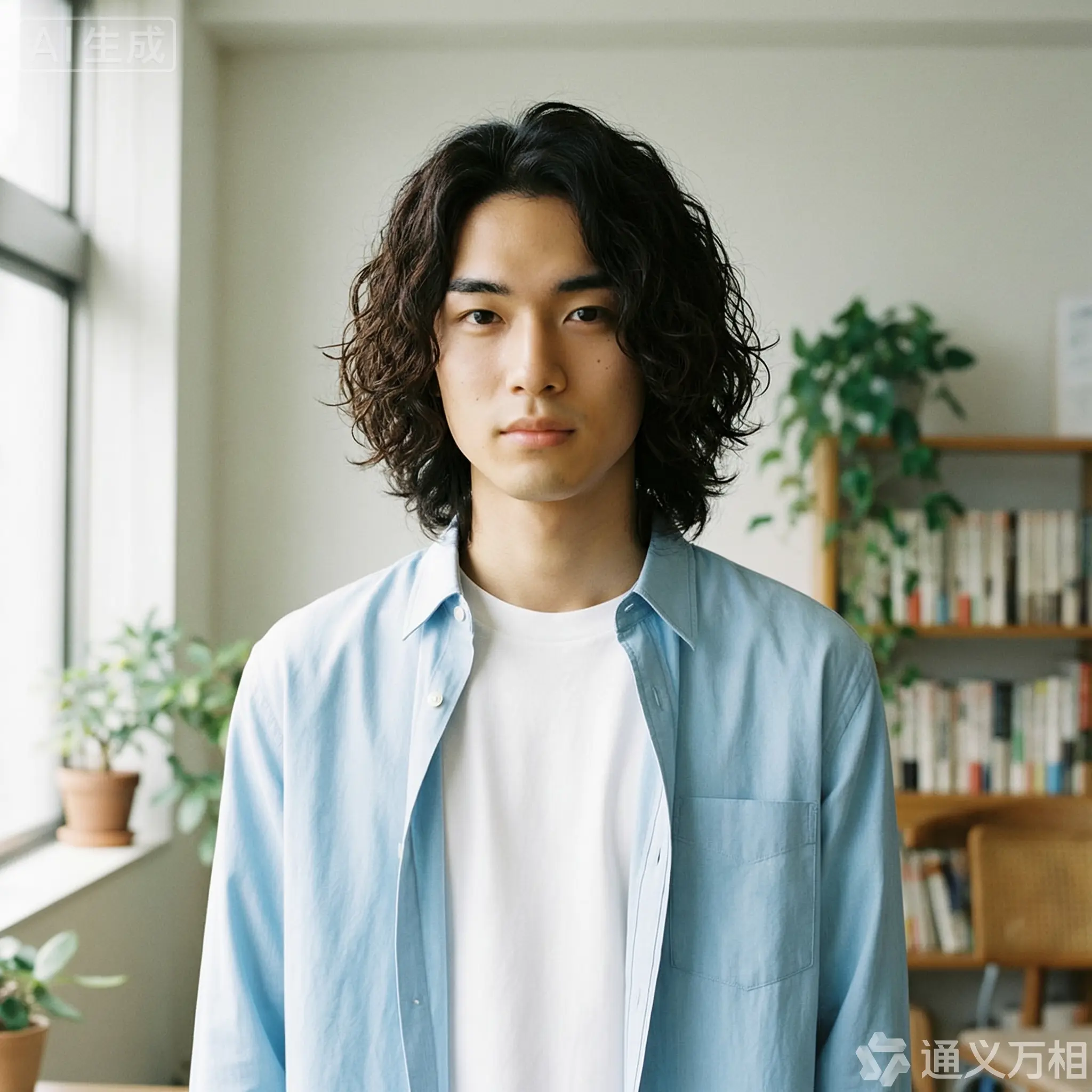
Click to view prompts
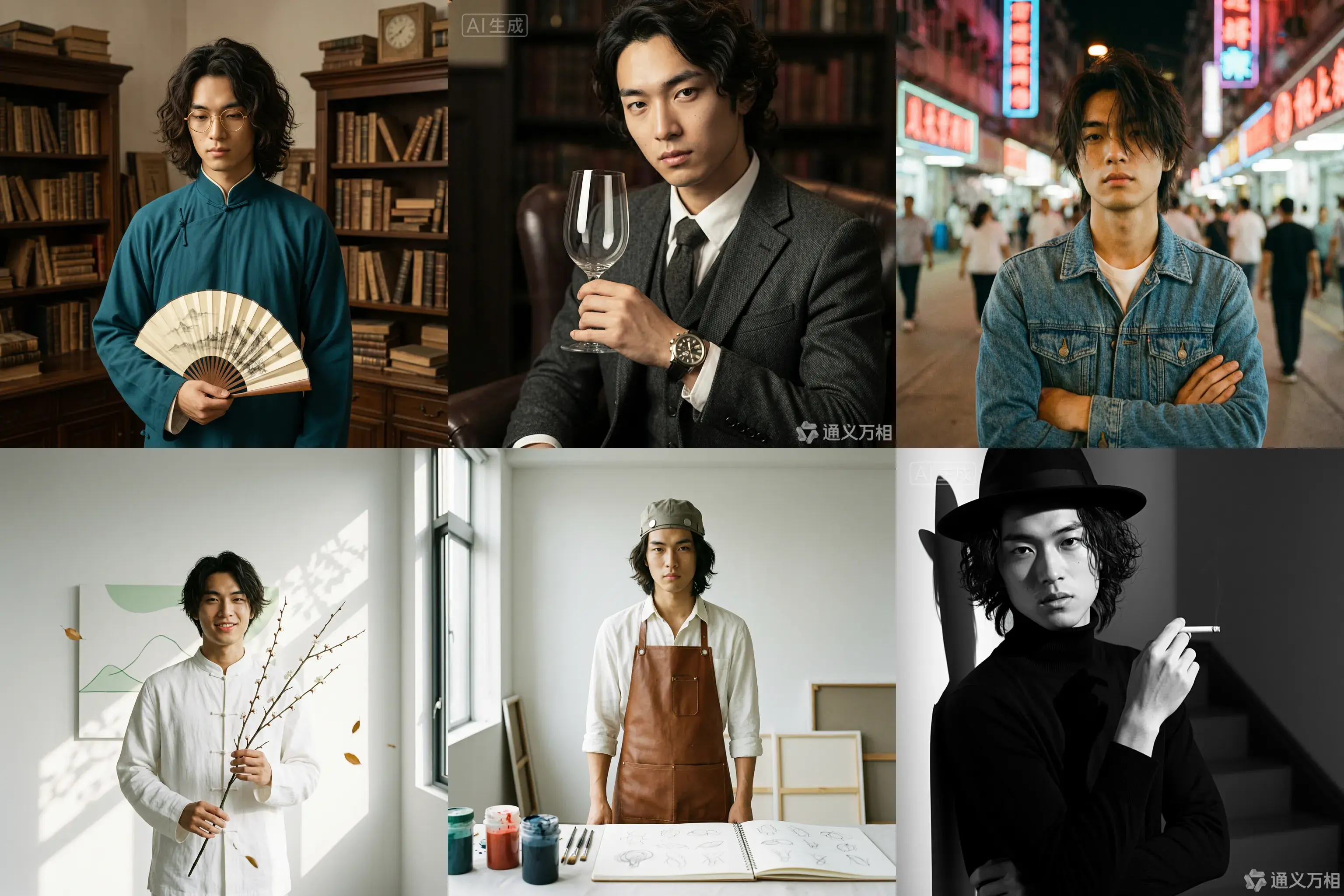
Case 1: Photoshoot
Base character setting: A 20-year-old East Asian male with curly, medium-length hair, an artistic temperament, defined features, and delicate eyes. He is wearing a simple white T-shirt or a light blue shirt, exuding a youthful and natural vibe.
1. Republic Era Scholar Style
Prompt:
[Base facial description] The character's appearance is based on reference image 1, wearing a dark cyan long gown and round, gold-rimmed glasses, holding a folding fan. The background is an old Shanghai study with wooden bookshelves, a warm yellow tone, a retro film texture, soft side lighting, and dust dancing in the light beams, creating a cultural and serene atmosphere. Hasselblad medium format, 85mm lens, high resolution, cinematic color grading, Wong Kar-wai style.
Props: Folding fan / Thread-bound book / Round-frame glasses
Color tone: Warm yellow / Dark cyan / Sepia
2. British Gentleman Style
Prompt:
[Base facial description] The character's appearance is based on reference image 1, wearing a dark gray tweed three-piece suit and a vintage mechanical watch, holding a glass of red wine and looking at it. The background is a classic library or private club with dark leather sofas, Rembrandt lighting, and a dark, elegant, and noble atmosphere. He has a cool gaze, with rich details and clear textures, exuding a British aristocratic temperament. 8k resolution, fashion magazine-style shot.
Props: Wine glass / Pipe / Mechanical watch
Color tone: Dark gray / Burgundy / Dark gold
3. 90s HK Retro Style
Prompt:
[Base facial description] The character's appearance is based on reference image 1, wearing a washed denim jacket or a floral shirt, with slightly messy hair and arms crossed. The background is a street with neon signs at night, with blurry light spots, high grain, and rich colors, featuring a red and blue color clash. Wong Kar-wai style, emotional, with a dreamy gaze, direct flash effect, and a nostalgic atmosphere. [Full-body shot].
Color tone: Neon red / Dark blue / Film green
4. New Chinese Zen Style
Prompt:
[Base facial description] The character's appearance is based on reference image 1, with a slight smile showing teeth, wearing a modified white Chinese stand-up collar shirt, holding a branch of plum blossoms. The background is a minimalist blank wall or a bamboo forest, with sunlight casting mottled shadows on the wall. The color tone is cool and serene, embodying Eastern aesthetics. The skin is translucent, with high grain and a matte finish. The composition is simple, with rich layers of light and shadow. High-end photography, Zen atmosphere.
Props: Plum blossom branch
Color tone: White / Dark green / Light gray
5. Vintage Artist Style
Prompt:
[Base facial description] The character's appearance is based on reference image 1, wearing a white shirt stained with paint and a brown leather apron, holding a paintbrush or a palette. The background is a clean studio with bright light and colorful light and shadow. He has a focused expression, looking at the paint in his hand, not at the camera. His hair is slightly messy, with an artistic flair, an impressionist color tone, and a strong texture.
Props: Paintbrush / Palette / Sketchbook
Color tone: Warm light / Colorful paint / Brown
6. Classic Noir B&W Style
Prompt:
[Base facial description] The character's appearance is based on reference image 1, wearing a black turtleneck sweater, holding a cigarette, and wearing a black fedora. The background is a staircase or hallway with intersecting shadows. High-contrast black and white photography, hard lighting, strong shadows, a sense of mystery, and a hard-boiled detective style. The facial contours are sharp, with extremely clear skin texture. A classic movie still, timeless feel, side-profile close-up, artistic photography.
Props: Cane / Fedora / Sunglasses
Color tone: Black and white / High contrast
Case 2: Visual design
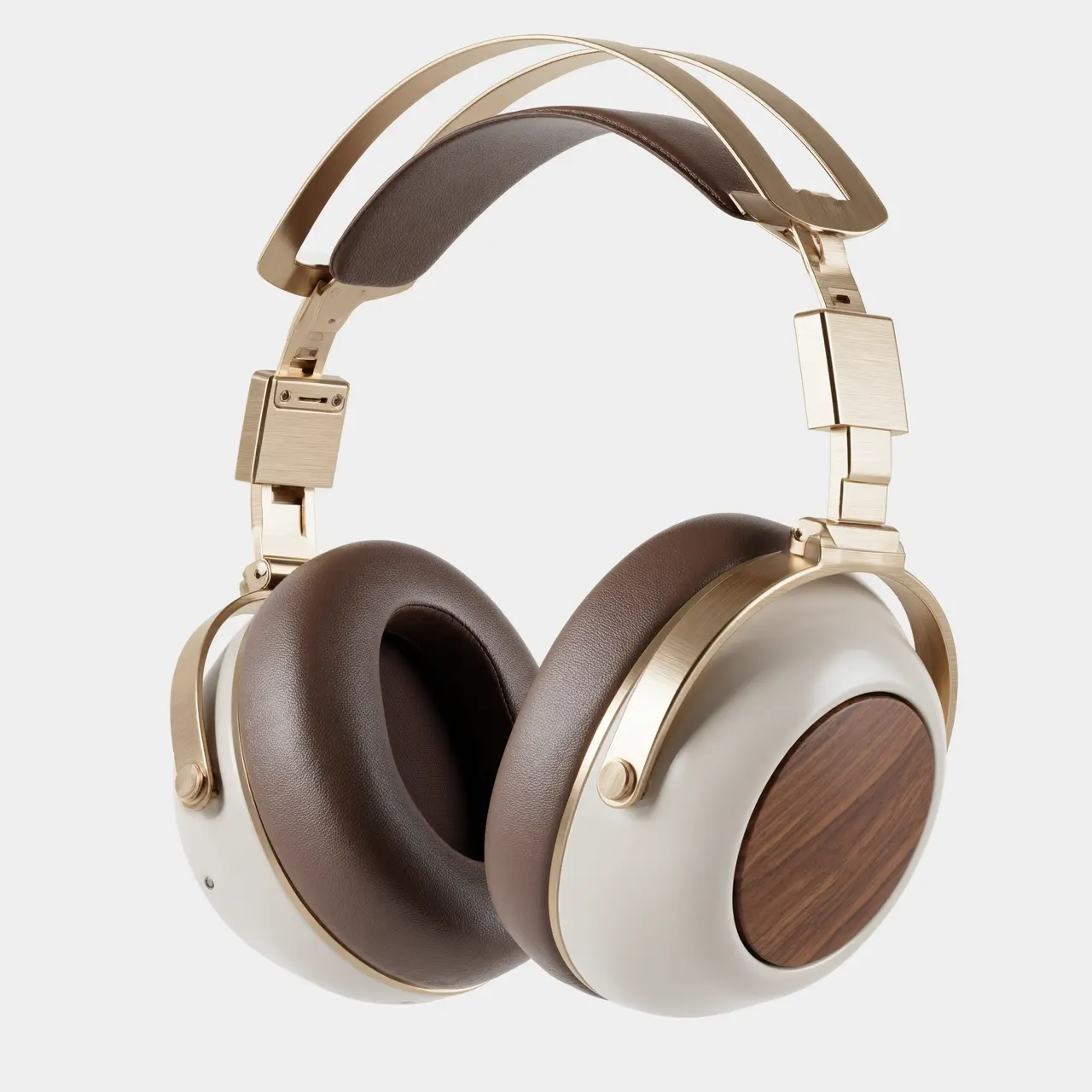
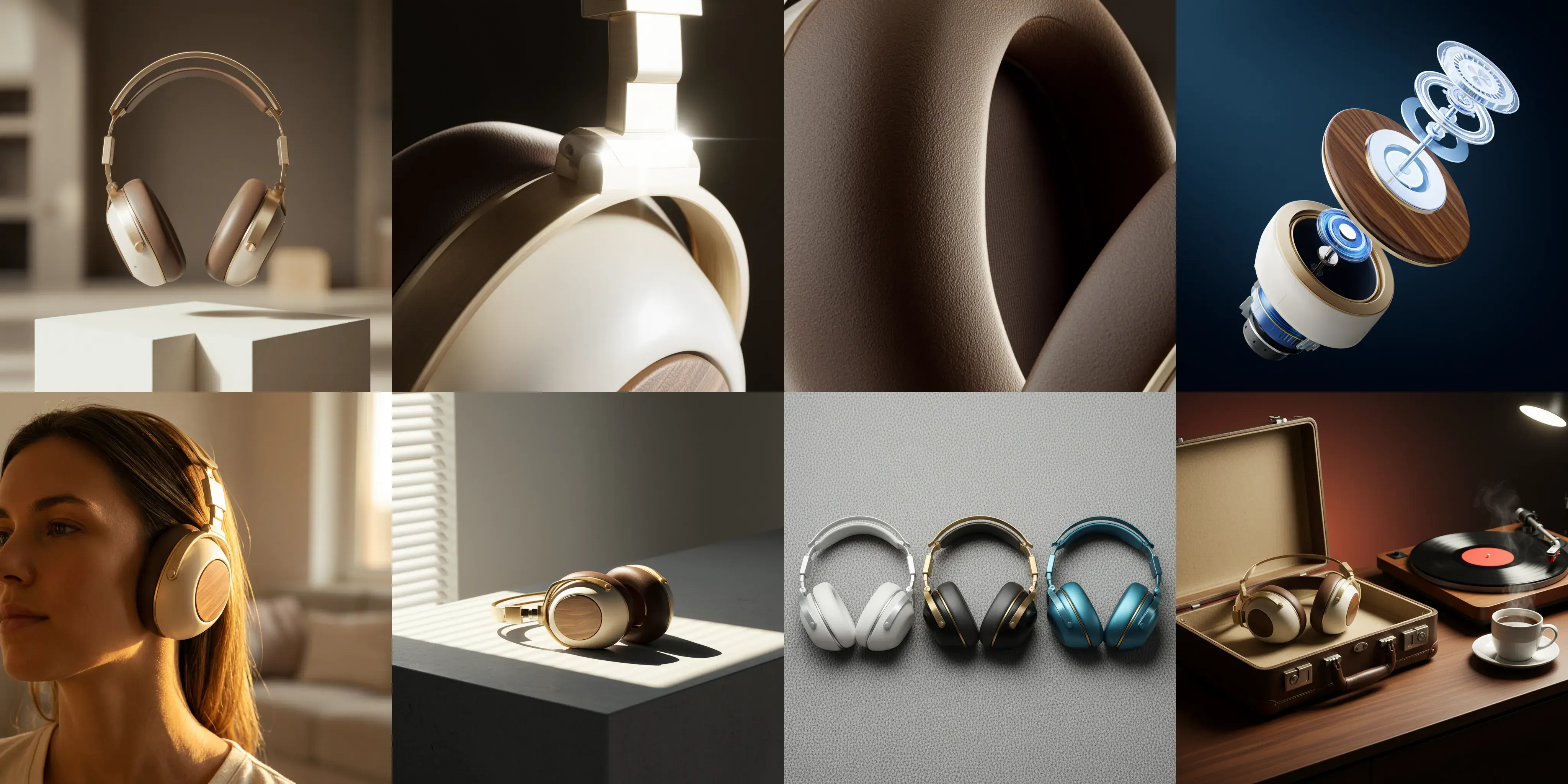
Image 1: A commercial-grade product photography main visual cover image, front-view panoramic composition. A pair of retro-futuristic wireless over-ear headphones floats above a geometric plaster form, showcasing perfect symmetrical aesthetics. The materials are champagne gold metal and a cream-white shell. The background is a deeply blurred warm indoor light and shadow, with soft light outlining the product's silhouette. The white space in the image creates a strong sense of breathability, suggesting a quiet auditory experience. 8k ultra-high resolution, minimalist and premium feel.
Image 2: A 100mm macro shot of the product's material details, focusing closely on the connection of the headphone's telescopic arm. It clearly shows the texture of the champagne gold brushed aluminum alloy and the CNC precision-cut chamfers. A sharp backlight creates a starburst highlight on the metal edge. The background is dark to emphasize the industrial precision of the metal. The image quality is extremely sharp with no noise.
Image 3: An extreme close-up macro shot of the material, focusing on the surface of the mocha-colored protein leather earcups. Side lighting reveals the fine pore texture of the leather, the soft wrinkles from pressing, and the ventilation hole details, conveying ultimate skin-friendly comfort and resilience. The light and shadow are rich in layers, and the color tone is warm and moist. Ultra-high-definition macro photography.
Image 4: An artistic exploded view of the product, showing the internal sound units, noise-canceling chips, battery modules, and external walnut wood decorative panels and metal frame of the retro-futuristic headphones in a suspended, disassembled state. The background is a deep tech blue, and the internal components have a semi-transparent holographic technological texture, emphasizing the combination of internal precision craftsmanship and modern technology. High-tech commercial poster style.
Image 5: A 35mm humanistic shot of the wearing scenario, with a close-up on the model's jawline and neck, showing the perfect fit of the champagne gold headphones. Natural warm sunset light from the side-rear creates a rim light, with the edges of the hair glowing gold. The model's skin tone has a healthy and natural texture, creating a relaxed, immersive music-listening lifestyle feel. The background is a blurry home environment.
Image 6: A still life photograph paying homage to architectural light and shadow. The headphones are placed on a minimalist gray concrete table. Afternoon sunlight streams through blinds, casting striped hard shadows that cut across the matte cream-white body and champagne gold frame, creating a strong geometric composition of light and dark. This highlights the three-dimensional shape of the body and the contrast of materials. A clash of cool and warm color tones, minimalist composition.
Image 7: A top-down flat-lay composition showing the color options. Three headphones from the series in different color schemes—silver-white, black-gold, and blue-copper—are arranged side by side. The background is a highly textured gray wool felt cloth. Soft top lighting emphasizes the diversity of the CMF design and the delicate touch of the materials. The image is clean and orderly, in a design magazine style.
Image 8: A brand lifestyle family portrait still life photograph. The retro-futuristic headphones are placed next to their matching exquisite leather case. On the table are a vinyl record player, a spinning vinyl record, and a cup of steaming coffee. The background is rendered with warm ambient lighting, dominated by a deep walnut wood tone, conveying a brand philosophy that combines a slow-paced lifestyle with high-fidelity sound quality. Cinematic narrative lighting.
Interactive editing
Input image | Output image |
|---|---|
|
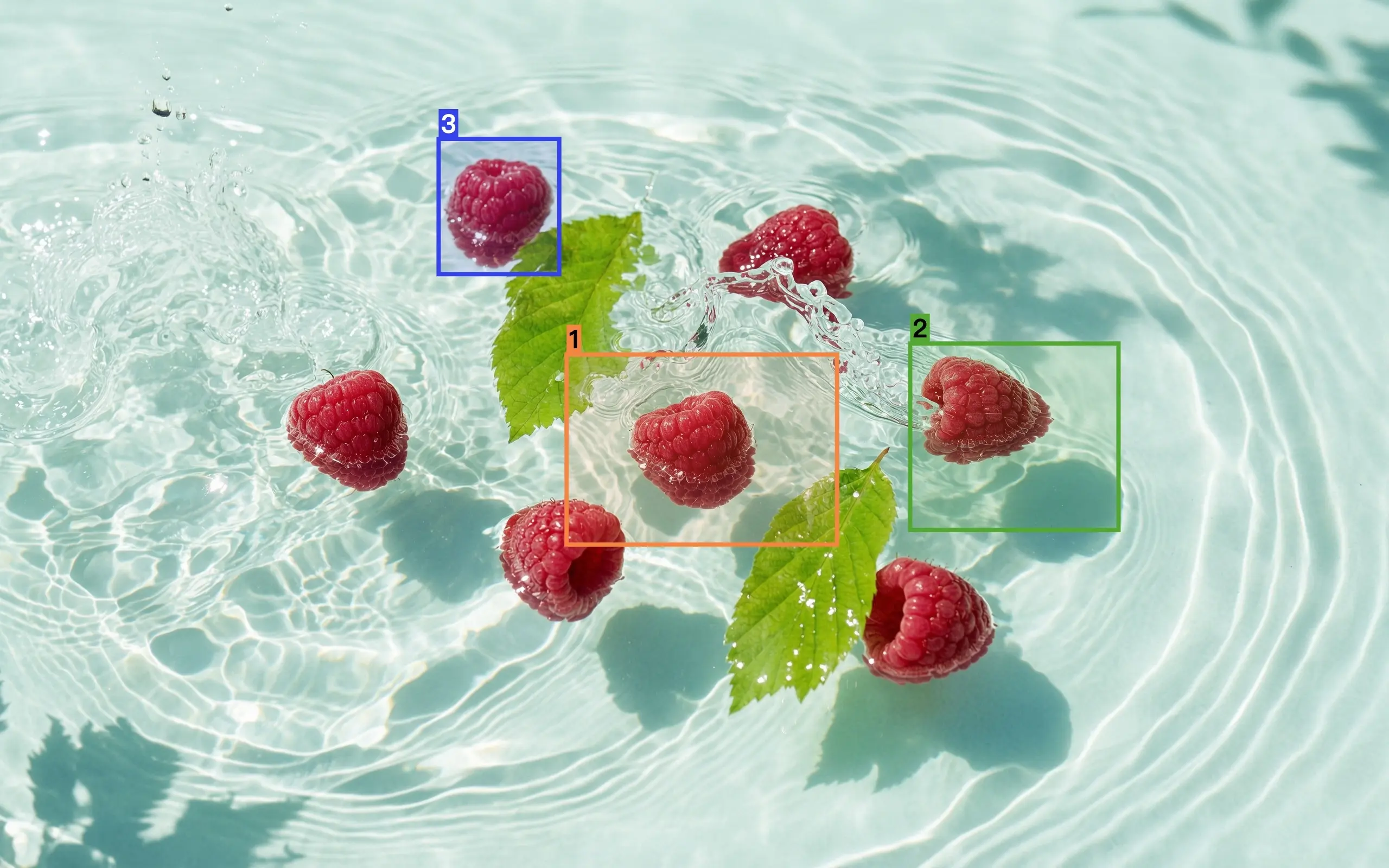
Edit based on image 1. Replace the raspberry selected in box 1 with a lemon, the raspberry in box 2 with a strawberry, and the raspberry in box 3 with a blueberry. The result should be harmoniously integrated with the original image, without the reference boxes and numbers, and keep the rest of the content unchanged. |
|
Place the selected pattern from image 1 into the selected area in image 2. |
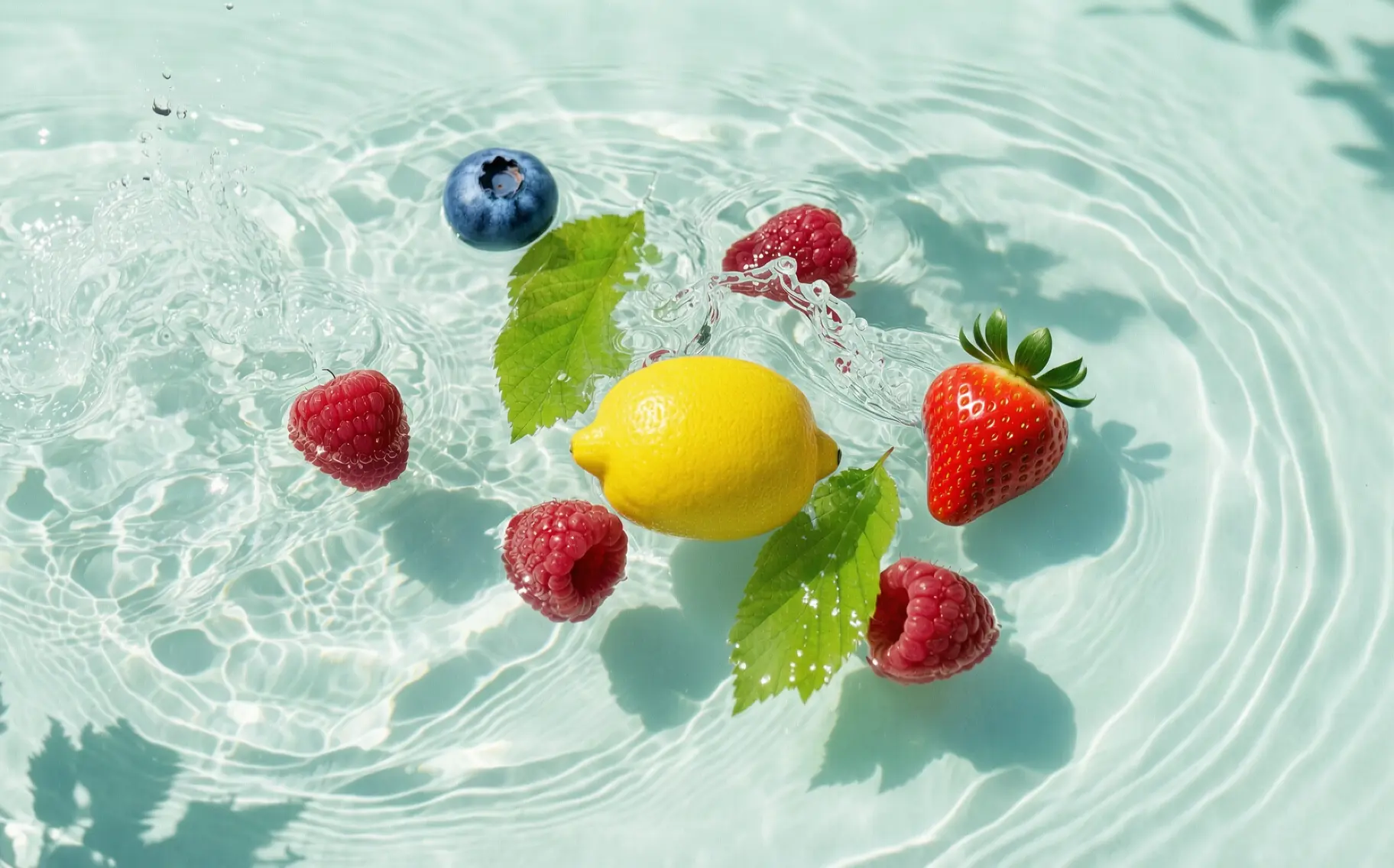
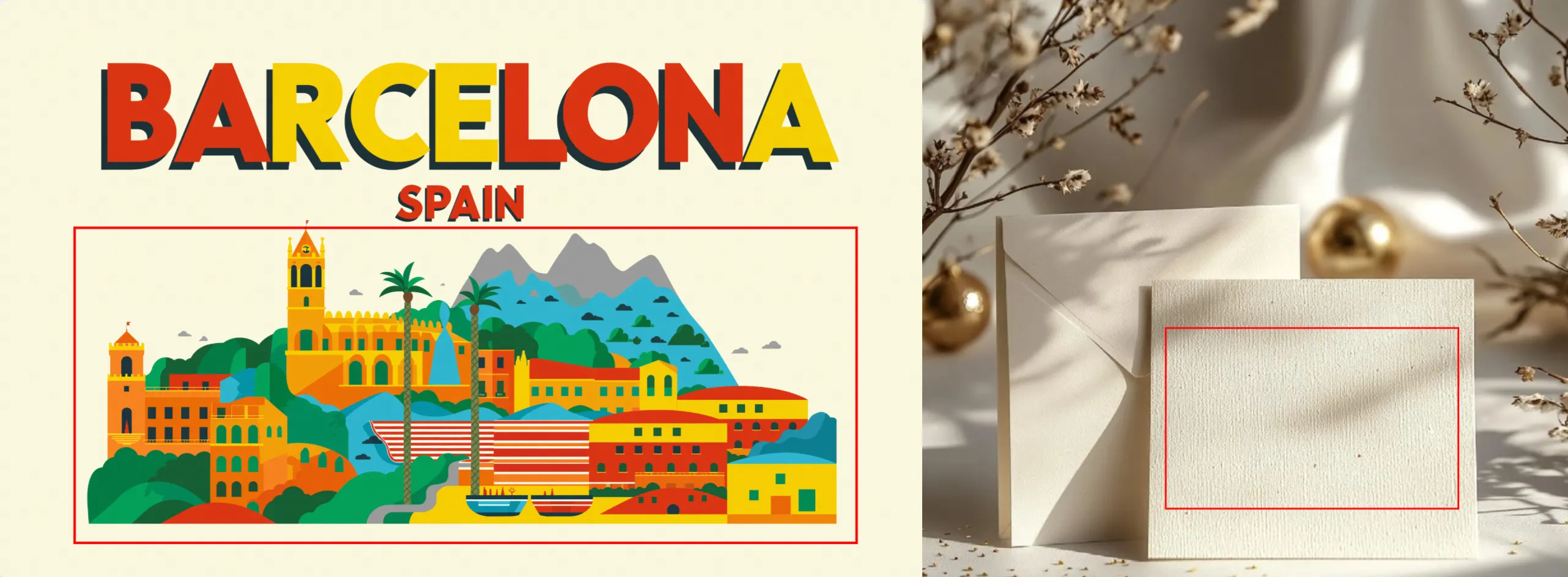

Multi-image fusion
Input image | Output image |
|---|---|
|
Take a portrait of the boy from image 1 and the dog from image 2. The boy is hugging the dog, and both are very happy. Studio soft lighting, blue textured background. |
|
Recolor the dress from image 1 using the colors of the bird in image 2. Make it artistic, but keep the style of the dress and the model unchanged. |
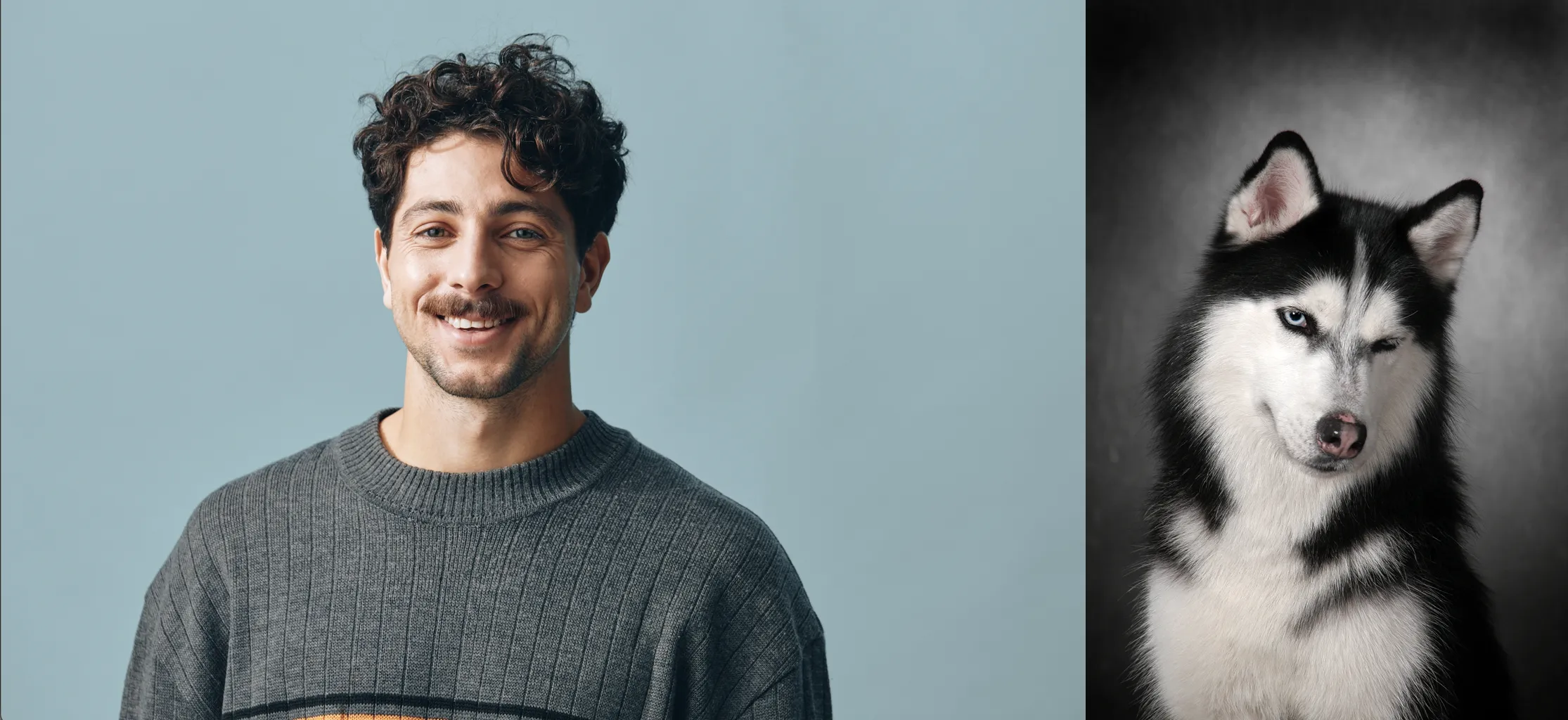
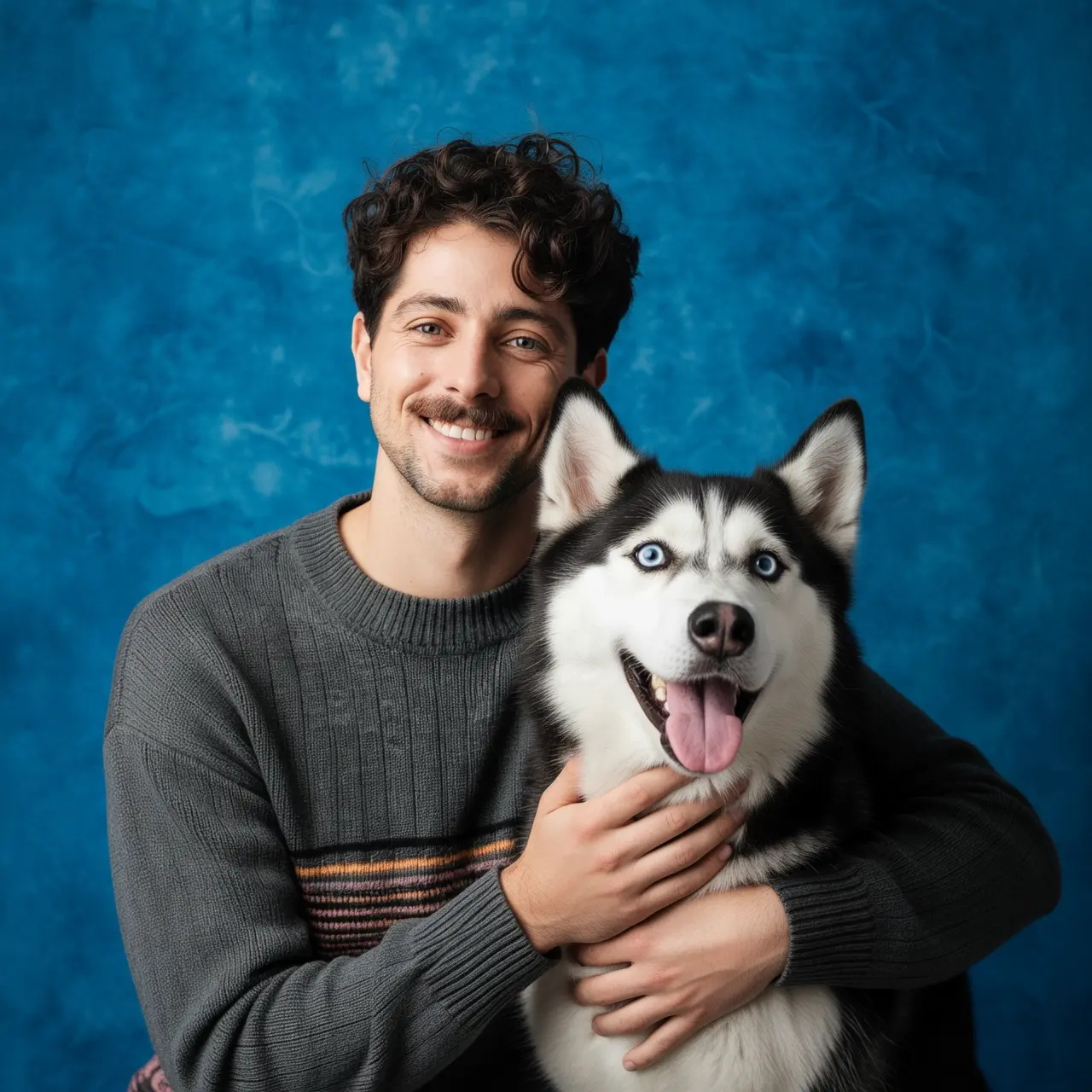
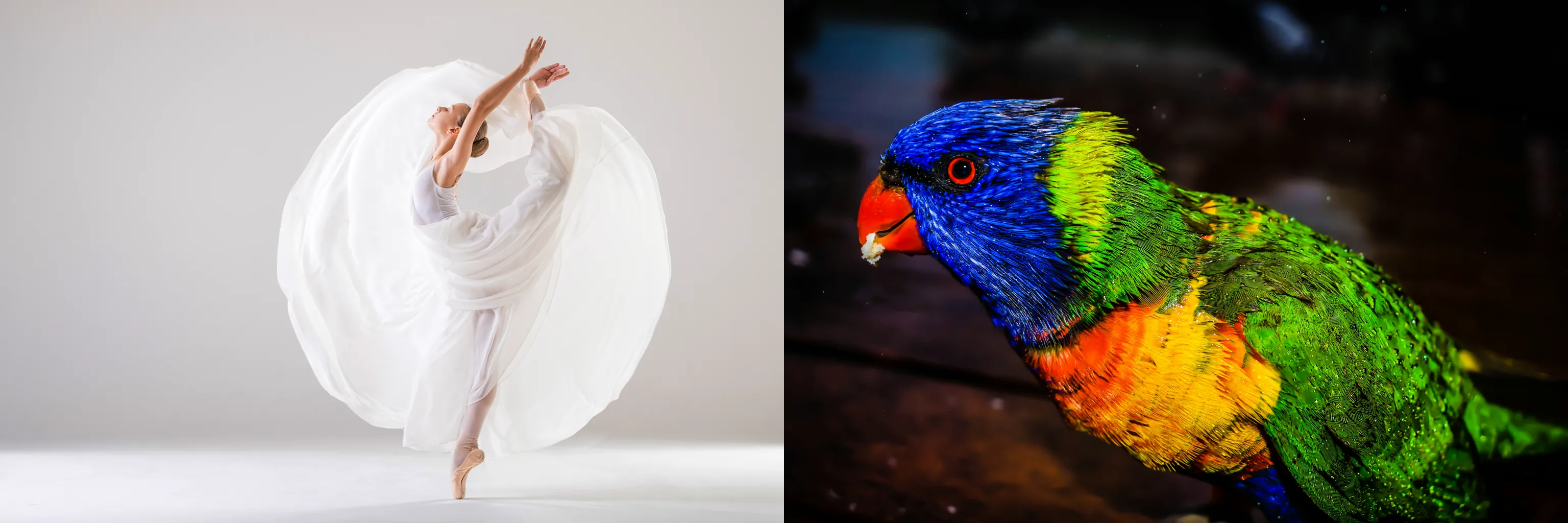
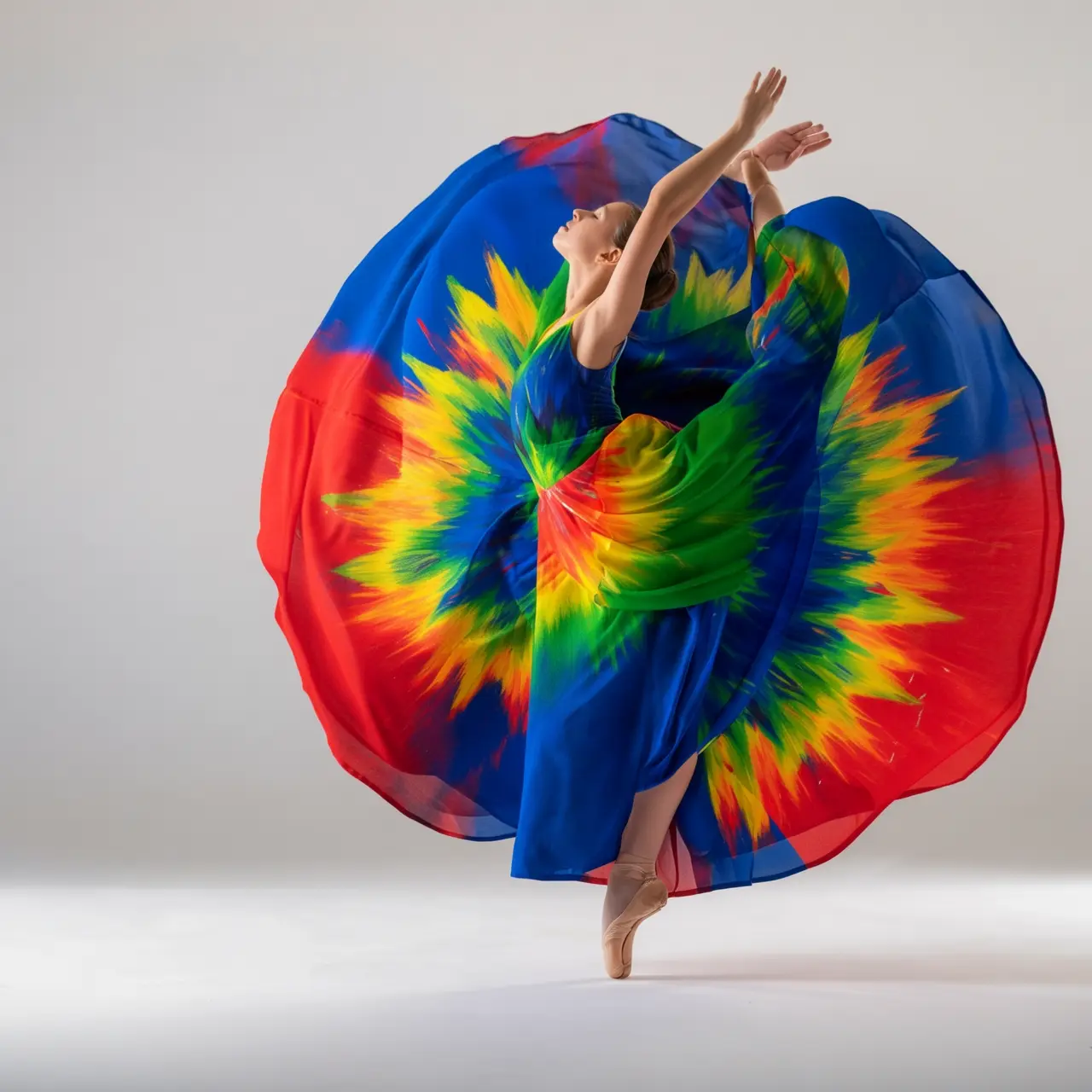
Subject feature preservation
Input image | Output image |
|---|---|
|
Please generate a set of four Polaroid photos with the theme "Seasonal Changes". Each photo is taken at the same location, under a tree in a park, but shows the scenes of spring, summer, autumn, and winter respectively. The person's attire should also match the season: a light jacket in spring, a short-sleeved shirt in summer, a trench coat in autumn, and a scarf and thick coat in winter. Place this set of photos on a dining table. |

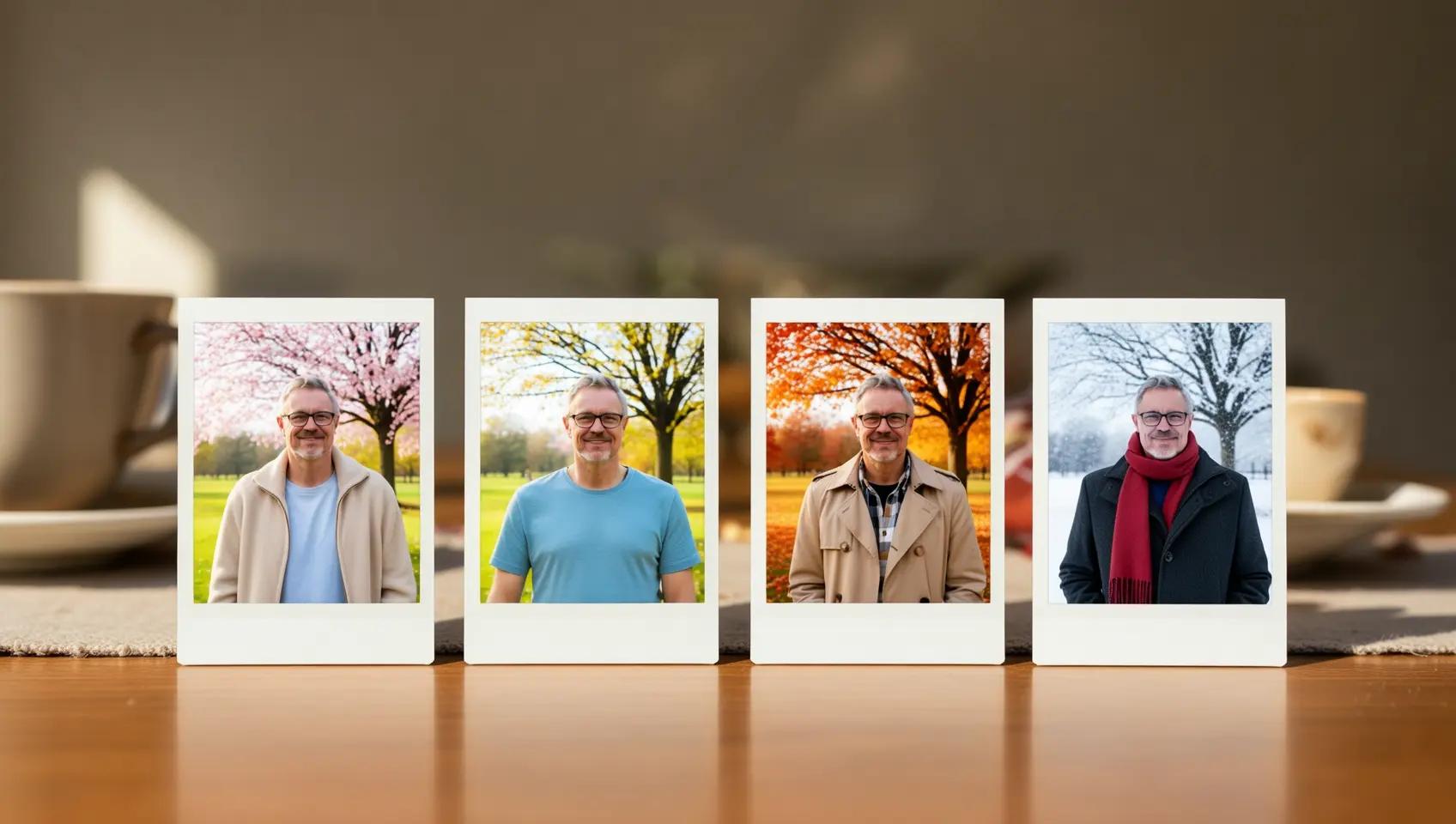
Detection and segmentation
Input image | Output image |
|---|---|
|
Detect the laptop and alarm clock in the image, draw bounding boxes, and label them "laptop" and "clock". |
|
Segment the glass cup in the image. |

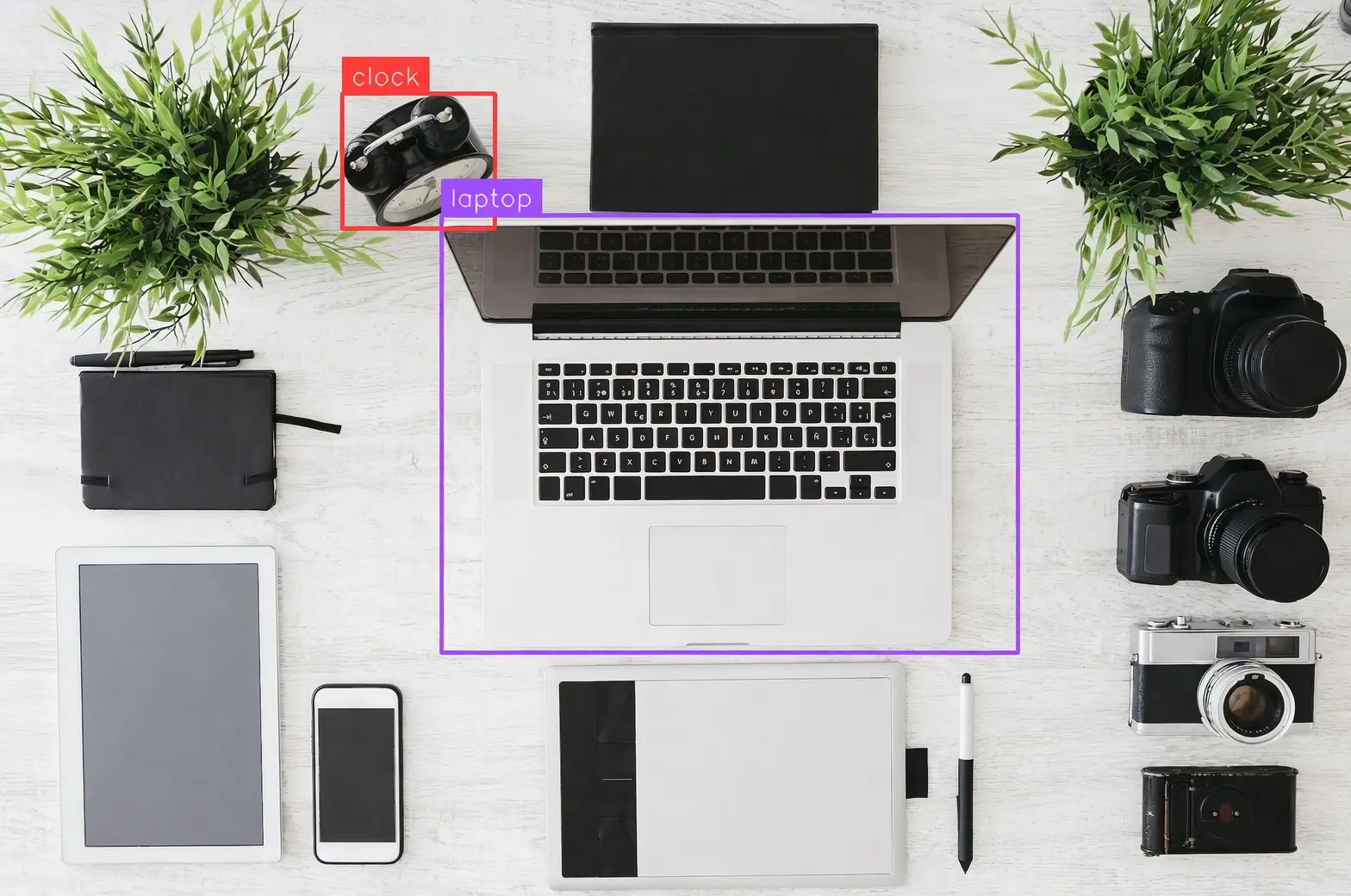
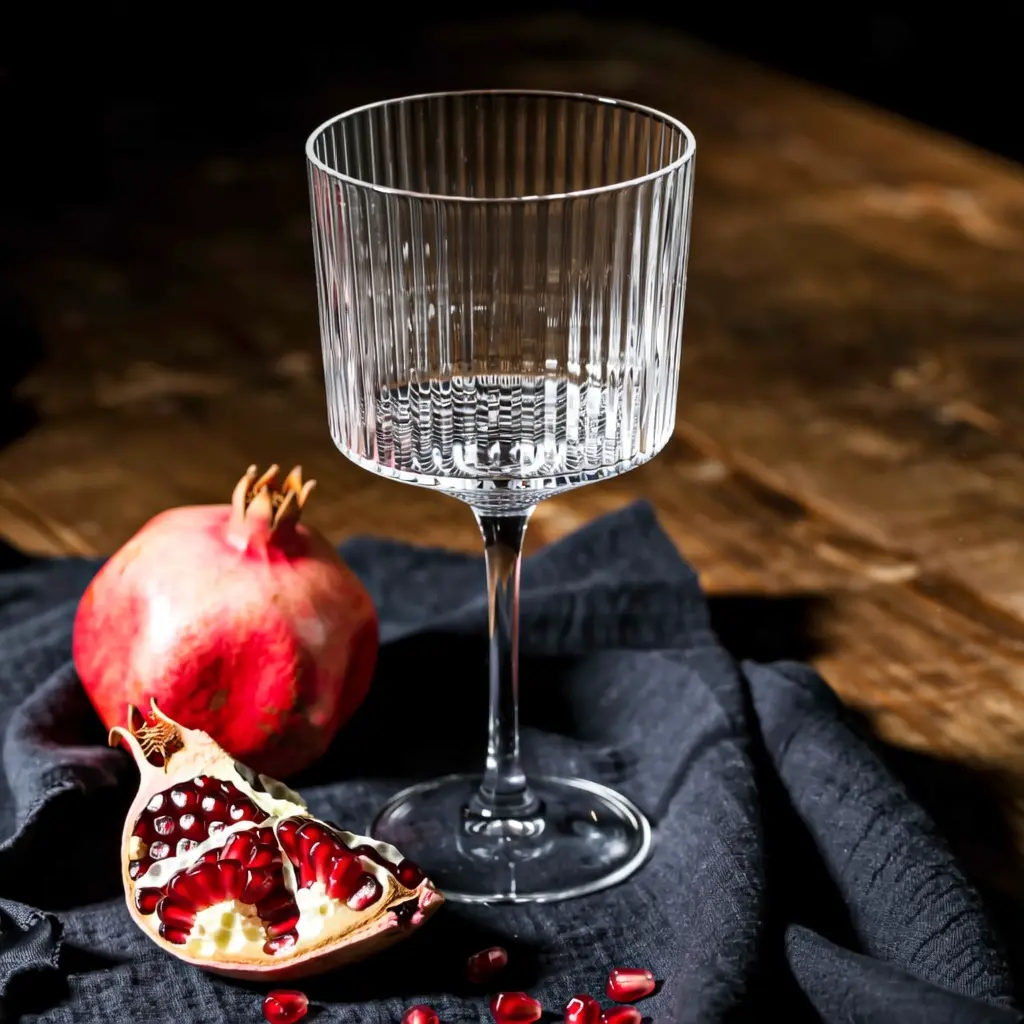
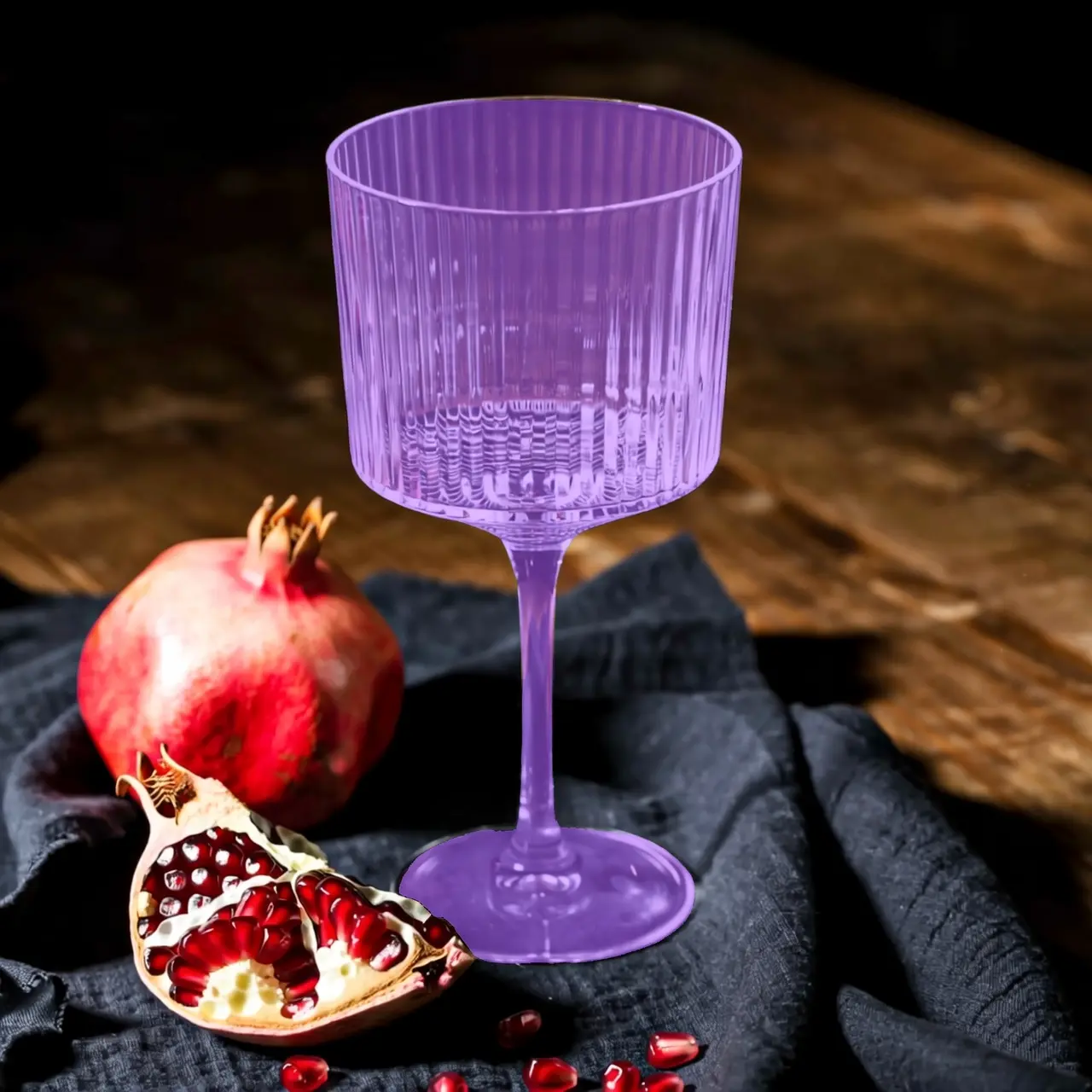
Extract elements
Input image | Output image |
|---|---|
|
Extract the clothing items from the uploaded photo and arrange them in a flat-lay display on a pure white background. Maintain realistic details and material textures. Fashion e-commerce style, suitable for clothing display. |
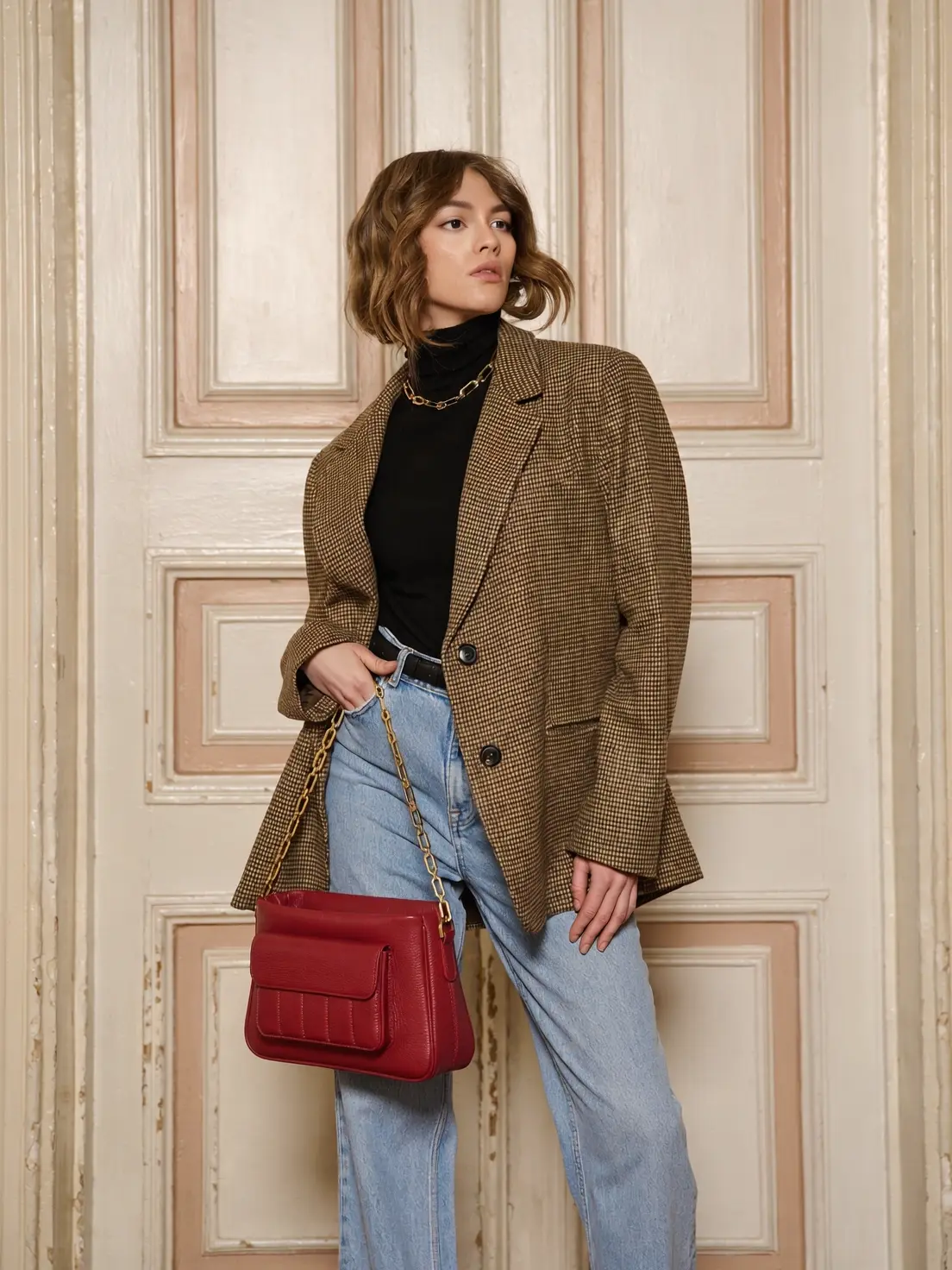
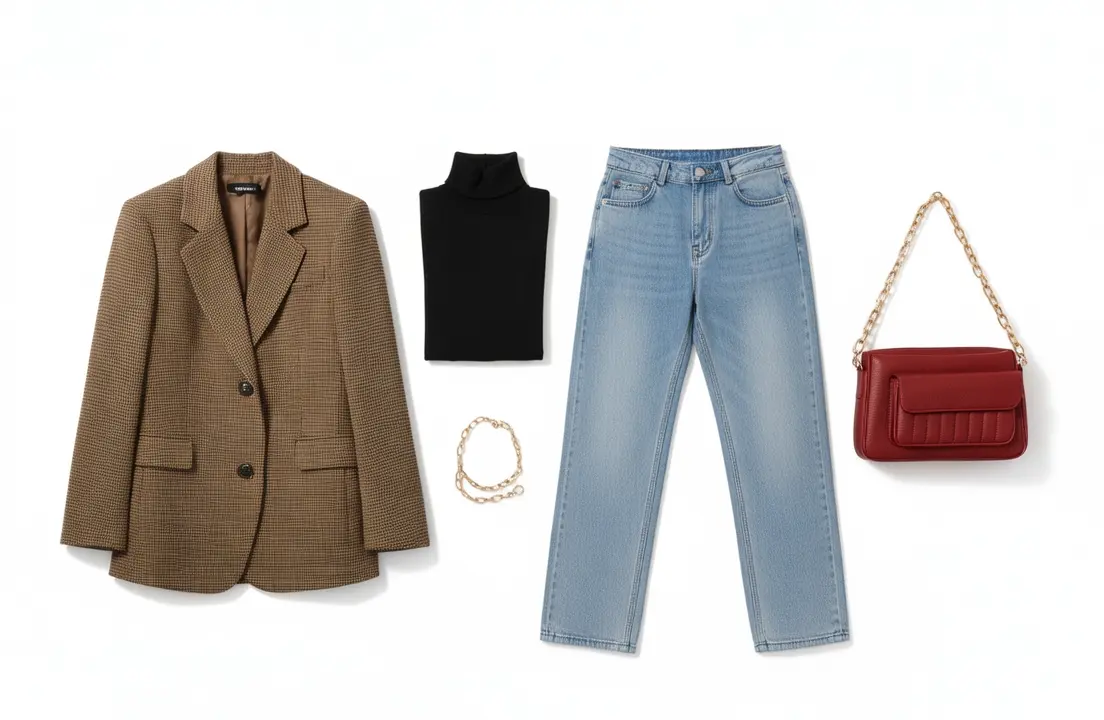
Text editing
Input image | Output image |
|---|---|
|
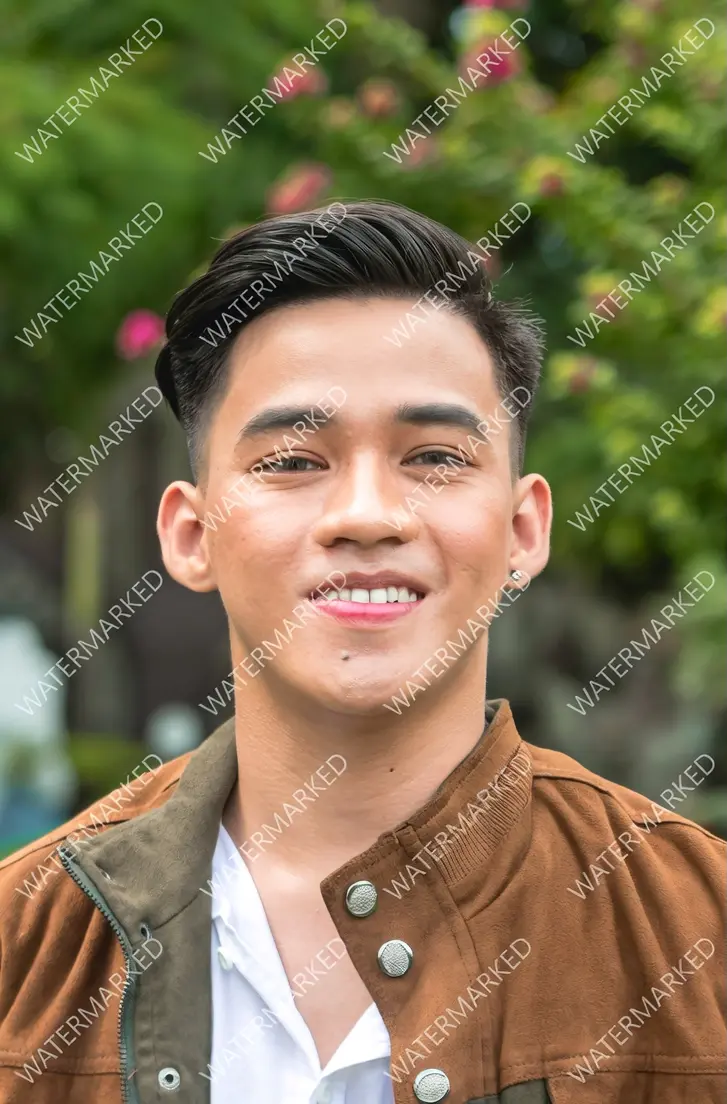
Remove all watermarks from the image. |
|
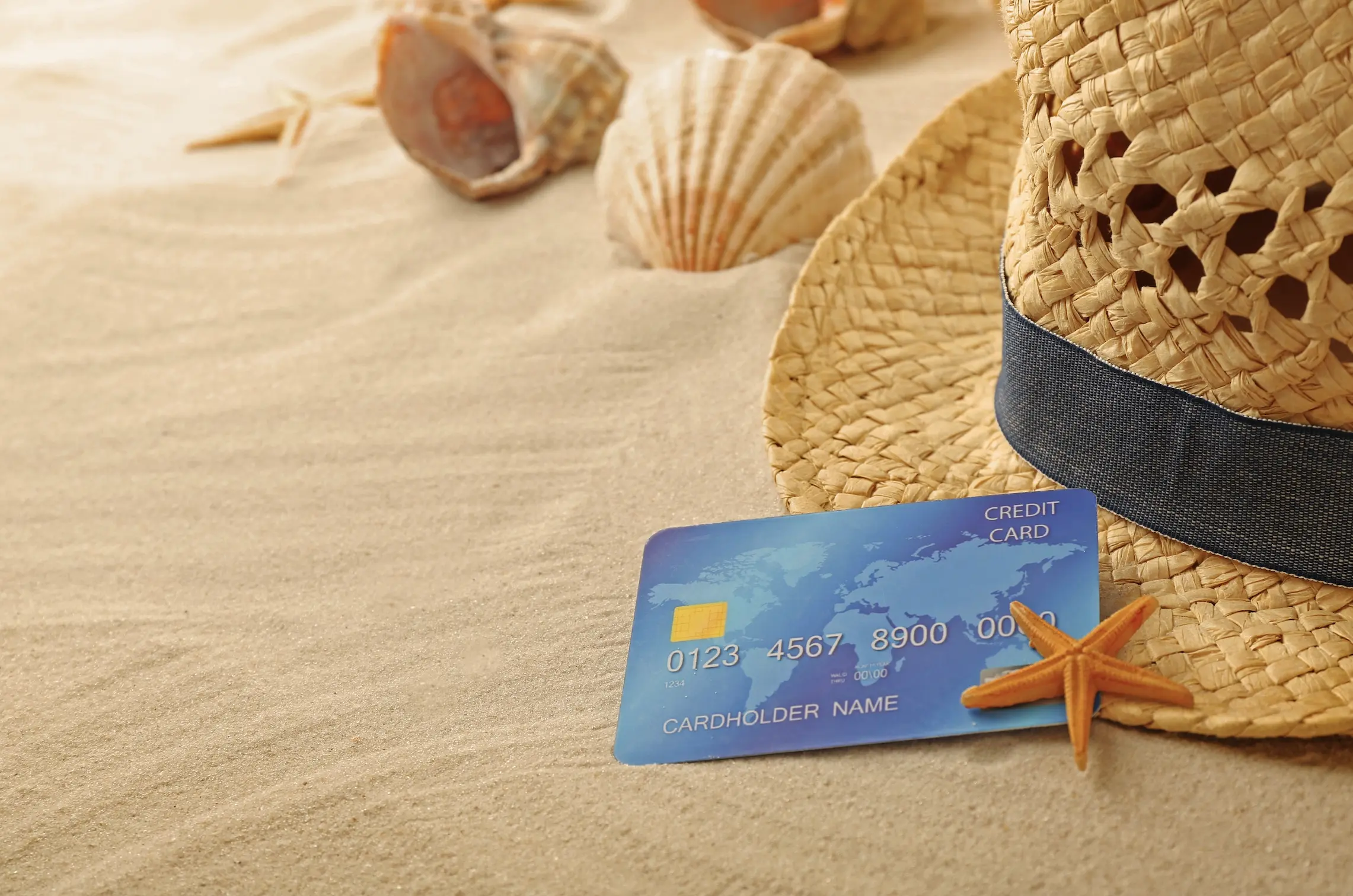
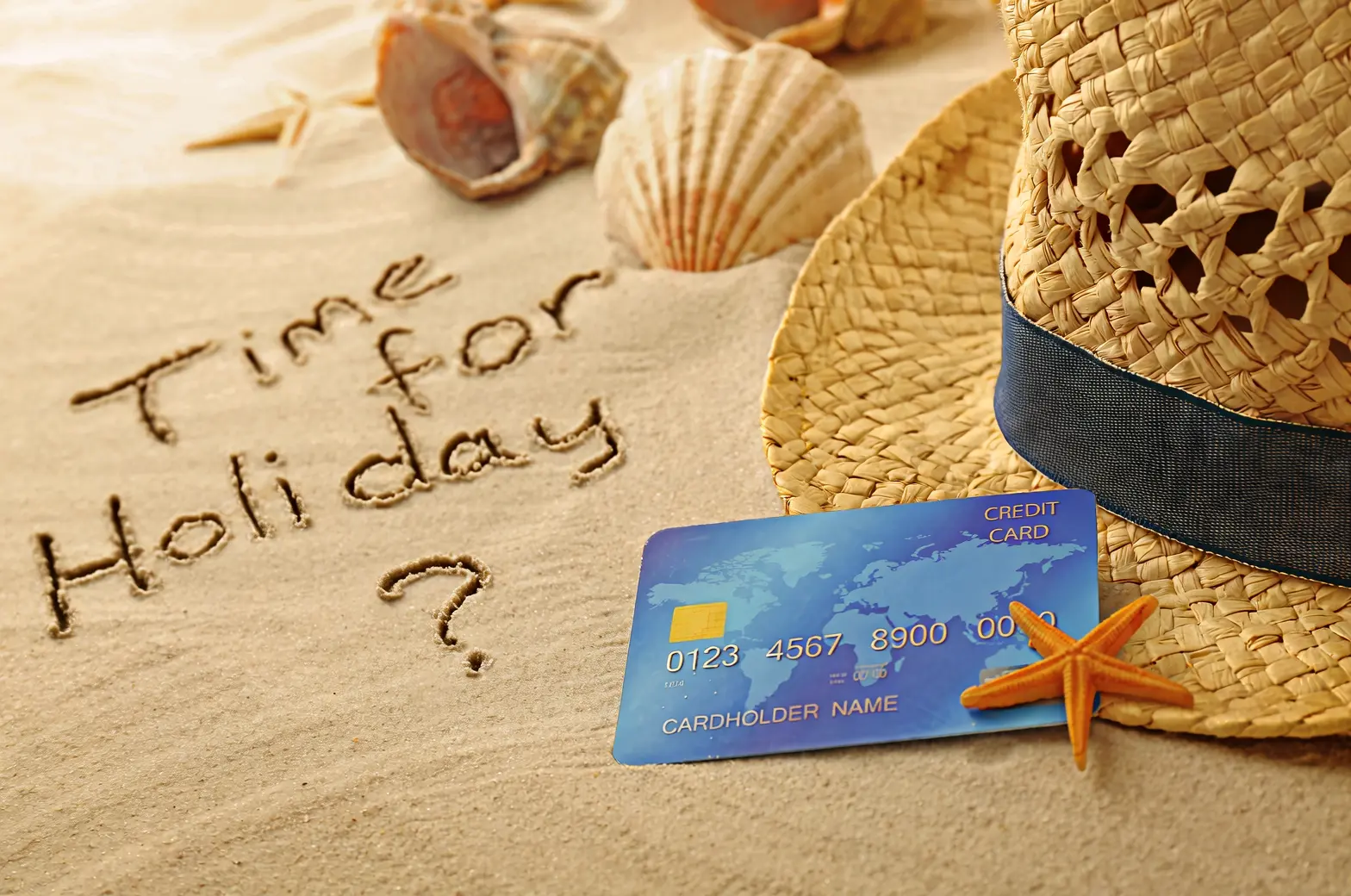
Casually write "Time for Holiday?" on the sand with a hand. |
|
Change 18 to 29 and JUNE to SEPTEMBER. |



Camera and perspective editing
Input image | Output image |
|---|---|
|
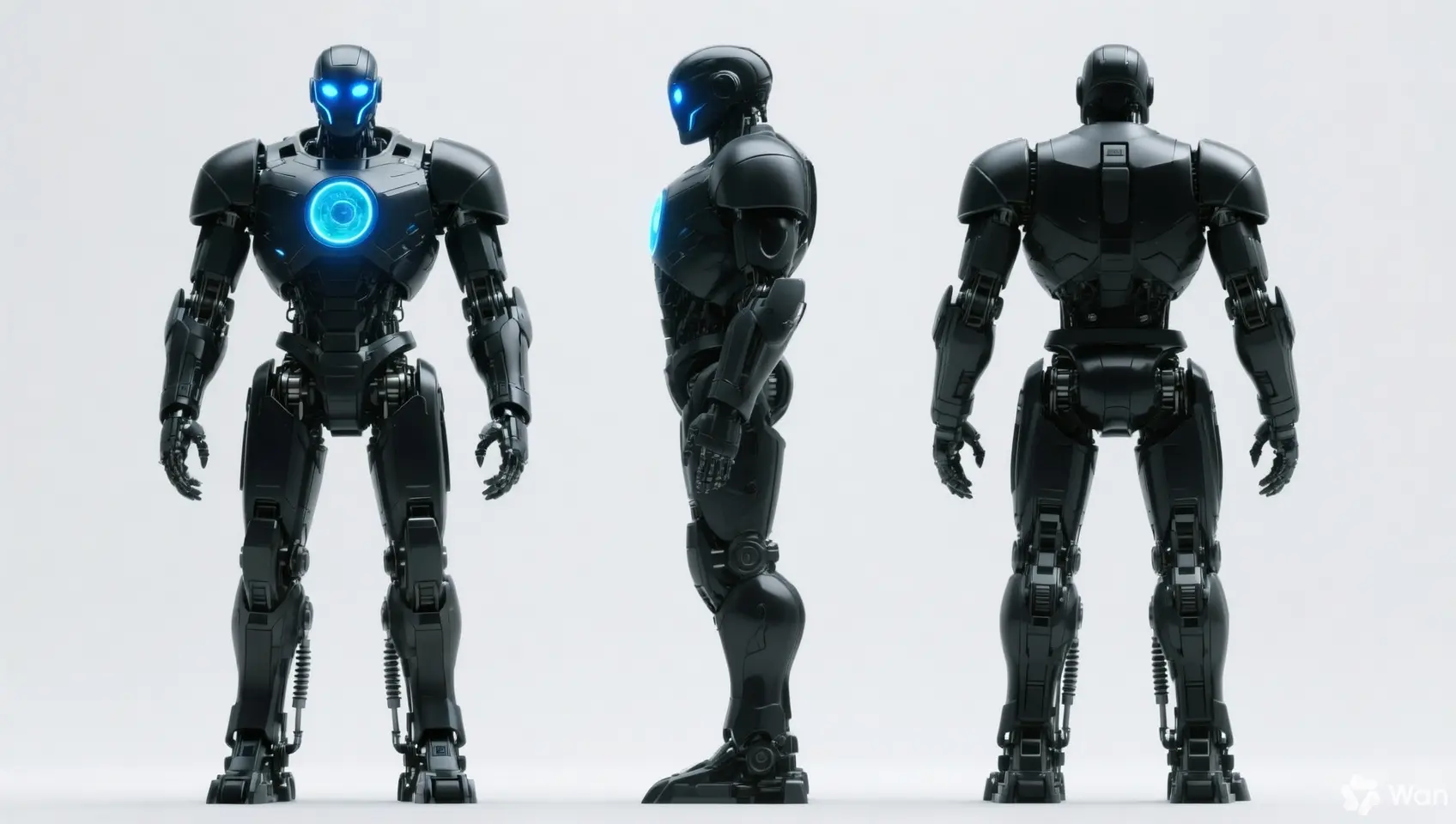
Keep the person's features unchanged and generate front, side, and back views. |
|
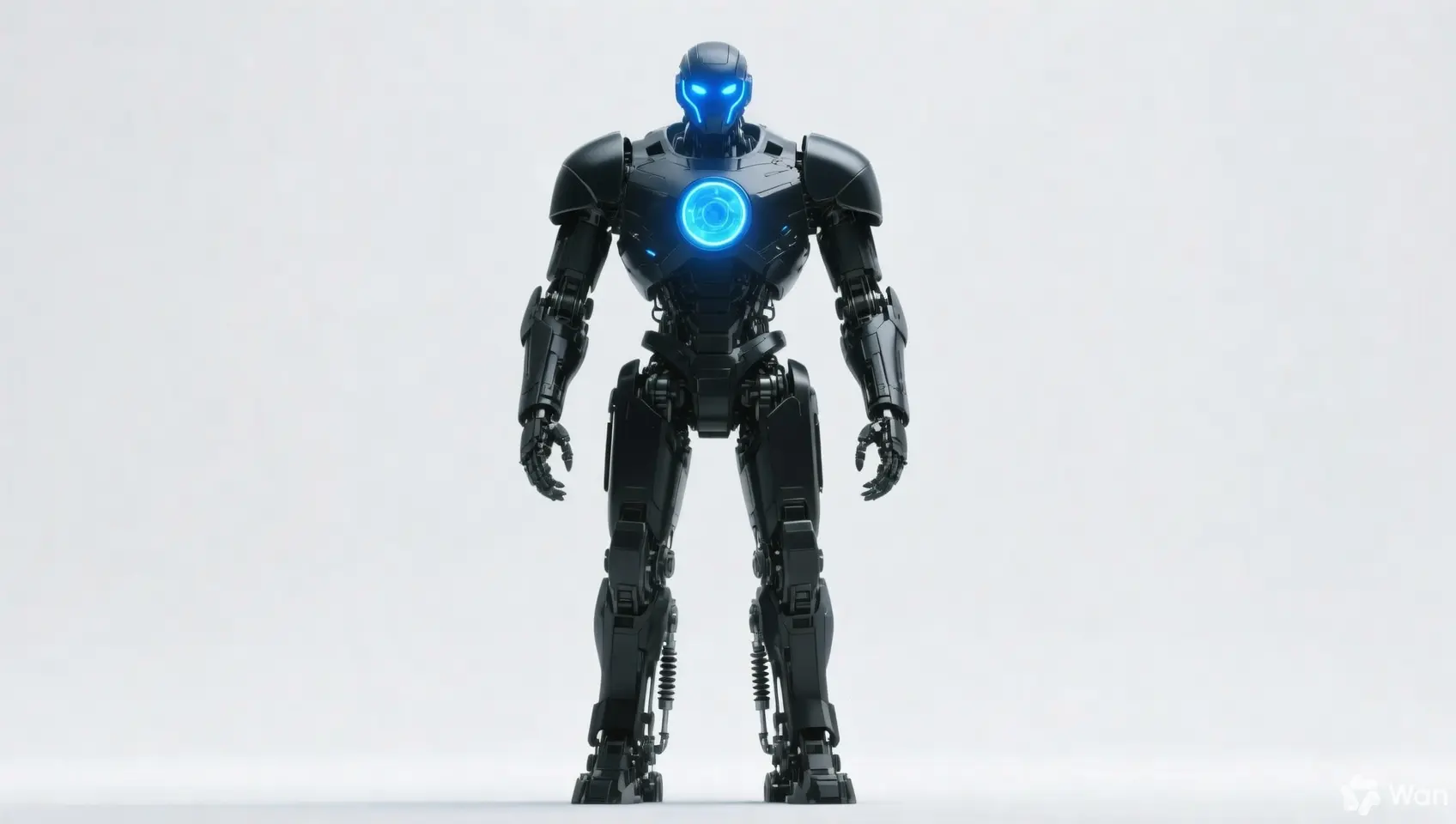
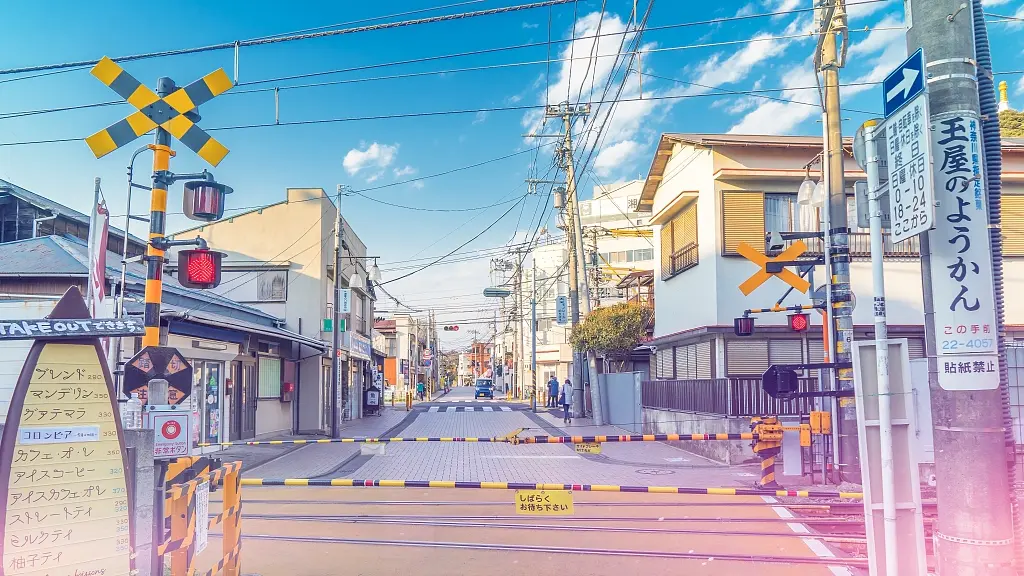
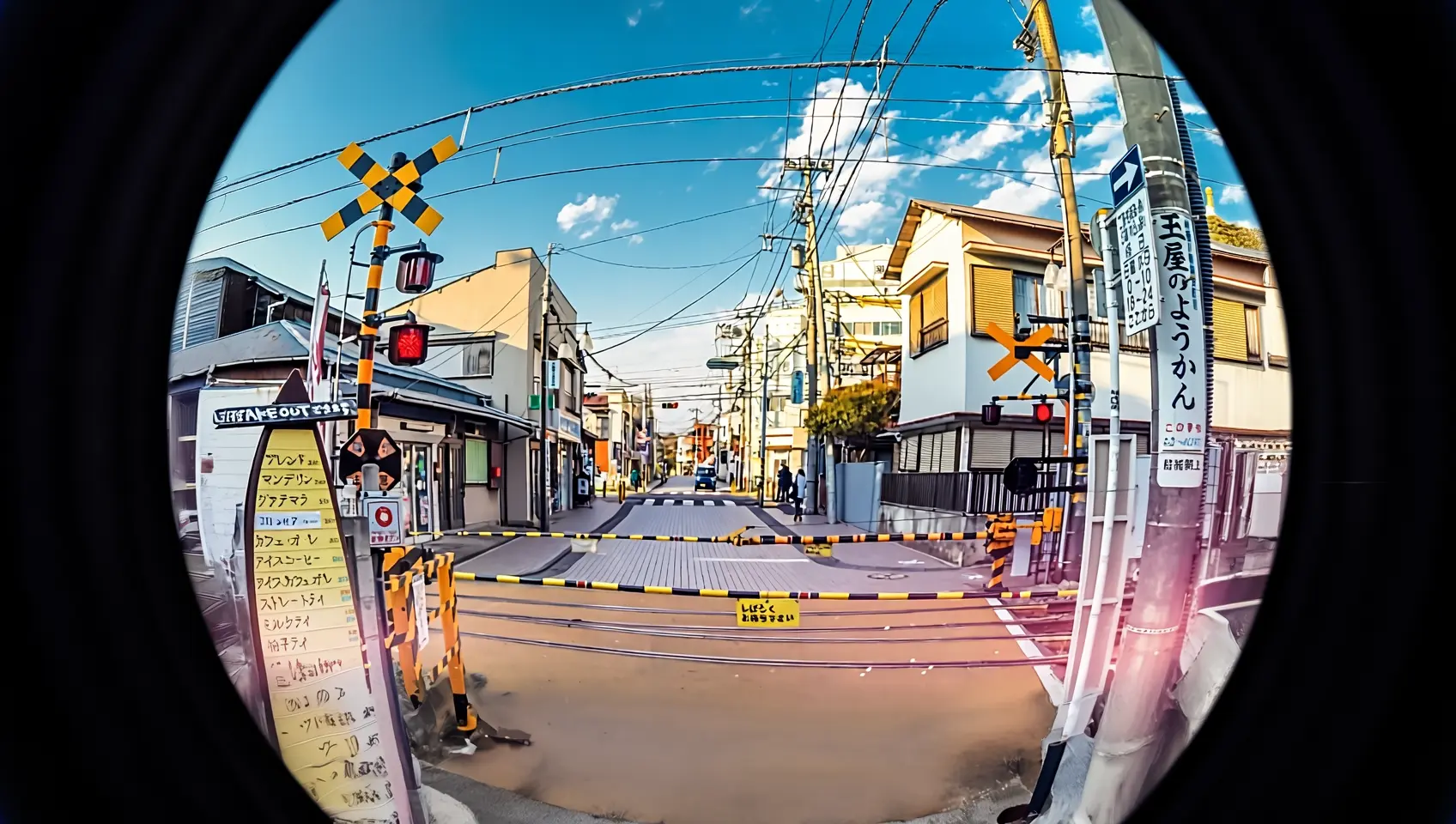
Reshoot this photo with a fisheye lens. |
Input specifications
Input image specifications
Specification | wan2.7-image-pro, wan2.7-image | wan2.6-image | wan2.5-i2i-preview |
|---|---|---|---|
Number of input images | 0 to 9 (0 corresponds to text-to-image mode) | Image editing: 1 to 4 / Mixed text and image: 0 to 1 | 1 to 3 |
Image format | JPEG, JPG, PNG (alpha channel not supported), BMP, WEBP | JPEG, JPG, PNG (alpha channel not supported), BMP, WEBP | JPEG, JPG, PNG (alpha channel not supported), BMP, WEBP |
Image width and height range | [240, 8000] pixels | [240, 8000] pixels | [384, 5000] pixels |
File size | ≤ 20 MB | ≤ 10 MB | ≤ 10 MB |
Aspect ratio | [1:8, 8:1] | Unlimited | [1:4, 4:1] |
Image input order
Image numbers in prompts correspond to array position: the first image is "image 1", the second is "image 2". You can also use markers like "[image 1]" and "[image 2]".
{
    "content": [
        {"text": "Editing instruction, for example: Place the alarm clock from image 1 next to the vase on the dining table in image 2"},
        {"image": "https://example.com/image1.png"},
        {"image": "https://example.com/image2.png"}
    ]
}
Input image | Output image | ||
|---|---|---|---|
Image 1 |
Image 2 |
Prompt: Move image 1 onto image 2 |
Prompt: Move image 2 onto image 1 |
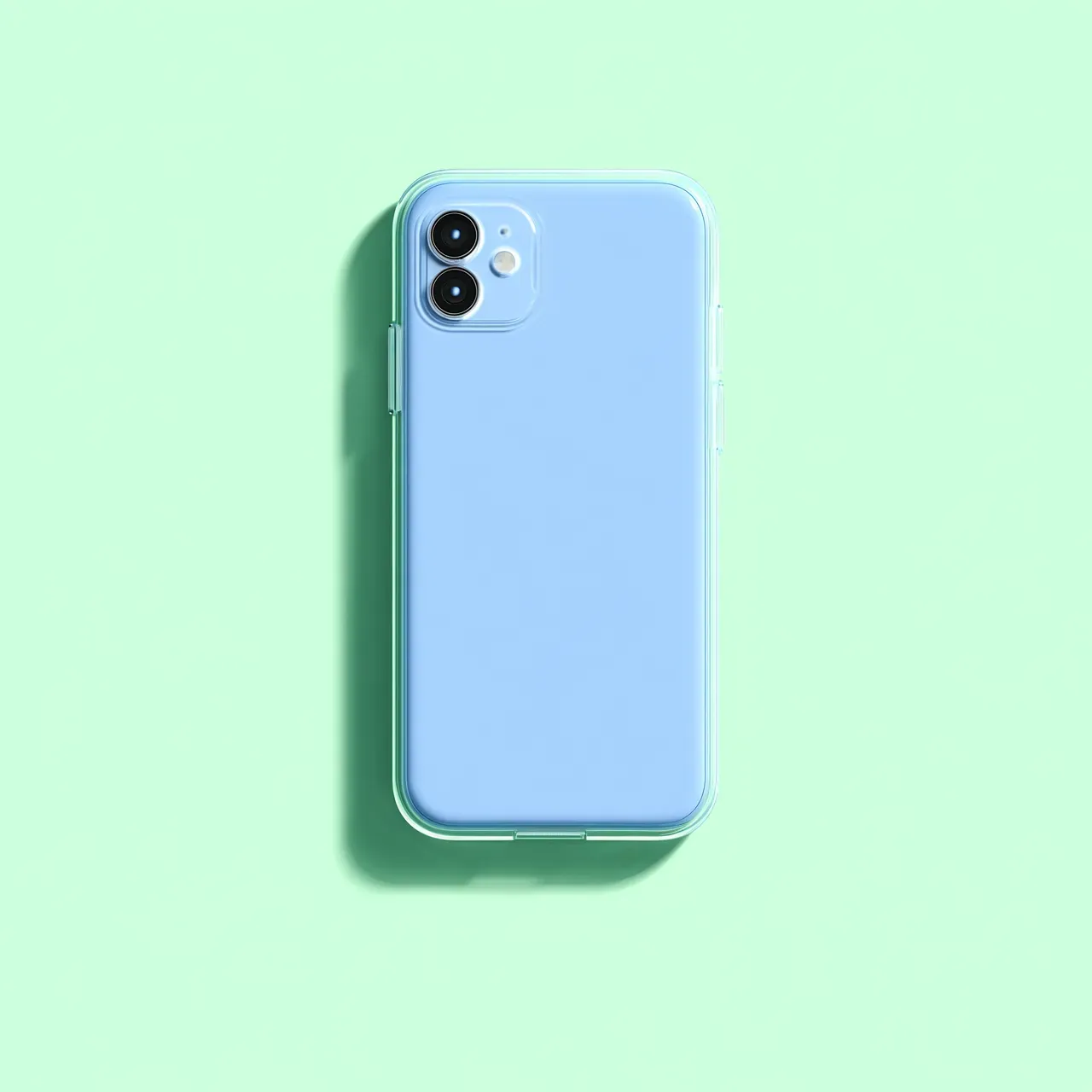
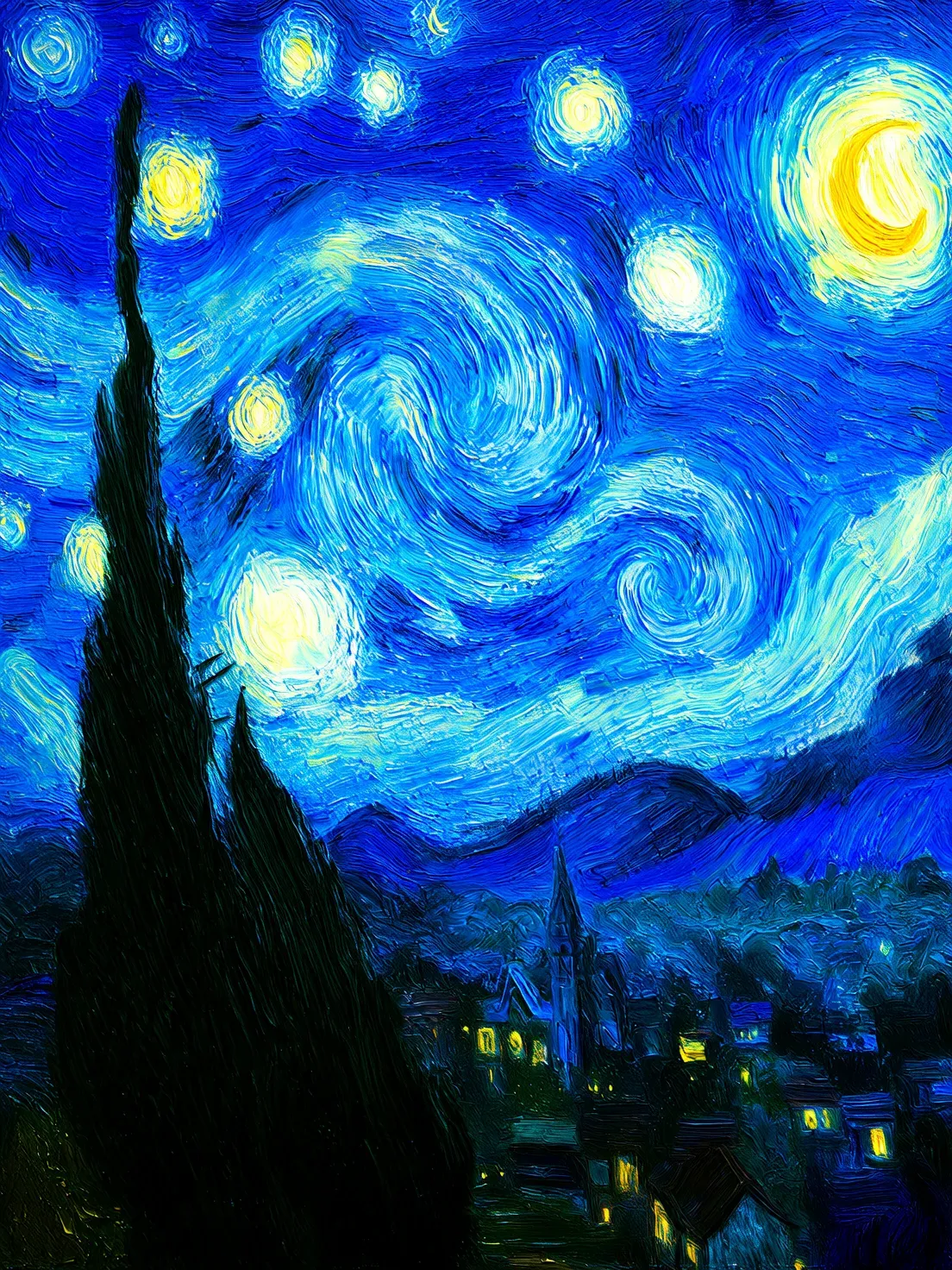
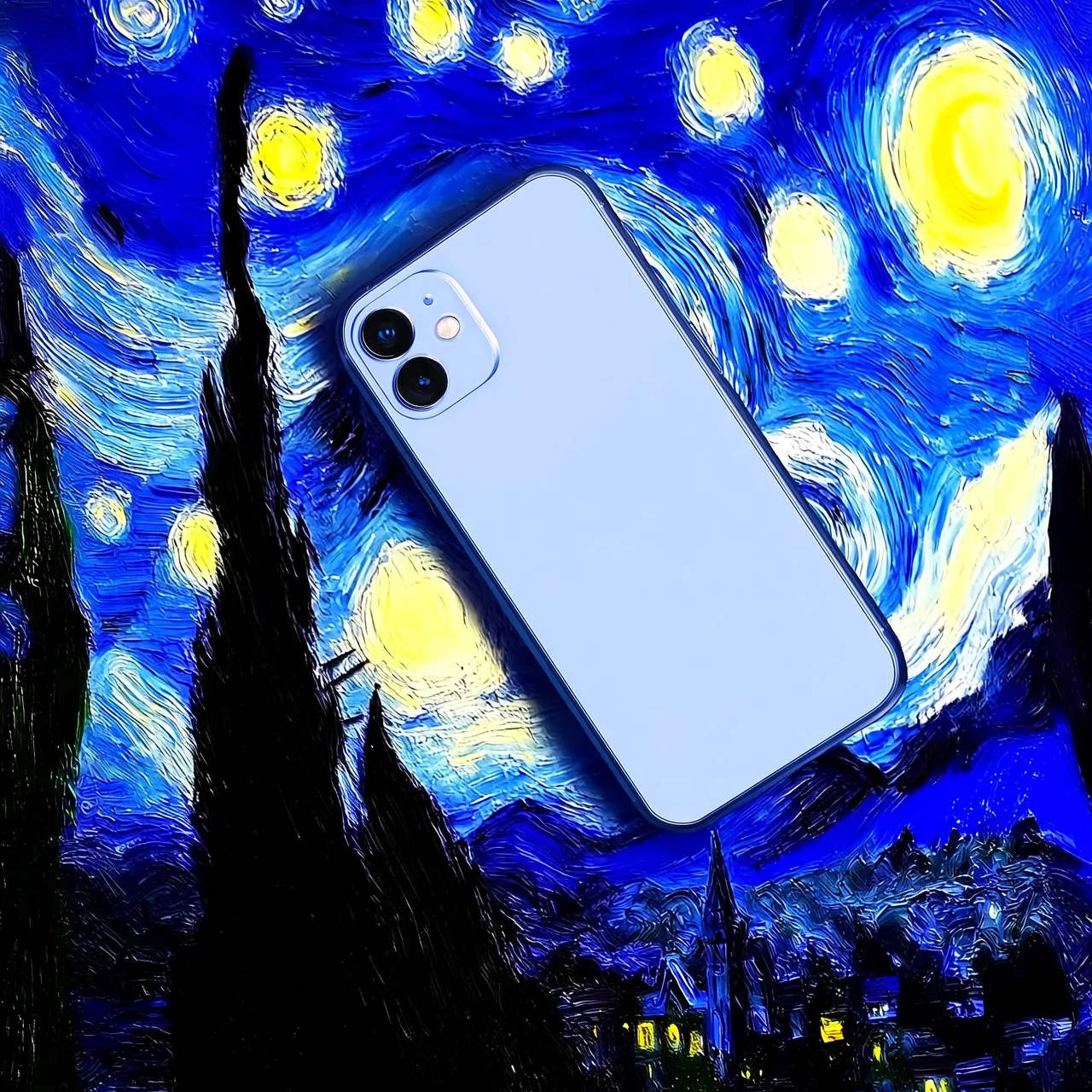
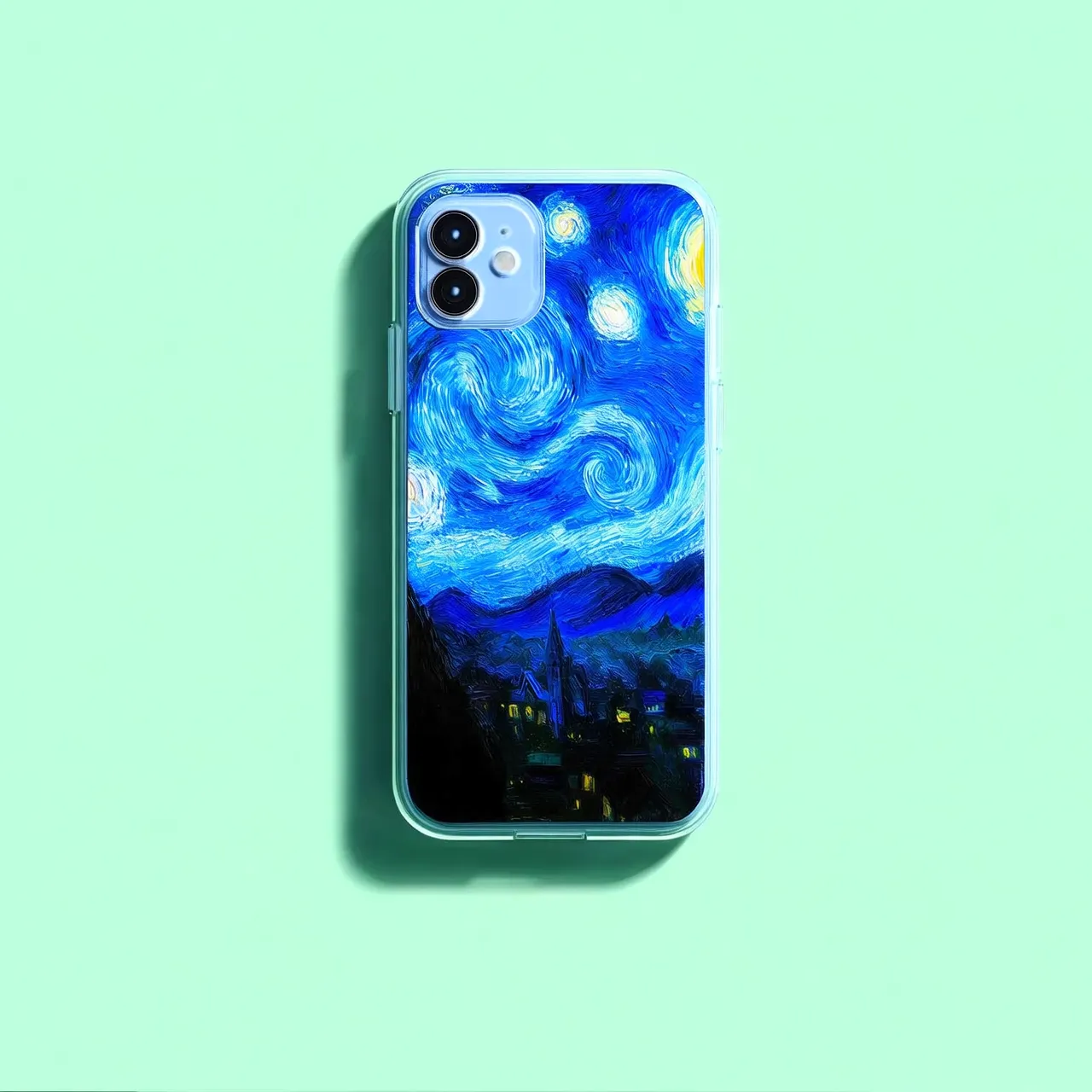
Image input methods
Pass images using any of these methods:
Method 2: Base64 encoding
Convert the image file to a Base64-encoded string and format it as: data:{MIME_type};base64,{base64_data}.
-
Example value:
data:image/png;base64,iVBORw0KGgoAAAANSUhEUgAABDg......(This is a snippet due to length limitations). When making a call, pass the complete string. -
{base64_data}: The Base64-encoded string of the image file.
-
{MIME_type}: The media type of the image, which must correspond to the file format.
Image format
MIME Type
JPEG
image/jpeg
JPG
image/jpeg
PNG
image/png
BMP
image/bmp
WEBP
image/webp
-
Use for local, private, or encrypted image transmission.
Method 3: Local file path (SDK only)
-
Python SDK: Supports both absolute and relative paths. The file path rules are as follows:
System
Input file path
Example (absolute path)
Example (relative path)
Linux or macOS
file://{absolute or relative path of the file}
file:///home/images/test.png
file://./images/test.png
Windows
file://D:/images/test.png
file://./images/test.png
-
Java SDK: Supports only the absolute path. The file path rules are as follows:
System
Input file path
Example (absolute path)
Linux or macOS
file://{absolute path of the file}
file:///home/images/test.png
Windows
file:///{absolute path of the file}
file:///D:/images/test.png
-
Use for quick testing in local development.
Key features
1. Instruction following (prompts)
Parameters: messages.content.text or input.prompt (required), negative_prompt (optional).
- text or prompt (Positive prompt): Describe content, subjects, scenes, styles, lighting, and composition for the output image.
- negative_prompt (Negative prompt): Specify unwanted content, such as "blurry" or "extra fingers".
Parameter | wan2.7-image-pro, wan2.7-image | wan2.6-image | wan2.5-i2i-preview |
|---|---|---|---|
text | Required, up to 5,000 characters | Required, up to 2,000 characters | Not supported |
prompt | Not supported | Not supported | Required, up to 2,000 characters |
negative_prompt | Not supported | Supported, up to 500 characters | Supported, up to 500 characters |
2. Enable intelligent prompt rewriting
Parameter: parameters.prompt_extend (bool, defaults to true).
Expands short prompts to improve image quality at the cost of increased response time.
Best practices:
- Enable: When prompts are concise or broad.
- Disable: For fine detail control, detailed descriptions, or latency-sensitive scenarios. Set
prompt_extendtofalse.
Parameter | wan2.7-image-pro, wan2.7-image | wan2.6-image | wan2.5-i2i-preview |
|---|---|---|---|
prompt_extend | Not supported | Supported (image editing mode only) | Supported |
3. Set the output image resolution
Parameter: parameters.size (string), in the format "width*height".
| Parameter | wan2.7-image-pro, wan2.7-image | wan2.6-image | wan2.5-i2i-preview |
|---|---|---|---|
size | Method 1: Specify the output image resolution (recommended) In editing mode (with at least one image passed), the optional output resolution tiers are:
| Method 1: Reference the input image ratio (recommended) In editing mode (
| Only supports specifying the width and height pixel values of the generated image
|
4. Interactive precise editing
Use parameters.bbox_list to select specific regions for editing. Only supported by wan2.7-image-pro and wan2.7-image.
- List length: Must match the number of input images. Use an empty list
[]for images that don't require editing. - Coordinate format:
[x1, y1, x2, y2](top-left x, top-left y, bottom-right x, bottom-right y). Coordinates are absolute pixel values with origin (0, 0) at top-left, x-axis right, y-axis down. - Quantity limit: A maximum of 2 bounding boxes per image.
Example: 3 input images where image 1 has two bounding boxes and image 2 has none
[
  [[0, 0, 12, 12], [25, 25, 100, 100]],  # Image 1 (2 boxes)
  [],                                    # Image 2 (no box)
  [[10, 10, 50, 50]]                    # Image 3 (1 box)
]
Click to view call examples
curl --location 'https://{WorkspaceId}.ap-southeast-1.maas.aliyuncs.com/api/v1/services/aigc/multimodal-generation/generation' \
    --header 'Content-Type: application/json' \
    --header "Authorization: Bearer $DASHSCOPE_API_KEY" \
    --data '{
        "model": "wan2.7-image-pro",
        "input": {
            "messages": [
                {
                    "role": "user",
                    "content": [
                        {"image": "https://img.alicdn.com/imgextra/i3/O1CN0157XGE51l6iL9441yX_!!6000000004770-49-tps-1104-1472.webp"},
                        {"image": "https://img.alicdn.com/imgextra/i3/O1CN01SfG4J41UYn9WNt4X1_!!6000000002530-49-tps-1696-960.webp"},
                        {"text": "Place the alarm clock from image 1 into the bounding box of image 2, and blend the scene and lighting naturally."}
                    ]
                }
            ]
        },
        "parameters": {
            "bbox_list": [[],[[989, 515, 1138, 681]]],
            "size": "2K",
            "n": 1,
            "watermark": false
        }
    }'
How to determine editing region coordinates
Draw bounding boxes by dragging the mouse on the image for precise and intuitive selection:
# Install dependencies: pip install opencv-python
import cv2
import urllib.request

# Download a sample image (replace with your own image URL or local path)
image_url = "https://img.alicdn.com/imgextra/i3/O1CN01SfG4J41UYn9WNt4X1_!!6000000002530-49-tps-1696-960.webp"
urllib.request.urlretrieve(image_url, "example.webp")

# Read the image and open an interactive window
img = cv2.imread("example.webp")
# Drag the mouse in the pop-up window to draw a box. Press Enter to confirm, press Esc to cancel
x, y, w, h = cv2.selectROI("Draw bounding box (Enter=confirm, Esc=cancel)", img)
cv2.destroyAllWindows()

# Convert the (x, y, w, h) returned by OpenCV to the [x1, y1, x2, y2] format required by bbox_list
# Coordinate system: origin at the top-left corner, x-axis points right, y-axis points down, unit is pixels
bbox = [x, y, x + w, y + h]
print(f"Bounding box coordinates: {bbox}")  # Pass these coordinates to parameters.bbox_list
Use qwen3.6-plus to automatically identify target region coordinates by describing the target in natural language:
# Install dependencies: pip install dashscope pillow
import os
import json
from dashscope import MultiModalConversation
import dashscope
from PIL import Image
import urllib.request

# The following URL is for the Singapore region. Replace WorkspaceId with your actual workspace ID. URLs differ by region.
dashscope.base_http_api_url = "https://{WorkspaceId}.ap-southeast-1.maas.aliyuncs.com/api/v1"

def get_bbox_list(image, prompt):
    """
    Identify target regions in an image using qwen3.6-plus and return absolute pixel coordinates.

    Args:
        image: Image URL or local path (local path format: "file:///absolute/path.png")
        prompt: Natural language description, e.g., "coffee cup", "all fruits on the plate", "the fruit in the center of the plate"

    Returns:
        [[x1, y1, x2, y2], ...] Absolute pixel coordinates that can be passed directly to bbox_list
    """
    # Concatenate user description with return format instructions
    full_prompt = (
        prompt + "\n"
        "Based on the description above, return the coordinates of the corresponding region.\n"
        "Return a maximum of 2 regions, prioritizing the most matching target.\n"
        "Strictly follow the JSON 2D list format: [[x1, y1, x2, y2], ...]\n"
        "Each set of coordinates: [top-left x, top-left y, bottom-right x, bottom-right y]\n"
        "Use absolute pixel coordinates of the original image, with (0,0) at the top-left corner, x-axis pointing right, y-axis pointing down.\n"
        "If there is only one region, you must still use a 2D list: [[x1, y1, x2, y2]]\n"
        "Only return the JSON list, do not return any other content."
    )

    messages = [
        {'role': 'user',
         'content': [
             {'image': image},
             {'text': full_prompt}
         ]}
    ]

    response = MultiModalConversation.call(
        api_key=os.getenv('DASHSCOPE_API_KEY'),
        model='qwen3.6-plus',
        messages=messages,
    )

    text = response.output.choices[0].message.content[0]["text"]
    text = text.replace("```json", "").replace("```", "").strip()
    coords = json.loads(text)

    # Handle the case where the model returns a 1D list [x1,y1,x2,y2]
    if coords and not isinstance(coords[0], list):
        coords = [coords]

    # Get image dimensions for coordinate conversion
    if image.startswith("file://"):
        local_path = image[len("file://"):]
        img = Image.open(local_path)
    else:
        tmp_path = "temp_bbox_image"
        urllib.request.urlretrieve(image, tmp_path)
        img = Image.open(tmp_path)
    width, height = img.size

    # Convert model's normalized coordinates [0, 999] to absolute pixel coordinates
    bbox_list = []
    for box in coords:
        bbox_list.append([
            int(box[0] / 1000 * width),
            int(box[1] / 1000 * height),
            int(box[2] / 1000 * width),
            int(box[3] / 1000 * height)
        ])

    return bbox_list

# === Usage examples ===
image_url = "https://img.alicdn.com/imgextra/i3/O1CN01ewUWhg1eS3VqJ3wap_!!6000000003869-49-tps-2048-2048.webp"

# Select target by name
bbox = get_bbox_list(image_url, "coffee cup")           # [[x1, y1, x2, y2]]

# Select target by position description
bbox = get_bbox_list(image_url, "the fruit in the center of the plate")  # [[x1, y1, x2, y2]]

# Describe a region
bbox = get_bbox_list(image_url, "lavender potted plant")

# Results can be used as elements in the bbox_list array
# Note: A maximum of 2 bounding boxes per image
Billing and rate limits
-
Free quota and pricing: Model list and pricing.
-
For rate limits, see Wanxiang.
-
Billing:
- Charges apply per successfully generated image. You are charged only when the API returns a
task_statusofSUCCEEDED. - Failed model calls or processing errors do not incur any fees or consume the free quota.
- Charges apply per successfully generated image. You are charged only when the API returns a
API reference
Each model uses a different endpoint and request structure:
Model | Endpoint(Example for the Singapore region) |
|---|---|
| Sync API: Async API: Replace |
| Async API: Replace |
wan2.7/wan2.6: Use themessagesformat. In themessages[].contentarray, pass the image in theimageparameter and the prompt in thetextparameter.wan2.5: Pass the image in theinput.imagesarray and the prompt in theinput.promptparameter.
"input": {
    "messages": [
        {
            "role": "user",
            "content": [
                {"image": "https://help-static-aliyun-doc.aliyuncs.com/file-manage-files/zh-CN/20251229/pjeqdf/car.webp"},
                {"image": "https://help-static-aliyun-doc.aliyuncs.com/file-manage-files/zh-CN/20251229/xsunlm/paint.webp"},
                {"text": "Spray the graffiti from image 2 onto the car in image 1"}
            ]
        }
    ]
}
"input": {
    "prompt": "Place the alarm clock from image 1 next to the vase on the dining table in image 2",
    "images": [
        "https://img.alicdn.com/imgextra/i3/O1CN0157XGE51l6iL9441yX_!!6000000004770-49-tps-1104-1472.webp",
        "https://img.alicdn.com/imgextra/i3/O1CN01SfG4J41UYn9WNt4X1_!!6000000002530-49-tps-1696-960.webp"
    ]
}
For input and output parameters, see Wan2.7 - image generation and editing, Wan2.6 - image generation and editing, Wanxiang – General Image Editing 2.5