Building high-quality prompts from scratch is time-consuming and can lead to inconsistent results. Custom prompt templates in Model Studio let you create structured, reusable templates. Use them to design, manage, and optimize prompts for stable, high-quality output.
ImportantThis topic is applicable only to the Singapore region.
Create a text generation template
Use these templates for tasks like content creation, knowledge-based Q&A, code generation, and conversational interactions. They enable structured design through a prompt engineering framework.
Two Input Mode are supported:
- Custom creation: Use this mode to quickly convert an existing prompt into a template or make simple optimizations.
- Create based on prompt framework: Use this mode with a professional framework to build high-quality prompts for complex tasks, structure your ideas, and ensure the prompt's integrity.
Method 1: Custom creation
-
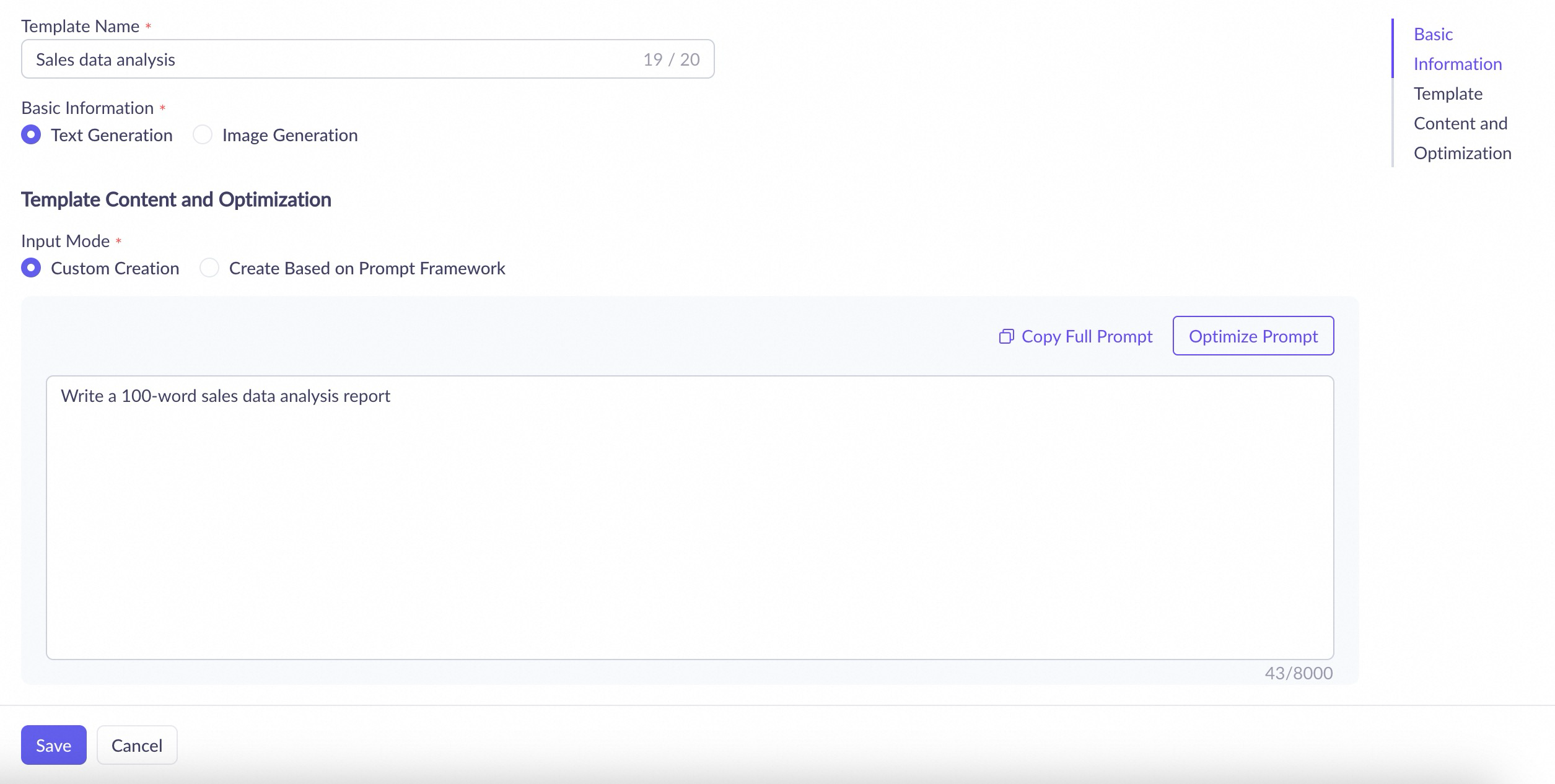
Go to the Prompts page, click Create Prompt, and configure the following parameters.
-
Template Name: Enter a custom name.
-
Basic Information: Select Text Generation.
-
Input Mode: Select Custom Creation.
-
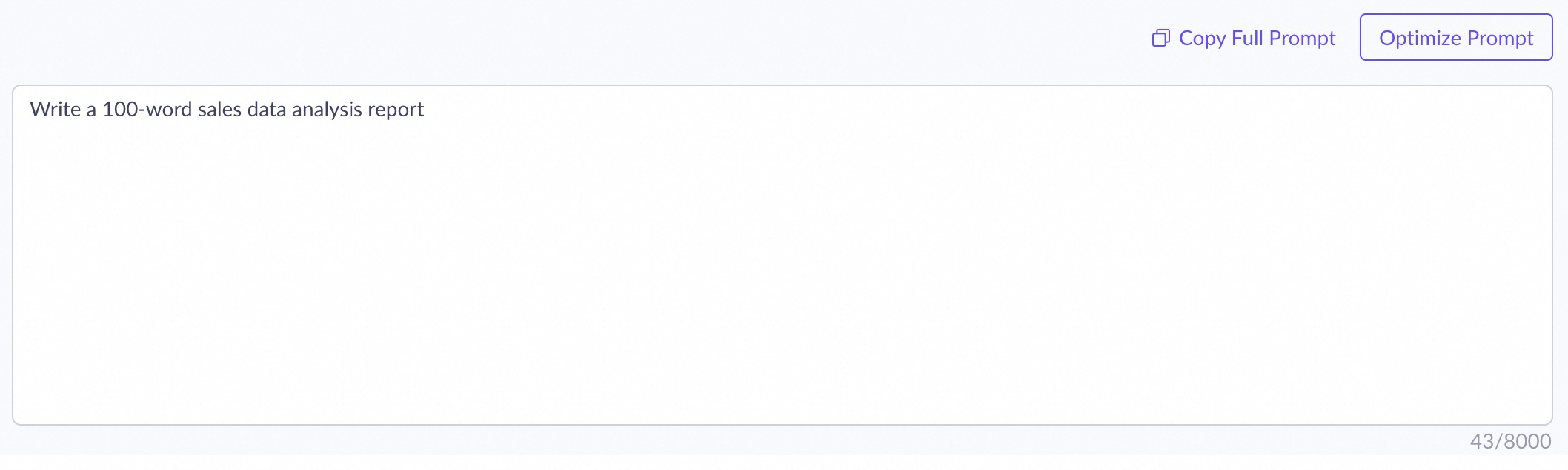
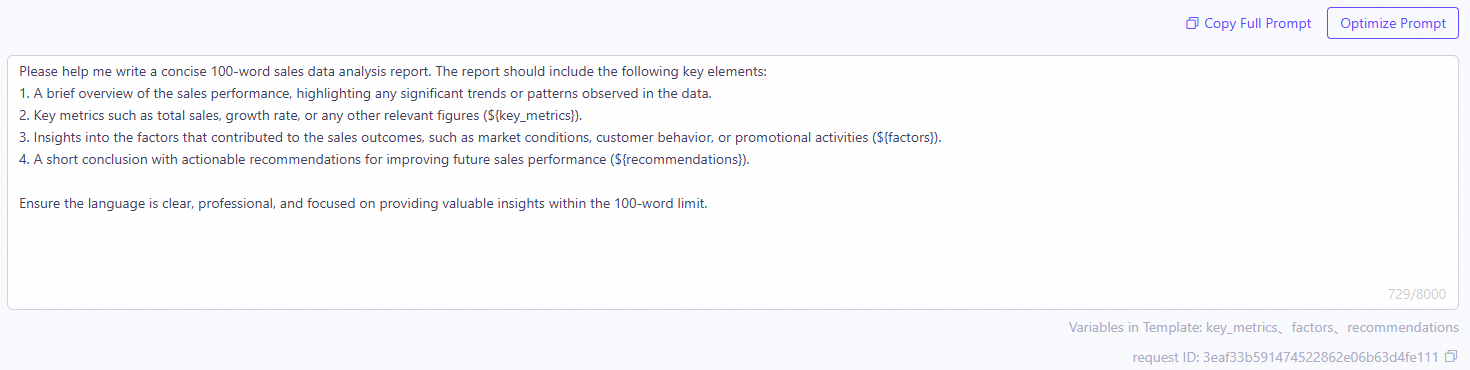
In the text box, enter the prompt and click Optimize Prompt.
Example: Enter
Please help me write a 100-word sales data analysis report.Before optimization
After optimization
-
-
After optimization, click Save to create the template.

Method 2: Create with a prompt framework
-
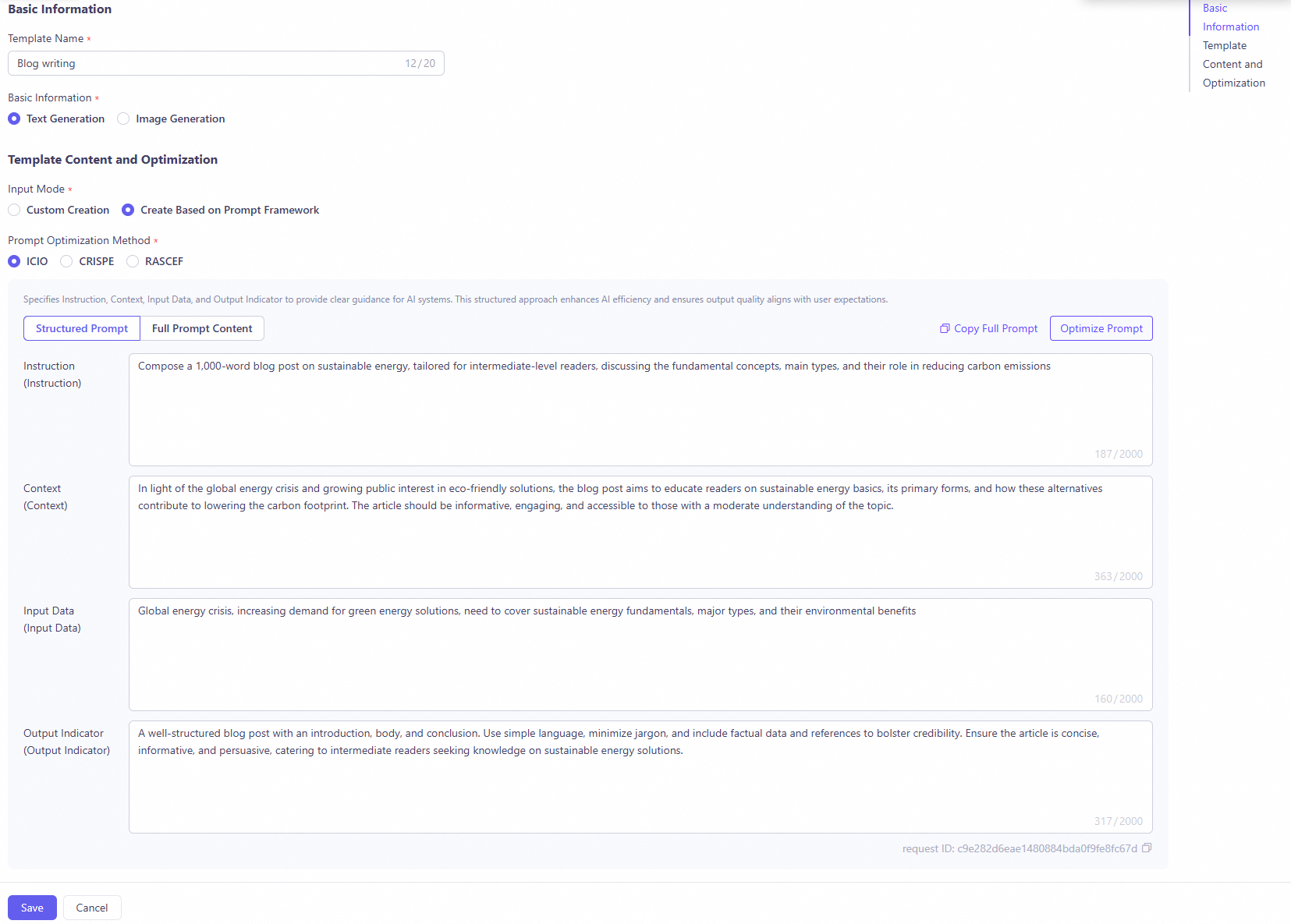
Go to the Prompts page, click Create Prompt, and configure the following parameters:
- Template Name: Enter a custom name.
- Basic Information: Select Text Generation.
- Input Mode: Select Create Based on Prompt Framework.
-
Select a Prompt Optimization Method. Different frameworks suit tasks of varying complexity. See Prompt engineering frameworks.
-
Fill in the corresponding fields based on the structure of the selected framework.
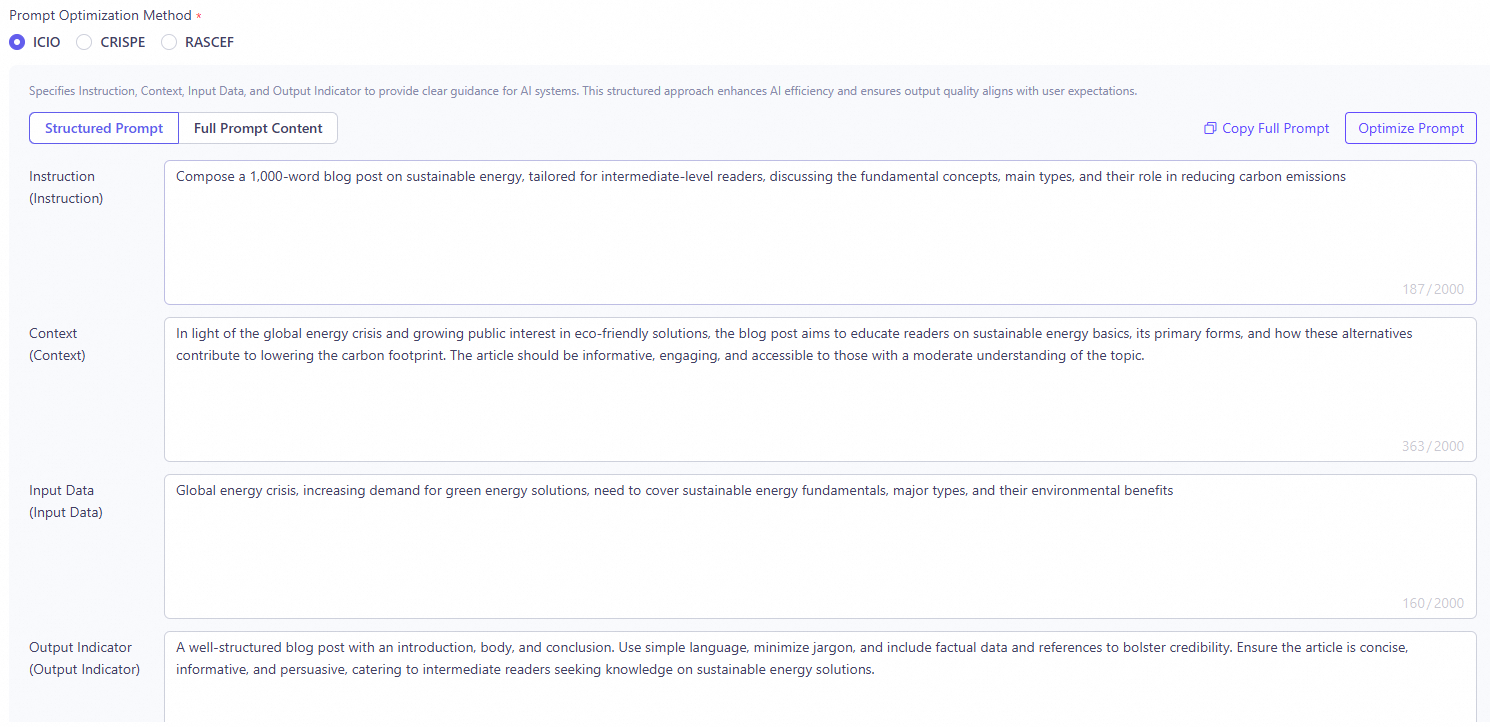
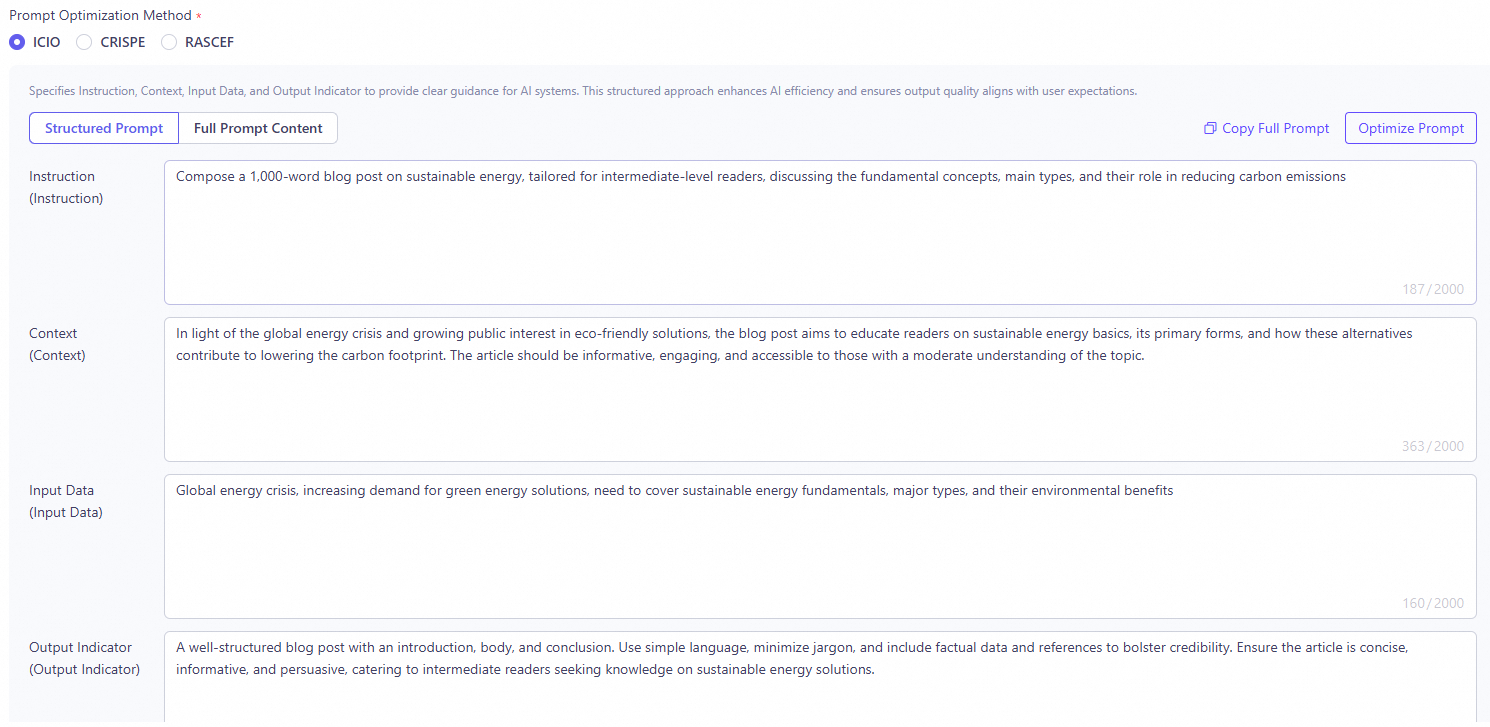
Example: Select the ICIO framework and enter the following content.
- Instruction: Write a blog post about sustainable energy. The post should be approximately 1,000 words and suitable for intermediate readers.
- Context: The world is facing an energy crisis, and interest in environmentally friendly energy solutions is rising. The article should cover the basic concepts of sustainable energy, its main types, and how they help reduce carbon footprints.
- Input Data: The world is facing an energy crisis, and interest in environmentally friendly energy solutions is rising. The article should cover the basic concepts of sustainable energy, its main types, and how they help reduce carbon footprints.
- Output Indicator: The article should be well-structured and include an introduction, main body, and conclusion. Use easy-to-understand language and avoid excessive technical terms. Ensure the article includes factual data and citations to improve credibility.
-
Click Optimize Prompt. The system refines and enhances your input.
Before optimization | After optimization |
|---|---|
|
|
-
After optimization, click Save to create the template.
Create an image generation template
These templates are for image creation. You can define positive and negative prompts to control the content and style of the generated image.
-
Go to the Prompts page, click Create Prompt, and configure the following parameters:
- Template Name: Enter a custom name.
- Basic Information: Select Image Generation.
-
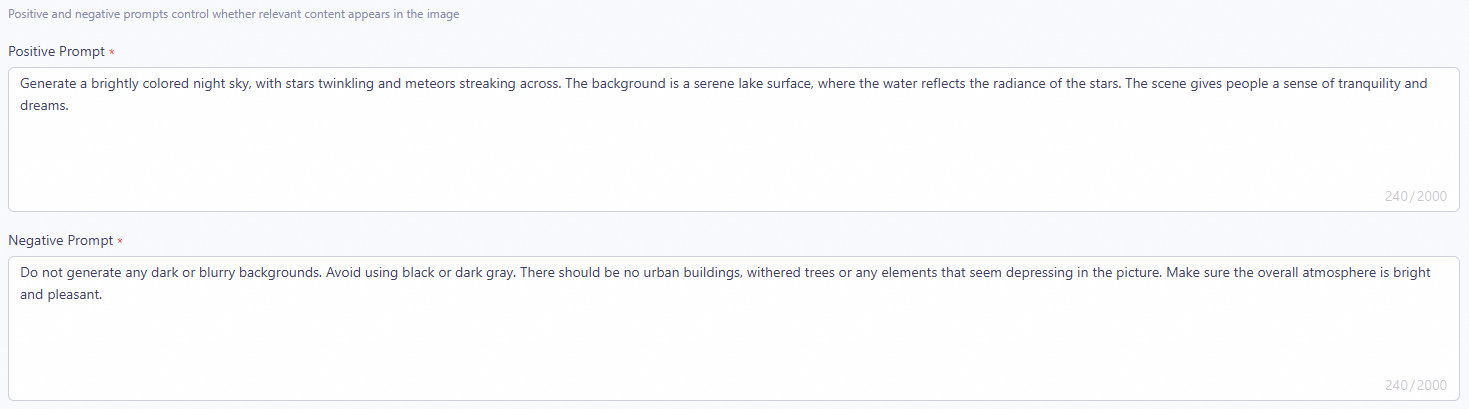
Enter the Positive Prompt and Negative Prompt.
A positive prompt tells the model what the generated image should include, while a negative prompt tells it what to exclude. Using both helps you generate images that meet your exact requirements.
Example:
- Positive Prompt: Generate a brightly colored night sky with twinkling stars and a meteor streaking across. In the background is a tranquil lake, reflecting the glow of the stars. The scene should feel peaceful and dreamlike.
- Negative Prompt: Do not generate any dark or blurry backgrounds. Avoid black or dark gray. Do not include city buildings, withered trees, or any oppressive elements. Keep the overall mood bright and pleasant.
-
After you finish, click Save to create the template.
Prompt engineering frameworks
The platform provides several built-in prompt engineering frameworks to help you structure complex tasks.
Framework | Use cases |
|---|---|
ICIO | Straightforward tasks such as data analysis, content generation, and text summarization. |
CRISPE | Role-based interactions such as intelligent customer support, creative writing, and interview simulations. |
RASCEF | Multi-step business workflows such as project planning, strategic analysis, and process design. |
Appendix 1: Text generation prompt framework details
Framework | Component description | Example | |
|---|---|---|---|
ICIO | Instruction | Tells the model what task to complete. | Write a blog post about sustainable energy. The post should be approximately 1,000 words and suitable for intermediate readers. |
Context | Provides background information to help the model understand the task's context. | The world is facing an energy crisis, and interest in environmentally friendly energy solutions is rising. The article should cover the basic concepts of sustainable energy, its main types, and how they help reduce carbon footprints. | |
Input Data | Specifies data or information the model should consider when performing the task. | Please consider the following data points: the latest developments in solar and wind energy, government support for sustainable energy projects, and the potential impact of sustainable energy on reducing greenhouse gas emissions. | |
Output Indicator | Defines the expected output, including format, content, and quality standards. | The article should be well-structured with an introduction, body, and conclusion. Use easy-to-understand language and avoid excessive technical jargon. Ensure the article includes factual data and citations to enhance its persuasiveness. | |
CRISPE | Capacity and Role | Defines the role the model should play in the interaction, such as an educator, translator, or advisor. | You are a professional negotiation consultant helping a company attract a candidate without exceeding its budget. |
Insight | Provides background for the role-play to help the model perform in a specific situation. | The candidate has other job offers and expects a higher salary. However, our company has a fixed salary budget but can offer other benefits, such as flexible work hours, stock options, and career development opportunities. | |
Statement | States the task directly to ensure the model understands and executes the user's request. | You need to simulate a negotiation where the candidate tries to secure a higher salary, and you present the company's other benefits to attract them. | |
Personality | Sets the response style and format to match the user's expectations and the scenario's requirements. | During the negotiation, you should be professional and firm, but also show understanding and consideration to better communicate with the candidate. | |
Experiment | If needed, you can ask the model to provide multiple examples for the user to choose the best response. | Generate two different versions of the negotiation dialogue: one that focuses more on rational analysis and data, and another that emphasizes emotional connection and personal development. | |
RASCEF | Role | Defines the role the model plays in the interaction, such as an email marketer or project manager. | You are a market strategist responsible for creating a comprehensive go-to-market plan. |
Action | Specifies the action the model needs to perform, such as writing a project plan or answering a customer inquiry. | You need to develop a strategy that includes market analysis, a target audience, and promotional activities. | |
Steps | Provides the steps the model should follow to complete the task, ensuring an orderly process. |
| |
Context | Provides background information or a scenario to help the model understand the task's environment. | "The product is a technological innovation designed to improve home security." | |
Example | Shows the desired tone and style through specific examples to help the model better imitate and understand. | Refer to successful go-to-market examples in the tech industry for inspiration. | |
Format | Sets the model's output format, such as paragraphs, lists, or dialogues, to suit different communication needs. | Present the strategy in a structured document, with a section for each key area. | |
Appendix 2: Text generation prompt framework optimization examples
Framework component | Before optimization | After optimization | |
|---|---|---|---|
ICIO | Instruction | Please conduct an in-depth analysis of this sales data. | Conduct a comprehensive and in-depth analysis of the provided sales data to reveal sales dynamics, identify potential challenges, and uncover opportunities for optimization. |
Context | We want to analyze sales data to understand sales trends, find issues, and identify potential improvement opportunities. This will help us optimize our sales strategy and improve performance. | Our core goal is to use detailed data analysis to track sales patterns across product types, identify seasonal fluctuations, and explore key factors that may hinder or improve sales performance. The results will serve as a key basis for adjusting sales strategies and strengthening market results. | |
Input Data | The provided sales data file includes date, product, sales quantity, and sales amount. | A detailed sales data document that covers key transaction information, including but not limited to transaction date, product category, sales volume, and total sales amount. | |
Output Indicator |
|
| |
CRISPE | Capacity and Role | In this interaction, you will act as a poet. | In this meeting of souls, you will embody a masterful bard, weaving heart-touching verses with your wisdom and inspiration. |
Insight | As a poet, you can write poetry on many themes, such as nature, emotion, or abstract ideas. | As a poet, you have the rare gift of turning the subtle feelings of all things, the grandeur of nature, and the deepest philosophical thoughts of the human heart into beautiful verse. Every line carries meaning and boundless imagination. | |
Statement | Please help me write a poem. You can choose the theme you think fits best. | I warmly invite you to write a poem. The theme and style are yours to choose—whether you praise nature, celebrate love, or explore the meaning of life. I look forward to seeing you bring it to life from a unique point of view. | |
Personality | Your response should be poetic and rhythmic. Use beautiful words and imagery. | Let your response feel like dew in the morning light—clear, bright, and alive. Use rich rhetorical devices such as personification, exaggeration, and metaphor. Make each word sparkle and guide the reader into a world of beauty and thought. | |
Experiment | Please provide three poems in different styles and themes so I can choose the best one. | Can you present three poems in distinct styles? For example, a pastoral poem about summer fields, a love poem about the pain of parting, and a philosophical poem about the mysteries of the universe. This will let me see the range of your creativity and choose the one that moves me most. | |
RASCEF | Role | Email marketer. | Email marketer. |
Action | Write an email inviting customers to a new product launch event. | Write an email inviting customers to a new product launch event. | |
Steps |
|
| |
Context | Our company is about to launch a new product. We hope to showcase its advantages and features to customers through a launch event, while also strengthening customer relationships and promoting sales growth. | The upcoming product is the result of our company’s innovation. Through the launch event, we aim to showcase its unique value, deepen customer connections, and drive the business forward together. | |
Example | Dear [Customer Name], Thank you for your continued support. We are pleased to announce that we will hold a new product launch event on [Date] at [Location] to showcase our latest product, [New Product Name]. This is a great opportunity to be among the first to learn about the product’s innovative capabilities and key advantages. Customers who attend will also receive special offers and limited-time discounts. If you would like to attend, please reply to this email or click the following link to register: [Registration Link]. We look forward to seeing you at the event. If you have any questions, feel free to contact us. Best regards, [Your Name] [Your Title] [Company Name] [Contact Information] | [Exclusive Invitation] Explore the future—Join us at the [New Product Name] launch event! Dear [Customer Name], Thank you for your long-term trust and support of [Company Name]. We are delighted to invite you to a special new product launch event on [Date] at [Location]. At the event, we will unveil [New Product Name]—a product built with the insight and dedication of our team. This is more than a launch event. It is your chance to explore [New Product Name]’s innovative features and market potential. As a valued customer, you will be able to experience the product firsthand and enjoy exclusive benefits, including but not limited to priority purchase access and customized services. To reserve your seat, please reply to this email by [RSVP Deadline], or visit [Registration Link] to complete your registration. We eagerly look forward to meeting you at the event and sharing this milestone together. If you have any questions or require further information, please feel free to contact us. Best regards, [Your Name] [Your Title] [Company Name] [Contact Information] | |
Format | Formal email format. | Use a formal email format. Keep the language professional and the structure clear to ensure accurate and polite communication. | |
Next steps
- To create a custom prompt template with an API, see Create a custom prompt template by using an API.
- To view, manage, and use custom prompt templates, see Prompt template overview.