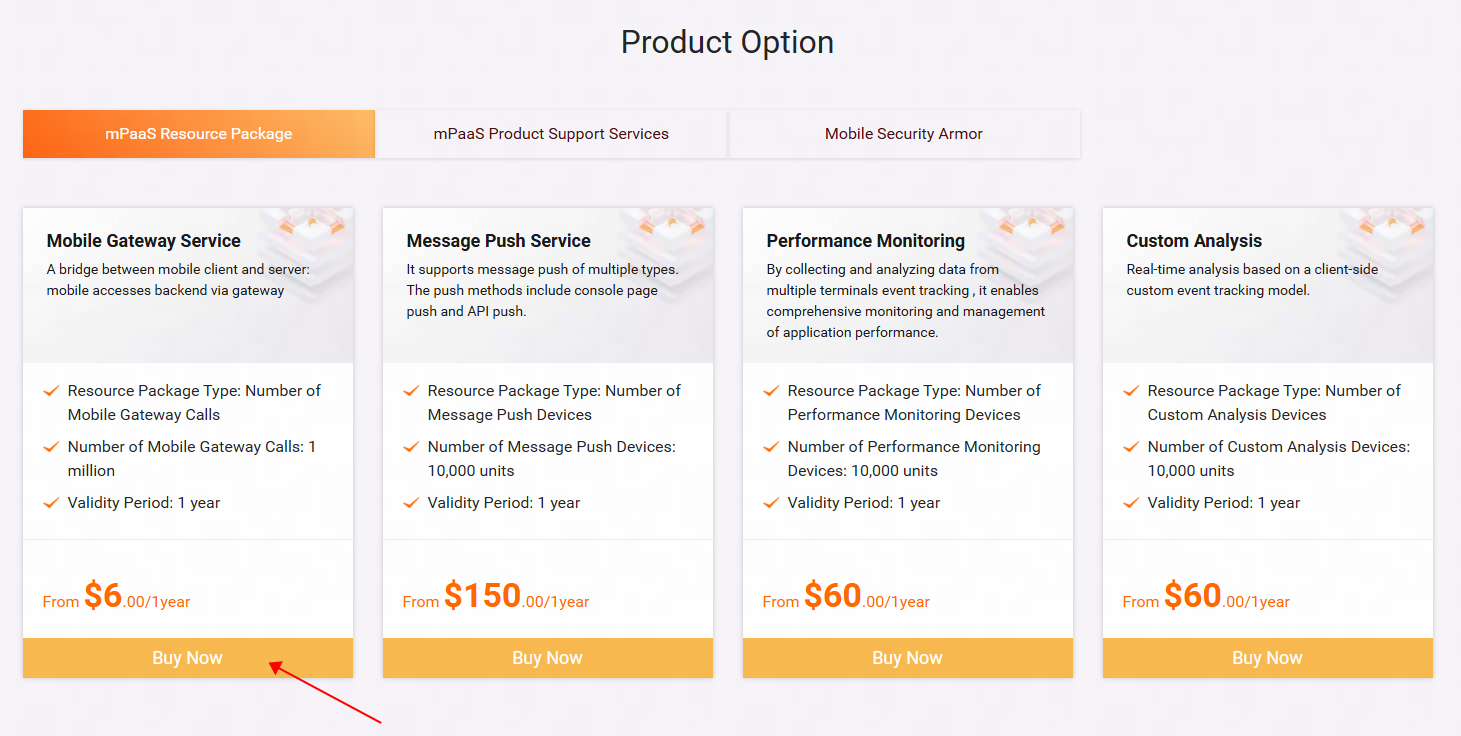
Go to the mPaaS product page. In the Product Option, click Buy Now.
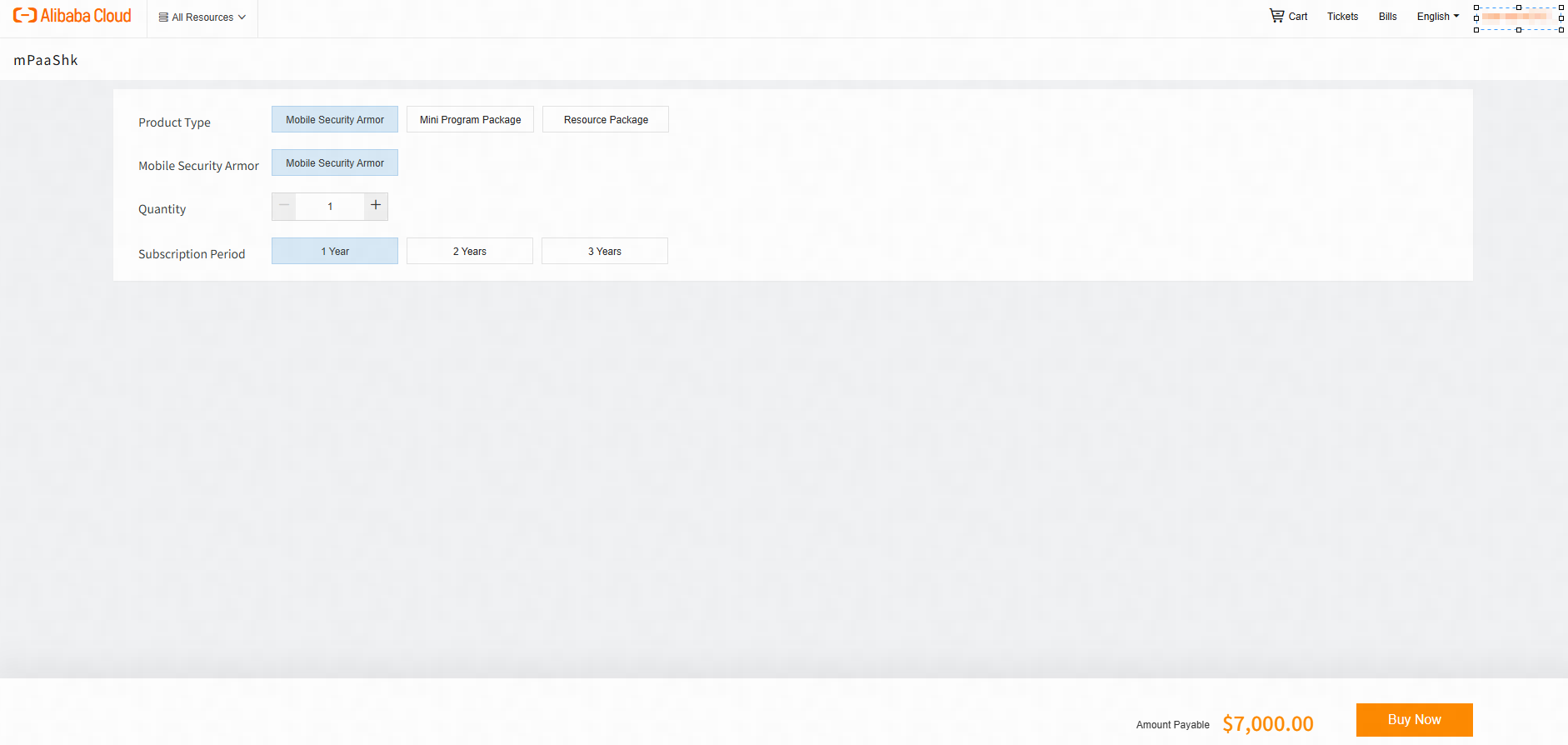
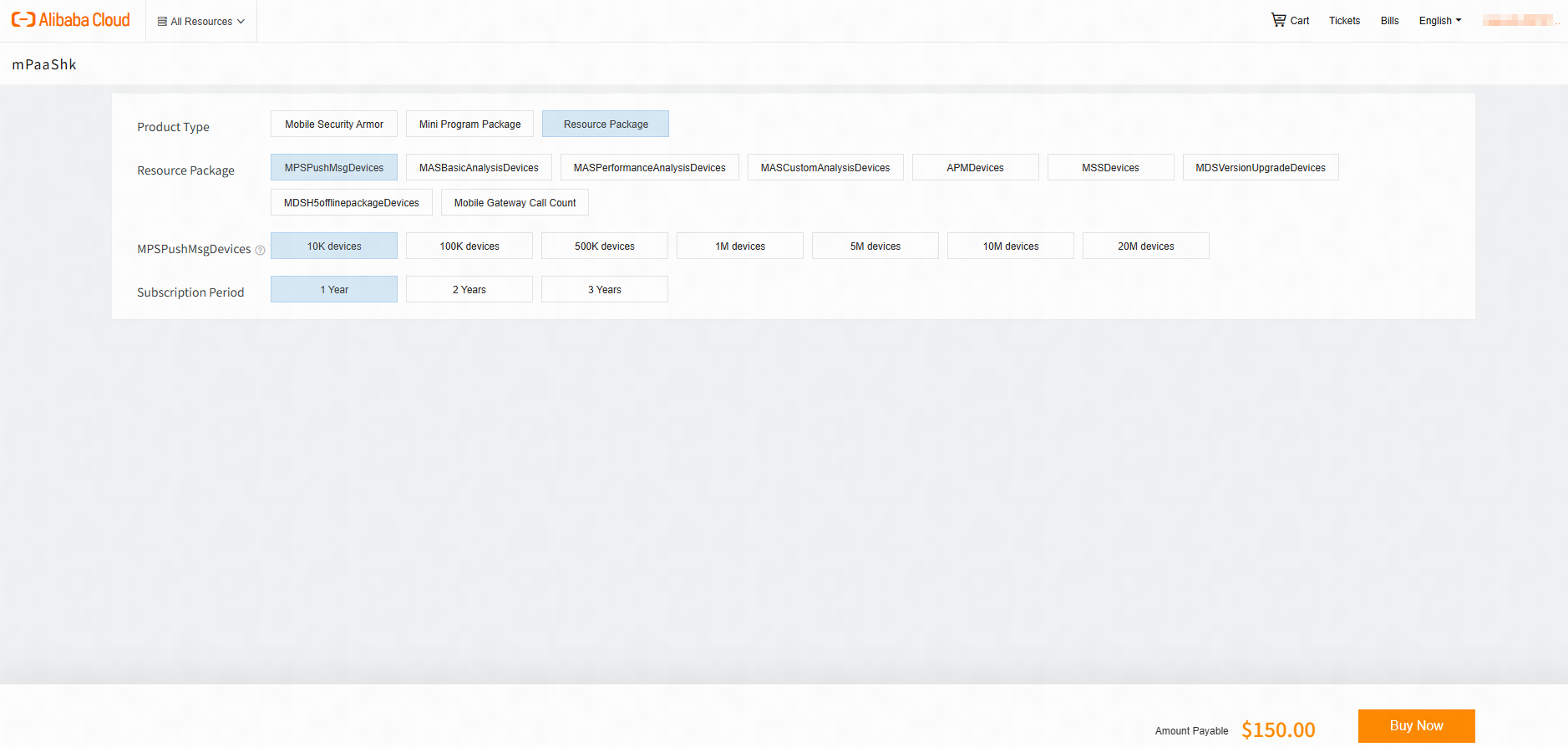
Select the service, quantity, and subscription period, and then click Buy Now.
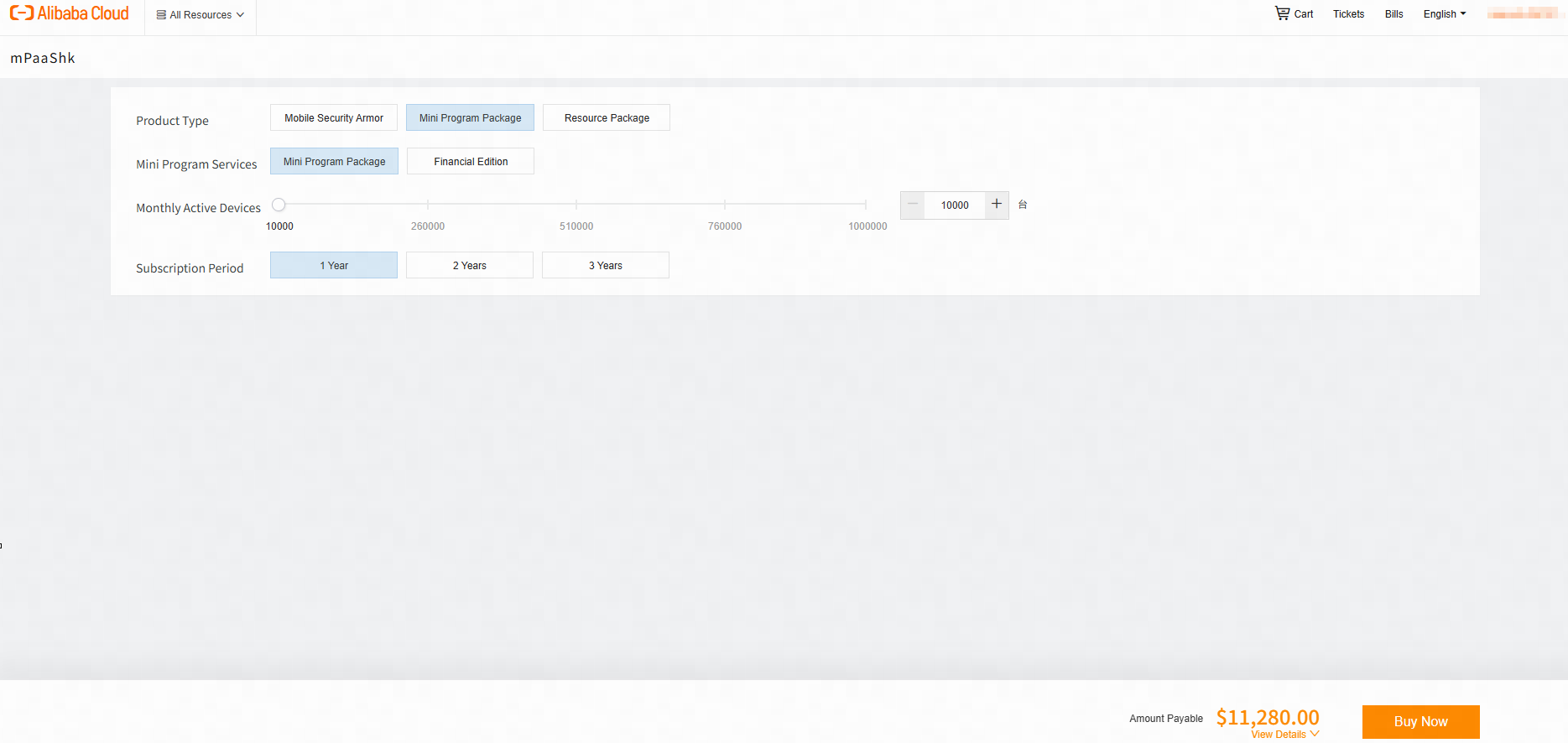
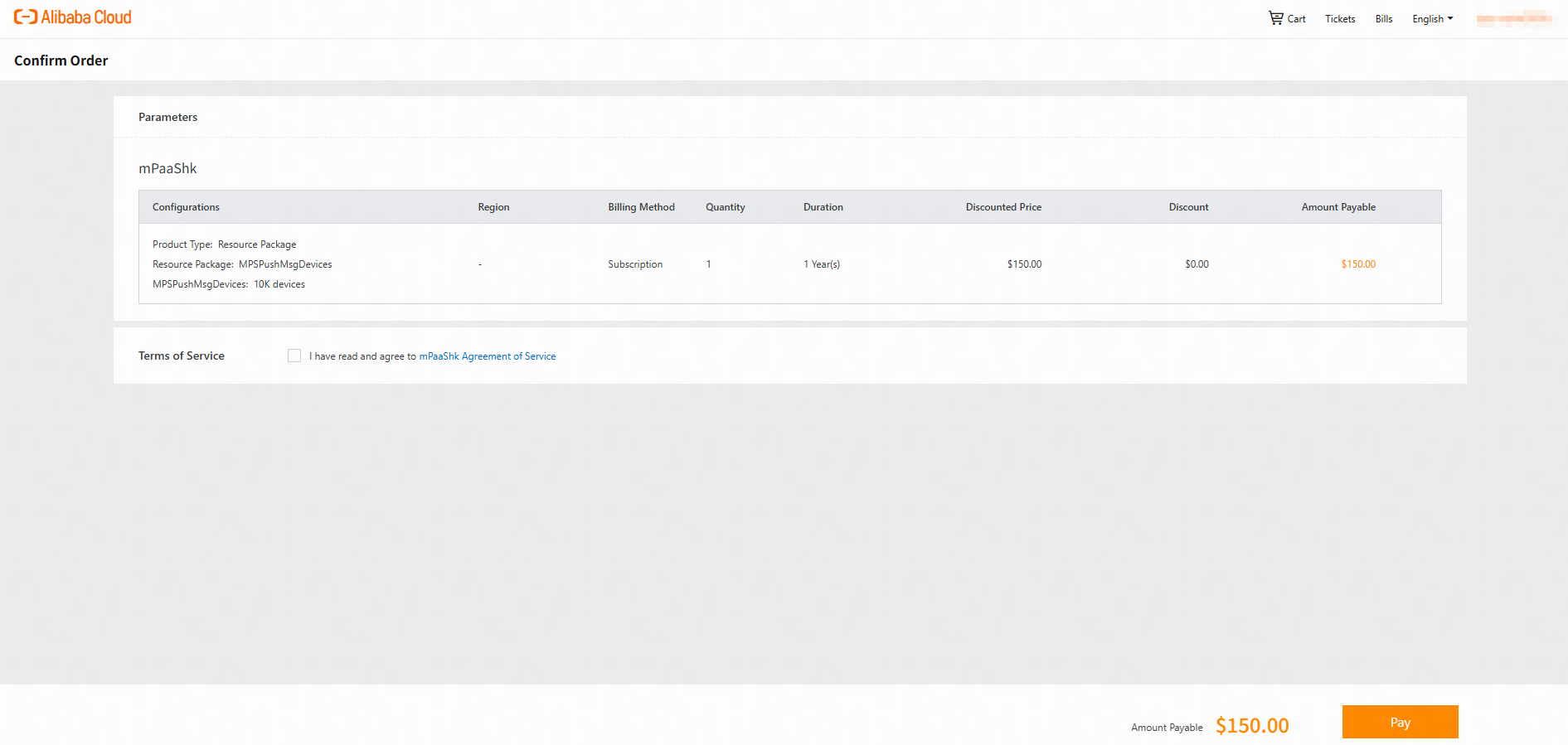
Confirm your order details and click Pay. After you complete the payment, the service is activated.
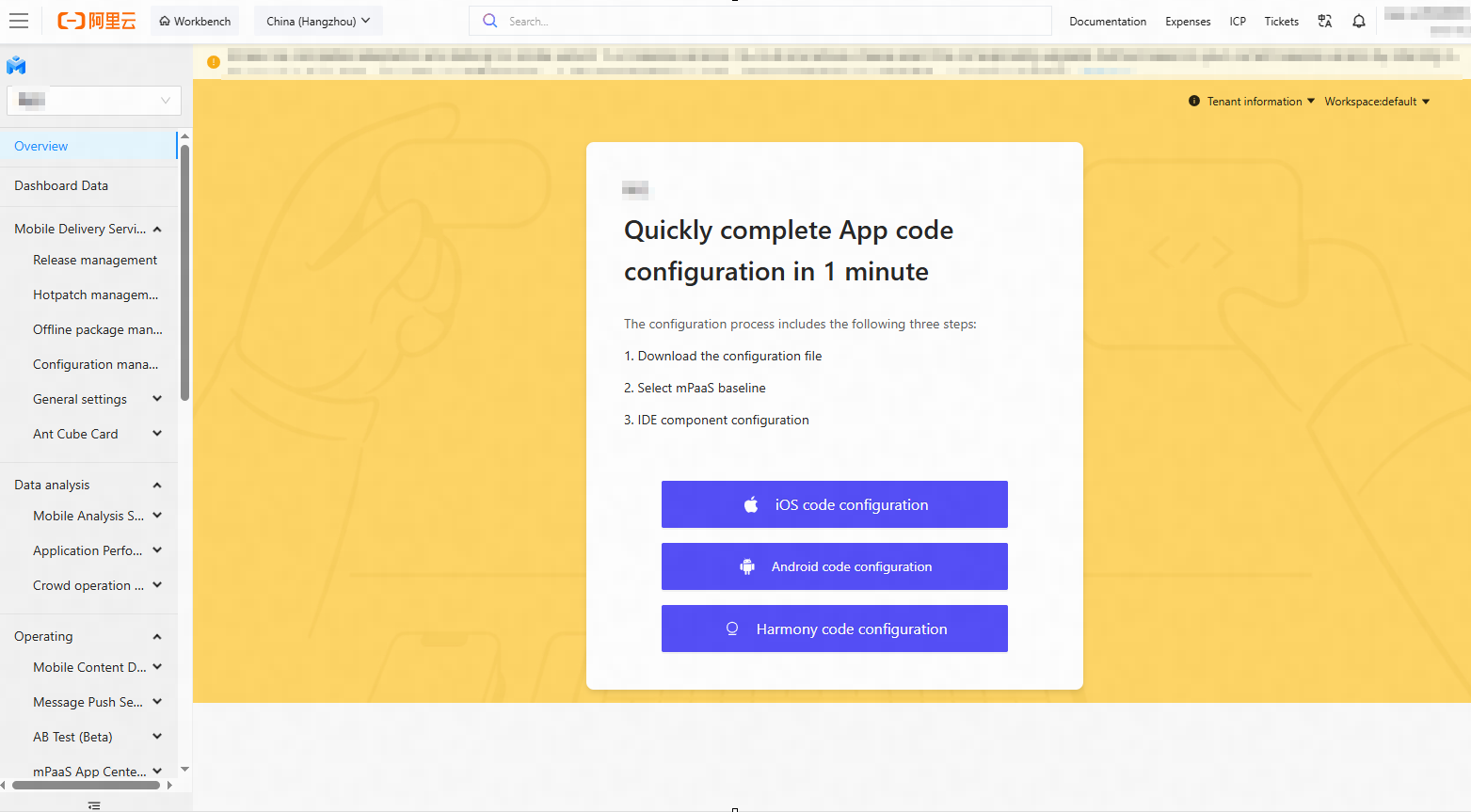
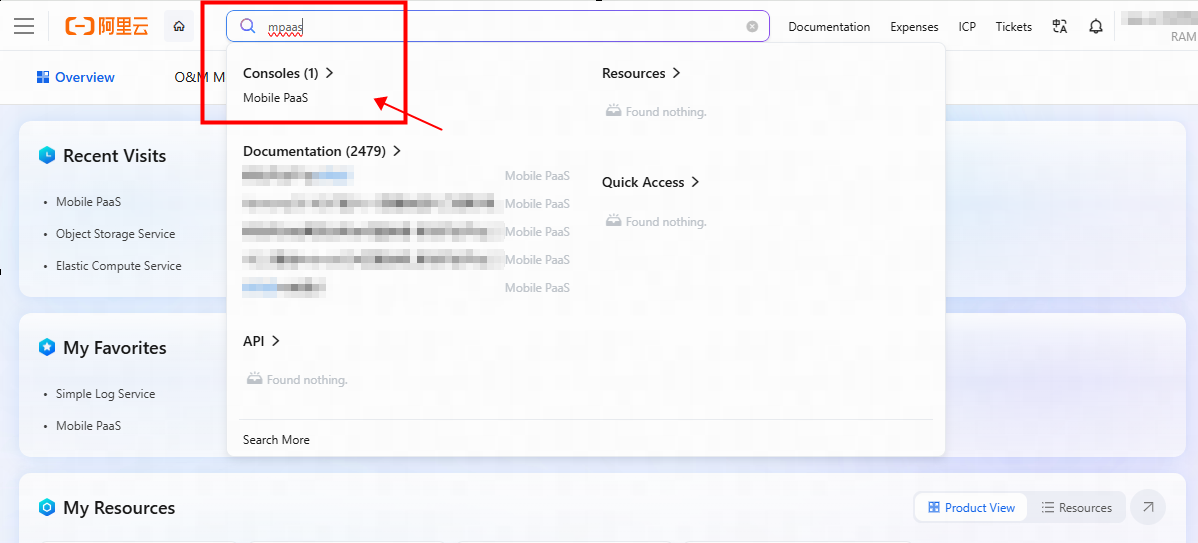
After the service is activated, search for mPaaS and click the result to open the console.
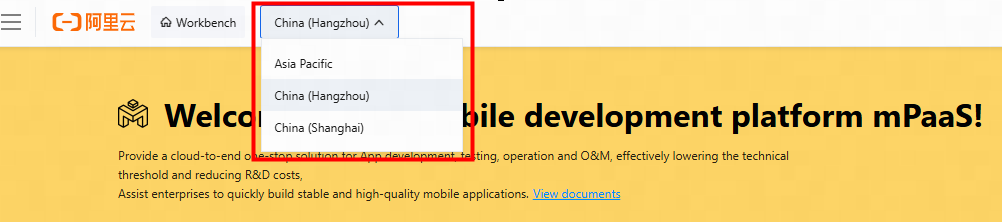
In the upper-left corner, click the region selector and choose your country or region.
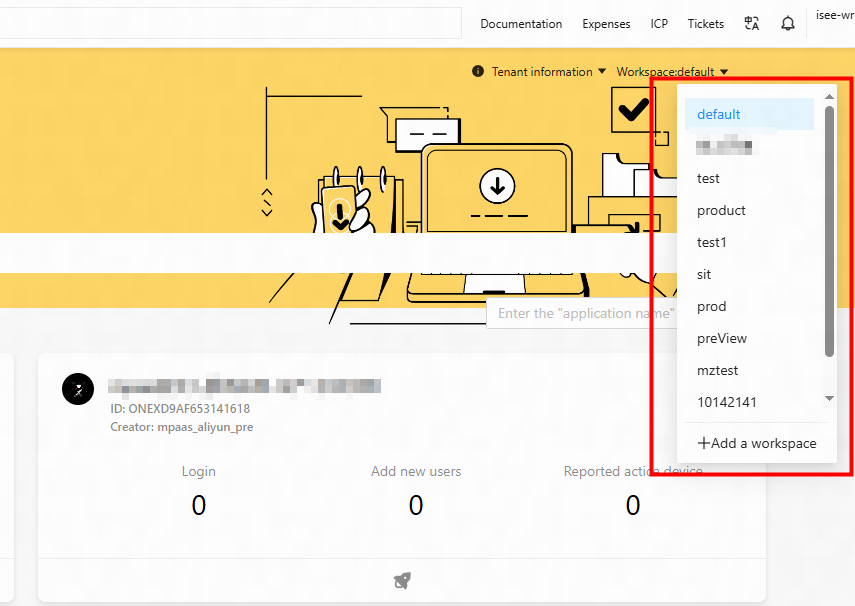
In the upper-right corner, click Workspace to create a new workspace or switch to an existing one.
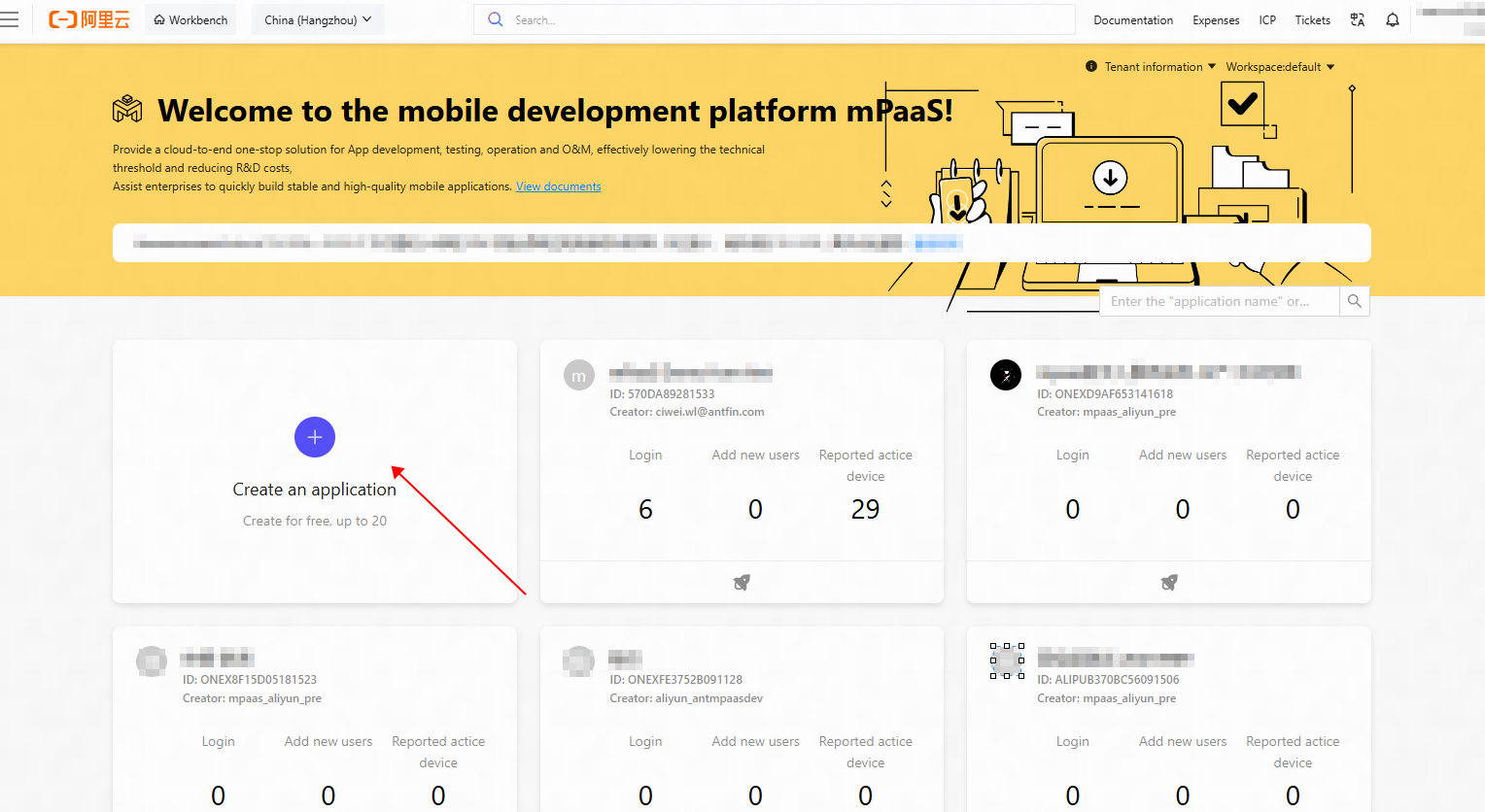
Click Create an application. Enter an application name, upload a logo, and then click Create.
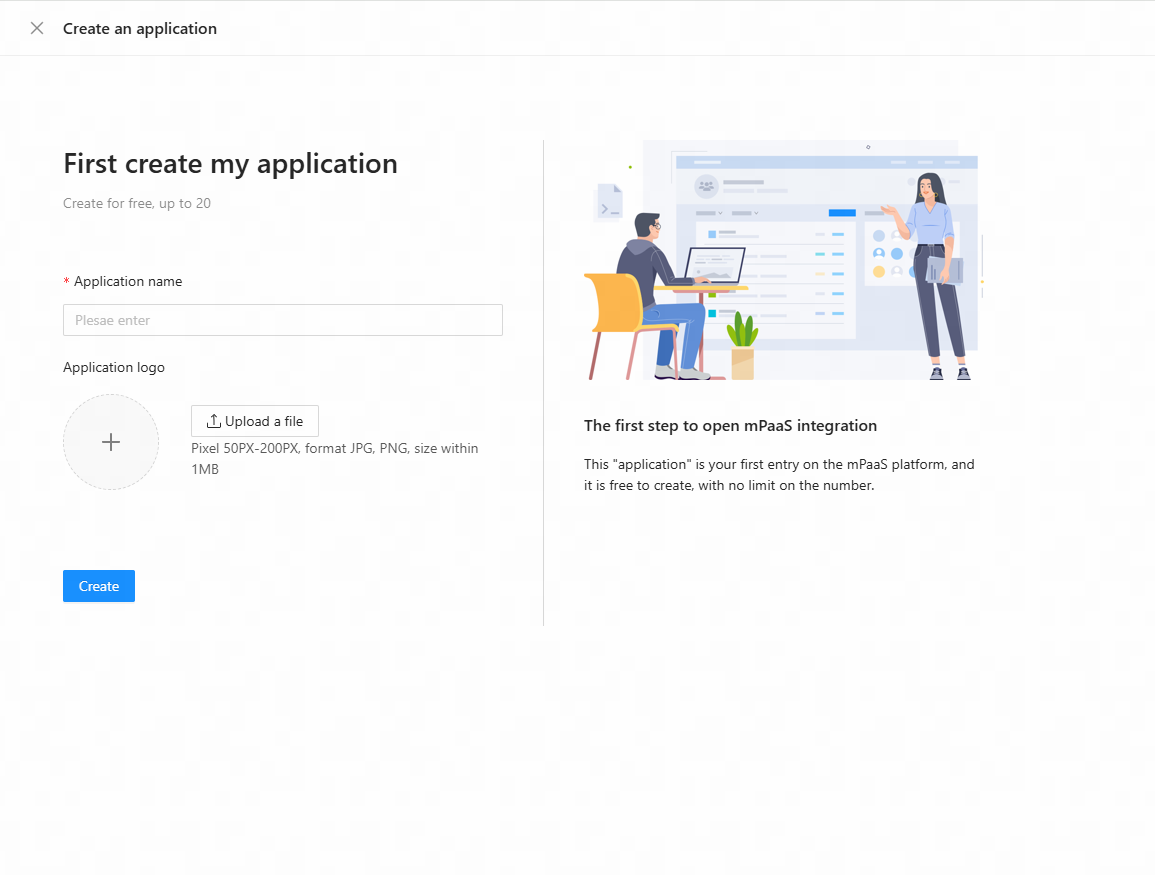
After you create the application, you can begin the code configuration.