An APNs authentication key (.p8 file) is required to send iOS push notifications from your server. This guide covers creating the key in Apple Developer, downloading the .p8 file, and recording the Key ID and Team ID needed for server-side integration.
Prerequisites
Before you start, make sure you have:
An Apple Developer account with the Team Agent or App Manager role. These roles have the permissions required to create and manage keys.
Access to the Apple Developer portal.
Sign in to Apple Developer
Go to Apple Developer and sign in with your Apple ID.
Verify that your account has the Team Agent or App Manager role before proceeding.
Access the certificate page
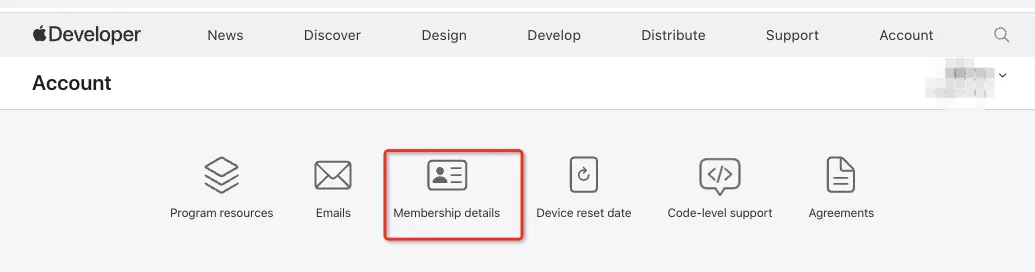
Select Account from the navigation bar.
-
Click Certificates, Identifiers & Profiles in the left menu.
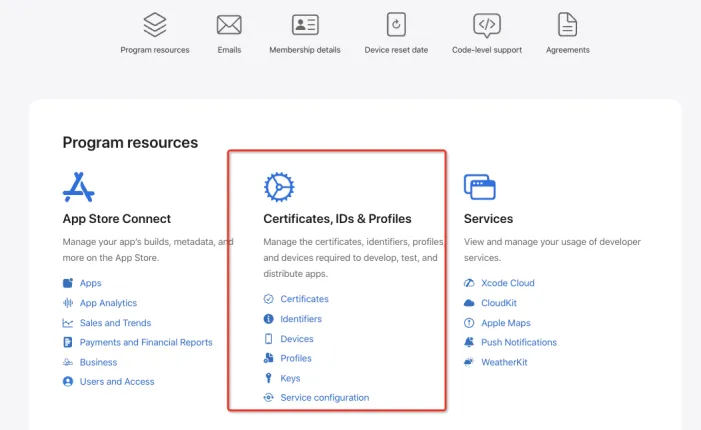
Create an API key
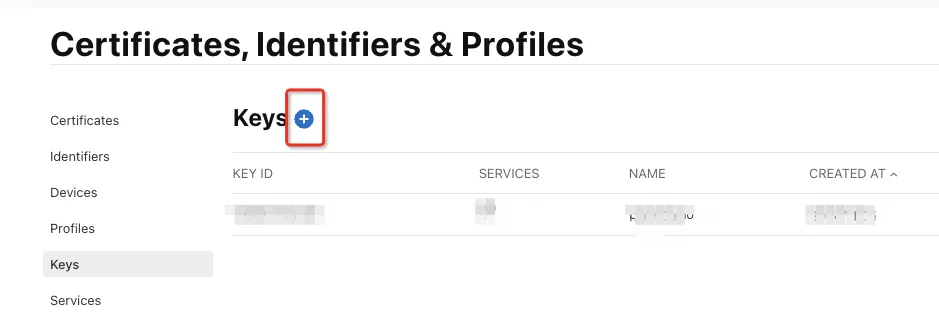
On the Certificates, Identifiers & Profiles page, select Keys from the left menu.
-
Click the + icon in the upper-right corner to create a new key.
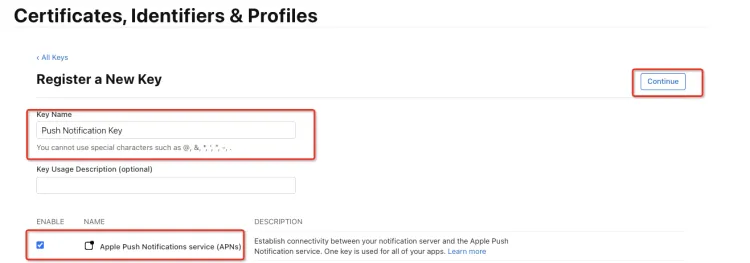
Enter a Key Name, for example,
Push Notification Key.Select Apple Push Notifications Service (APNs) to enable push notifications for this key.
-
Click Continue, review the details, then click Register.
Download the .p8 certificate
After the key is registered, a Download button appears on the confirmation page.
Click Download to save the
.p8file. The file is named in the formatAuthKey_XXXXXXXXXX.p8.-
Warning
Store the
.p8file in a secure location immediately after downloading. You can only download this file once — it cannot be retrieved again from Apple Developer after the page is closed.
Record your Key ID and Team ID
Record the following values before leaving Apple Developer. You need both to configure server-side push notification delivery.
-
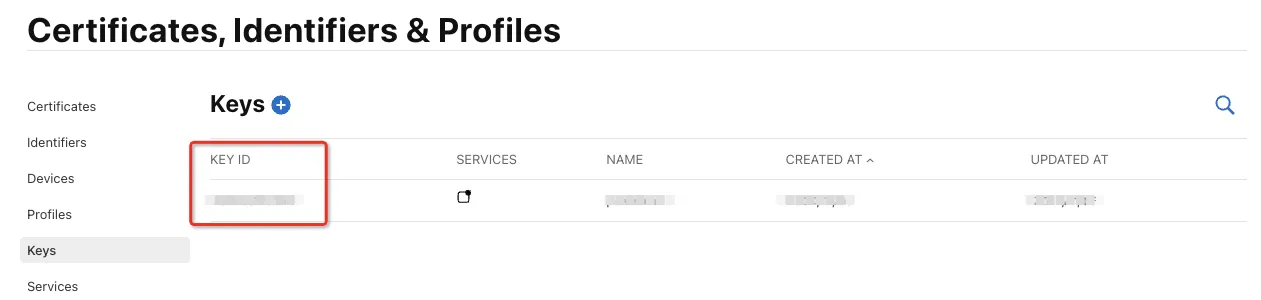
Key ID — Displayed to the right of your key name on the Keys page.
-
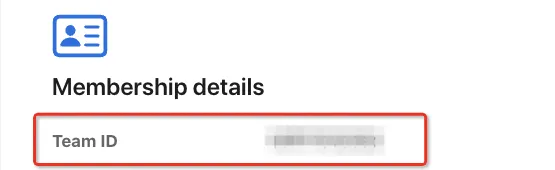
Team ID — Displayed under Membership on your Apple Developer account page.
Reference
See the Apple Developer documentation for more information on managing private keys.