This topic describes how to create an application in the mPaaS console.
Open a web browser and log on to the mPaaS console.
Create an mPaaS application.
Enter a project name and click OK.
On the App List page, click HTML5 Application (App name).
On the App Details page, click Configure now to open the Configure App page.
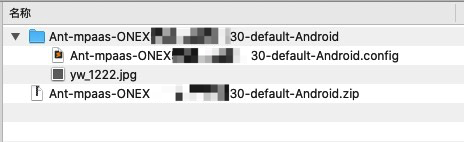
On the Configure App page, click Download now to open the Code Configuration page. On the Code Configuration page, enter the Package Name (for example, com.example.h5application) and upload the compiled and signed APK installation package. For more information about how to generate a signed APK, see Generate a signed APK for the console. After you complete the configuration, click Download Configuration to download the mPaaS configuration file. The configuration file is a compressed package that contains a
.configfile and ayw_1222.jpgencrypted image.