In the Mini Program Open Platform > Admin Backend, click App Management > Host App to access the Host App page. Here you can establish cooperative relationships between mini programs and Apps. Only Apps displayed in the host App list have permission to normally open and load mini programs.
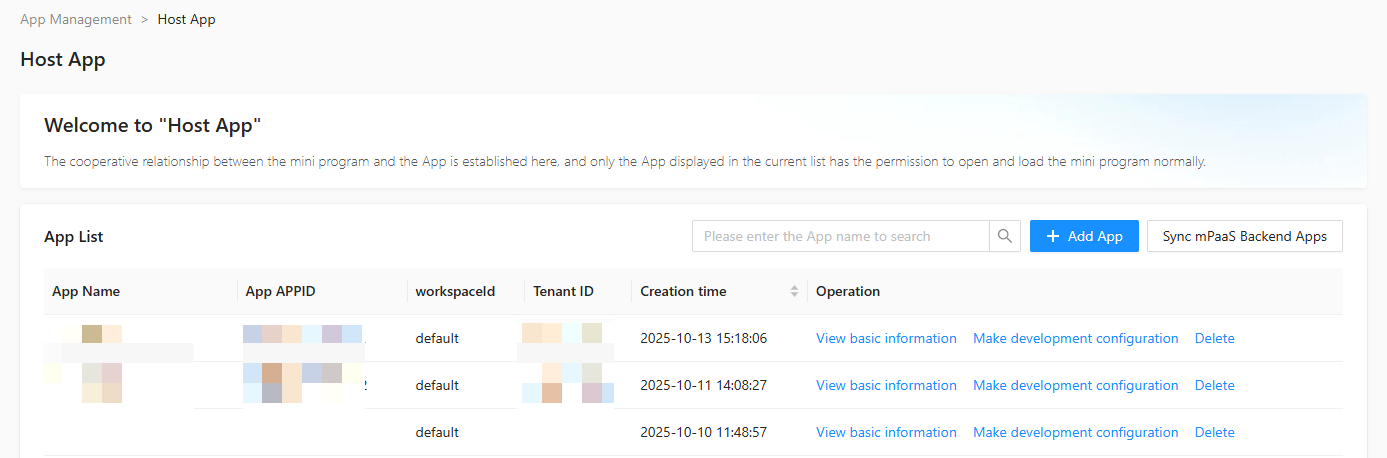
On the Host App page, you can query Apps, add Apps, synchronize mPaaS backend Apps with one click, view App basic information, configure App development settings, view App development configuration details, and delete Apps.
Query App
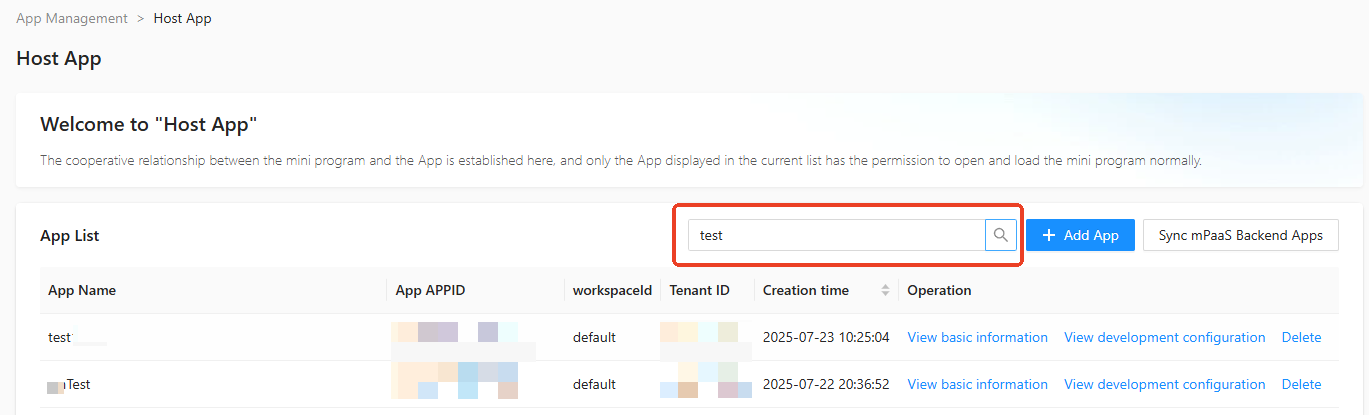
On the Host App page, enter the App name in the input box, click ( ), and Apps that meet the search criteria will be displayed in the App list.
Add App
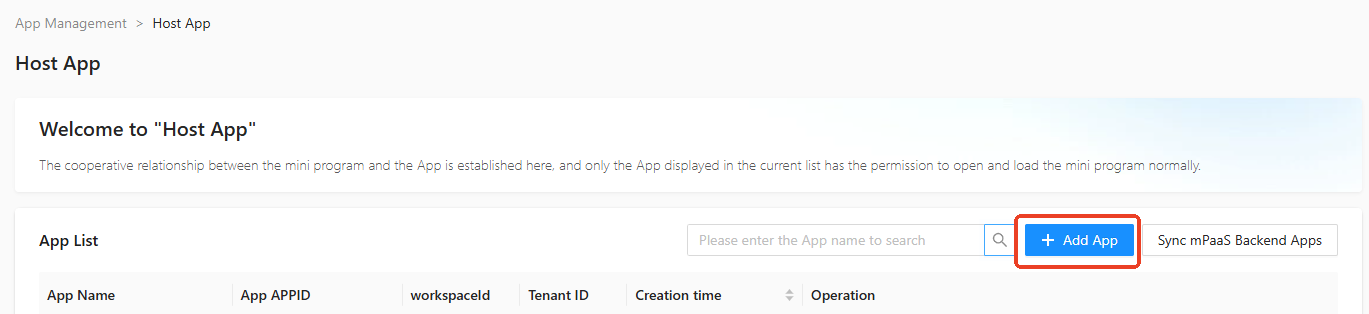
On the Host App page, click + Add App.
In the Add App dialog box, set the basic information of the host App, including App name and workspaceId.
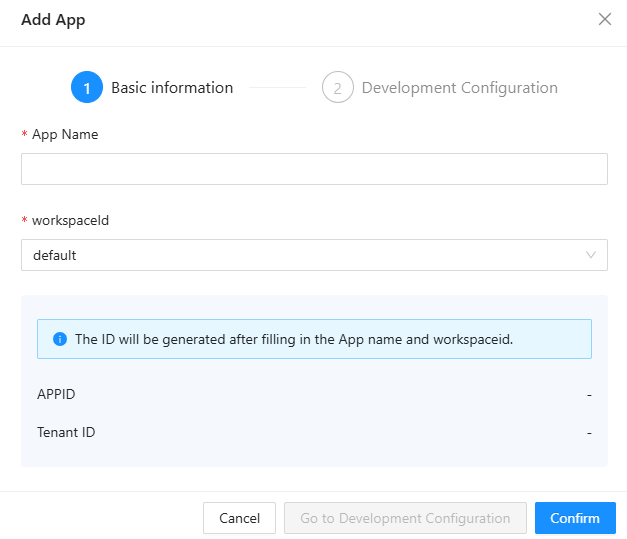
Click Confirm. The App is created successfully, and the APPID and tenant ID are automatically generated.
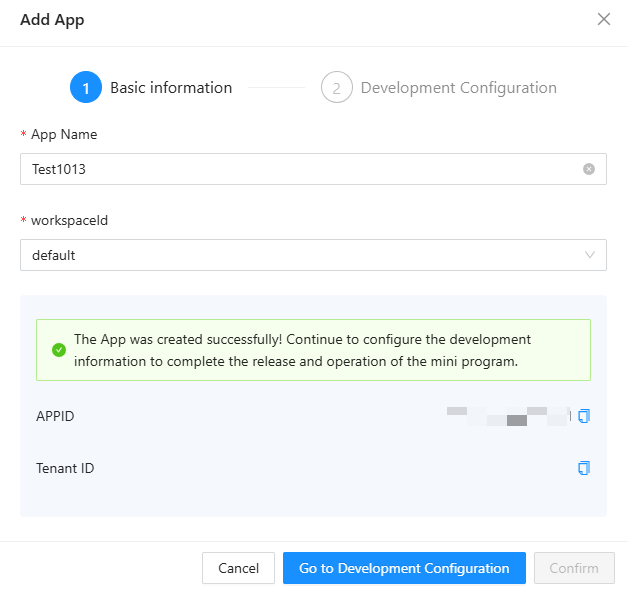
After the App is created successfully, you need to configure development settings for the App.
Click Go to Development Configuration.
In the Development Configuration, enter the Virtual Domain and upload the Private Key File.
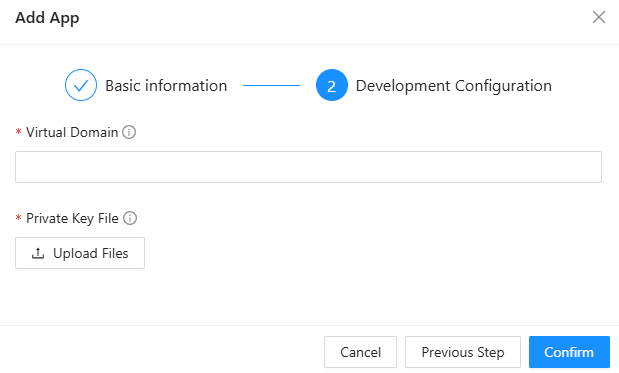
Click Confirm. The successfully created App will be displayed in the App list.
Synchronize mPaaS backend Apps with one click
On the Host App page, click Sync mPaaS Backend Apps with One Click.
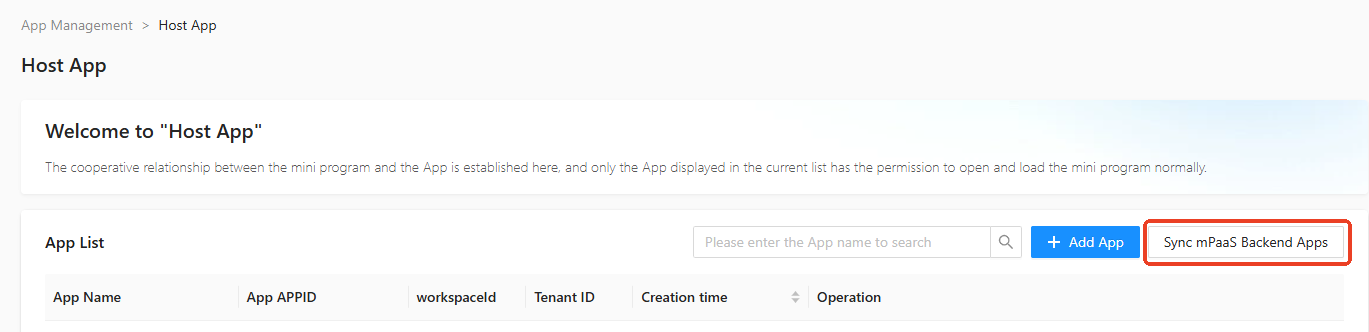
In the Sync mPaaS Backend Apps dialog box, select the mPaaS App and Workspace.

Click Confirm to successfully create the host App.
View App basic information
On the Host App page, click View Basic Information in the Operation column of the App.
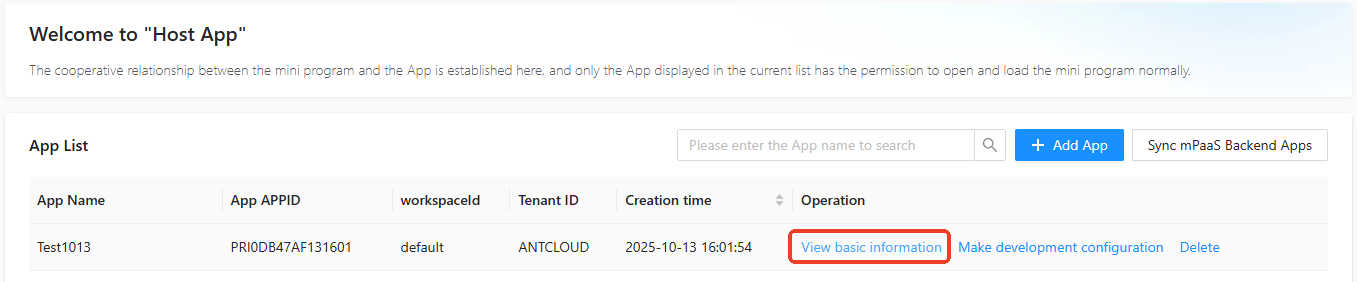
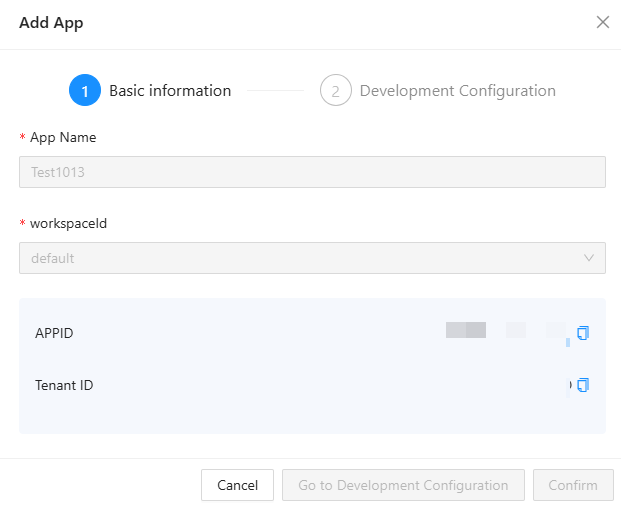
In the Basic Information section of the Add App dialog box, you can view the App Name, workspaceId, and copy the APPID and Tenant ID.
Configure App development settings
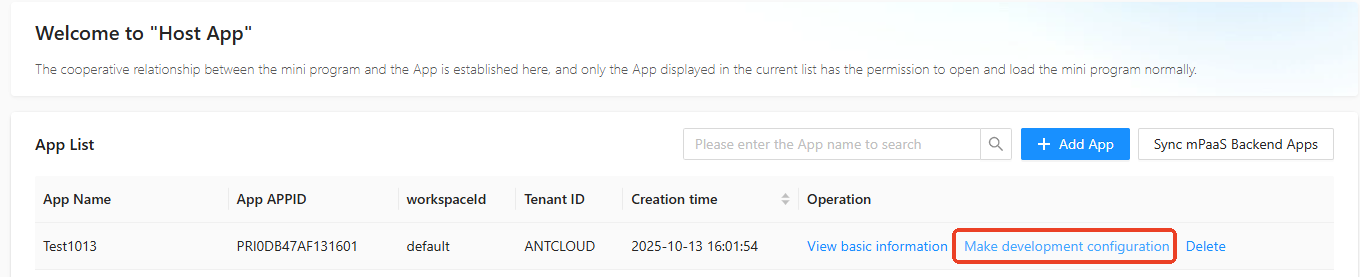
On the Host App page, click Make development configuration in the Operation column of the App.
On the Development Configuration page of Add App, enter the Virtual Domain and upload the Private Key File.
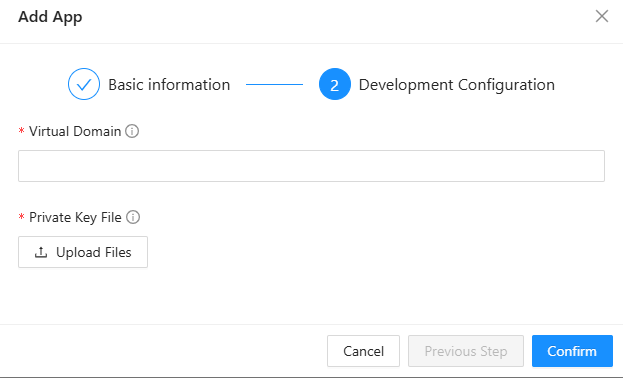
Click Confirm to complete the development configuration for the App.
View App development configuration details
On the Host App page, click View Development Configuration in the Operation column of the App.
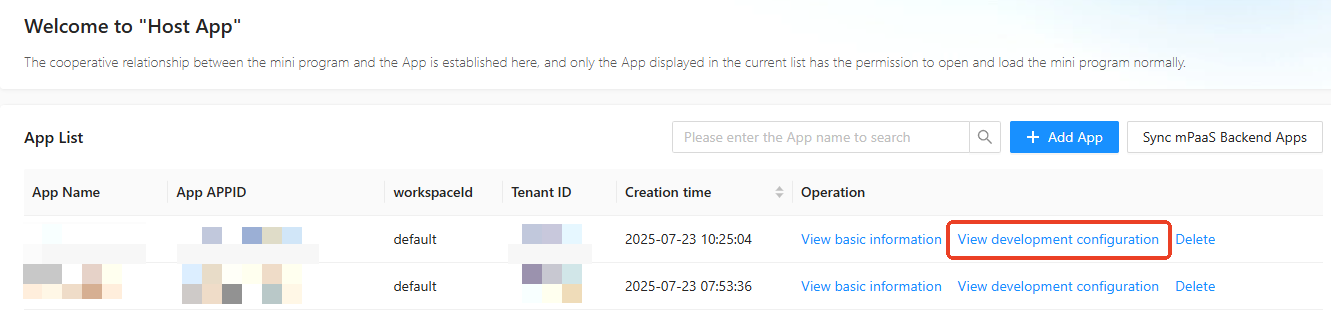
On the Development Configuration page of Add App, view the virtual domain and private key file.
Delete App
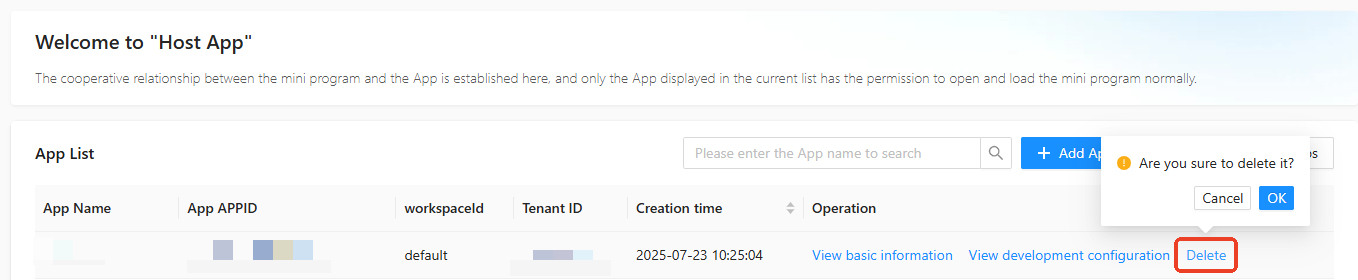
On the Host App page, click Delete in the Operation column of the App. After secondary confirmation, the App is successfully deleted.