Each sync configuration represents a specific data push scenario that you can implement by pushing business data. Therefore, you must create a sync configuration before you push any business data.
In the mPaaS console, select the target application and follow these steps to add a configuration.
Procedure
In the navigation pane on the left, click Background connection > Mobile Sync Service to go to the Data Synchronization page.
On the Configuration Management tab, click the New Synchronization Configuration button to go to the New Synchronization Configuration page.
On the page, set the parameters for each configuration item.
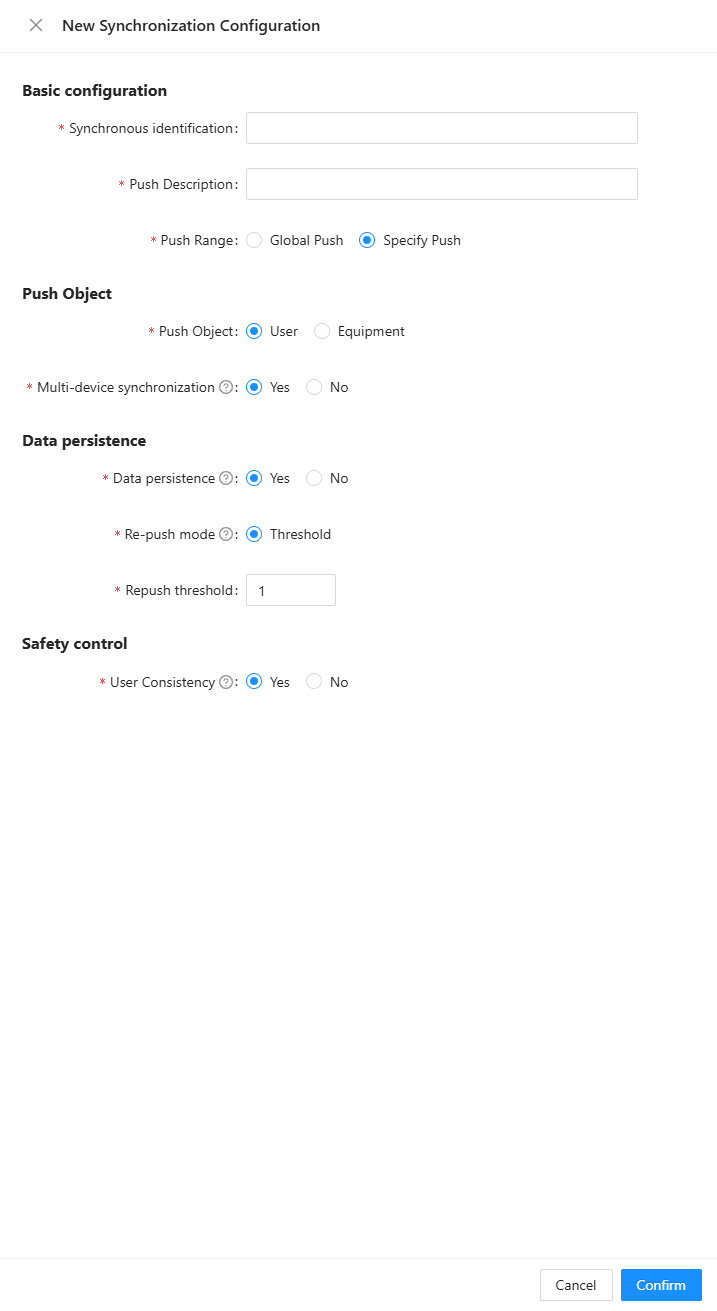
The descriptions of each configuration item are shown in the table below.
Configuration item
Description
Synchronous identification
Identifies a specific data push business scenario. Use uppercase English letters and the hyphen (-), such as DEVICE-LOCK.
Push Description
Enter remarks to describe the specific business scenario for this configuration.
Push Range
Specifies the range of users or devices that can receive data. Global push means all users or devices receive the data. Specified push means only a specific user or device receives the data.
Push Object
Indicates whether the data is pushed to the user or equipment.
Multi-device Synchronization
This option is required only when the push object is set to User. If you set this to Yes, data can be synchronized across multiple devices for a single user. This means that when a user switches devices, they will still receive data that was already delivered to their previous device.
Data Persistence
Indicates that pushed data is saved to the database. The default maximum retention period is 30 days. This prevents data loss. If a user is offline when data is pushed, they receive the data the next time they are online.
Re-push Mode
Specifies the policy for handling data that accumulates on the server-side. This setting is effective only when Data Persistence is set to Yes. Threshold push means that only the most recent accumulated data, up to the number specified by the threshold, is pushed to the client.
Repush Threshold
Effective only when Data Persistence is set to Yes and Re-push Mode is set to Threshold.
User Consistency
Effective only when the Push Object is set to User. When set to Yes, MSS validates user consistency when pushing data. The data is pushed only if the consistency requirements are met. Otherwise, the data is not pushed for this attempt. For more information, see User consistency validation.
After you set the parameters, click OK to create the sync configuration. The new configuration is Published by default. After the configuration is published, you can push data by making API calls or by performing operations in the console.