As your ApsaraMQ for RocketMQ resources grow, identifying specific instances, topics, and groups becomes harder. Tags are key-value pairs that you attach to resources to classify them by purpose, environment, owner, or any dimension you choose. After tagging, you can filter and search resources across any of those dimensions.
Manage tags through the ApsaraMQ for RocketMQ console or programmatically through API operations.
How tags work
Assign one or more tags to a resource to group related resources and locate them quickly.
For example, the following tags organize topics by environment and team ownership:
| Resource | Tag key | Tag value |
|---|---|---|
order-topic | Environment | Production |
order-topic | Team | Commerce |
test-order-topic | Environment | Testing |
test-order-topic | Team | Commerce |
log-topic | Environment | Production |
log-topic | Team | Platform |
This tagging scheme lets you filter all production topics, find all topics owned by a specific team, or combine both filters to narrow results further.
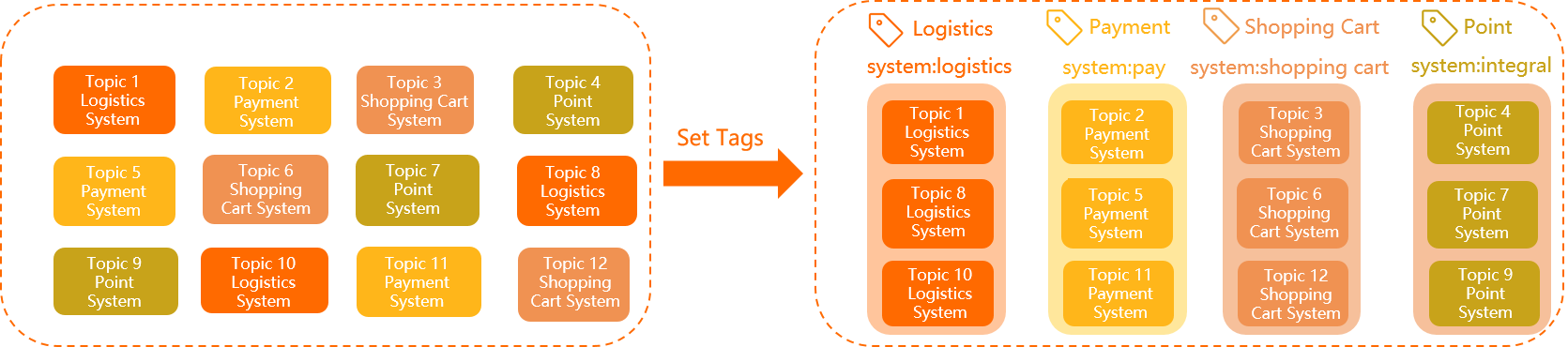
Tags also support cost allocation. For details, see Cost allocation rules and best practices.
Tag rules and limits
Do not store sensitive information -- such as passwords, API keys, or personally identifiable information -- in tag keys or values. Tags are stored as plain text and may appear in cost reports, API responses, and audit logs.
Each tag key must be unique within a single resource. To change a key's value (for example, from city:shanghai to city:shenzhen), update the existing tag rather than adding a duplicate.
For guidance on designing a tagging strategy, see Tags.
Key constraints
| Constraint | Detail |
|---|---|
| Length | 1 to 64 Unicode characters |
| Case sensitivity | Case-sensitive |
| Prohibited prefixes | Cannot start with aliyun or acs: |
| Prohibited content | Cannot contain http:// or https:// |
| Empty string | Not allowed |
Value constraints
| Constraint | Detail |
|---|---|
| Length | 1 to 64 Unicode characters |
| Case sensitivity | Case-sensitive |
| Prohibited content | Cannot contain http:// or https:// |
| Empty string | Allowed |
Resource limits
| Limit | Detail |
|---|---|
| Maximum tags per resource | 20 |
| Tag scope | Region-specific. Tags created in China (Hangzhou) are not visible in China (Shanghai). |
Prerequisites
Before you begin, make sure that you have:
An ApsaraMQ for RocketMQ instance
Access to the ApsaraMQ for RocketMQ console
Add, modify, or remove tags
Tag operations for instances, topics, and groups follow the same steps. The following procedure uses an instance as an example.
Log on to the ApsaraMQ for RocketMQ console. In the left-side navigation pane, click Instances.
In the top navigation bar, select the region where your instance is deployed, for example, China (Hangzhou).
On the Instances page, locate your instance. In the Tags column, hover over the tag icon and click Edit.
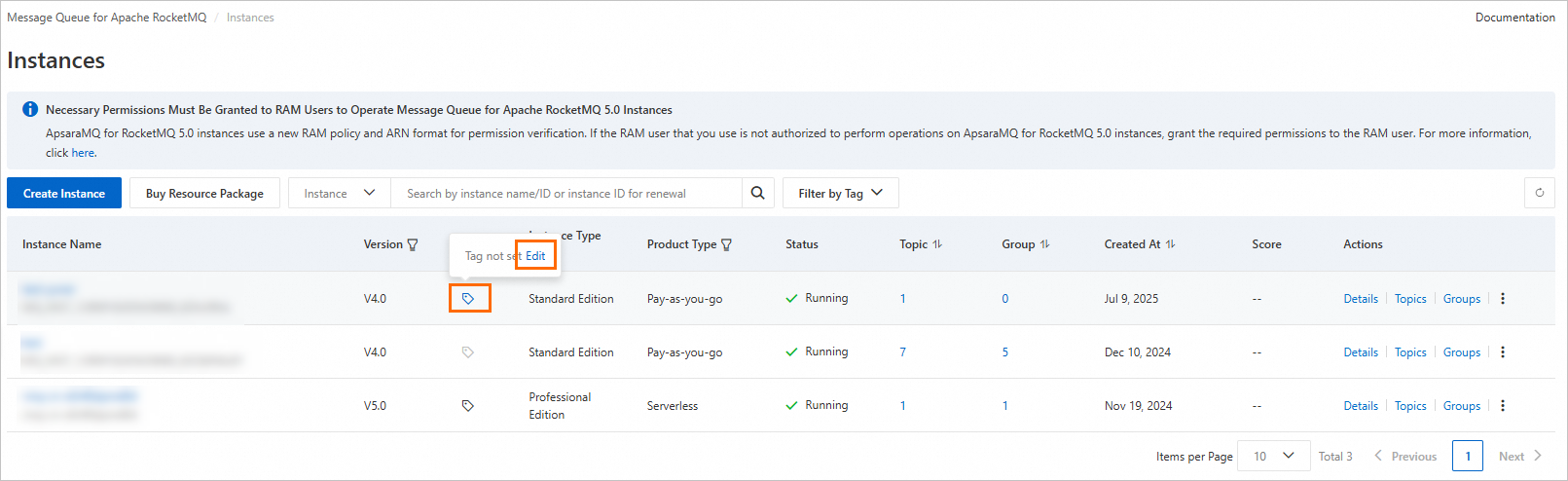
In the Configure Tags dialog box, perform any of the following actions:
Add a tag: Enter a Tag Key and Tag Value, then click OK.
Modify a tag: Change the Tag Key or Tag Value of an existing row, or enter a new key-value pair in a new row. Click OK.
Remove a tag: Click the
 icon next to the key-value pair to delete, then click OK.
Filter resources by tag
Filtering by tag works the same way for instances, topics, and groups. The following steps use instances as an example.
On the Instances page, click Filter by Tag.
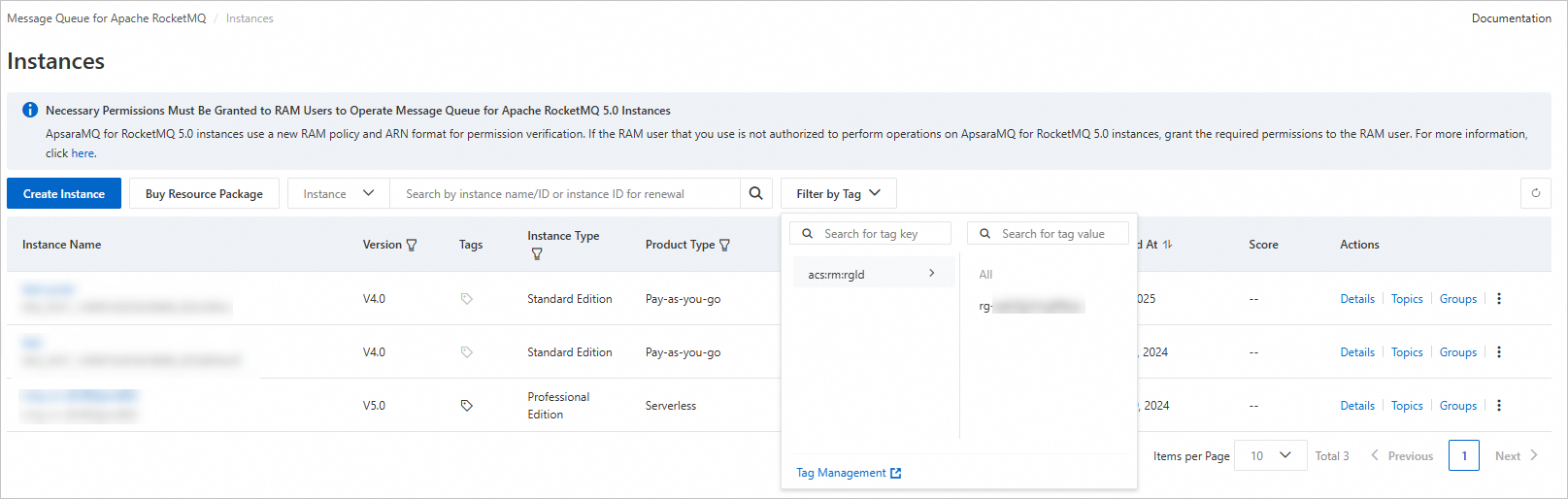
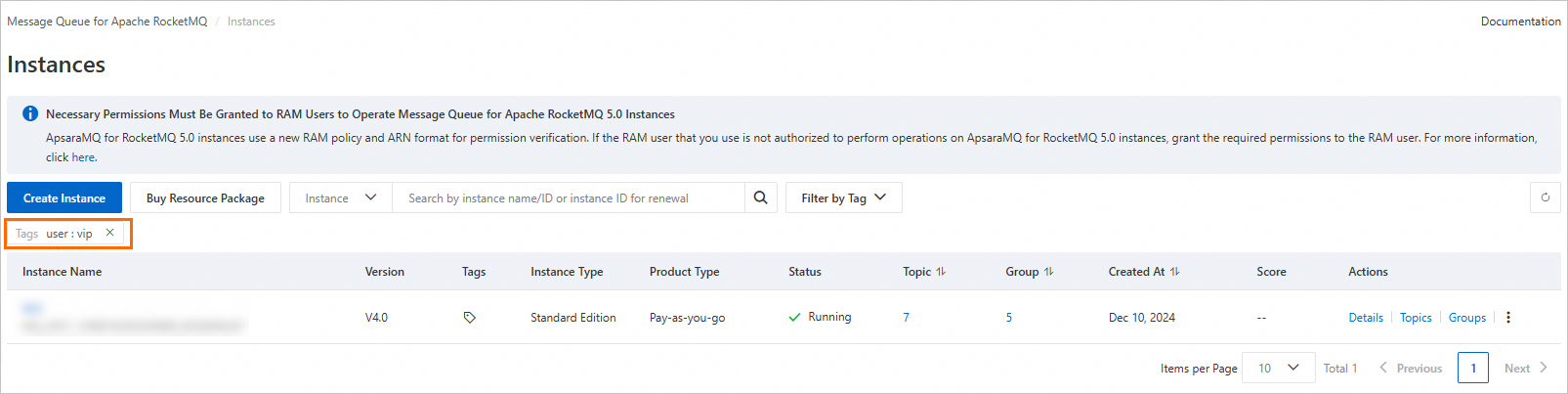
Select a tag key, then select a tag value. The list updates automatically to show only instances with the specified tag.
Manage tags through API
Use the following API operations to manage tags programmatically -- for example, to tag resources in bulk or integrate tagging into automation workflows:
| API operation | Description |
|---|---|
| TagResources | Add tags to resources |
| ListTagResources | Query tags on resources |
| UntagResources | Remove tags from resources |