Tags can be used to identify resources. You can use tags to classify ApsaraMQ for RocketMQ resources. This helps you search for and aggregate resources. ApsaraMQ for RocketMQ allows you to add, change, and remove tags for instances, topics, and groups. This topic describes common scenarios in which you can use tags, the usage notes and limits of tags, and the operations on tags.
Common scenarios
Resource management can become difficult as the number of resources that you create in ApsaraMQ for RocketMQ increases. In this case, you can use resource names to identify resources. You can also use tags to classify resources based on different dimensions such as business, purposes, and users. After you attach tags to resources, you can quickly query and filter resources of a specific type by using the tags.
The following figure provides an example on how to manage tags. If you do not attach tags to the topics, you can manage and identify the topics only by topic name. As business grows and the number of topics increases, topic management becomes more difficult. In this case, you can classify topics based on business scenarios and attach the same tag to topics that are used for the same business scenario. After tags are attached, you can query topics in a business scenario by using the specified tag key and tag value. This helps you quickly filter and manage topics.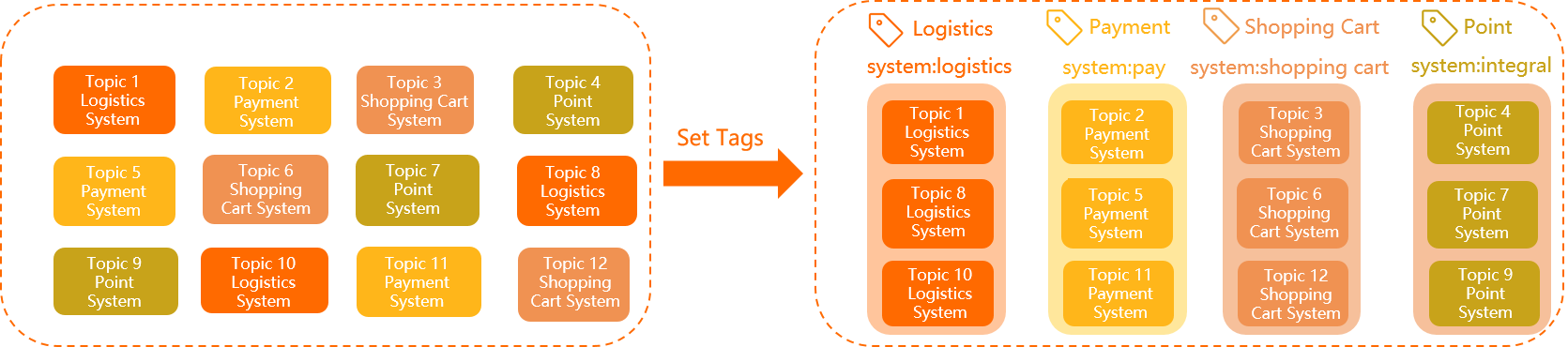
Usage notes
Each tag consists of a key-value pair.
Each tag key must be unique in a resource.
For example, you attached the
city:shanghaitag to an ApsaraMQ for RocketMQ instance. If you want to attach thecity:shenzhentag to the instance, you must first delete thecity:shanghaitag.For information about how to design tags, see Best practices for tags.
Limits
A tag key must be 1 to 64 Unicode characters in length and is case-sensitive.
A tag value must be 1 to 64 Unicode characters in length and is case-sensitive.
Up to 20 tags can be attached to a resource.
A tag key cannot start with aliyun or acs:, contain http:// or https://, or be an empty string.
A tag value cannot contain http:// or https://. A tag value can be an empty string.
Tags cannot be used across regions. For example, in the China (Shanghai) region, you cannot view the tags that are created in the China (Hangzhou) region.
Add a tag
The operations that you perform to add a tag to an instance, topic, or group are similar. This section describes how to add a tag to an instance.
Log on to the ApsaraMQ for RocketMQ console. In the left-side navigation pane, click Instances.
- In the top navigation bar, select the region where your instance is deployed. For example, you can select China (Hangzhou). On the Instances page, the instances that are deployed in this region are displayed.
On the Instances page, find the instance that you want to manage, move the pointer over the
 icon in the Tags column, and then click Add.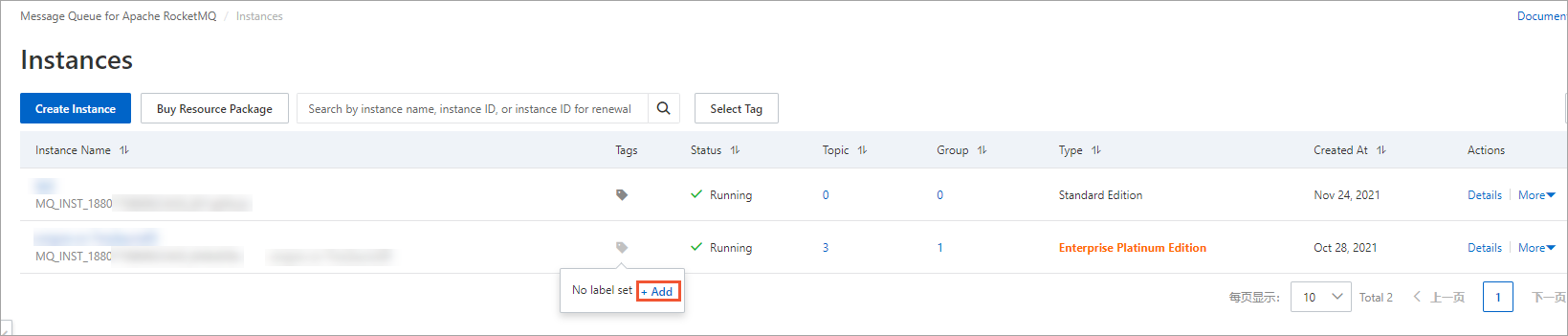
In the panel that appears, configure the Label key and Label value parameters. Then, click OK.
If the
icon in the Tags column changes to the  icon, the tag is added.
Use a tag to filter resources
The operations that you perform to use a tag to filter instances, topics, or groups are similar. This section describes how to use a tag to filter instances.
On the Instances page, click Select Tag.
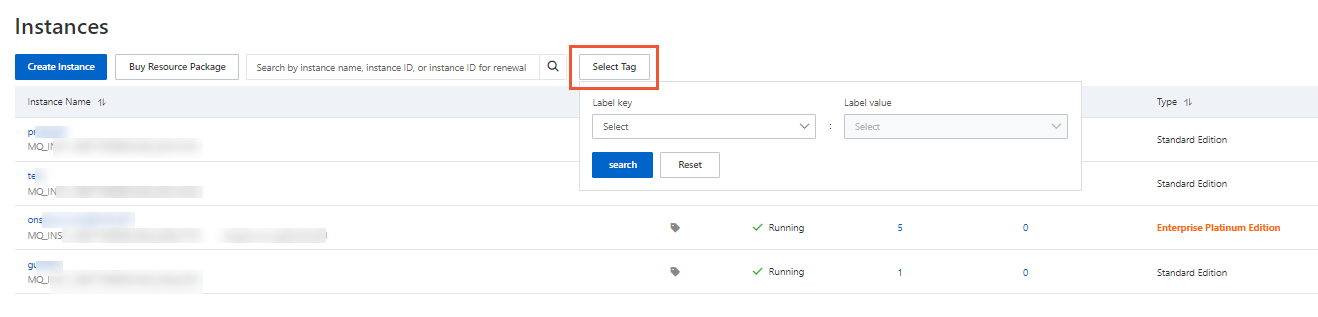
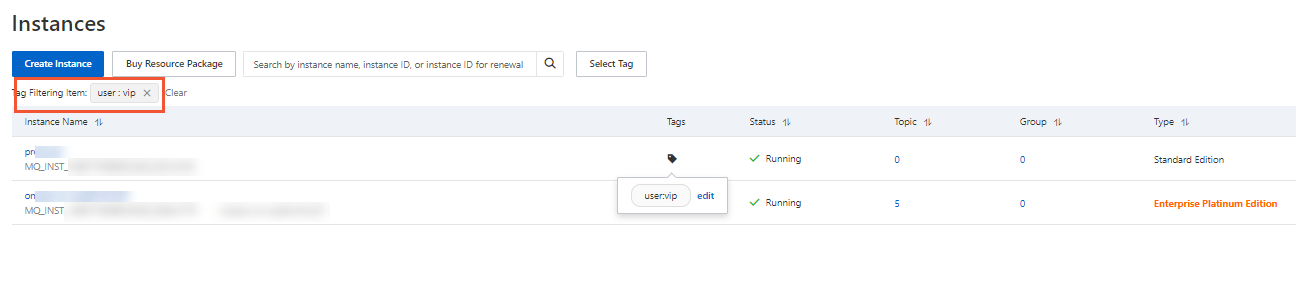
Select a tag key from the Label key drop-down list, select a tag value from the Label value drop-down list, and then click Search.
Only instances with the specified tag are displayed in the list.
Change or remove a tag
The operations that you perform to change a tag of or remove a tag from an instance, topic, or group are similar. This section describes how to change a tag of or remove a tag from an instance.
On the Instances page, find the instance that you want to manage, move the pointer over the
icon in the Tags column, and then click Edit. 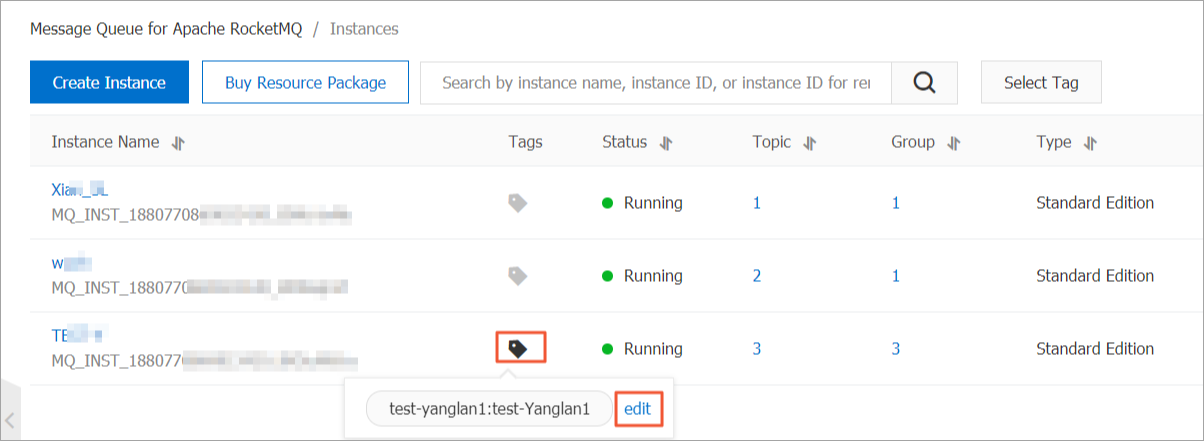
In the panel that appears, perform the following operations based on your business requirements:
Change a tag: Change the values of the Label key and Label value parameters or enter a new key-value pair in a new row. Then, click OK.
Remove a tag: Find the key-value pair that you want to remove and click the
 icon next to the pair. Then, click OK.
References
You can also use tags to allocate costs. For more information, see Cost allocation rules and best practices.
You can also call the following API operations to manage tags:
TagResources: attaches a tag to a resource.
ListTagResources: queries the tags of a resource.
UntagResources: detaches and removes one or more tags from a resource.