This topic describes how to use MaxCompute Studio in IntelliJ IDEA to write, test, deploy, and call a Java user-defined function (UDF). A UDF extends MaxCompute SQL with custom logic that runs on each row of data. By the end of this tutorial, you will have a working scalar UDF named Lower_test that accepts a STRING argument and returns its lowercase equivalent.
What you will build
A scalar UDF (Lower_test) that accepts a STRING argument and returns the lowercase equivalent. The complete workflow covers:
- Writing the Java class in IntelliJ IDEA
- Running it locally to verify the logic
- Deploying the JAR to your MaxCompute project
- Calling the UDF in a SQL statement
Type mapping reference
When designing the evaluate() method signature, map MaxCompute SQL types to Java types as follows:
| MaxCompute SQL type | Java type |
|---|---|
| STRING | String |
| BIGINT | Long |
| DOUBLE | Double |
| BOOLEAN | Boolean |
| DATETIME | java.util.Date |
Prerequisites
Complete the following tasks before you begin:
-
Install MaxCompute Studio — Install the MaxCompute Studio plugin for IntelliJ IDEA. Install MaxCompute Studio
-
Connect to a MaxCompute project — Establish a connection to the MaxCompute project where you will deploy the UDF. Create a MaxCompute project connection
-
Create a MaxCompute Java module — Set up the Java module structure required to write and compile the UDF. Create a MaxCompute Java module
Procedure
-
Write the UDF in Java.
-
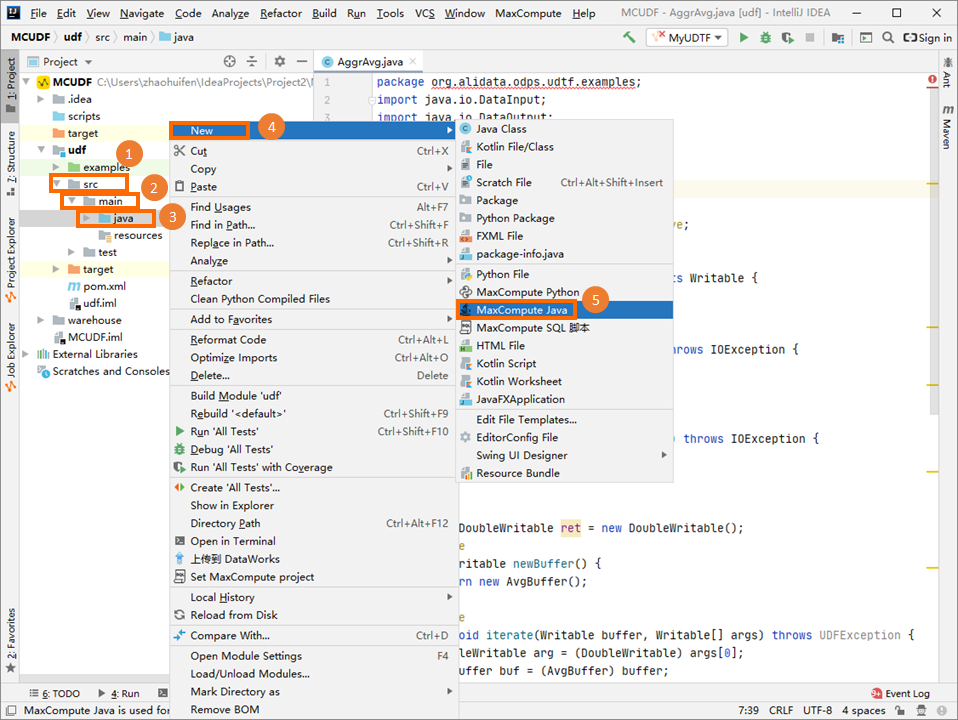
In the left-side navigation pane, click the Project tab. Expand , right-click java, and select .

-
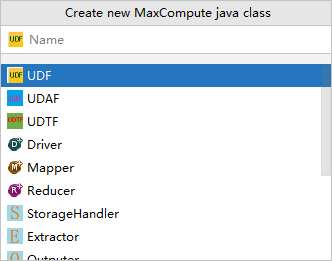
In the Create new MaxCompute java class dialog box, click UDF. In the Name field, enter a name for the class and press Enter.

Name specifies the name of the MaxCompute Java class that you want to create. If you have not created a package, you can enter packagename.classname to automatically generate a package.
Note: If you have not created a package, enter the name in the format packagename.classname. The system automatically generates a package.
-
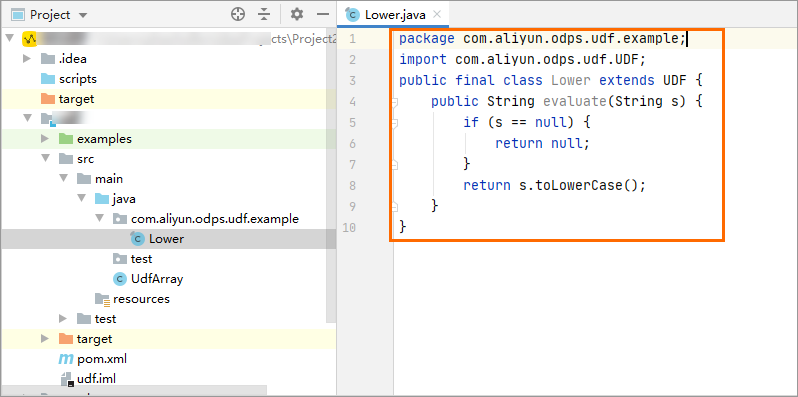
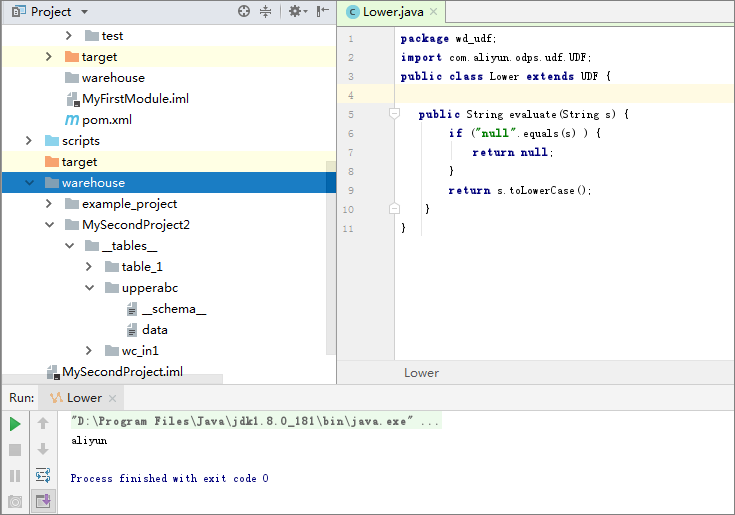
In the generated Java file, implement the UDF logic. The following example shows a UDF that converts a string to lowercase.

package <packagename>; import com.aliyun.odps.udf.UDF; // Required base class for all MaxCompute UDFs public final class Lower extends UDF { // Must extend UDF for scalar functions // evaluate() is the entry point called for each row. // Parameter and return types map to MaxCompute SQL types (String -> STRING). public String evaluate(String s) { if (s == null) { // Always handle NULL input to avoid runtime errors return null; } return s.toLowerCase(); } }Note: Replace <packagename> with your actual package name (for example, com.example).
-
-
Debug the UDF locally.
Run the UDF locally against a MaxCompute table to verify the logic before deployment.
-
In the java directory, right-click the Java file and select Run.
-
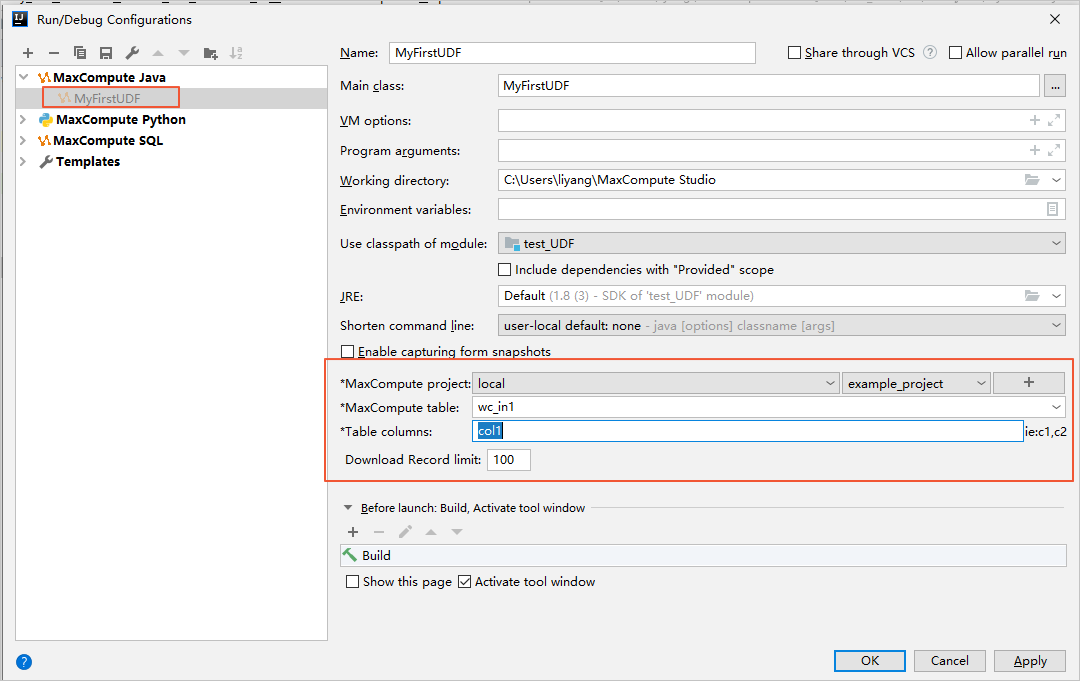
In the Run/Debug Configurations dialog box, configure the following fields.

-
MaxCompute project: The MaxCompute project in which the UDF runs. Select local from the drop-down list to run locally without submitting to the cluster.
-
MaxCompute table: The name of the MaxCompute table that provides input data for the local run.
-
Table columns: The columns in the MaxCompute table on which the UDF operates.
-
-
Click OK. The UDF runs locally and the return result appears in the output panel.

Tip: A successful local run confirms that your evaluate() method handles the input types and NULL values correctly. Fix any errors before proceeding to deployment.
-
-
Deploy the UDF to MaxCompute.
Once the local test passes, package and register the UDF so it is available in SQL.
-
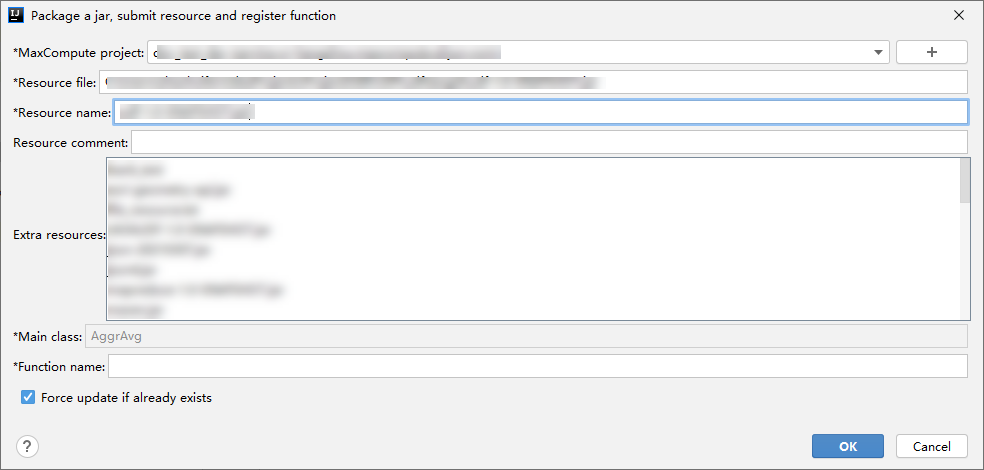
Right-click the UDF Java file and select Deploy to Server....
-
In the Package a jar, submit resource and register function dialog box, configure the following fields.

-
MaxCompute project: The project to deploy to. The default value reflects the project you connected to when writing the UDF. Retain the default value unless you are targeting a different project.
-
Resource file: The path of the JAR resource file. Retain the default value.
-
Resource name: The name of the resource as registered in MaxCompute. Retain the default value.
-
Function name: The name used to call the UDF in SQL statements. Enter Lower_test.
Warning: The value in Function name is the name you will use in SQL queries. Avoid names that conflict with built-in MaxCompute functions. If a conflict exists, your custom UDF may shadow or fail to override the built-in.
-
-
Click OK. MaxCompute Studio packages the code into a JAR, uploads it as a resource, and registers Lower_test as a function in the selected project.
-
-
Call the UDF in SQL.
-
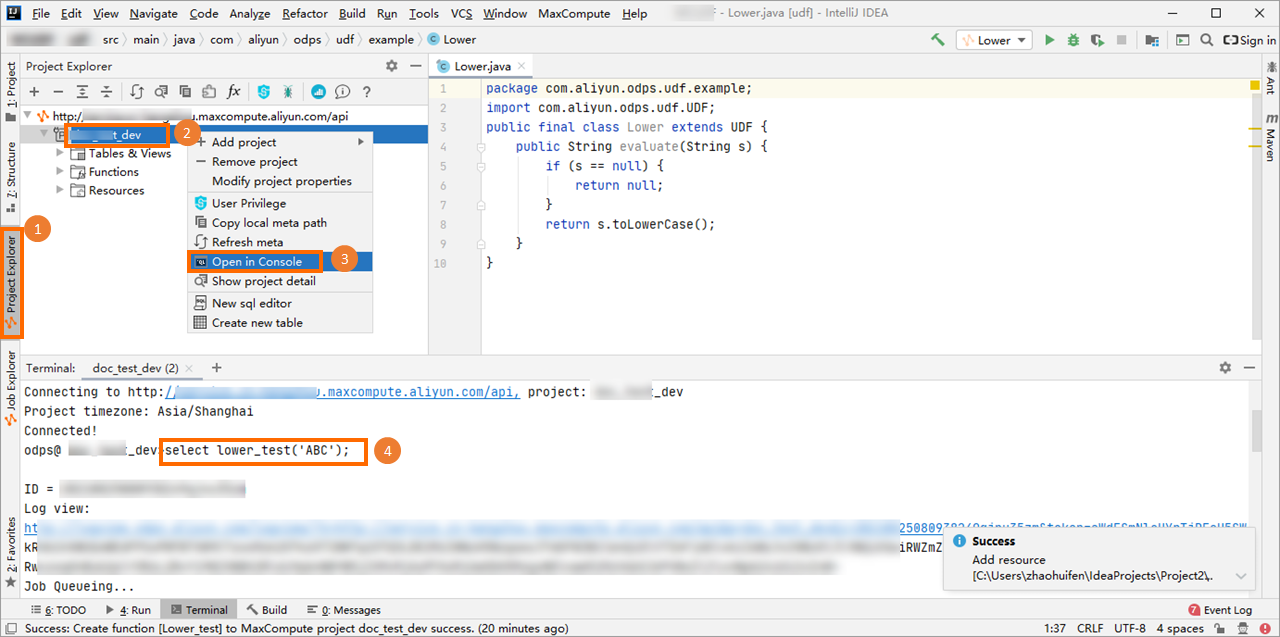
In the left-side navigation pane, go to the Project Explorer tab.
-
Right-click your MaxCompute project and select Open in Console.
-
In the console, enter the following SQL statement and press Enter.
select Lower_test('ALIYUN');
-
Verify the output. The following result is returned, indicating that the Lower_test Java UDF is working correctly.
Expected output: +------------+ | _c0 | +------------+ | aliyun | +------------+
-
Troubleshooting
| Symptom | Likely cause | Resolution |
|---|---|---|
ClassNotFoundException after deployment |
JAR was not uploaded to the correct project | Verify that the MaxCompute project field in the deploy dialog box points to the intended project, then redeploy. |
Permission denied when registering the function |
Insufficient privileges | Ensure your account has the CreateFunction privilege on the target MaxCompute project. |
NullPointerException at query runtime |
Missing NULL guard in evaluate() | Add an if (s == null) { return null; } check before operating on the input parameter. |
| Function name does not resolve in SQL | Function registered under a different name | Check the registered name in the MaxCompute project's function list and match the SQL call to the registered name. |
Next steps
After successfully deploying and testing your Java UDF, you can:
-
Develop other UDF types — Explore UDAF (user-defined aggregate functions) and UDTF (user-defined table-valued functions) for more advanced use cases.
-
Optimize UDF performance — Review MaxCompute best practices for UDF performance, such as minimizing object allocations inside evaluate().
-
Share UDFs across projects — Register the same resource file in multiple MaxCompute projects to reuse your UDF without redeploying.