The MaxCompute client (odpscmd) runs on your local computer and is a simple and efficient way to run commands and manage MaxCompute services. This topic describes how to install and start the MaxCompute client. A successful startup means you have connected to a MaxCompute project.
Usage notes
You must have Java 8 or later installed on the device where you plan to install the MaxCompute client.
Version compatibility
Starting from v0.28.0, the MaxCompute client supports JDK 1.9. Versions earlier than v0.28.0 support only JDK 1.8. After you install the client, you can view the client version in the command-line interface (CLI).
Do not parse the client's output, as the format is not guaranteed to be backward compatible.
For more client versions, see aliyun-odps-console.
-
Encoding: The client uses UTF-8 encoding by default. If your local environment uses a different encoding, Chinese characters in query results or uploaded files may appear as garbled text. This can happen when querying MaxCompute tables or uploading local data files with Tunnel commands.
Install and configure odpscmd
Starting with v0.27.0, odpscmd supports MaxCompute V2.0 data types. For the full list of supported types, see MaxCompute V2.0 data types.
-
Download the MaxCompute client package from GitHub. Download the latest
odpscmd_public.zipfrom the releases page.If the GitHub link is not accessible, download the package from OSS instead.
-
Extract the package. The extracted directory contains four folders:
bin,conf,lib, andplugins. -
In the
conffolder, openodps_config.iniand configure the parameters below. The file uses#for comments. The following table describes the parameters.Parameter Required Description Example project_nameYes The MaxCompute project to access. If your workspace is in standard mode, distinguish between production and development ( _dev) project names. To find your project name: log on to the MaxCompute console, select your region, then go to Manage Configurations > Projects. See Differences between workspace modes.doc_test_devaccess_idYes Your Alibaba Cloud account or RAM user AccessKey ID. Get it from the AccessKey management page. — access_keyYes The AccessKey secret that matches your AccessKey ID. — end_pointYes The MaxCompute service endpoint. Set this based on your project's region and network type. For endpoints by region and network, see Endpoint. This must be the MaxCompute endpoint, not the Tunnel endpoint. An incorrect endpoint causes connection errors. http://service.cn-hangzhou.maxcompute.aliyun.com/apilog_view_hostNo The LogView URL for viewing job runtime information and troubleshooting failures. We recommend setting this parameter. Without it, you cannot quickly locate issues when jobs fail. Fixed value: http://logview.odps.aliyun.com.http://logview.odps.aliyun.comhttps_checkNo Whether to use HTTPS for requests. TrueorFalse. Default:False.Truedata_size_confirmNo Maximum input data size in GB. No limit applies. Recommended: 100.100update_urlNo Reserved parameter. Leave blank. — use_instance_tunnelNo Whether to use InstanceTunnel to download SQL query results. TrueorFalse. Default:False.Trueinstance_tunnel_max_recordNo Maximum number of records returned for SQL query results when use_instance_tunnelisTrue. Maximum:10000.10000tunnel_endpointNo The public endpoint for the Tunnel service. If not set, Tunnel auto-routes based on your MaxCompute endpoint's region and network. If set, Tunnel uses that endpoint and does not auto-route. For Tunnel endpoints by region and network, see Endpoint. http://dt.cn-hangzhou.maxcompute.aliyun.comset.<key>No Set properties for your MaxCompute project. For available properties, see Property list. set.odps.sql.decimal.odps2=true
Start the MaxCompute client
You can start the MaxCompute client in one of the following ways:
Method 1: Double-click the script
In the bin folder of your installation directory:
-
Windows: Double-click
odpscmd.bat. -
macOS: Double-click
odpscmd.
When the client starts and connects successfully, you see a confirmation message.
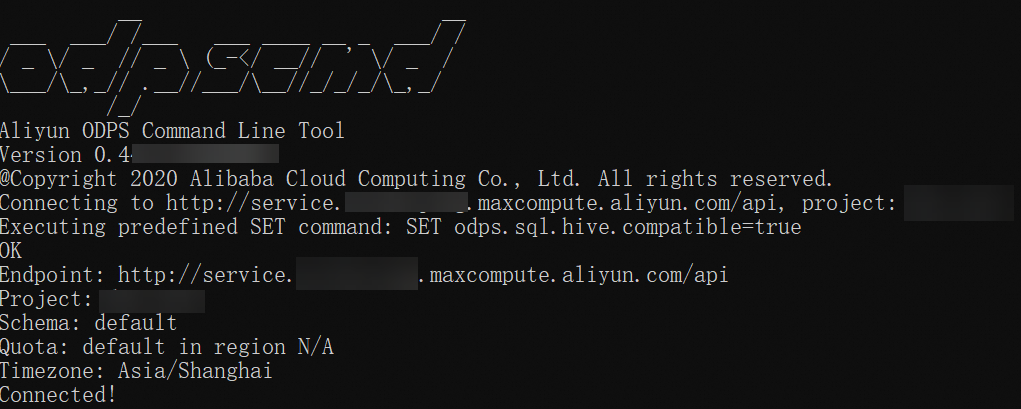
Method 2: Run from the command line
Navigate to the bin folder in your command-line window, then run:
-
Windows:
odpscmd -
Linux or macOS:
sh odpscmd -
Ubuntu:
./odpscmd(runningsh odpscmdreturns an error on Ubuntu)
When the client starts and connects successfully, you see a confirmation message.
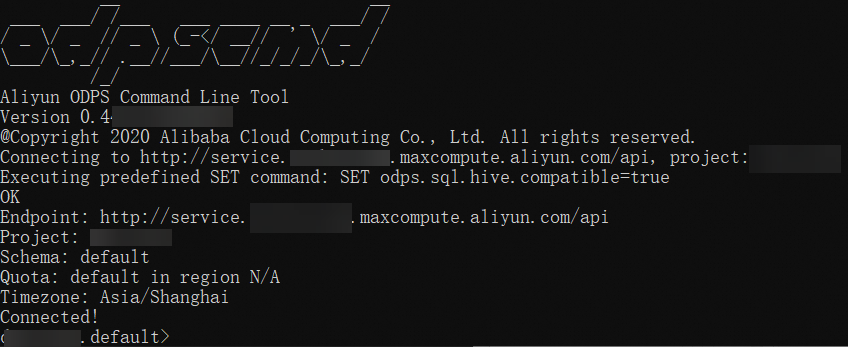
When starting from the command line, you can pass startup parameters to run commands directly. See Startup parameters.
Next steps
Create a table in the MaxCompute project.
Import data and upload resources such as files and JAR packages.
Related documentation
For details on the command syntax that the MaxCompute client supports, see Common commands or SQL statements and functions.
For detailed instructions on how to use the MaxCompute client and information about common configuration errors, see Connect to a project by using the MaxCompute client (odpscmd).