This topic describes how to use Machine Translation SDK for Java. You will learn how to:
Configure an account
Set up the Java environment
Use the Java SDK
Procedure
Step 1: Activate the service and get a key
Register an account: If you do not have an Alibaba Cloud account, first register.
Activate Machine Translation service: Go to the Machine Translation Service page, select the service that you want to activate, and click Open now.
Get an AccessKey: Go to the AccessKey page and get the AccessKey ID and AccessKey secret.
Step 2: Set up the Java environment
To use Machine Translation SDK, you need Java 8 or later. Run the following command in the terminal to check the Java version:
java -versionTo confirm the Java version, check the first line of the returned message. For example,
openjdk version "16.0.1" 2021-04-20message indicates that the current version is Java 16. If your current computing environment does not have Java or is earlier than Java 8, go to Java Download to download and install Java.Add the following code to the
pom.xmldependency file and replacethe-latest-versionwith the latest version number.<!-- https://mvnrepository.com/artifact/com.aliyun/alimt20181012 --> <dependency> <groupId>com.aliyun</groupId> <artifactId>alimt20181012</artifactId> <version>the-latest-version</version> </dependency> <!-- https://mvnrepository.com/artifact/com.aliyun/tea-openapi --> <dependency> <groupId>com.aliyun</groupId> <artifactId>tea-openapi</artifactId> <version>the-latest-version</version> </dependency>
Step 3: Call the Machine Translation SDK
Use the following code to call the Machine Translation SDK, taking TranslateGeneral as an example..
Replace the ALIBABA_CLOUD_ACCESS_KEY_ID and ALIBABA_CLOUD_ACCESS_KEY_SECRET in the code with the AccessKey ID and AccessKey secret that you got in Step 1.
package com.aliyun.sample;

import com.aliyun.tea.*;
import com.aliyun.alimt20181012.*;
import com.aliyun.alimt20181012.models.*;
import com.aliyun.teaopenapi.*;
import com.aliyun.teaopenapi.models.*;
import com.aliyun.darabonba.env.*;
import com.aliyun.teaconsole.*;

public class Sample {
    public static com.aliyun.alimt20181012.Client createClient() throws Exception {
        com.aliyun.teaopenapi.models.Config config = new com.aliyun.teaopenapi.models.Config()
                // Replace ALIBABA_CLOUD_ACCESS_KEY_ID with the AccessKey ID.
                .setAccessKeyId ("ALIBABA_CLOUD_ACCESS_KEY_ID")
                // Replace ALIBABA_CLOUD_ACCESS_KEY_SECRET with the AccessKey secret.
                .setAccessKeySecret ("ALIBABA_CLOUD_ACCESS_KEY_SECRET");
        // For endpoint info, see https://api.aliyun.com/product/alimt.
        config.endpoint = "mt.cn-hangzhou.aliyuncs.com";
        return new com.aliyun.alimt20181012.Client(config);
    }
    public static void main(String[] args_) throws Exception {
        java.util.List<String> args = java.util.Arrays.asList(args_);
        com.aliyun.alimt20181012.Client client = Sample.createClient();
        TranslateGeneralRequest request = new TranslateGeneralRequest()
                .setFormatType("text")
                .setSourceLanguage("zh")
                .setTargetLanguage("en")
                . setSourceText("你好")
                .setScene("general");
        TranslateGeneralResponse response = client.translateGeneral(request);
        com.aliyun.teaconsole.Client.log(response.body.data.translated);
    }
 }
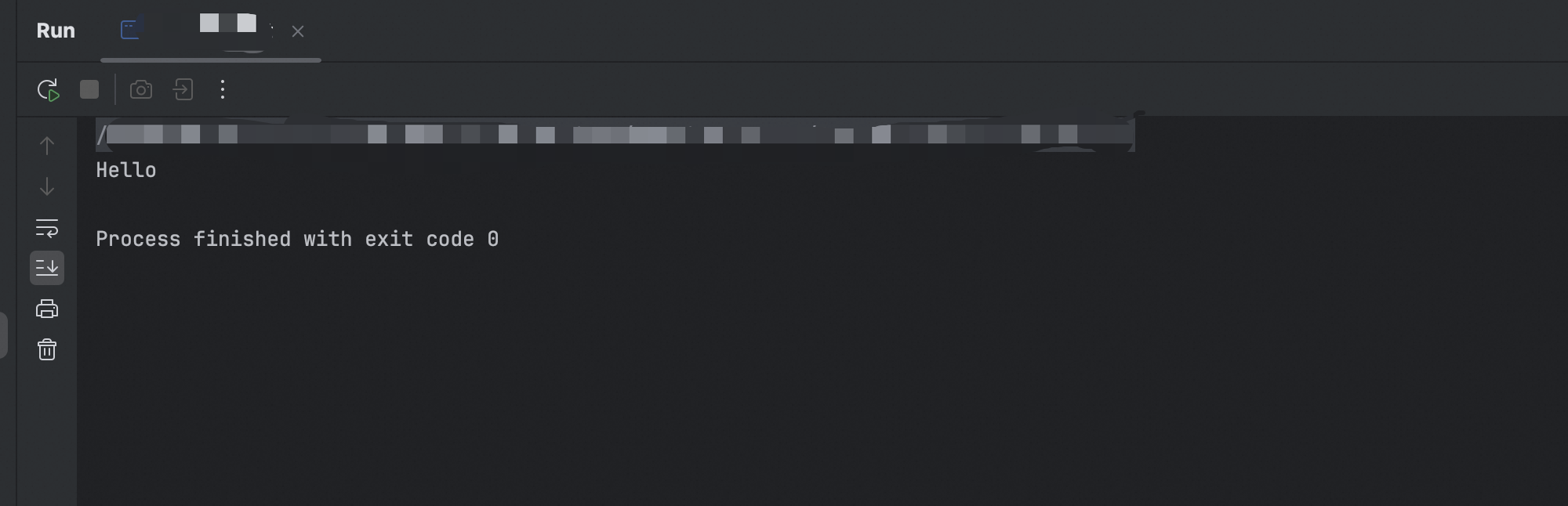
Output:
Go to Machine Translation API for more API examples.