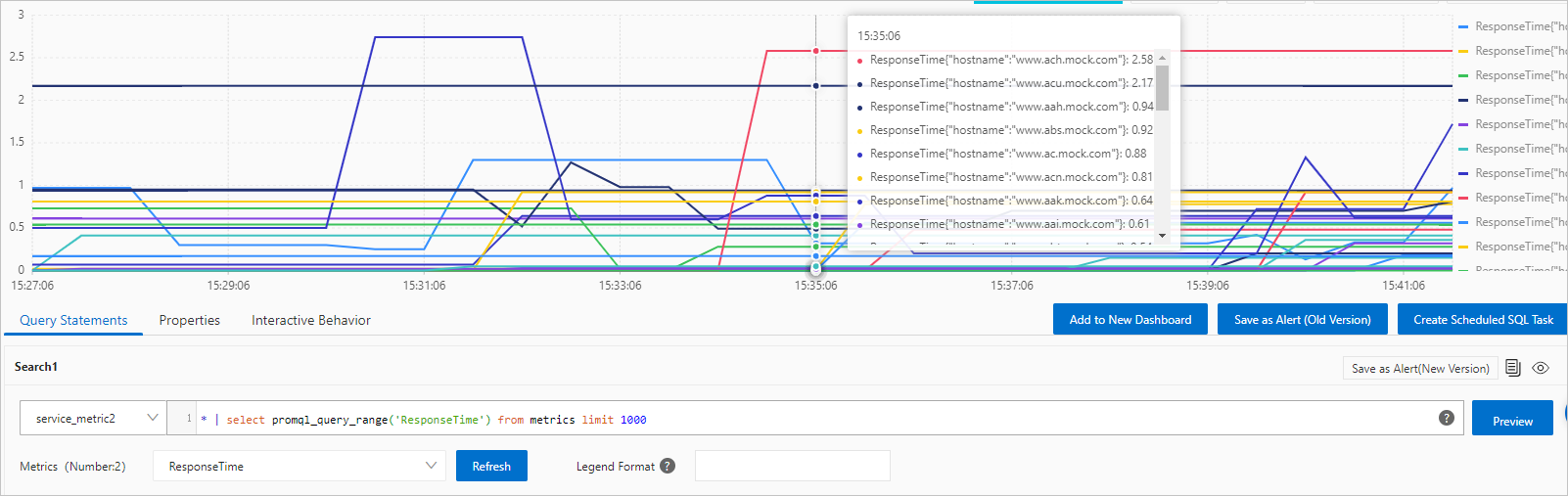
If you want to monitor the trend of a log field in a Logstore, you can use the e_to_metric function to convert the log field to a metric in a Metricstore and then visualize the metric trend. This topic walks you through converting fields from an NGINX access log into metrics using data transformation.
Background information
The operational data of applications is classified into three categories: logs, traces, and metrics.
A log represents a discrete event.
A trace represents an event that contains a call chain.
A metric represents an event that contains numeric measurements.
Logs, traces, and metrics are all events. A system that can store events can store all three types of data. Simple Log Service (SLS) provides the following store types:
Logstore: Collects, stores, and queries logs. For more information, see Logstore.
Metricstore: Collects, stores, and queries metrics. Metricstores are optimized for metrics and support the PromQL syntax provided by Prometheus for metric queries. For more information, see Metricstore.
For most applications, a log contains more information than a metric. Metrics can be considered as logs in a specific format. SLS allows you to convert logs to metrics by using one of the following methods:
Scheduled SQL: Aggregates logs to generate metrics. For more information, see Process and store data from a logstore to a metricstore.
e_to_metric function: Uses data transformation to convert individual log fields in a Logstore to metrics. For more information, see e_to_metric function.
Scenario
An enterprise created a Logstore named nginx-demo in the China (Hangzhou) region to store NGINX access logs.
The enterprise wants to monitor the trends of request duration and response duration for each host and visualize the trends in dashboards. The request_time and upstream_response_time fields represent the request duration and response duration, respectively. To achieve this, you need to convert the request_time and upstream_response_time fields in the Logstore to metrics and add the Host tag.
The following is a sample NGINX access log:
body_bytes_sent:1750
host:www.example.com
http_referer:www.guide.example.com
http_user_agent:Mozilla/5.0 (Macintosh; U; Intel Mac OS X 10_6_6; it-it) AppleWebKit/533.20.25 (KHTML, like Gecko) Version/5.0.4 Safari/533.20.27
http_x_forwarded_for:203.0.113.10
remote_addr:203.0.113.10
remote_user:p288
request_length:13741
request_method:GET
request_time:71
request_uri:/request/path-1/file-1
status:200
time_local:11/Aug/2021:06:52:27
upstream_response_time:0.66
Prerequisites
Logs are collected. For more information, see Data collection overview.
Step 1: Create a Metricstore
Create a Metricstore named service-metric to store the metrics generated by the data transformation job.
Log on to the Simple Log Service console.
In the Projects section, click the project that you want to manage.

On the Metric Storage > Metricstores tab, click the + icon.
In the Create Metricstore panel, configure the following parameters and click OK.
Parameter Description Metricstore Name The name of the Metricstore. The name must be unique within the project. After the Metricstore is created, you cannot change the name. Data Retention Period The retention period for metrics in the Metricstore. - Specified Days: Specify how many days to store metrics based on your business requirements. Valid values: 1 to 3000. Unit: days. Warning
After the retention period ends, metrics are automatically deleted. If you shorten the data retention period, SLS deletes all expired metrics within 1 hour. The data volume displayed in Usage Details on the SLS console homepage is updated the next day. For example, if you change the data retention period from 5 days to 1 day, SLS deletes the metrics of the previous four days within 1 hour.
- Permanent Storage: SLS permanently stores the collected metrics.Note
If you query the data retention period by calling an SDK and the returned result is 3650, the metrics are permanently stored.
Shards The number of shards. SLS provides shards for reading and writing data. Each shard supports a write capacity of 5 MB/s and 500 writes/s, and a read capacity of 10 MB/s and 100 reads/s. You can create up to 10 shards per Metricstore and up to 200 shards per project. For more information, see Shard. Automatic Sharding If you turn on Automatic Sharding, SLS automatically increases the number of shards when existing shards cannot accommodate the data being written. For more information, see Manage shards. Maximum Shards If you turn on Automatic Sharding, specify the maximum number of read/write shards that can be created. Maximum value: 256. - Specified Days: Specify how many days to store metrics based on your business requirements. Valid values: 1 to 3000. Unit: days.
Step 2: Create a data transformation job
Use the e_to_metric function to create a data transformation job that stores its results in the Metricstore created in Step 1. For more information, see e_to_metric.
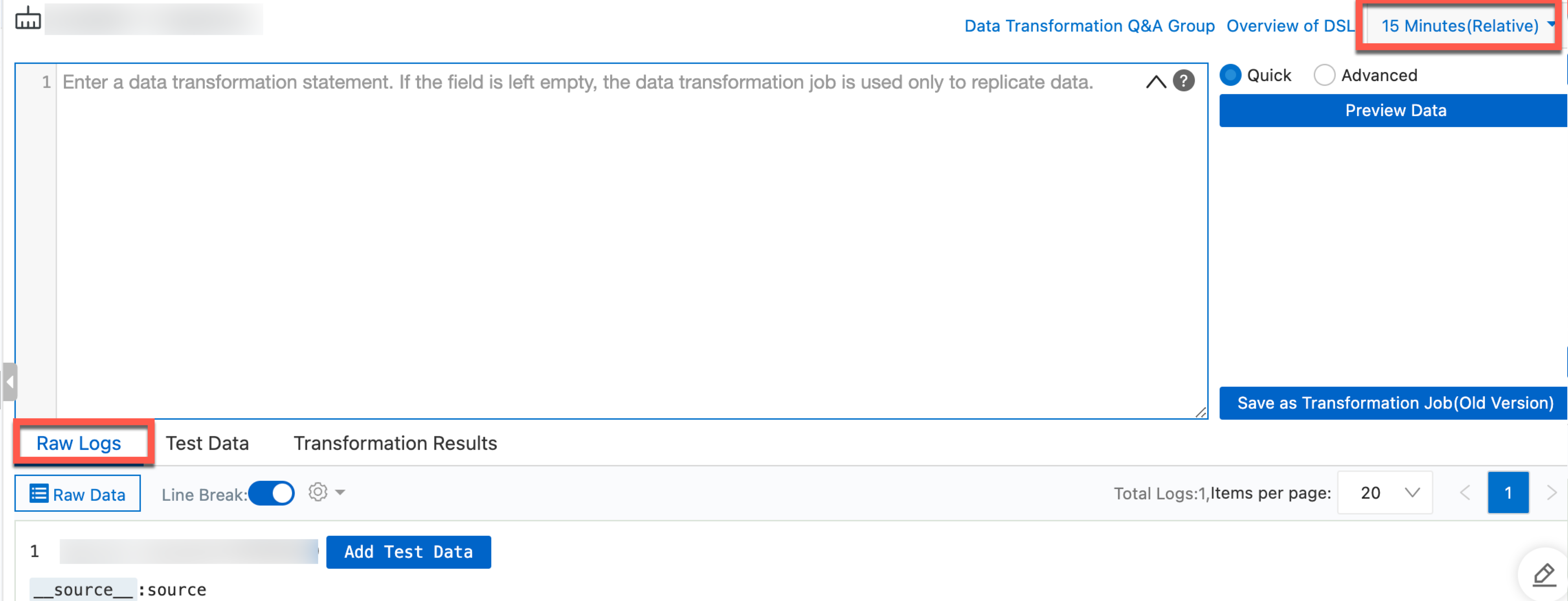
In the upper-right corner of the Data Transformation page, select a query time range. Make sure that the log entries you want to transform are displayed on the Raw Logs tab.
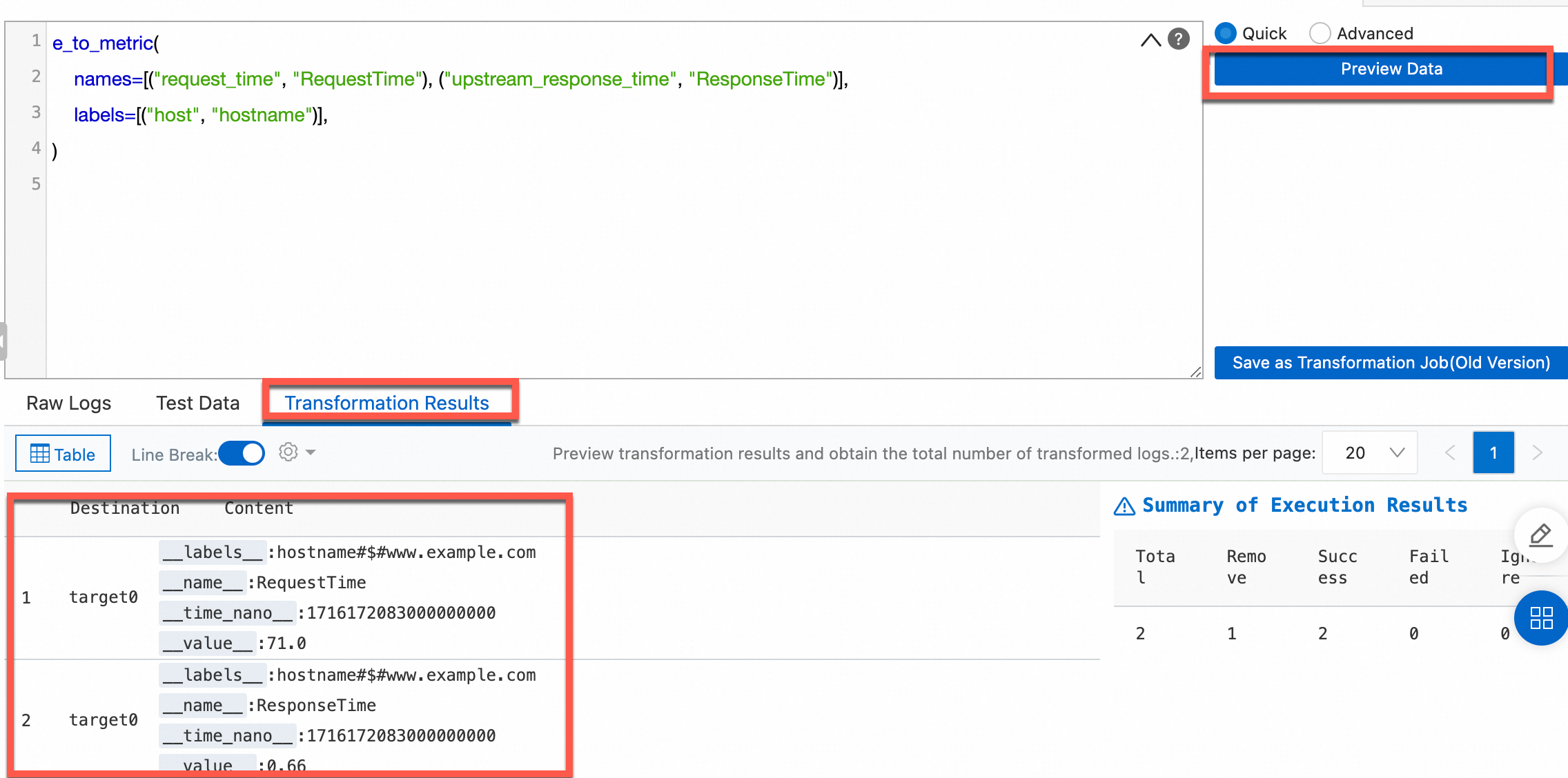
In the code editor, enter the following data transformation statement. This converts the
request_timeandupstream_response_timefields to metrics and renames thehostfield tohostnameas a labels field.e_to_metric( names=[("request_time", "RequestTime"), ("upstream_response_time", "ResponseTime")], labels=[("host", "hostname")], )Click Preview Data to view the results on the Transformation Results tab.
Create the data transformation job.
Click Save as Transformation Job.
In the Create Data Transformation Job panel, configure the following parameters and click OK. For more information about these parameters, see Create a data transformation job.
Parameter Description Job Name, Display Name The job name must be unique. You can specify a custom display name. Example: log2metric. Authorization Method Select Default Role to read data from the source Logstore. Storage Destination Destination Name The name of the storage destination. Example: log2metric. Destination Region The region of the project to which the destination Metricstore belongs. Example: China (Hangzhou). Destination Project The name of the project to which the destination Metricstore belongs. Target Store The name of the destination Metricstore where transformation results are stored. Example: service-metric. Authorization Method Select Default Role to write transformation results to the service-metric Metricstore. Time Range for Data Transformation Time Range Select All.
View the progress of the data transformation job.
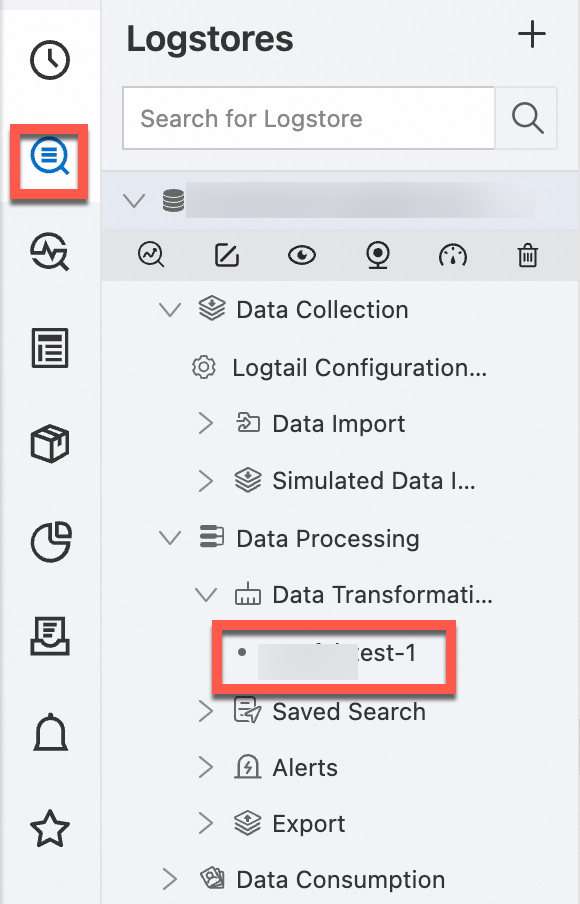
Step 3: Query the metrics
After the data transformation job starts processing logs, you can query the generated metrics in the destination Metricstore.
In the left-side navigation pane, choose Metric Storage > Metricstores. Then, select the destination Metricstore.
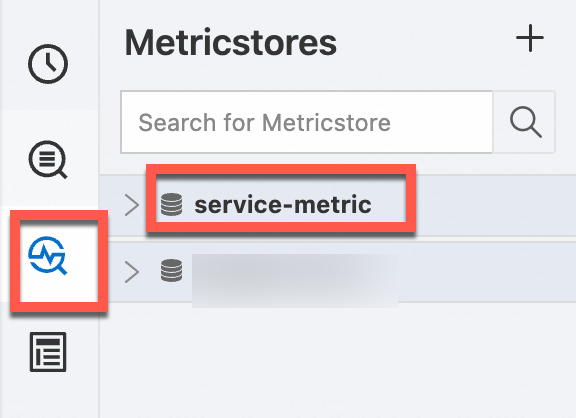
In the upper-right corner of the page, click 15 Minutes(Relative) and specify a time range for the query.
NoteThe query and analysis results may contain metrics generated up to 1 minute before or after the specified time range.
Click Preview Raw Data. In the panel that appears, select a time range and verify that the required logs have been uploaded.
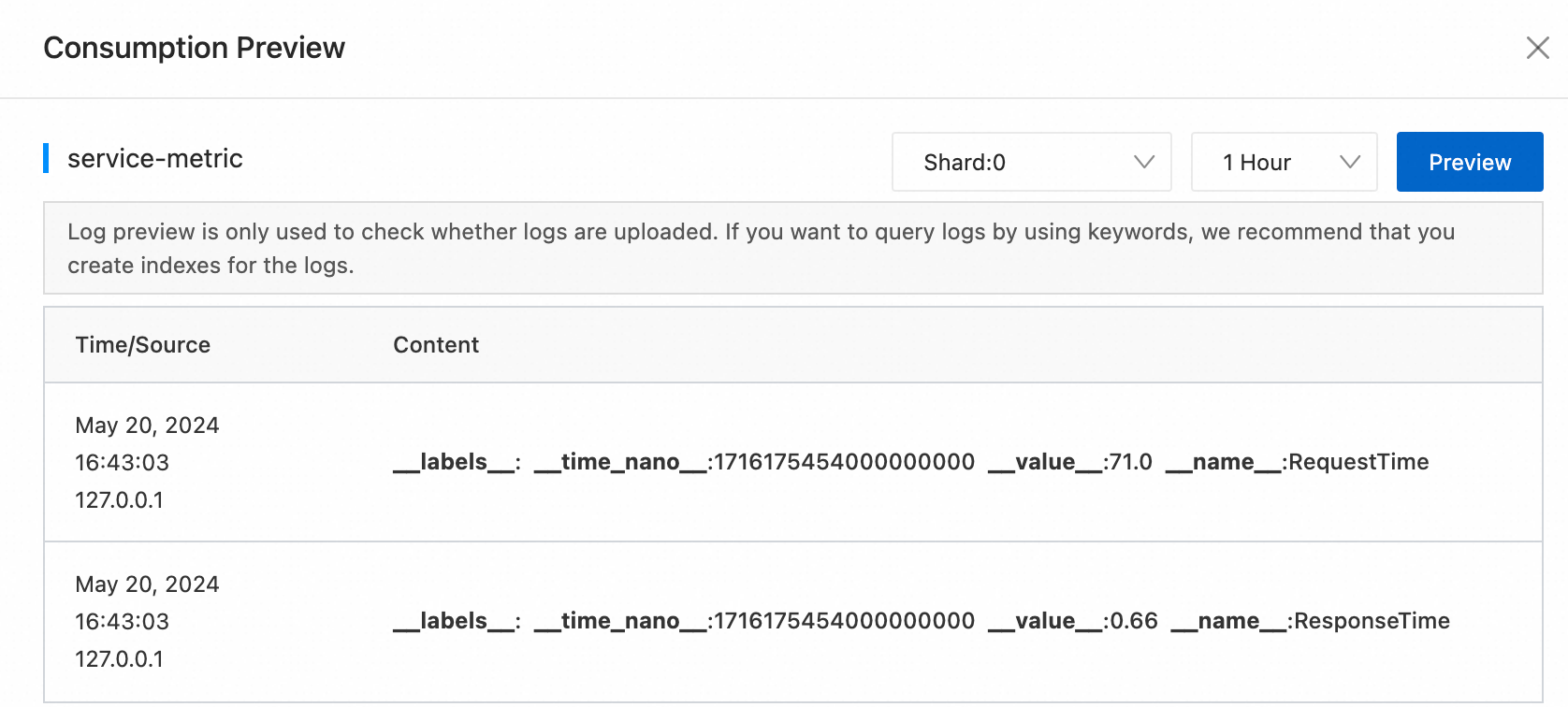
Enter a query statement by using one of the following methods. For more information about how to query metrics, see Query and analyze metric data.
Enter a PromQL statement: Type a PromQL query and click Execute Now. You can add multiple query statements. Simple Log Service displays the results of multiple query statements in a time series chart.
Use Metrics Explore: Click Metrics Explore. In the dialog box that appears, find the metric that you want to query and click the
 icon in the Actions column. Simple Log Service automatically generates a query statement. You can also find a metric and click Continue to Explore in the Actions column to specify label values. Simple Log Service then generates query statements based on your settings. For more information, see Metric exploration.
The following examples show the query results:
Request time trends per host:
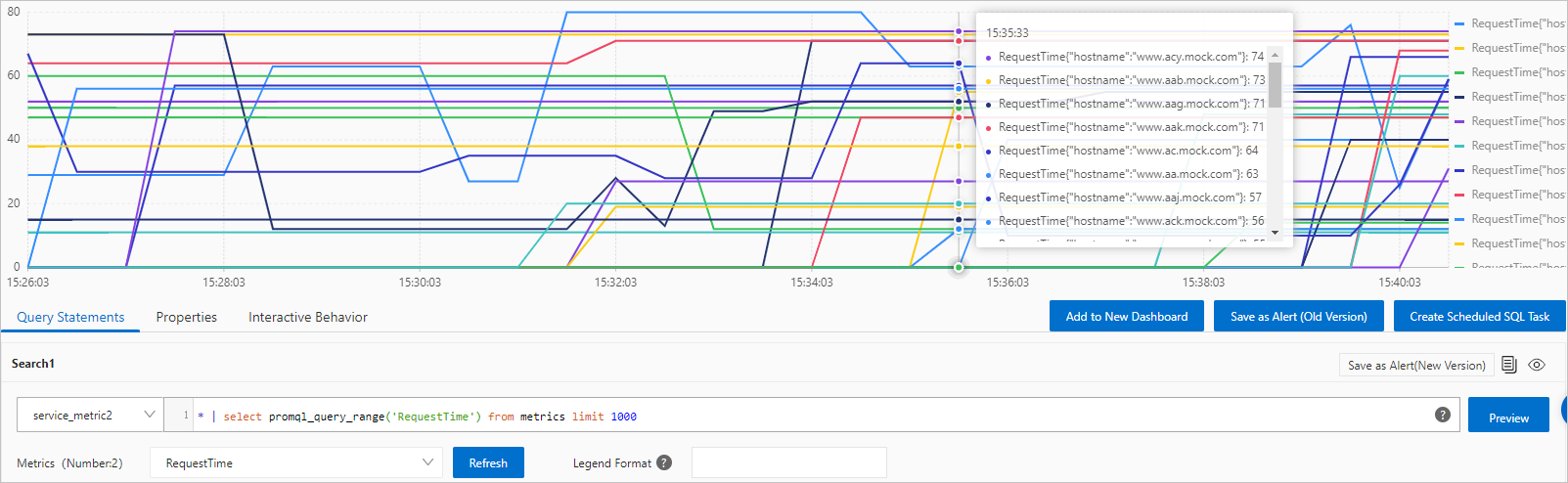
Response time trends per host: