This topic describes how to activate the Cloud Production service and get started quickly.
Background information
You can activate the Cloud Production service by creating a pay-as-you-go production studio. Pay-as-you-go production studios support general-purpose, playlist, and virtual studio instances. You can select a production studio type based on your business needs.
An Alibaba Cloud account can create an unlimited number of instances. By default, you can start up to 20 production studio instances for each domain name. To increase this quota, contact us.
Cloud Production supports multiple billing methods, such as pay-as-you-go (by duration). For more information, see Cloud Production pricing.
To learn which live centers support Cloud Production, see Service regions. Support for other live centers will be added in the future.
If you use a Resource Access Management (RAM) user to activate a production studio, you must grant the following policy to the RAM user. For more information, see Create a RAM user and grant permissions.
{
    "Version": "1",
    "Statement": [
        {
            "Effect": "Allow",
            "Action": [
                "live:OpenLiveService"
            ],
            "Resource": [
                "acs:live::$accountid:*"
            ]
        }
    ]
}
Prerequisites
An Alibaba Cloud account is created and real-name verification is complete. To create an Alibaba Cloud account, visit the Alibaba Cloud official website. For more information, see Create an Alibaba Cloud account.
ApsaraVideo Live is activated. For more information, see Activate and purchase ApsaraVideo Live.
ApsaraVideo VOD is activated. For more information, see Activate ApsaraVideo VOD.
You have determined the type of production studio instance to create. To learn about the instance types that Cloud Production provides, see Cloud Production overview.
Activate the service
Log on to the ApsaraVideo Live console.
In the navigation pane on the left, choose to go to the Production Studio page.
Click Activate Production Studio to go to the Live + > Production Studios purchase page. Select a production studio type and click Buy Now.
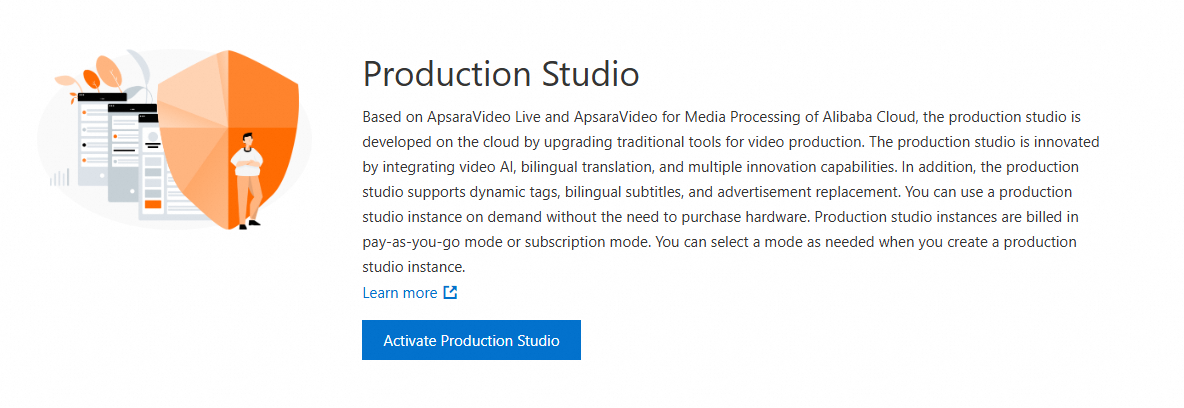
On the Order page, click Enable Now. The Cloud Production service is then ready to use.
Create a pay-as-you-go production studio
Log on to the ApsaraVideo Live console.
In the navigation pane on the left, choose . On the Production Studio page, select the live center where you want to create the production studio instance.
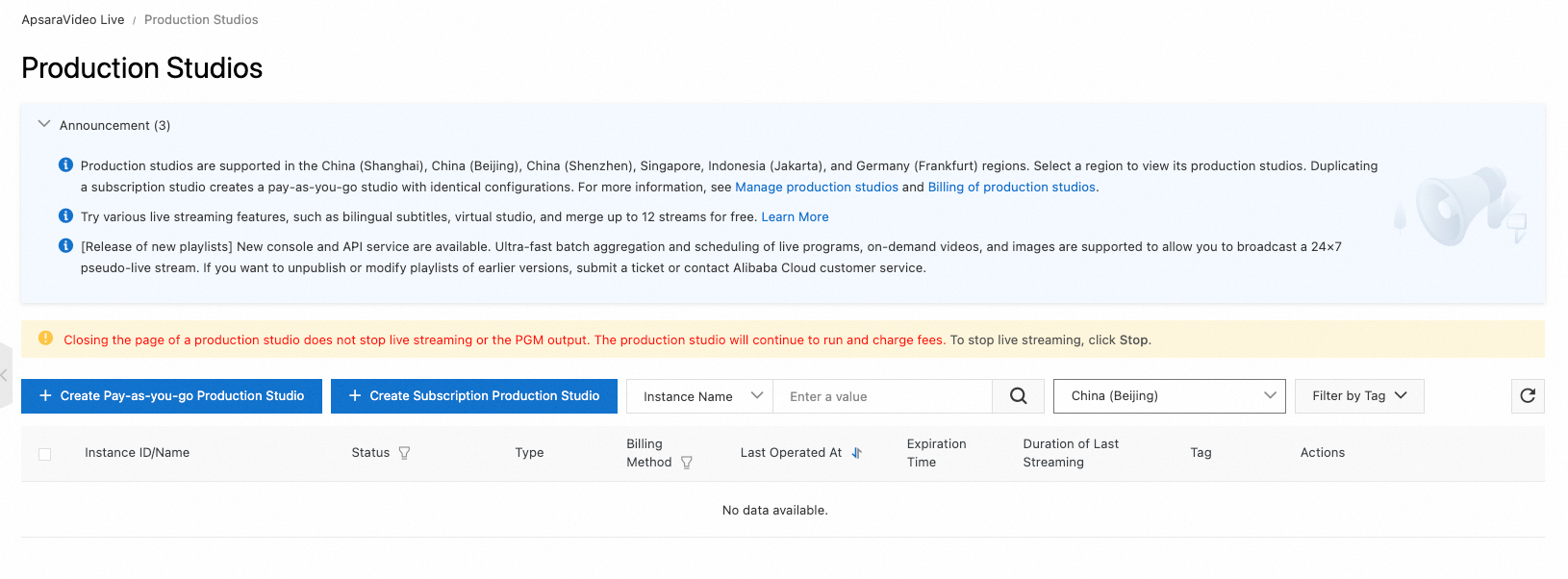 Note
NoteBecause the production studio needs to call media assets, you must select the live center where the media assets are stored.
Click Create Pay-as-you-go Production Studio. In the Create Pay-as-you-go Production Studio dialog box, enter the required information for the production studio.
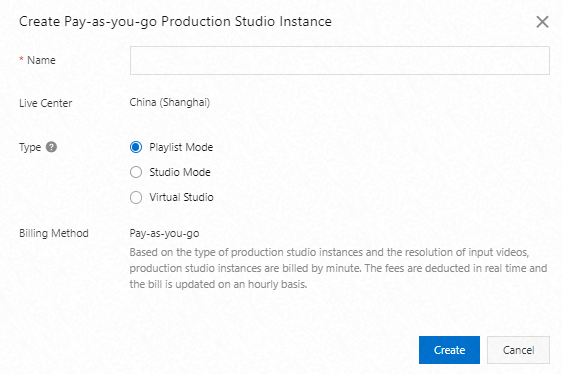
Parameter
Procedure
Name
Enter a name for the production studio. The name can be the same as an existing one.
Live Center
The live center where the production studio instance is created.
Type
Select one of the following types based on your scenario:
Playlist Mode: This type is suitable for carousel (24/7 pseudo-live streaming) scenarios. It supports orchestrating multiple live streams, video-on-demand (VOD) files, and images into a playlist and then outputting them as a live stream.
NoteIf your scenario includes carousels and other features, use a general-purpose production studio.
General Mode: This type is suitable for all production scenarios. It supports resource management, components, switchers, preview, and backup playback. You can use live streams, VOD files, images, and text as materials for production and stream mixing. You can preview the mixed content before you output the stream.
Virtual Studio: This type is suitable for production scenarios that require chroma keying, multiple devices, remote live streaming from different locations, and multi-source chroma keying. It allows cloud-based composition to create dual-screen, split-screen, and Picture-in-Picture (PiP) layouts for an immersive live streaming experience.
Billing Method
Production studios created using this method are billed on a pay-as-you-go (by duration) basis by default.
Click Create. If this is the first time you are creating a production studio, you must confirm that you want to purchase the Cloud Production service.
Select the Terms of Service checkbox and click Enable Now.
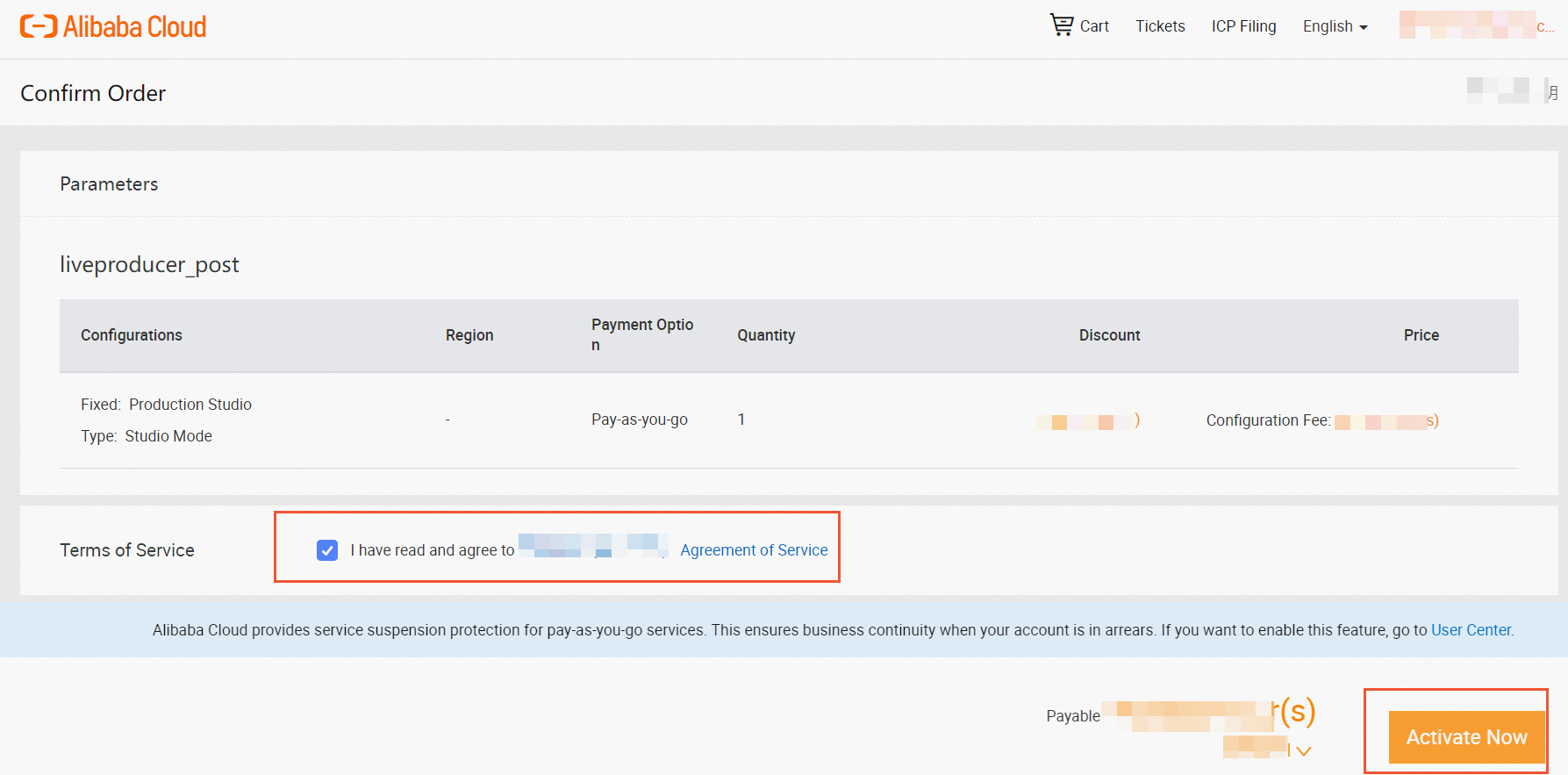
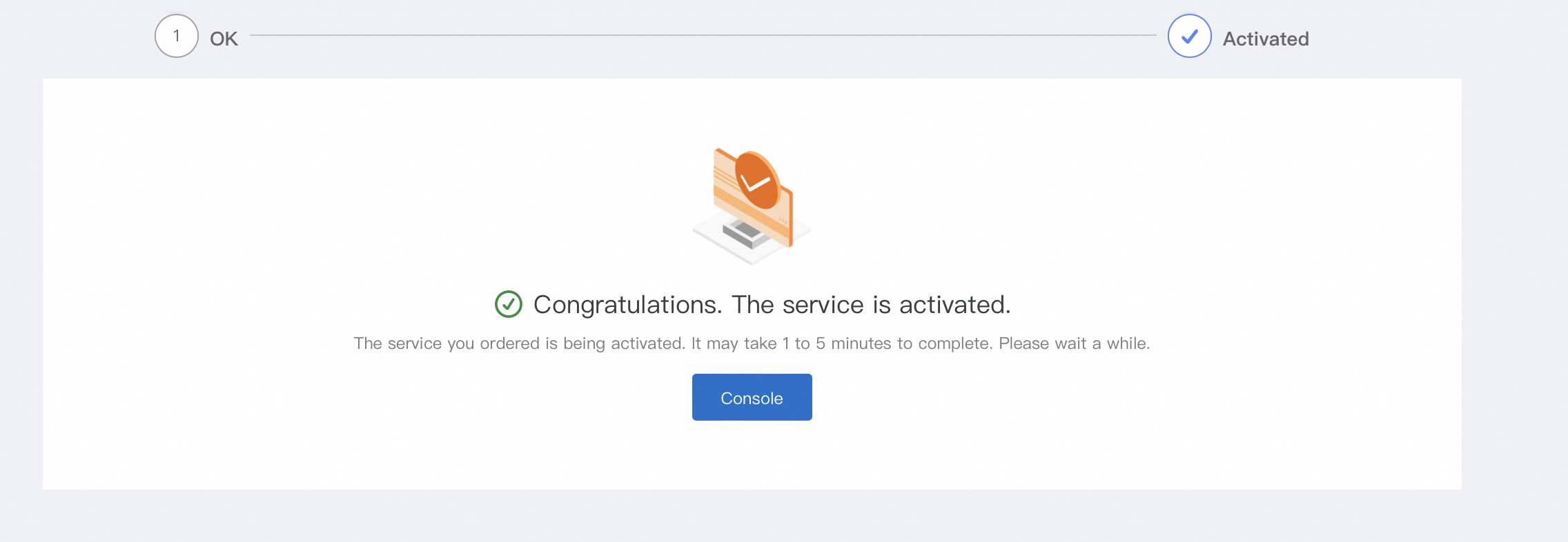
After the service is activated, click Management Console. The Cloud Production instance that you created appears on the Production Studios page.
What to do next
After you create a Cloud Production instance, you must configure it before you can use the service.
For a general-purpose production studio, see Console user guide.
For more information about the playlist mode, see the Console Operation Guide.
For a virtual studio, see Console user guide.
Manage Cloud Production instances
View the information about a Cloud Production instance
Log on to the ApsaraVideo Live console. In the navigation pane on the left, choose to go to the Production Studio page.
In the Actions column of the production studio, click View Settings to view the settings of the Cloud Production instance.
Copy a Cloud Production instance
Because Cloud Director requires extensive configuration, a copy feature is available. You can copy an existing Cloud Director instance to quickly create a new Cloud Director instance.
Log on to the ApsaraVideo Live console. In the navigation pane on the left, choose to go to the Production Studio page.
In the Actions column of the production studio, click
 and choose .
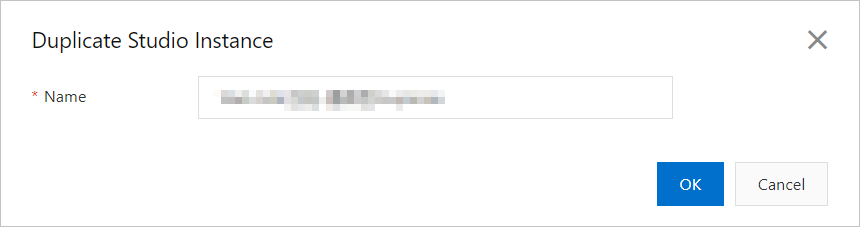
In the Duplicate Studio Instance dialog box that appears, enter a new name in the Name field and click OK to copy the instance.
Delete a Cloud Production instance
If you no longer need a Cloud Director instance, you can delete the Cloud Director instance.
Log on to the ApsaraVideo Live console. In the navigation pane on the left, choose to go to the Production Studio page.
In the Actions column of the production studio, click
and choose .In the Delete Studio Instance dialog box that appears, click OK to delete the instance.