An organization serves as an isolation unit within your enterprise. Each organization has independent management of members, permissions, whitelists, and applications. Data is fully isolated between organizations to ensure that no data is shared across organizations. An enterprise administrator can create one or more organizations to manage employee activities.
Create an organization
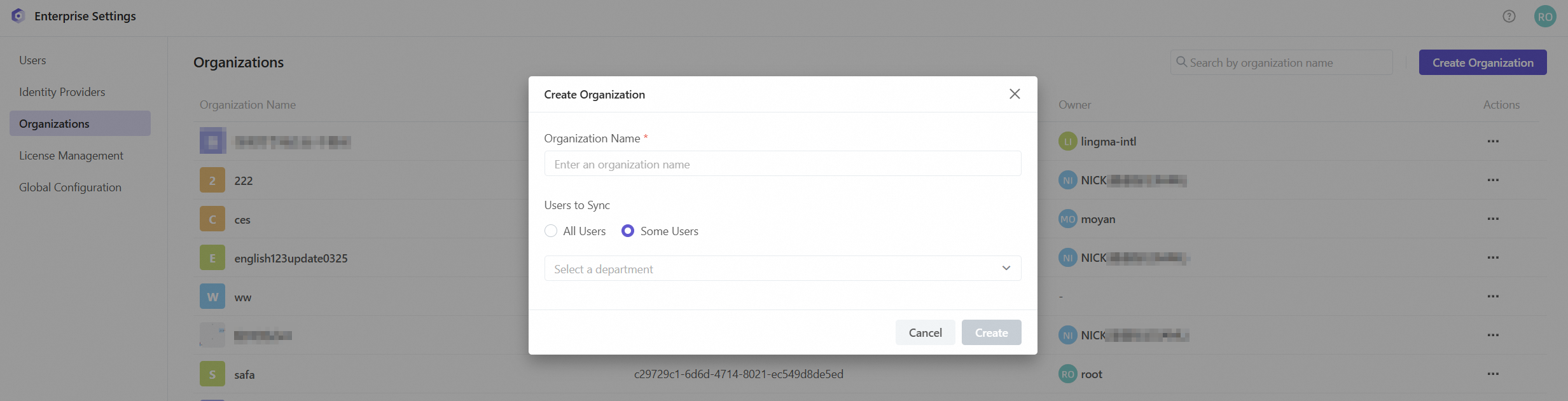
Log on to AI Coding Assistant Qoder CN (Qoder CN) as the enterprise administrator and navigate to the page. On this page, click Create Organization, specify an organization name and the member synchronization scope, and then click Create.
When selecting the member synchronization scope, the following options are available:
-
All Users: synchronizes all users within the enterprise to the organization. Any changes to enterprise users will be synchronized to the organization.
-
Some Users: synchronizes users of selected enterprise departments to this organization. You can select one or more departments. Users in these departments and their subdepartments will be added to the organization. Any changes to these users will be synchronized to the organization.
Change the organization name and member synchronization scope
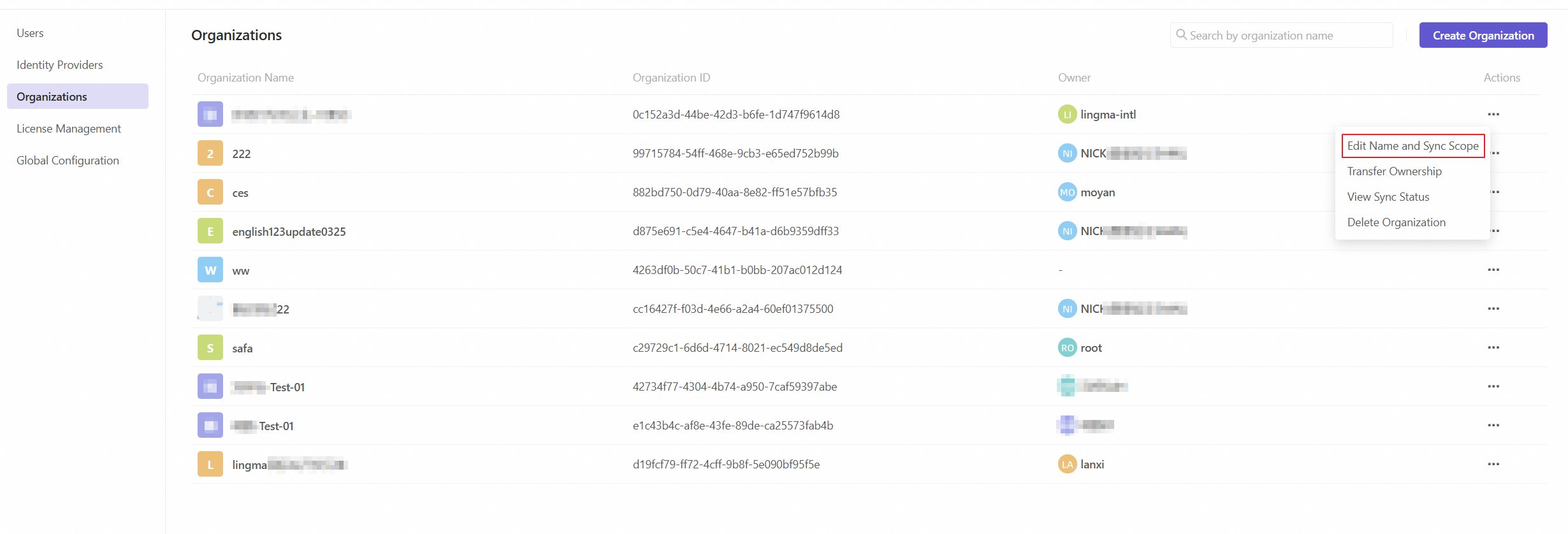
On the Organizations page, find the organization you want to configure and choose in the Actions column. In the dialog box that appears, configure the organization name and member synchronization scope.
Changing the member synchronization scope will remove all members outside the new scope from the organization and revoke their permissions. Proceed with caution.
To temporarily deactivate an organization member, navigate to the Members page in the administrative console of the organization and click Deactivate on the right side of the member.
Change the organization owner
By default, the user who creates an organization becomes its owner. To change the organization owner, find the organization you want to configure on the Organizations page and choose in the Actions column. Select a member and click in the confirmation message that appears.
View the member synchronization status
To view the last synchronization status of an organization, find the organization on the Organizations page and choose in the Actions column.
Delete an organization
To delete an organization, find the organization on the Organizations page and choose in the Actions column. In the message that appears, click Delete.
Deleting an organization will permanently delete all data in the organization. The data cannot be restored.