Lingma offers two ways to use it. You can download the out-of-the-box Lingma IDE or install the Lingma plugin in your existing development tools. After installation, log on to your account to get started.
To provide a better user experience, we have fully upgraded the Lingma IDE. It now seamlessly integrates enhanced context engineering with agents to understand your entire codebase and handle complex tasks. Future product iterations will focus on the Lingma IDE and the Lingma plugin for JetBrains. Updates for the VS Code extension will be less frequent. If you experience issues with the VS Code extension, switch to the Lingma IDE for more stable technical support.
Lingma IDE client
The Lingma IDE fully integrates the features of an intelligent coding assistant. It is an out-of-the-box solution that provides an efficient and intelligent programming experience without requiring any additional plugins.
Supported operating systems: Windows 10/11 (x64/arm64), macOS 11.0 or later.
Download URL: https://lingma.aliyun.com/download.
JetBrains IDEs plugin
These installation steps apply to installing Lingma in JetBrains IDEs on macOS, Windows, or Linux.
Step 1: Preparations
Operating system: Windows 7 or later, macOS, Linux.
Download and install a compatible JetBrains IDE version 2020.3 or later. Lingma is compatible with the following IDEs:
IntelliJ IDEA (Ultimate, Community, and Education editions)
Android Studio
CLion
GoLand
PhpStorm
PyCharm (Professional, Community, and Education editions)
Rider
RubyMine
RustRover
WebStorm
...
For more information, see the JetBrains IDE tool finder.
Step 2: Install in JetBrains IDEsLingma
Tip: For example, install Lingma in IntelliJ IDEA.
Consider using the New UI theme for JetBrains IDEs. To use this theme, upgrade your IDE to the latest version. After upgrading, open Settings and find the New UI option under Appearance & Behavior.
Method 1: Install from the marketplace
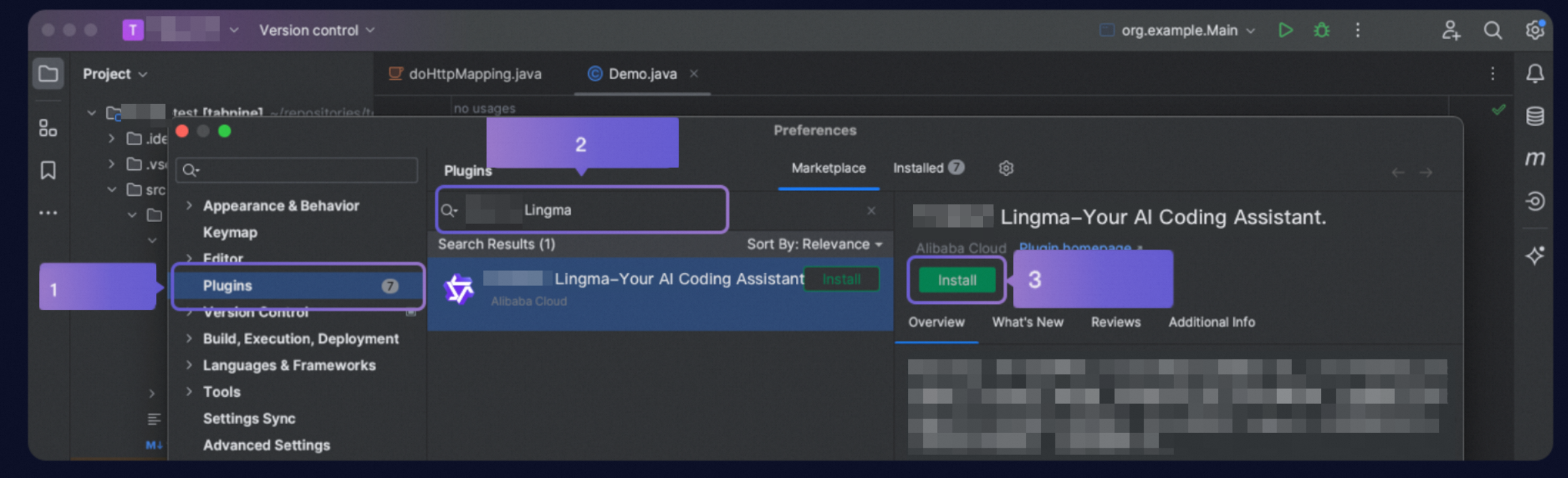
Open the IntelliJ IDEA Settings window, search for Lingma in the plugin marketplace, and click Install after finding Lingma.
After the installation is complete, restart IntelliJ IDEA.
Method 2: Install from a local file
Click the link below to download the ZIP installation package for JetBrains IDEs:
After downloading the package, open IntelliJ IDEA. Open Settings. In the Plugins settings, click the gear icon and select Install Plugin from Disk. Select the downloaded ZIP file to install.
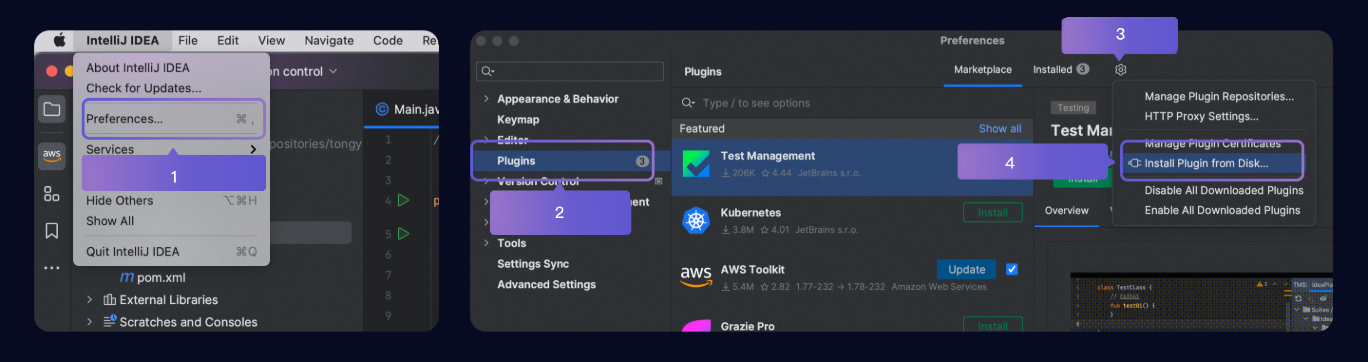
After the installation is complete, restart IntelliJ IDEA.
Step 3: Log on and start coding
After you restart IntelliJ IDEA, click Lingma in the side navigation bar, and then in the Lingma assistant window, click the logon button.
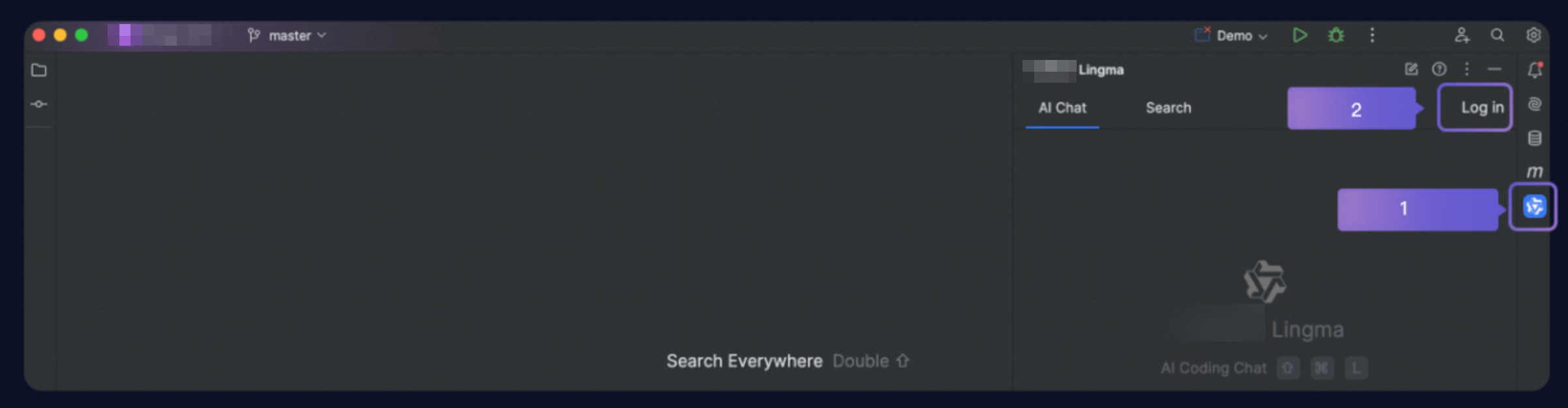
Click the logon button to go to the logon page. After you log on, you can start using Lingma in your IDE. For more information about the logon process, see Installation and logon.
VS Code extension
These installation steps apply to installing Lingma in Visual Studio Code on macOS, Windows, or Linux.
Step 1: Preparations
Operating system: Windows 7 or later, macOS, Linux.
Download and install Visual Studio Code version 1.68.0 or later.
Step 2: In Visual Studio Code, install Lingma
Method 1: Install from the marketplace
Click Install Now to open the Visual Studio Code Marketplace and install the extension. After installation, restart VS Code to begin.
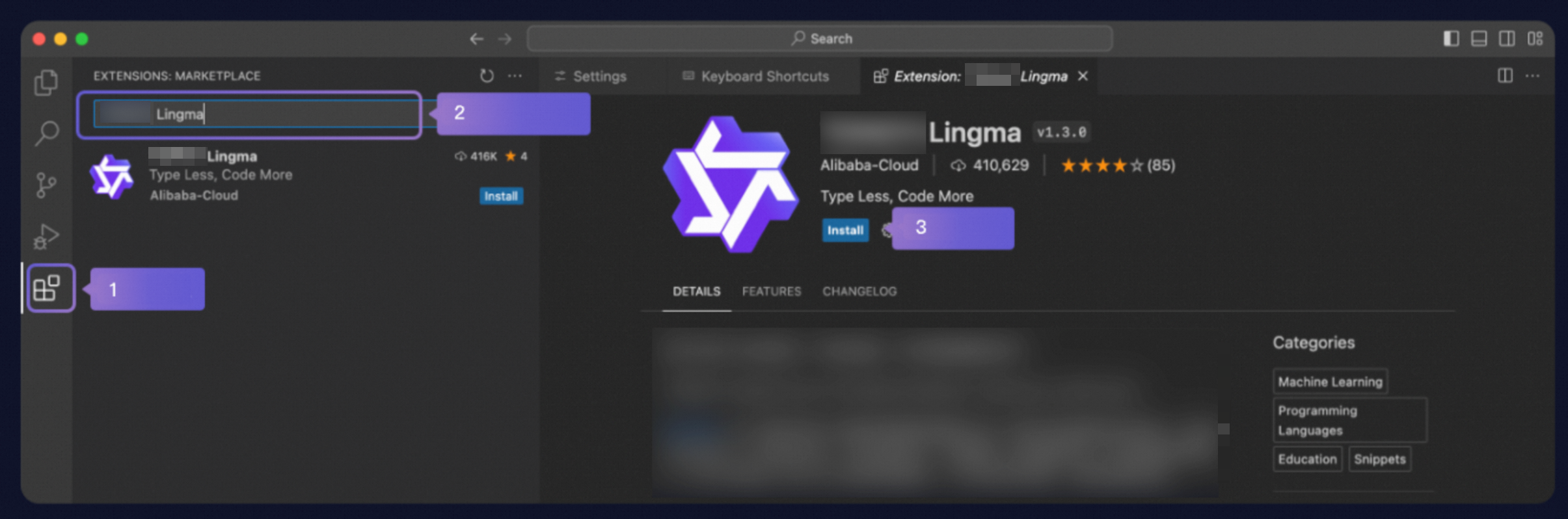
Open the Visual Studio Code Extensions view, search for Lingma, find Lingma, and click Install.
After the installation is complete, restart Visual Studio Code.
Method 2: Install by downloading the installation package
Click the link below to download the VSIX installation package for Visual Studio Code:
After downloading the package, open Visual Studio Code. Click the Extensions icon. Click the More Actions (...) button and select Install from VSIX... from the dropdown menu. Select the downloaded VSIX file to install.
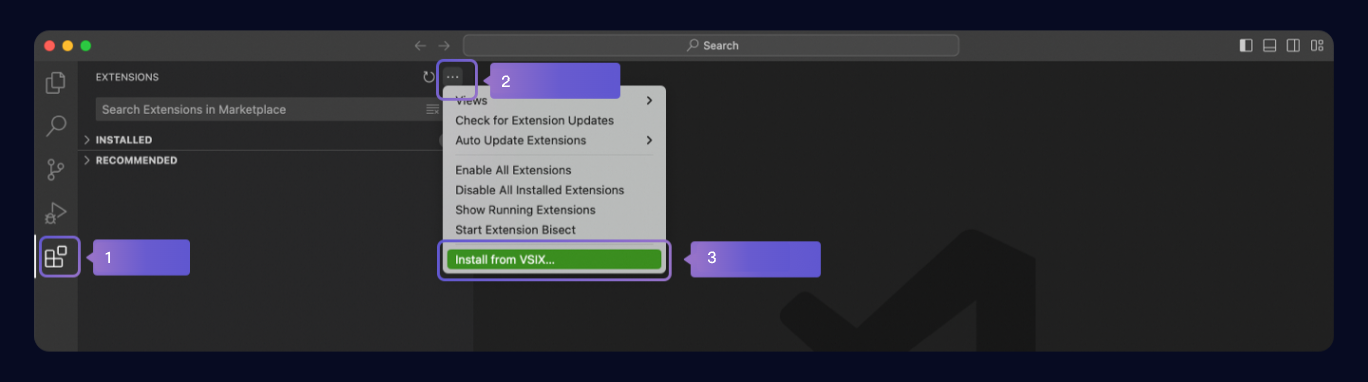
After the installation is complete, restart Visual Studio Code.
Step 3: Log on and start coding
After you restart Visual Studio Code, click Lingma in the sidebar navigation, and click the Log on button in the Lingma assistant window.
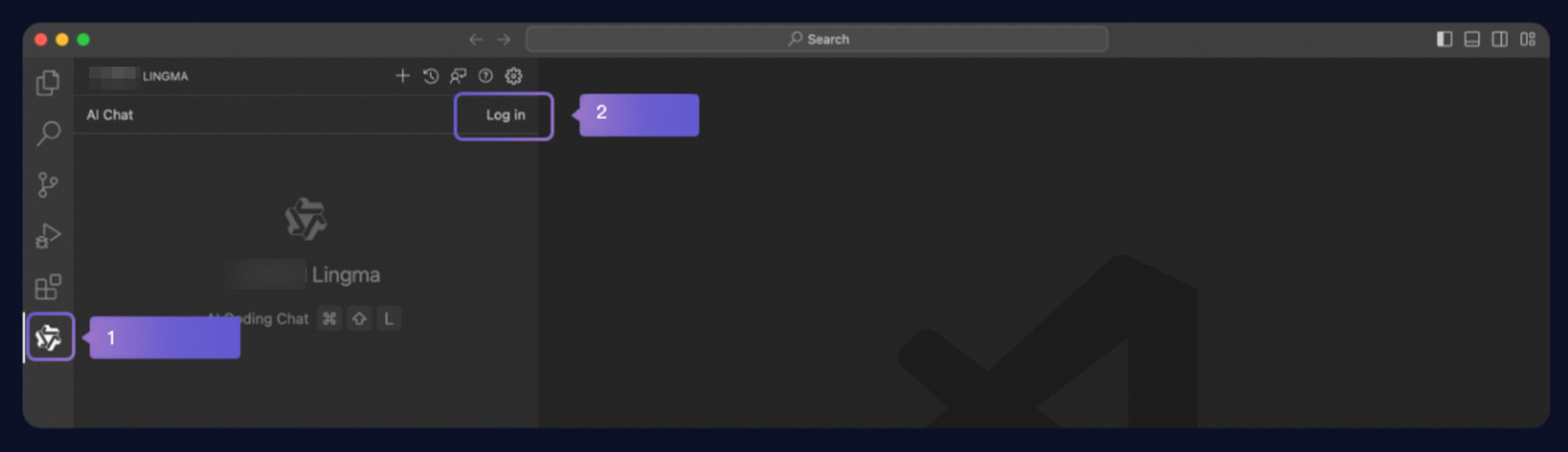 Important
If the Lingma entry point is missing from the side navigation bar after installation, right-click the navigation bar and check Lingma to add it.

Click the logon button to go to the logon page. After you log on, you can start using Lingma in your IDE. For more information about the logon process, see Installation and logon.
Visual Studio extension
These installation steps apply to installing and using Lingma on Windows 10 and later operating systems.
Step 1: Preparations
Operating system: Windows 10 or later.
Download and install Visual Studio 2022 version 17.3.0 or later, or Visual Studio 2019 version 16.3.0 or later.
Step 2: Install in Visual StudioLingma
Method 1: Install from the marketplace
Open the Visual Studio window, search for Lingma, and click Install after finding Lingma.
After the installation is complete, restart Visual Studio.
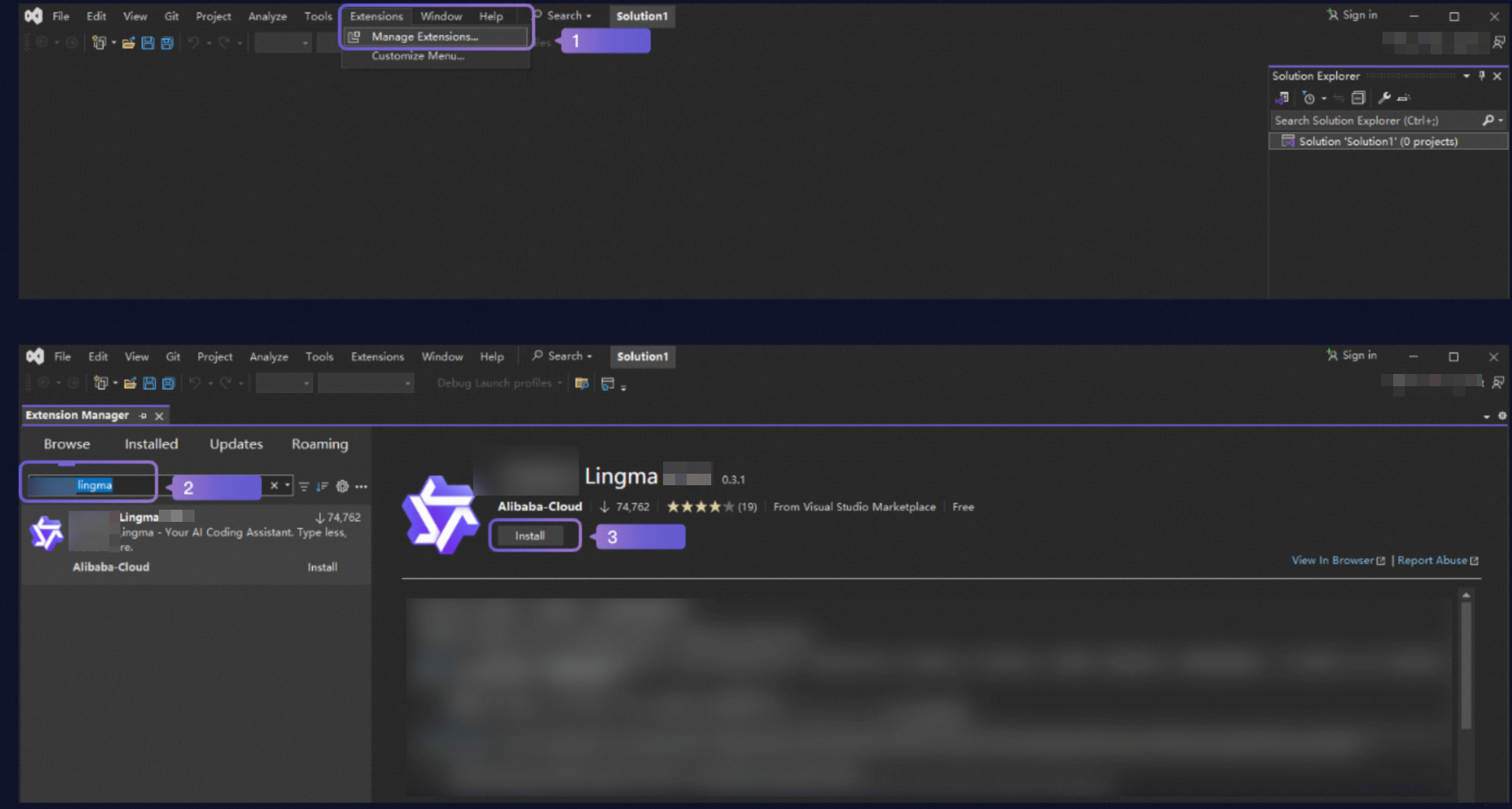
Method 2: Install by downloading the installation package
Click the appropriate link below to download the VSIX installation package for your version of Visual Studio:
Close any open instances of Visual Studio 2022 or Visual Studio 2019.
After you download the installation package, locate the Tongyi Lingma installation package (which has the .vsix file extension), double-click the installation package, and then follow the on-screen instructions.
Step 3: Log on and start coding
After restarting Visual Studio, click Tools in the top menu bar.
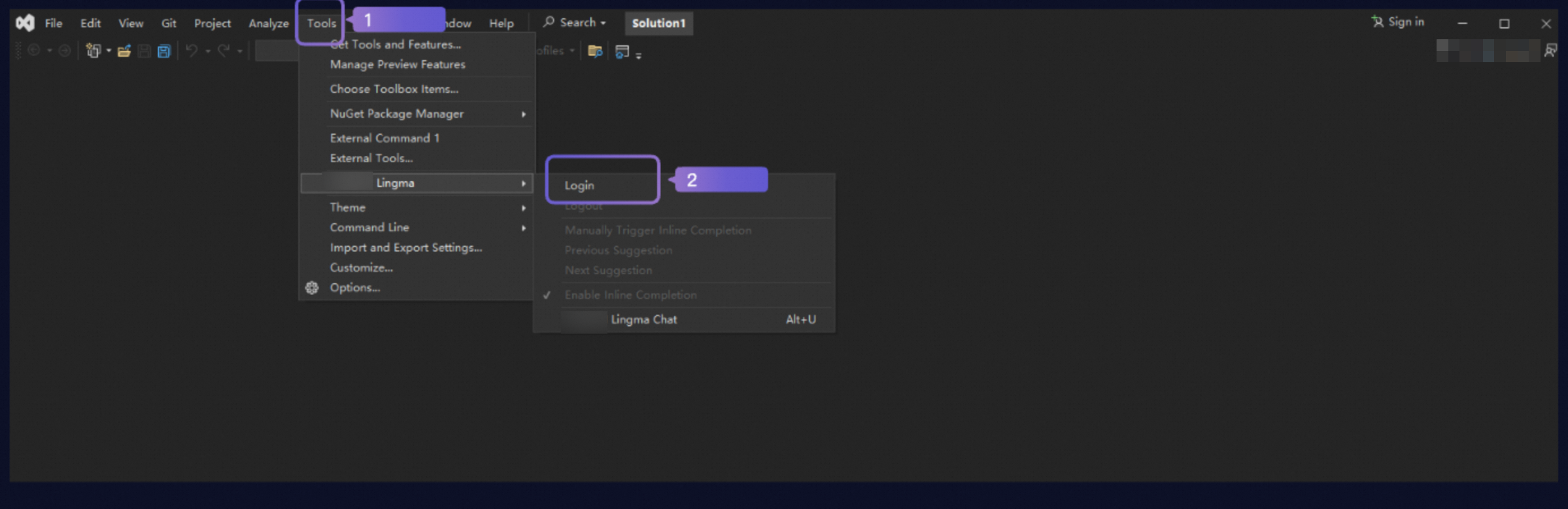
Click logon to go to the logon page. After you log on, you can start using Lingma in your IDE. For more information about the logon process, see Installation and logon.