When the AI suggests code modifications, the system does not apply them immediately. Instead, it presents all changes in the Diff View for you to review. This process ensures that you fully understand the changes and retain final control before any modifications are applied. This topic describes how to use the Diff View to review, manage, and apply these changes, including how to accept and reject changes at the block level, within a single file, or across multiple files.
Diff preview format
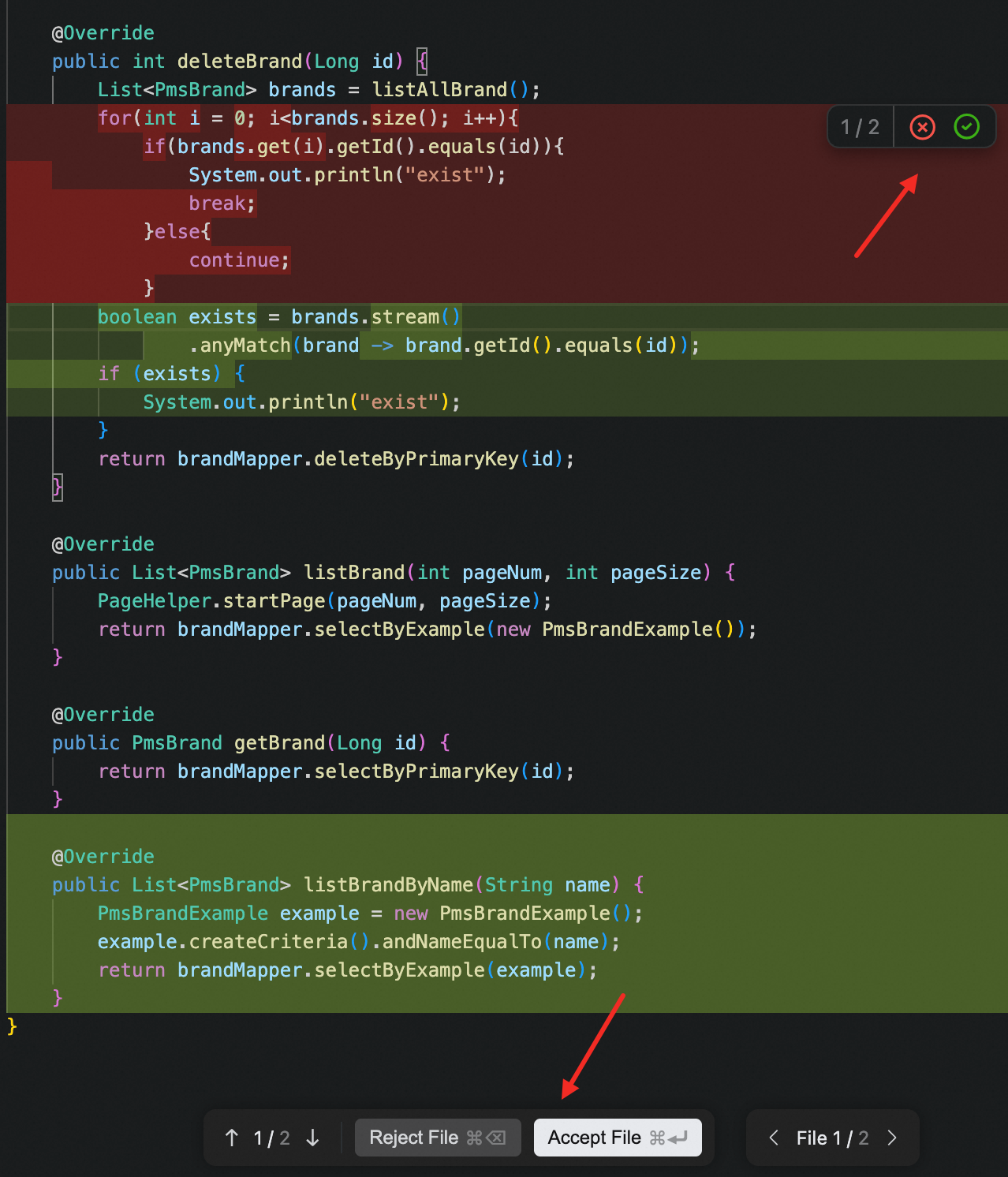
The Diff View uses different colors to distinguish between added, deleted, and unmodified lines of code:
Added content: New lines of code are highlighted in green.
Deleted content: Deleted lines of code are highlighted in red.
Contextual code: Unchanged code is displayed in a neutral color. This helps you locate the change within the codebase.
This inline diff format lets you:
See exactly what will change
Understand why the change was made
Evaluate how it fits into the existing codebase
You can then accept, edit, or reject each change.
Diff View in a single file
After an agent completes a task, the system enters Diff View mode. You can review the changes in a file and apply them either by individual block or for the entire file.
Block-level operations
For accurate control over independent changes, in the upper right corner of the block, you can:
Accept: Apply the changes in the current block.
Reject: Discard the changes in the current block.
File-level operations
It is recommended to perform batch operations on all suggested changes within the current file. At the bottom of the file, you can:
Accept All: Apply all suggested changes in the current file.
Reject All: Discard all suggested changes in the current file.
File Navigation: Switch to other files that have pending changes.
Diff View in multiple files
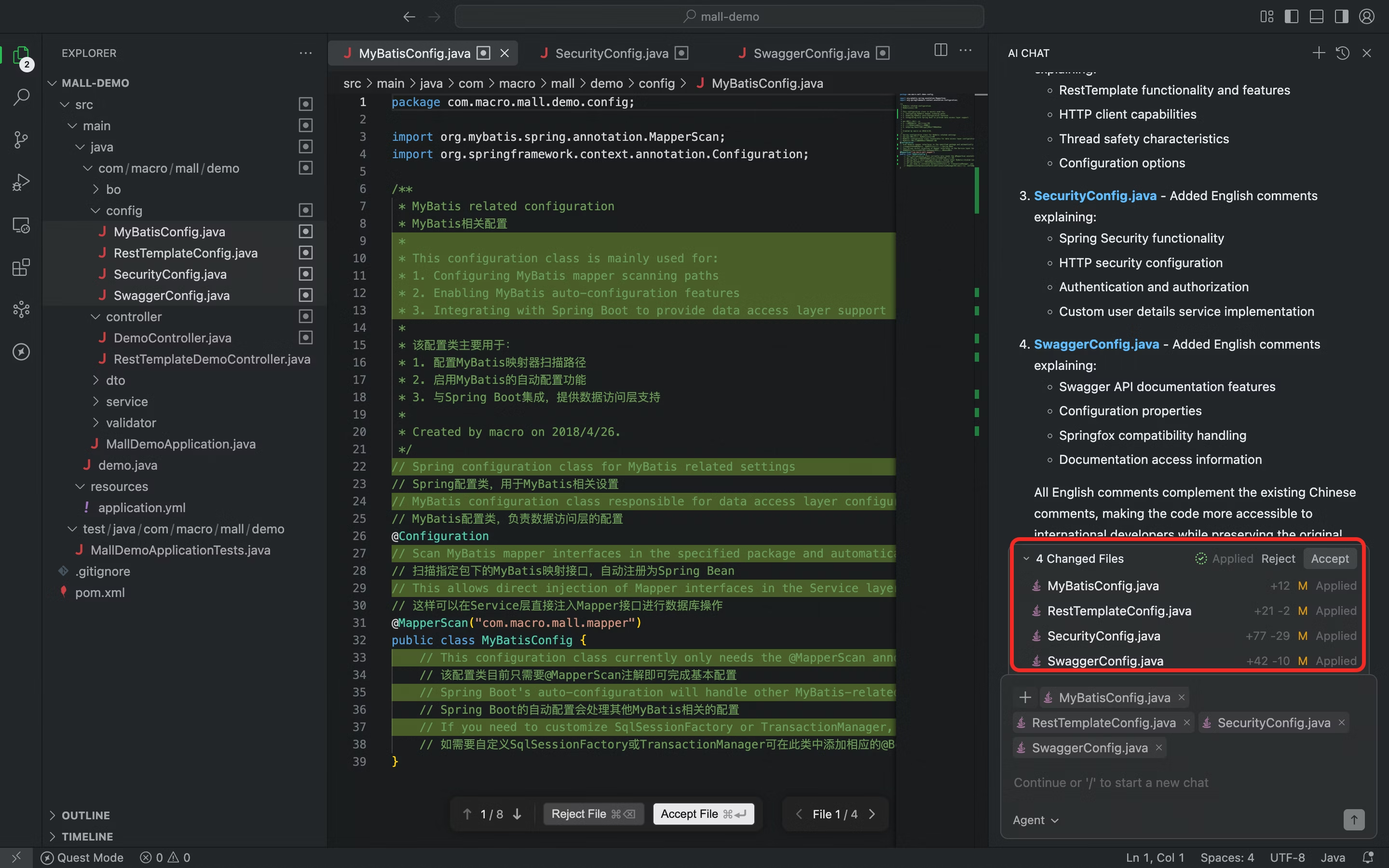
When a task changes multiple files, you can manage these cross-file modifications from the AI Chat panel where the names of all affected files are listed. The following operations are available for multi-file scenarios:
Global operations: Perform batch operations on all files.
Accept: Apply all listed changes in all files.
Reject: Discard all listed changes in all files.
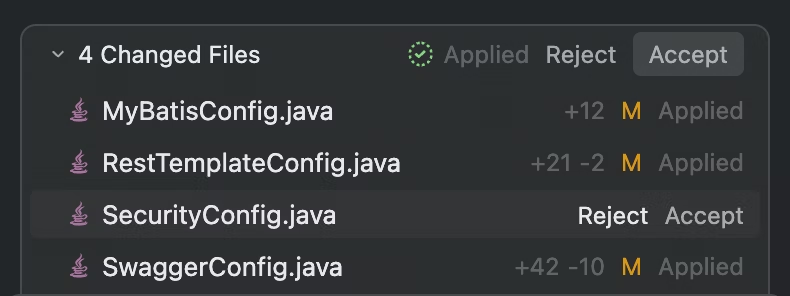
File-level operations
Click a file name: Opens the Diff View for that file.
Hover over a file name to display the Reject and Accept options for that file.
This multi-file navigation makes it easy to manage complex cross-file refactoring.