Configure single sign-on (SSO) for your organization in QoderWork CN and Qoder CN CLI Enterprise Standard. Both SAML 2.0 and OIDC are supported.
Overview
Single sign-on (SSO) lets your organization's members authenticate with your corporate identity provider (IdP) without needing separate Qoder credentials.
-
SAML 2.0: A mature, XML-based standard for enterprise authentication, widely used by IdPs such as Okta, Microsoft Entra ID (formerly Azure AD), OneLogin, and Alibaba Cloud IDaaS.
-
OIDC (OpenID Connect): A modern identity protocol built on OAuth 2.0 with automatic endpoint discovery via a discovery URL. Typical providers include Okta, Microsoft Entra ID, Google Workspace, Auth0, Authing, and Alibaba Cloud RAM.
Benefits of SSO
-
Enhanced security: Centralize authentication through your corporate identity provider.
-
Improved user experience: Access all enterprise applications with a single set of credentials.
-
Simplified user management: Auto-create accounts and add users to your organization on first sign-in from a verified domain.
Choosing a protocol
|
Protocol |
Use case |
|
SAML |
Your IdP supports only SAML; you need IdP-initiated SSO; or you have an existing SAML-based auth system. |
|
OIDC |
Your IdP supports OIDC or OAuth 2.0; you want auto-discovery via a discovery URL; or you prefer lightweight JSON-based integration. |
Only one SSO protocol can be enabled at a time. Disable the current configuration before creating a new one.
Prerequisites
Ensure the following:
-
Administrator permissions: Organization-level administrator access.
-
Identity provider permissions: Ability to create and configure applications in your IdP.
-
DNS access: Ability to add a TXT record to your email domain for verification.
Configuration process
The SSO configuration steps for both SAML and OIDC: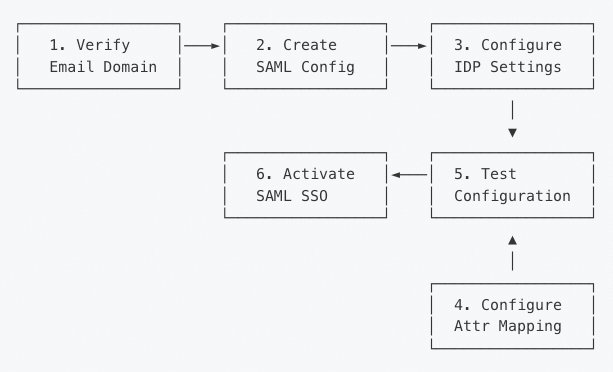
Step 1: Verify your email domain
Verify ownership of your company's email domain so that only users from verified domains can sign in through SSO. Domain verification.
Step 2: Create an SSO configuration
-
As an administrator, go to Organization Settings > Security & Identity.
-
Select SAML Settings or OIDC Settings, depending on your IdP.
SAML
Initialize a SAML configuration. Qoder auto-generates the SP certificate and private key and provides the following values for your IdP setup:
-
SP Entity ID
-
SP Metadata URL
-
SP ACS (Assertion Consumer Service) URL
-
SP Certificate and Private Key
Example SP information:
|
Field |
Example value |
|
SP Entity ID |
|
|
SP Metadata URL |
|
|
SP ACS URL |
|
OIDC
Initialize an OIDC configuration. Qoder generates a Redirect URI and Login URL for registering the application in your IdP. Example SP information:
|
Field |
Example value |
|
Redirect URI |
|
|
Login URL |
|
In your IdP console, create an OAuth 2.0/OIDC application and add the Redirect URI to its allowed redirect URIs. Your IdP issues a client ID and client secret for use in Step 3.
Step 3: Configure IdP
SAML
Configure your SAML IdP using either method:
Method A: Automatic configuration (recommended)
Use this method if your IdP provides a metadata URL:
-
On the SAML Settings page, find the Identity Provider Metadata Configuration section.
-
Select the Import from URL configuration mode.
-
Enter your IdP metadata URL (for example,
https://your-idp.example.com/app/metadata). -
Click Save.
The system retrieves and parses:
-
IDP Entity ID
-
SSO URL
-
Signing certificate
Method B: Manual configuration
Use this method if your IdP does not provide a metadata URL:
-
On the SAML Settings page, select the Manual Configuration mode.
-
Fill in the following fields:
-
IdP Entity ID: The entity identifier of your identity provider.
-
IdP SSO URL: The SSO sign-in endpoint URL.
-
IdP Public Certificate: The PEM-formatted signing certificate (optional, but recommended).
-
-
Click Save.
OIDC
Configure your OIDC IdP using either method:
Method A: Auto-discovery (recommended)
If your IdP exposes a /.well-known/openid-configuration endpoint, use this method:
-
On the OIDC Settings page, select the Issuer URL Auto-Discovery configuration mode.
-
Fill in the following fields:
-
Issuer URL: The issuer address of your IdP (for example,
https://login.company.com,https://oauth.aliyun.com, orhttps://your-tenant.authing.cn/oidc). -
Client ID: The client ID issued to the Qoder application by your IdP.
-
Client Secret: The client secret issued to the Qoder application by your IdP.
-
Scopes: (Optional) Permission scopes to request. Defaults to
openid. Recommended:openid email profile.
-
-
Click Save.
The system retrieves and parses from {issuer URL}/.well-known/openid-configuration:
-
Authorization Endpoint
-
Token Endpoint
-
UserInfo Endpoint
-
JWKS URL (for validating ID token signatures)
-
Supported signing algorithms
Method B: Manual configuration
If your IdP does not support discovery, provide these details manually:
-
Issuer URL, Client ID, Client Secret, Scopes
-
JWKS URL: The JSON Web Key Set URL, used to validate ID token signatures.
-
End Session URL: (Optional) The IdP's session end endpoint to redirect to upon logout.
The openid scope is required. If omitted, the system adds it automatically.
Step 4: Map attributes
SAML
Map SAML attributes to system fields:
Attribute mapping
Use this method if your IdP provides a metadata URL:
-
On the SAML Settings page, scroll to the Attribute Mapping section.
-
Configure the mapping between SAML attributes from your IdP and Qoder user fields.
-
Enter your IDP metadata URL (for example,
https://your-idp.example.com/app/metadata). -
Click Save.
Method B: Manual Configuration
OIDC
-
On the OIDC Settings page, scroll to the Attribute Mapping section.
-
Map OIDC UserInfo claims to system fields:
-
Email Claim: The name of the claim for the user's email, typically
email. (Required) -
Name Claim: The name of the claim for the user's display name, typically
nameornickname. -
OpenID Claim: The unique identifier claim for the user, typically
sub. Theemailcan also be used.
-
-
Click Save.
Email is required: The IdP's UserInfo response must include a valid email address, or authentication fails. Grant the email scope to the Qoder application in your IdP.
Step 5: Test configuration
Test the configuration before enabling SSO:
-
On the SSO configuration page, click Test SSO.
-
The system validates certificates/signatures, metadata endpoints, discovery documents, and attribute mapping.
-
Review the test results.
Step 6: Enable SSO
After all tests pass, enable SSO:
-
On the SSO configuration page, ensure that all validation checks have passed.
-
Turn on the Enable SSO toggle.
-
In the confirmation dialog, review the information and activate.
After activation:
-
The SSO status changes to Active.
-
Members can now sign in using SAML or OIDC SSO.
-
Users from a verified domain are automatically redirected to SSO after entering their email.
After enabling SSO, the administrator who configured it should not sign out. Test the sign-in flow with a different account from a verified domain to ensure admin access remains available for troubleshooting.