A RAM secret is the AccessKey of a RAM user, which consists of an AccessKey ID and an AccessKey Secret. You can use RAM secrets for identity verification when you call Alibaba Cloud APIs to prevent credential leaks from hard-coded AccessKeys. This topic describes how to manage and use RAM secrets.
How it works
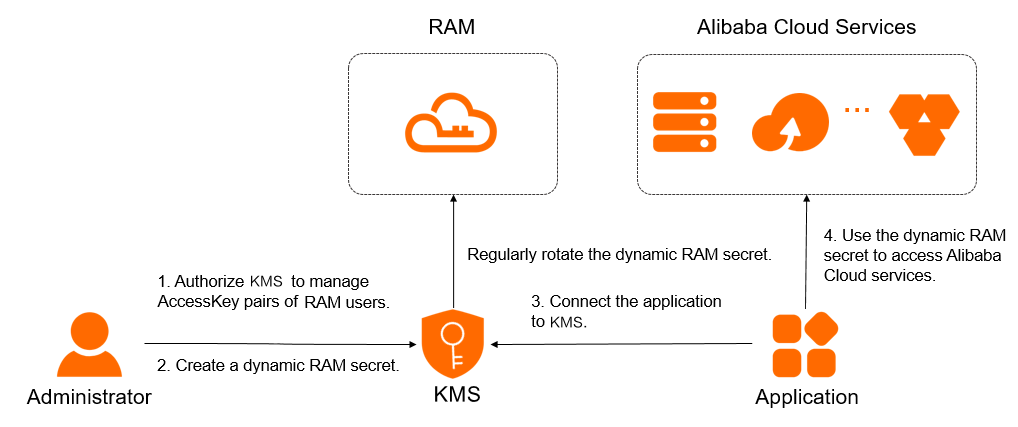
After you store a RAM user's AccessKey as a RAM secret in Key Management Service (KMS), you no longer need to configure the AccessKey in your application. Instead, you can configure the secret name. At runtime, your application can retrieve the current AccessKey by using the secret name. When you rotate the secret, KMS creates a new AccessKey in RAM, writes the new credential to the secret, and then deletes the old AccessKey. This reduces the risk of credential leaks.
Limitations
You can manage AccessKeys only for RAM users. You cannot manage the AccessKeys of Alibaba Cloud accounts.
RAM secret rotation
During rotation, Resource Access Management (RAM) first creates a new AccessKey and then deletes the old one. At the same time, KMS writes the new AccessKey to the secret value and deletes the old secret value. KMS supports the following two rotation methods:
Method | Rotation period | Use cases |
Periodic automatic rotation | About 2 days | Suitable for applications that integrate with and periodically retrieve the RAM secret. We recommend that you set the automatic rotation period to 90 days or less to reduce the risks of AccessKey leaks. |
Immediate rotation | You can set a period from 10 minutes to 2 days. If a RAM secret is leaked, we recommend that you set the period to 30 minutes. In other scenarios, we recommend that you set the period to 2 days. |
|
While a RAM secret is being rotated, do not delete the associated RAM user. This prevents rotation failure.
While a RAM secret is being rotated, you cannot configure a periodic rotation policy or trigger an immediate rotation.
Prerequisites
You have purchased and enabled a KMS instance. For more information, see Purchase and enable a KMS instance.
A symmetric key is created in the KMS instance to encrypt the secret. For more information, see Create a key.
If you use a RAM user or a RAM role, attach the
AliyunKMSSecretAdminAccessandAliyunRAMReadOnlyAccesssystem policies to the RAM user or RAM role. For more information, see Grant permissions to a RAM user or Grant permissions to a RAM role.
Step 1: Grant KMS permission to manage AccessKeys
To use RAM secrets, you must authorize KMS to access the AccessKeys. This allows KMS to manage RAM secrets and perform tasks such as secret rotation.
Follow these steps to grant the permissions:
Log on to the Key Management Service console. In the top navigation bar, select a region. In the left-side navigation pane, choose .
Click the RAM Secrets tab. Select an Instance ID and click Create Secret.
On the page for creating a RAM secret, click Authorize KMS to access AccessKey pairs. to go to the Cloud Resource Access Authorization page.
On the Cloud Resource Access Authorization page, click Agree to Authorization.
WarningIf you are a RAM user or use a RAM role, ask an administrator (such as the Alibaba Cloud account owner or a RAM user with resource management permissions) to use the link to complete the authorization.
After the authorization is complete, the system automatically creates the AliyunKMSManageRAMCredentialsRole service-linked role and attaches the AliyunKMSManageRAMCredentialsRolePolicy permission policy to the role. KMS uses this role to manage your RAM secrets and perform tasks such as secret rotation.
You can log on to the RAM console to view the details of service-linked roles and permission policies. For more information, see View a RAM role and View permission policy details.
Step 2: Create a RAM secret
Log on to the Key Management Service console. In the top navigation bar, select a region. In the left-side navigation pane, choose .
Click the RAM Secrets tab. Select an Instance ID and click Create Secret. If the Authorize KMS to access AccessKey pairs. message appears, complete the authorization as prompted. For more information, see Step 1: Grant KMS permission to manage AccessKeys.
Configure the parameters for the RAM secret and click OK. The following table describes the parameters.
Parameter
Description
Select RAM User
Select the RAM user whose credential you want to manage. The user must have at least one AccessKey pair. The credential name is automatically generated based on the RAM username.
If the user does not have an AccessKey pair, create one first.
Secret Value
Enter the AccessKey secret. The value must be up to 30,720 bytes (30 KB) in length.
CMK
Select the symmetric key used to encrypt the credential value. The key and the credential must belong to the same KMS instance.
ImportantThe key and the credential must belong to the same KMS instance, and the key must be a symmetric key. For more information about the symmetric keys supported by KMS, see Key types and specifications.
If a RAM user or RAM role is used, it must have permissions to perform the GenerateDataKey operation using the encryption master key.
Automatic Rotation
Select whether to enable automatic rotation. When enabled, KMS periodically updates the credential value to reduce the risk of credential leaks.
Days (7 Days to 365 Days)
Set this parameter only when automatic rotation is enabled. Specifies the rotation interval.
Description
An optional description of the credential for identification and management.
Set the access policy for the credential to control which RAM users or roles can read or modify it.
You can select the default policy first and modify it later as needed.
Step 3: Integrate the RAM secret
KMS provides multiple methods, such as Secret Client, KMS Instance SDK, Alibaba Cloud SDK, and KMS Agent, to call the GetSecretValue (OpenAPI) or GetSecretValue (KMS Instance API) (not recommended) operation to retrieve RAM secrets.
We recommend that you implement an error retry mechanism to improve service stability.
KMS supports multiple authentication methods. For higher security, we recommend that you use an ECS instance RAM role or a RAM role.
Endpoints:
For a shared gateway, see Endpoints.
For a dedicated gateway, use the following format:
{Instance-ID}.cryptoservice.kms.aliyuncs.com.
Method | Use cases | Gateway types |
|
| |
Your application is developed in Java 8 or later, Go, Python, Node.js. |
| |
Your application is developed in Java 6 or later, PHP, Go, Python, .NET (C# only), C++, or Node.js. |
| |
|
| |
KMS Instance SDK (not recommended) | Your application is developed in Java 8 or later, PHP, Go, Python, or .NET (C# only). | Dedicated gateway |
More operations
RAM secret rotation
Log on to the Key Management Service console. In the top navigation bar, select a region. In the left-side navigation pane, choose .
Click the RAM Secrets tab. Select an Instance ID. Find the secret that you want to rotate and click Details in the Actions column.
On the secret details page, configure a rotation policy for the secret.
Periodic automatic rotation: In the upper-right corner of the page, click Configure Rotation, enable or disable automatic rotation, and then click OK.
Immediate rotation: In the upper-right corner of the page, click Rotate Now. In the Configure Rotation dialog box, set the Rotation Window to a value from 10 minutes to 2 days and click OK.
RAM secret deletion
Deleting a RAM secret removes it only from Secrets Manager. The corresponding AccessKey of the RAM user is not deleted from RAM.
Before you delete a secret, make sure that the secret is no longer in use. Otherwise, your business may be affected.
Log on to the Key Management Service console. In the top navigation bar, select a region. In the left-side navigation pane, choose .
Click the tab. Select an Instance ID. Find the secret that you want to delete and click Schedule Deletion in the Actions column.
In the Schedule Deletion dialog box, select a deletion method for the secret and click OK.
Schedule Deletion: Specify a recovery period of 7 to 30 days. The system deletes the secret after the recovery period ends.
Delete Immediately: The system immediately deletes the secret.
During the recovery period, you can find the secret and click Cancel Deletion in the Actions column to cancel the deletion.
Configure credential tags
You can assign tags to credentials to organize and manage them. Each tag consists of a key-value pair (Key : Value), including a tag key (Key) and a tag value (Value).
Tag usage notes
A tag key or tag value can contain up to 128 characters, including letters, digits, forward slashes (/), backslashes (\), underscores (_), hyphens (-), periods (.), plus signs (+), equal signs (=), colons (:), at signs (@), and spaces.
A tag key cannot start with aliyun or acs:. This restriction does not apply to tag values.
Each credential can have up to 20 tags.
Procedures
Tag a single credential
Log on to the Key Management Service console. In the top navigation bar, select a region. In the left-side navigation pane, choose .
Click the tab for the corresponding credential type, select a Instance ID, and locate the target credential.
Open the tag editor using one of the following methods:
Method 1: In the credential list, click the
 icon in the Tags column for the target credential.
Method 2: Click Actions > Details to go to the credential details page, then click the
 icon next to Tag.
Tag multiple credentials in bulk
Log on to the Key Management Service console. In the top navigation bar, select a region. In the left-side navigation pane, choose .
Click the tab for the corresponding credential type, select a Instance ID, and select the credentials to operate on from the credential list.
Add tags: At the bottom of the credential list, click Add Tag, enter the Tag Key and Tag Value, and click OK.
Delete tags: At the bottom of the credential list, click Remove Tag, select the tags to unbind in the Batch Remove dialog box, click Cancel, and then click Close in the confirmation dialog box.
Check associated account
The account check feature verifies that the RAM user for a RAM secret still exists in RAM. It also confirms that the AccessKey ID stored in the secret matches the RAM user's current AccessKey ID.
Log on to the Key Management Service console. In the top navigation bar, select a region. In the left-side navigation pane, choose .
Click the tab. Select an Instance ID. Find the desired secret and click Details in the Actions column.
In the Versions section, click Check Account and view the verification result.
Security recommendations
Using KMS to manage RAM secrets prevents you from storing an AccessKey ID and AccessKey secret in plaintext or hard-coding them in your application.
It is recommended to configure AccessKey network ACL policy, allowing only trusted IP addresses to invoke them. KMS credential management addresses storage security concerns, while IP whitelisting restricts the source of API calls. Using both measures together establishes a dual-layer security defense.