Before making API requests to a Key Management Service (KMS) instance, initialize the Go client by creating a client object and configuring the CA certificate.
Prerequisites
Before you begin, ensure that you have:
A KMS instance (Software Key Management or Hardware Key Management)
A ClientKey file (
clientKey_****.json) and its password file (clientKey_****_Password.txt), downloaded when you created the ClientKeyThe CA certificate of your KMS instance (
PrivateKmsCA_kst-******.pem), downloaded from the instance details page
Create a client object
Two methods are available. Use the ClientKey file path for most production deployments. Use the ClientKey content if your application loads credentials from a secrets manager or environment variable at runtime.
Method 1: ClientKey file path
import (
    dedicatedkmsopenapi "github.com/aliyun/alibabacloud-dkms-gcs-go-sdk/openapi"
    dedicatedkmssdk "github.com/aliyun/alibabacloud-dkms-gcs-go-sdk/sdk"
    "github.com/alibabacloud-go/tea/tea"
)

// getDkmsClientByClientKeyFile creates a KMS instance SDK client using
// the ClientKey file path.
func getDkmsClientByClientKeyFile() *dedicatedkmssdk.Client {
    config := &dedicatedkmsopenapi.Config{
        // KMS instance service only allows HTTPS.
        Protocol: tea.String("https"),
        // Path to the ClientKey file (clientKey_****.json).
        ClientKeyFile: tea.String("<CLIENT_KEY_FILE>"),
        // Password for the ClientKey (from clientKey_****_Password.txt).
        Password: tea.String("<CLIENT_KEY_PASSWORD>"),
        // Endpoint format: <KMS_INSTANCE_ID>.cryptoservice.kms.aliyuncs.com
        Endpoint: tea.String("<ENDPOINT>"),
    }
    client, err := dedicatedkmssdk.NewClient(config)
    if err != nil {
        panic(err)
    }
    return client
}
Method 2: ClientKey content
import (
    dedicatedkmsopenapi "github.com/aliyun/alibabacloud-dkms-gcs-go-sdk/openapi"
    dedicatedkmssdk "github.com/aliyun/alibabacloud-dkms-gcs-go-sdk/sdk"
    "github.com/alibabacloud-go/tea/tea"
)

// getDkmsClientByClientKeyContent creates a KMS instance SDK client using
// the ClientKey file content directly.
func getDkmsClientByClientKeyContent() *dedicatedkmssdk.Client {
    config := &dedicatedkmsopenapi.Config{
        // KMS instance service only allows HTTPS.
        Protocol: tea.String("https"),
        // Content of the ClientKey file.
        ClientKeyContent: tea.String("<CLIENT_KEY_CONTENT>"),
        // Password for the ClientKey (from clientKey_****_Password.txt).
        Password: tea.String("<CLIENT_KEY_PASSWORD>"),
        // Endpoint format: <KMS_INSTANCE_ID>.cryptoservice.kms.aliyuncs.com
        Endpoint: tea.String("<ENDPOINT>"),
    }
    client, err := dedicatedkmssdk.NewClient(config)
    if err != nil {
        panic(err)
    }
    return client
}
Replace the following placeholders:
| Placeholder | Description | Where to find it |
|---|---|---|
<CLIENT_KEY_FILE> | Path to the ClientKey file on disk | Default filename: clientKey_****.json |
<CLIENT_KEY_CONTENT> | Content of the ClientKey file | Read from the downloaded clientKey_****.json |
<CLIENT_KEY_PASSWORD> | Password for the ClientKey | Default filename: clientKey_****_Password.txt |
<ENDPOINT> | Domain address of the KMS instance | See Get the endpoint below |
Configure the CA certificate
Pass the CA certificate to RuntimeOptions so the SDK can verify the server's SSL/TLS certificate.
Always configure the CA certificate in production. To skip verification during offline testing only, set IgnoreSSL: true in RuntimeOptions.
import (
    dedicatedkmsopenapiutil "github.com/aliyun/alibabacloud-dkms-gcs-go-sdk/openapi-util"
    "github.com/alibabacloud-go/tea/tea"
    "io/ioutil"
)

// Read the CA certificate file and assign it to RuntimeOptions.
ca, err := ioutil.ReadFile("path/to/caCert.pem")
if err != nil {
    panic(err)
}
runtimeOptions := &dedicatedkmsopenapiutil.RuntimeOptions{
    Verify: tea.String(string(ca)),
}
Get the endpoint
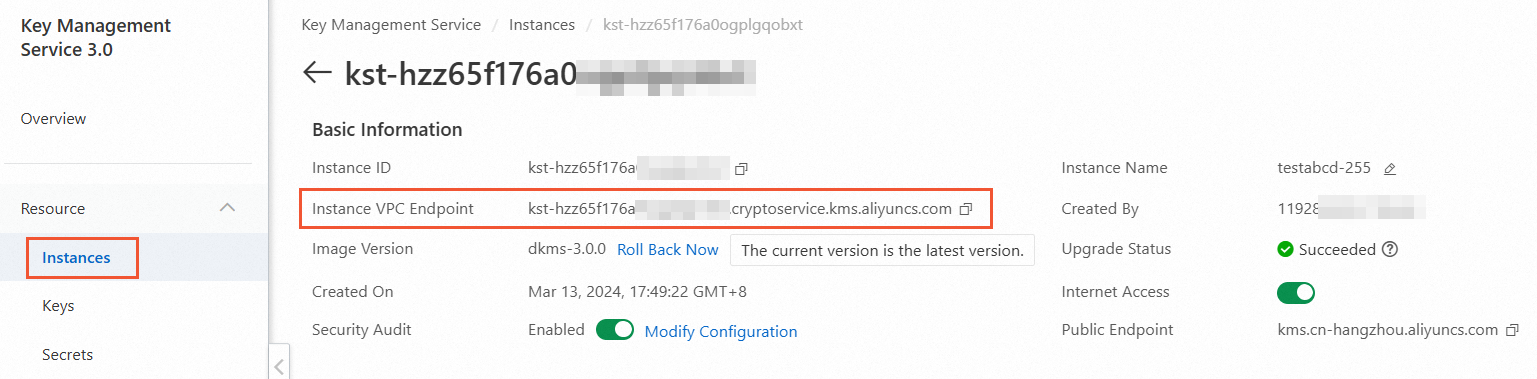
The endpoint is the dedicated gateway domain address of the KMS instance, in the format <KMS_INSTANCE_ID>.cryptoservice.kms.aliyuncs.com.
To find the endpoint:
Go to the Instances page, then click the Software Key Management or Hardware Key Management tab.
Click the target instance.
In the Basic Information section, copy the value in the Instance VPC Endpoint field.
Download the CA certificate
The CA certificate is associated with your KMS instance and is required for SSL/TLS verification.
To download the certificate:
Go to the Instances page, then click the Software Key Management or Hardware Key Management tab.
Click the instance ID or Details in the Actions column.
On the details page, click download next to Instance CA Certificate.
The downloaded file is named PrivateKmsCA_kst-******.pem by default. Store it securely.

What's next
With the client initialized, use the client object and runtimeOptions to call KMS instance SDK operations, such as encrypting data or generating data keys.