When you integrate Key Management Service (KMS) with the instance SDK, KMS uses application access points (AAPs) for identity authentication and access control. An AAP bundles a permission policy with credentials — the client key authenticates your application's identity when it accesses KMS resources. This topic describes how to create a client key.
Usage notes
Create a separate AAP for each application to maintain distinct access permissions.
Client keys are valid for five years by default. Set the validity period to one year to reduce the risk of credential leaks. Replace the client key before it expires to maintain continuous KMS access. For instructions, see Replace ClientKey.
Choose a creation method
| Method | Best for | Access scope |
|---|---|---|
| Quick creation | Testing and development | Full access to all keys and secrets in the KMS instance |
| Standard creation (recommended) | Production environments | Granular control — define exactly which keys and secrets the application can access |
Quick creation
Log on to the KMS console. In the top navigation bar, select a region. In the left navigation pane, choose Application Access > AAPs.
On the Application Access tab, click Create AAP. In the Create AAP panel, configure the following parameters.
Parameter Description Mode Select Quick Creation. Scope (KMS Instance) Select the KMS instance to access. Application Access Point Name Enter the AAP name. Authentication Method Defaults to ClientKey. This value cannot be changed. Default Permission Policy Defaults to key/*secret/*. This value cannot be changed. The application can access all keys and secrets in the specified KMS instance.Click OK. The browser automatically downloads the client key.
The client key consists of two files: Application Access Secret(ClientKeyContent), saved as clientKey_**.json`, and Password, saved as `clientKey_**_Password.txt.
Standard creation
Standard creation involves three sequential steps: create a network access rule (optional but recommended), create a permission policy, then create the AAP.
Steps 1 and 2 are typically performed by a security admin. Step 3 is performed by the application developer.
Step 1: Create a network access rule (security admin)
If you want to control access based on source IP addresses, create a network access rule. For enhanced security, we recommend setting up network access rules.
Log on to the KMS console. In the top navigation bar, select a region. In the left navigation pane, choose Application Access > AAPs.
Click the Network Access Rules tab, then click Create Network Access Rule.
In the Create Network Access Rule panel, configure the following parameters and click OK.
Parameter Description Rule Name Enter the rule name. Network Type Select Private. Allowed Source IP Addresses Enter the IP addresses allowed to access the KMS instance. If your application uses a proxy server, enter the proxy IP. Description Enter a description for the rule.
Step 2: Create a permission policy (security admin)
Click the Policies tab, then click Create Policy.
In the Create Permission Policy panel, configure the following parameters and click OK.
Parameter Description Policy Name Enter the policy name. Scope Select the KMS instance. RBAC Permissions Select the permissions to grant: CryptoServiceKeyUser (use keys), CryptoServiceSecretUser (use secrets). Accessible Resources Select the keys and secrets the application needs to access. If you select multiple secrets and their combined name length exceeds the limit, an "Invalid Parameter" error appears. Use a wildcard instead — for example, secret/rds-ibm*grants access to all secrets prefixed withrds-ibm.Network Access Rules Select the network access rule created in step 1. Description Enter a description for the policy.
Step 3: Create an AAP (developer)
Click the Application Access tab, then click Create AAP.
In the Create AAP panel, configure the following parameters.
Parameter Description Mode Select Standard Creation. Application Access Point Name Enter the AAP name. Authentication Method Select ClientKey. Encryption Password Enter a password for the client key. Must be 8–64 characters and include at least two of: numbers, uppercase letters, lowercase letters, or special characters ~!@#$%^&*?_-.Validity Period Set to one year to reduce the risk of credential leaks. Replace the client key before it expires — see Replace ClientKey. Policies Select the permission policy created in step 2. Description Enter a description for the AAP. Click OK. The browser automatically downloads the client key.
The client key consists of two files: Application Access Secret(ClientKeyContent), saved as clientKey_**.json`, and Password, saved as `clientKey_**_Password.txt.
What to save
After creating the client key, securely store the following items before integrating the SDK. Think of ClientKeyContent as your application's username — it identifies who is connecting — and the Password as the secret that protects it.
ClientKeyContent
The clientKey_****.json file contains your application's identity credentials. The SDK uses this file for authentication.
Password
The clientKey_****_Password.txt file contains the password that protects the client key file.
KMS instance CA certificate
On the Instances page, locate the Instance CA Certificate field and click Download.
In the Instance CA Certificate dialog box, select the instance ID, click Download, and store the file securely.
The default filename is PrivateKmsCA_kst-******.pem.
KMS instance endpoint
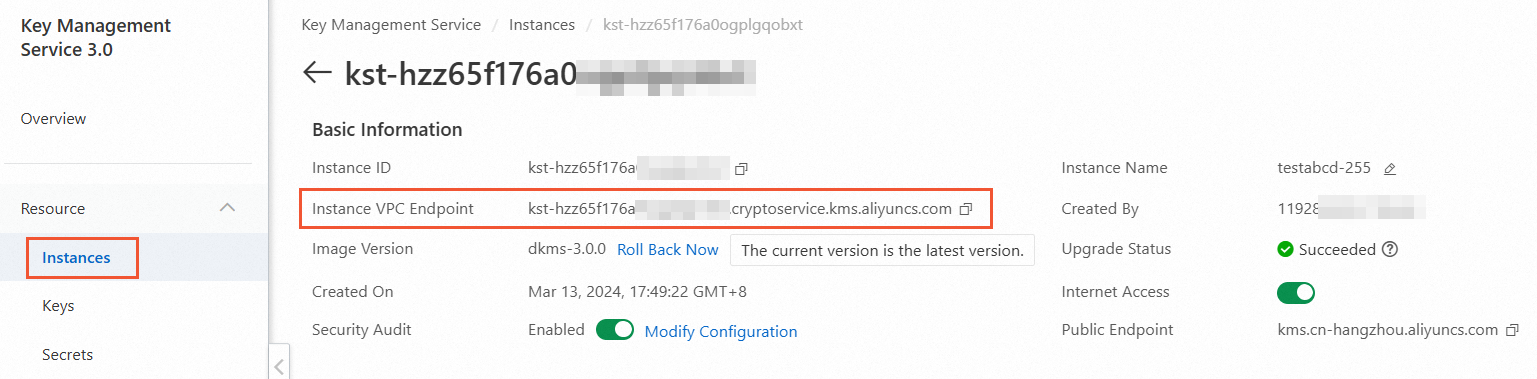
On the Instances page, click the Software Key Management or Hardware Key Management tab, then click the KMS instance.
In the Basic Information section, copy the endpoint from the Instance VPC Endpoint field.
What's next
After saving all required files, configure the SDK to use the client key. For integration instructions, see the KMS instance SDK documentation.