IoT Platform supports HTTPS-based device connections only in the China (Shanghai) region. HTTPS is available only for device-to-cloud data reporting. Only the POST method is supported, and a device can report a maximum of 128 KB of data at a time.
Background information
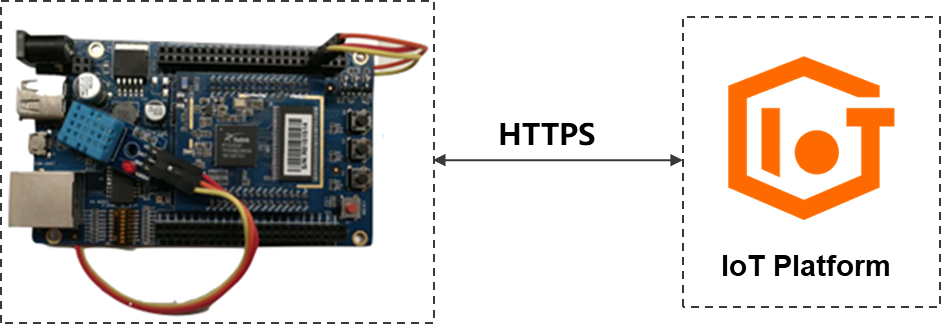
An environmental sensor is used as an example to show how to connect a device to IoT Platform over HTTPS and report data.
Create a product and add a device
Create a product and a device in the IoT Platform console, define a Thing Specification Language (TSL) model, and obtain the device certificate information, including ProductKey, DeviceName, and DeviceSecret.
- Log on to the IoT Platform console.
On the Overview page, find the instance that you want to manage and click the instance ID or instance name.
- In the left-side navigation pane, choose . On the Products page, click Create Product to create a product.
Parameter Description Product Name The name of the product. [DO NOT TRANSLATE] [DO NOT TRANSLATE] Node Type Select Directly Connected Device. Network Connection Method Select Wi-Fi. Data Type Select ICA Standard Data Format (Alink JSON). Authentication Mode Select Device Secret. - After the product is created, click Create TSL.
- On the Define Feature tab of the Product Details page, choose to add properties.
Because the environmental sensor reports temperature and humidity data, add the following properties.
Feature type Feature name Identifier Data type Value range Step Read/write type Property Temperature temperature int32 -10 to 50 1 Read-only Property Humidity humidity int32 1 to 100 1 Read-only - After the TSL model is created, click Release Online to publish the TSL model.
- In the left-side navigation pane, click Devices and click Add Device to add a device to the product.
After the device is added, obtain the values of ProductKey, DeviceName, and DeviceSecret parameters.
Send data from a device to a topic
Use HTTPS POST requests to report temperature and humidity data from the device to IoT Platform.
- Obtain a device token.
Before reporting data, a device must be authenticated by IoT Platform. After successful authentication, a device token is returned. This token is required for subsequent data reporting.
The following table describes the parameters required to obtain a device token.
Parameter Description method The request method. Set this parameter to POST. uri Specify https://iot-as-http.cn-shanghai.aliyuncs.com/auth. productKey The product key. Obtain this value from the Device Details page in the IoT Platform console. deviceName The device name. Obtain this value from the Device Details page in the IoT Platform console. clientId The client ID, which can be up to 64 characters in length. You can use the MAC address or serial number of the device. In the following sample code, the random() function generates a random ID. timestamp The timestamp. In the following sample code, the now() function obtains the current timestamp. signmethod The signature algorithm. Valid values: hmacmd5 and hmacsha1. sign The signature, generated by the following function. password = signHmacSha1(params, deviceConfig.deviceSecret)The following code shows how to obtain a device token.
var rp = require('request-promise');
const crypto = require('crypto');

const deviceConfig = {
    productKey: "<yourProductKey>",
    deviceName: "<yourDeviceName>",
    deviceSecret: "<yourDeviceSecret>"
}

//Obtain a token.
rp(getAuthOptions(deviceConfig))
    .then(function(parsedBody) {
        console.log('Auth Info :',parsedBody)
    })
    }).catch(function (err) {
        console.log('Auth err :'+JSON.stringify(err))
    });

//Specify the required parameters for authentication.
function getAuthOptions(deviceConfig) {

    const params = {
        productKey: deviceConfig.productKey,
        deviceName: deviceConfig.deviceName,
        timestamp: Date.now(),
        clientId: Math.random().toString(36).substr(2),
    }

    //Specify the required parameters.
    var password = signHmacSha1(params, deviceConfig.deviceSecret);

    var options = {
        method: 'POST',
        uri: 'https://iot-as-http.cn-shanghai.aliyuncs.com/auth',
        "body": {
            "version": "default",
            "clientId": params.clientId,
            "signmethod": "hmacSha1",
            "sign": password,
            "productKey": deviceConfig.productKey,
            "deviceName": deviceConfig.deviceName,
            "timestamp": params.timestamp
        },
        json: true
    };

    return options;
}

//HmacSha1 sign
function signHmacSha1(params, deviceSecret) {

    let keys = Object.keys(params).sort();
    // Sort parameters in the alphabetical order.
    keys = keys.sort();
    const list = [];
    keys.map((key) => {
        list.push(`${key}${params[key]}`);
    });
    const contentStr = list.join('');
    return crypto.createHmac('sha1', deviceSecret).update(contentStr).digest('hex');
}
After you configure the parameters, run the code to initiate device authentication. If the authentication succeeds, a device token is returned.$ node device-https.js Auth Info : { code: 0, info: { token: '3bf8d66a6afxxxxxxxxxxxxxxxxxxxb40139' }, message: 'success' }Note A device token expires after seven days. Make sure that your application handles token renewal before expiration. - Report data from the device.
After authentication, use the returned token as the password parameter for data reporting requests.
The following table describes the parameters required to report data.
Parameter Description method The request method. Set this parameter to POST. uri The syntax is https://iot-as-http.cn-shanghai.aliyuncs.com/topic + topic. The URL consists of the HTTP endpoint of IoT Platform and the name of a topic.The second topic specifies the name of a topic of the following syntax:/sys/${deviceConfig.productKey}/${deviceConfig.deviceName}/thing/event/property/postbody The data to report. password The device token. Content-Type The content type. Set this parameter to application/octet-stream. The following code shows how to report data from a device.
const topic = `/sys/${deviceConfig.productKey}/${deviceConfig.deviceName}/thing/event/property/post`;
//Report data.
pubData(topic, token, getPostData())

function pubData(topic, token, data) {

    const options = {
        method: 'POST',
        uri: 'https://iot-as-http.cn-shanghai.aliyuncs.com/topic' + topic,
        body: data,
        headers: {
            password: token,
            'Content-Type': 'application/octet-stream'
        }
    }

    rp(options)
        .then(function(parsedBody) {
            console.log('publish success :' + parsedBody)
        })
        .catch(function(err) {
            console.log('publish err ' + JSON.stringify(err))
        });

}
// Create test data that conforms to the TSL model.
function getPostData() {
    var payloadJson = {
        id: Date.now(),
        params: {
            humidity: Math.floor((Math.random() * 20) + 60),
            temperature: Math.floor((Math.random() * 20) + 10)
        },
        method: "thing.event.property.post"
    }

    console.log("===postData\n topic=" + topic)
    console.log(payloadJson)

    return JSON.stringify(payloadJson);
}
After you configure the parameters, run the code to report data. You can view the results in the local logs.$ node device-https.js Auth Info : { code: 0, info: { token: 'd12xxx8f41c6d' }, message: 'success' } ===postData topic=/sys/a1xxx/no3xxx222/thing/event/property/post { id: 1564478683170, params: { humidity: 69To verify the reported data, log on to the IoT Platform console, go to the Device Details page, and then check the Status tab. If the temperature and humidity data are displayed, the device is connected and reporting data successfully.
For more information about HTTPS communication, see Connect and communicate over HTTPS.