This topic uses an RTMP input as an example to walk you through the basic MediaLive workflow: creating a security group, configuring an input and channel, and obtaining ingest and streaming URLs.
Preparations
Configure MediaPackage. For more information, see MediaPackage.
NoteMediaLive supports only MediaPackage as the output destination, so you must configure MediaPackage before using MediaLive.
Procedure
Step 1: Create a security group
PUSH input types receive external streams into MediaLive and require a security group. Create one before configuring the input.
Log on to the IMS console. In the upper-left corner, select a region based on your business requirements.
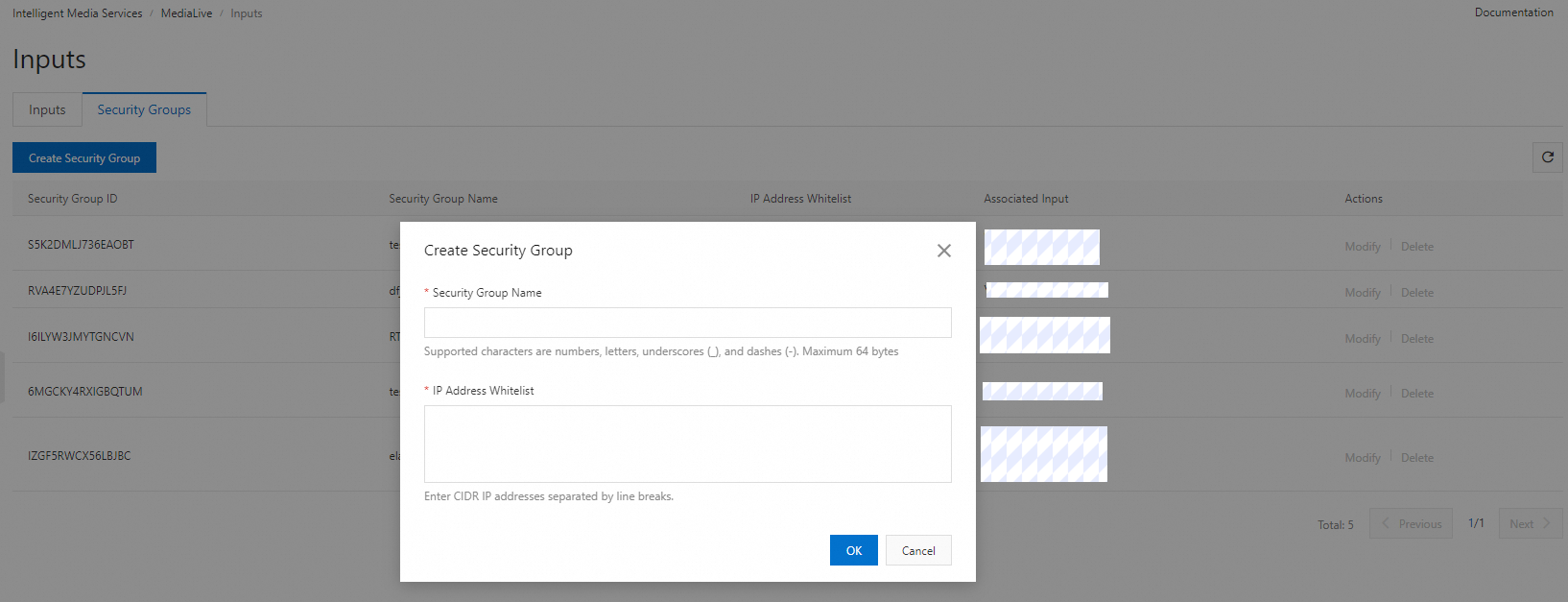
In the left-side navigation pane, choose MediaLive > Inputs. On the Inputs page, click the Security Groups tab, and click Create Security Group. Configure the parameters in the following image.
Examples:
Security Group Name: SecurityLee
IP Address Whitelist: Specify CIDR blocks in the format of 0.0.0.0/0. In this example, no CIDR blocks are specified.
Click OK.
Step 2: Create an input
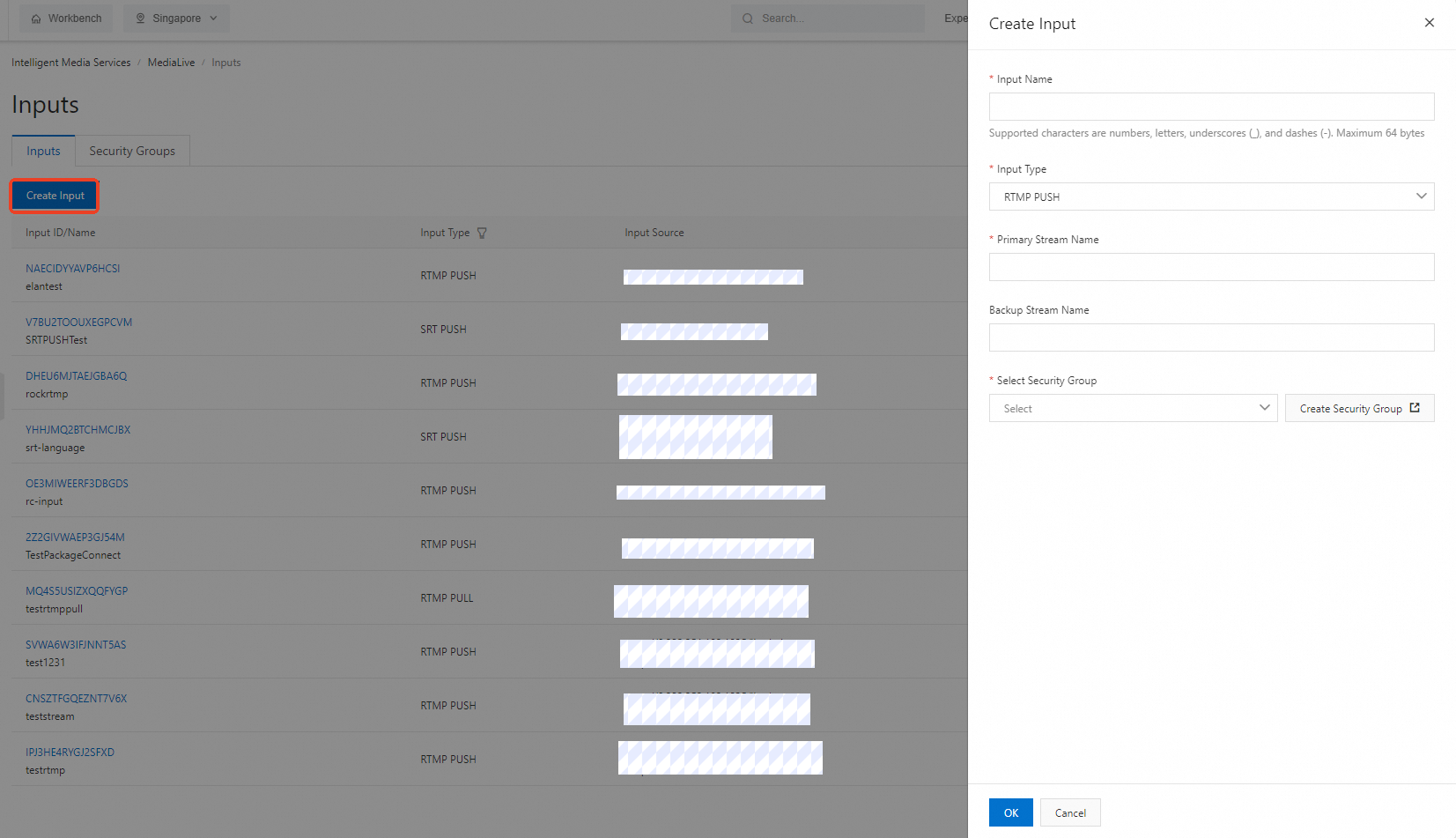
On the Inputs page, click the Inputs tab. Then, click Create Input. In the panel that appears, configure the parameters.
Examples:
Input Name: InputLee
Input Type: RTMP PUSH
Primary Stream Name: MainStream
Select Security Group: SecurityLee
After you configure the parameters, click OK.
Step 3: Create a channel
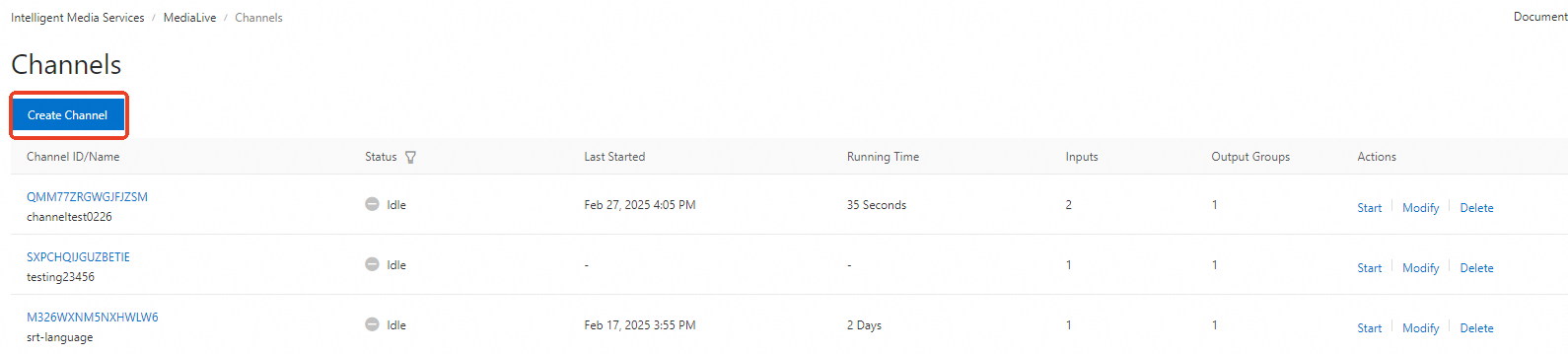
In the left-side navigation pane, choose MediaLive > Channels. On the Channels page, click Create Channel.
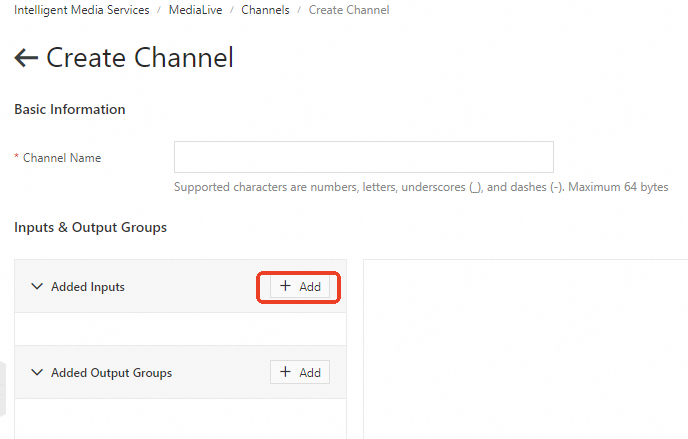
Specify Channel Name, click Add next to Added Inputs.
Examples:
Channel Name: ChannelLee
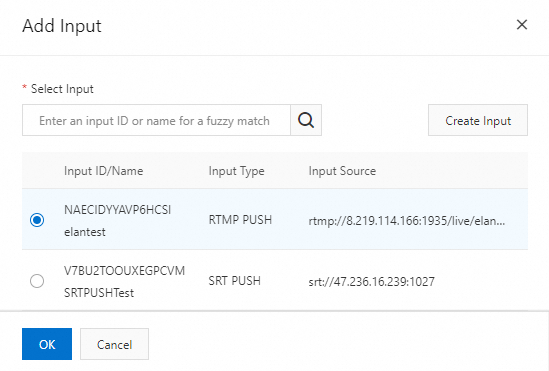
In the Add Input panel that appears, enter the name of the created input in the Select Input search box and click the search icon. Select the input and click OK.
NoteIf you have not created an input, you can create one in this step. For more information, see Step 2: Create an input.
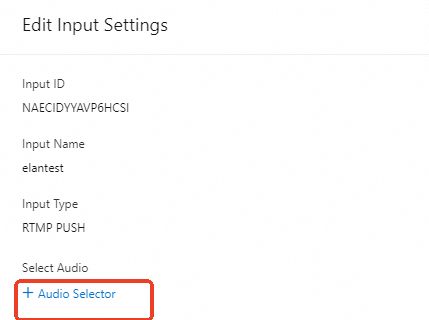
In the Edit Input Settings panel that appears, the Input ID, Input Name, and Input Type parameters are displayed. You can also configure Audio Selector.
 Note
NoteAudio selectors are optional. RTMP inputs support only one audio selector. If you do not configure an audio selector, the source audio settings are used.
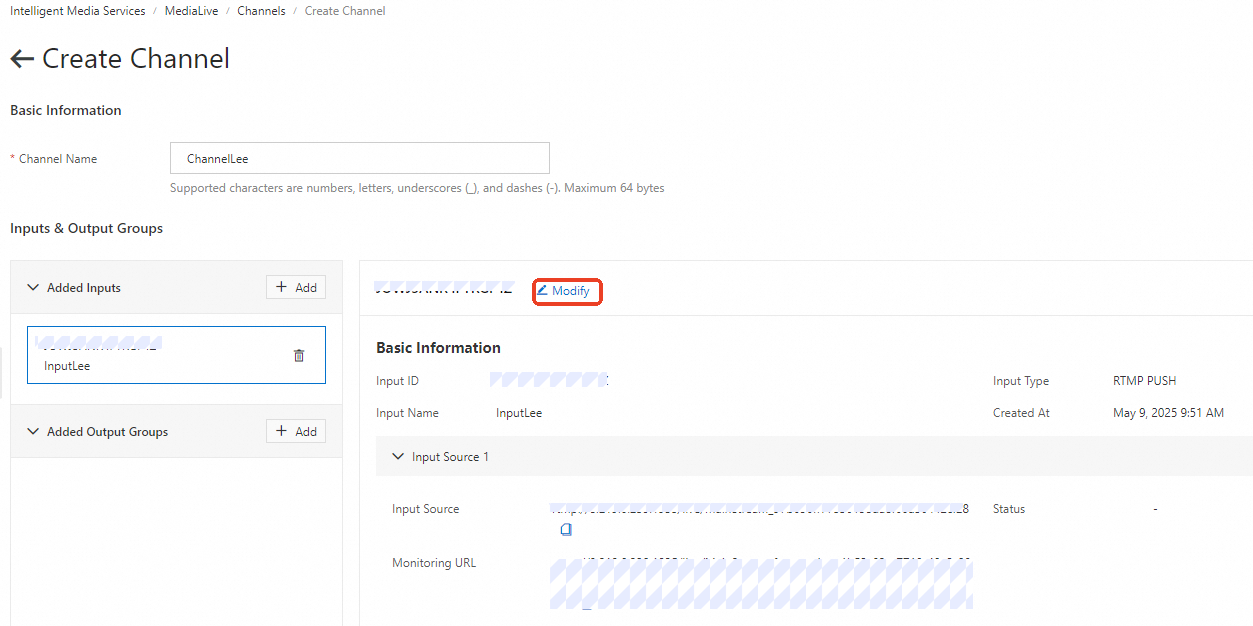
Click OK to add the input to the channel. You can click Modify to modify the information about the added input.
 Note
NoteRecord the system-generated URL in the Input Source field. You will use this URL to ingest streams.
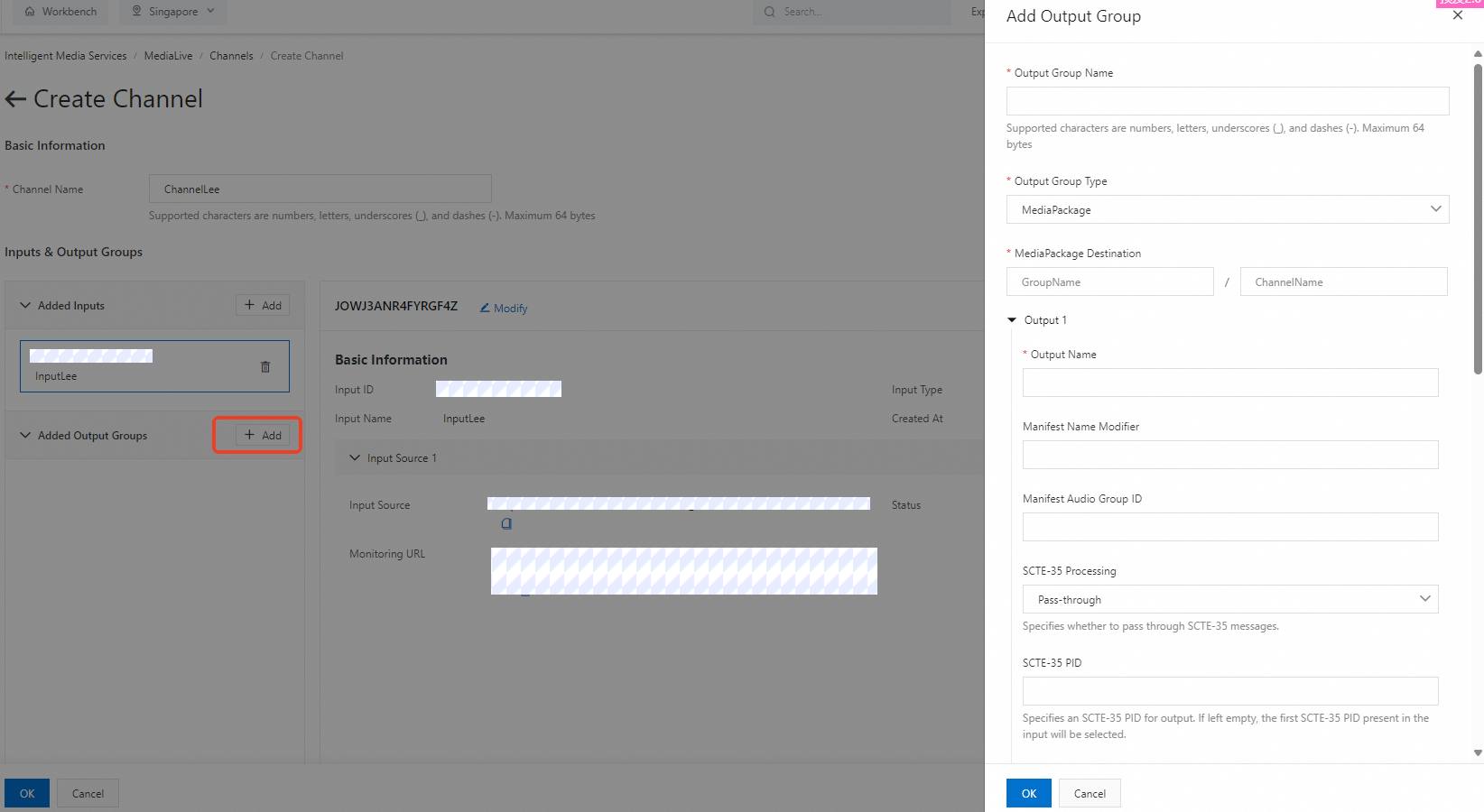
Click Add next to Added Output Groups. In the Add Output Group panel that appears, configure the parameters.
Examples:
Output Group Name: OutputLee
Output Group Type: MediaPackage
MediaPackage Destination:
GroupName: ChannelGroup (MediaPackage channel group).
ChannelName: ChannelOne (MediaPackage channel).
Output Name: Outone
Manifest Name Modifier: MFone
Manifest Audio Group ID: MFGone
Media Type: Audio and Video
Video Output Name: OutVideo
Audio Output Name: OutAudio
NoteParameters without a red asterisk (*) are optional. If left empty, the source values are used by default.
After you configure the parameters, click OK.
Click OK to create the channel.
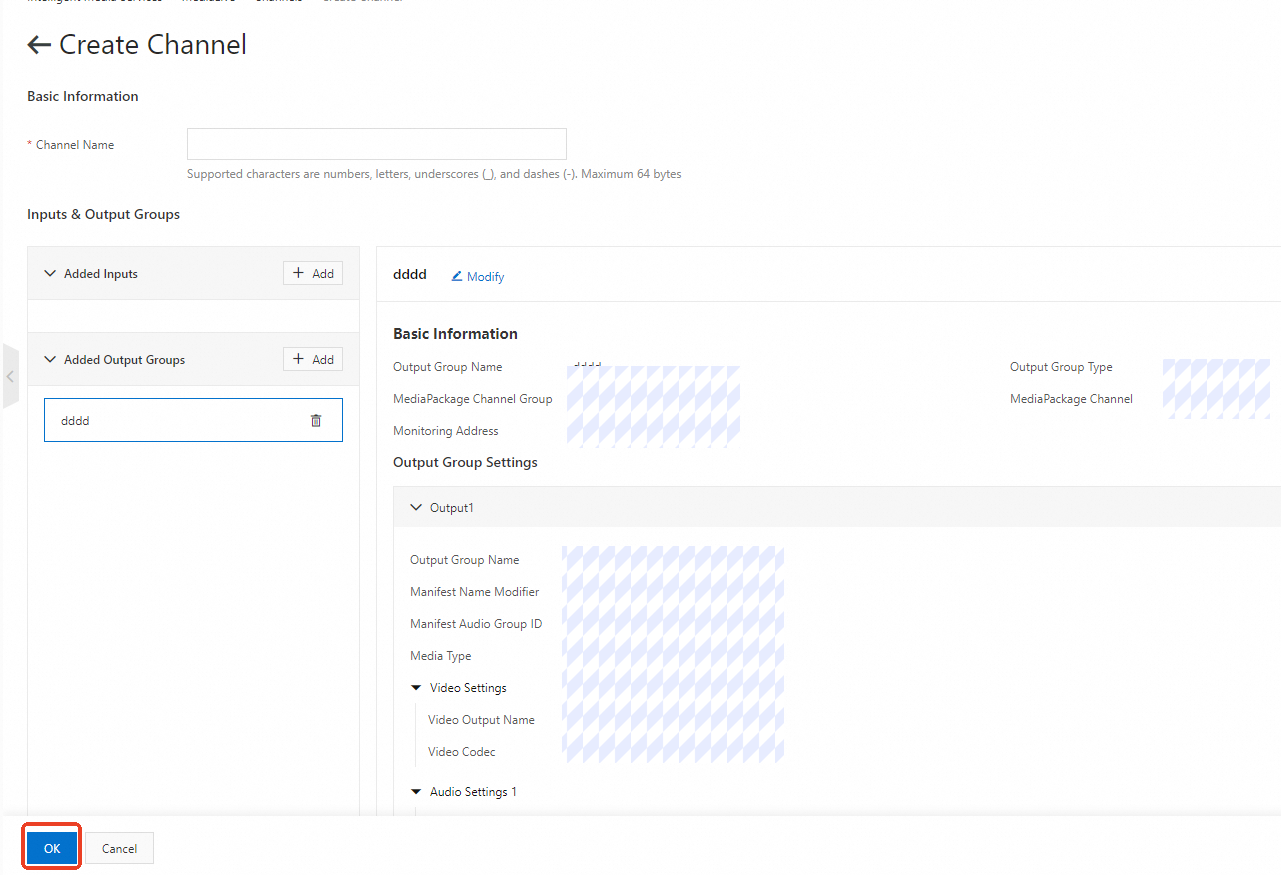
On the Channels page, find the created channel and click Start in the Actions column.
 Note
NoteStarting the channel may take a few minutes. After you click Start, click the refresh button in the upper-right corner of the Channels page to check the Status. The channel is ready when the Status changes to Running.
Step 4: Obtain the ingest and streaming URLs
Obtain the ingest URL
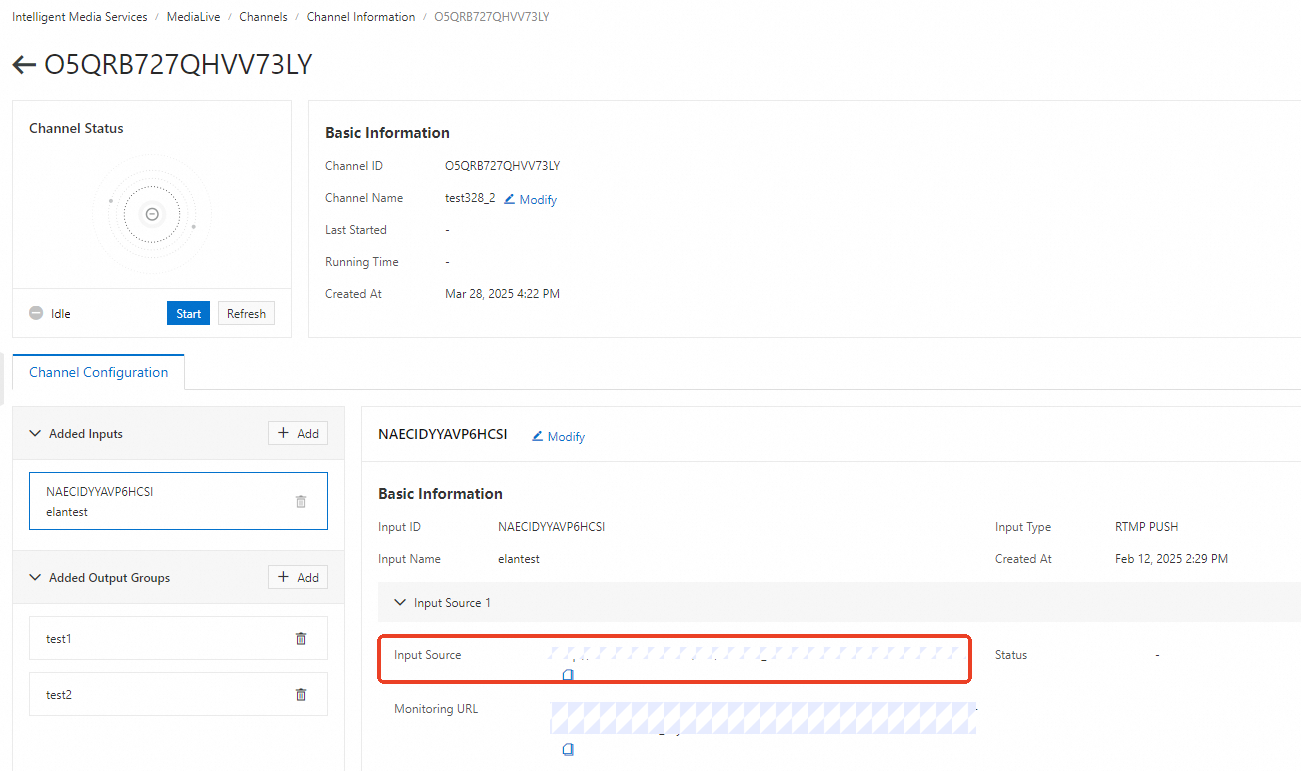
In the left-side navigation pane, choose MediaLive > Channels. On the Channels page, find the channel that you want to manage and click the channel ID in the Channel ID/Name column.
In the Channel Configuration tab, find the added input for which you want to obtain the ingest URL.
The value of the Input Source field in the Basic Information section is the ingest URL.
Obtain the streaming URL
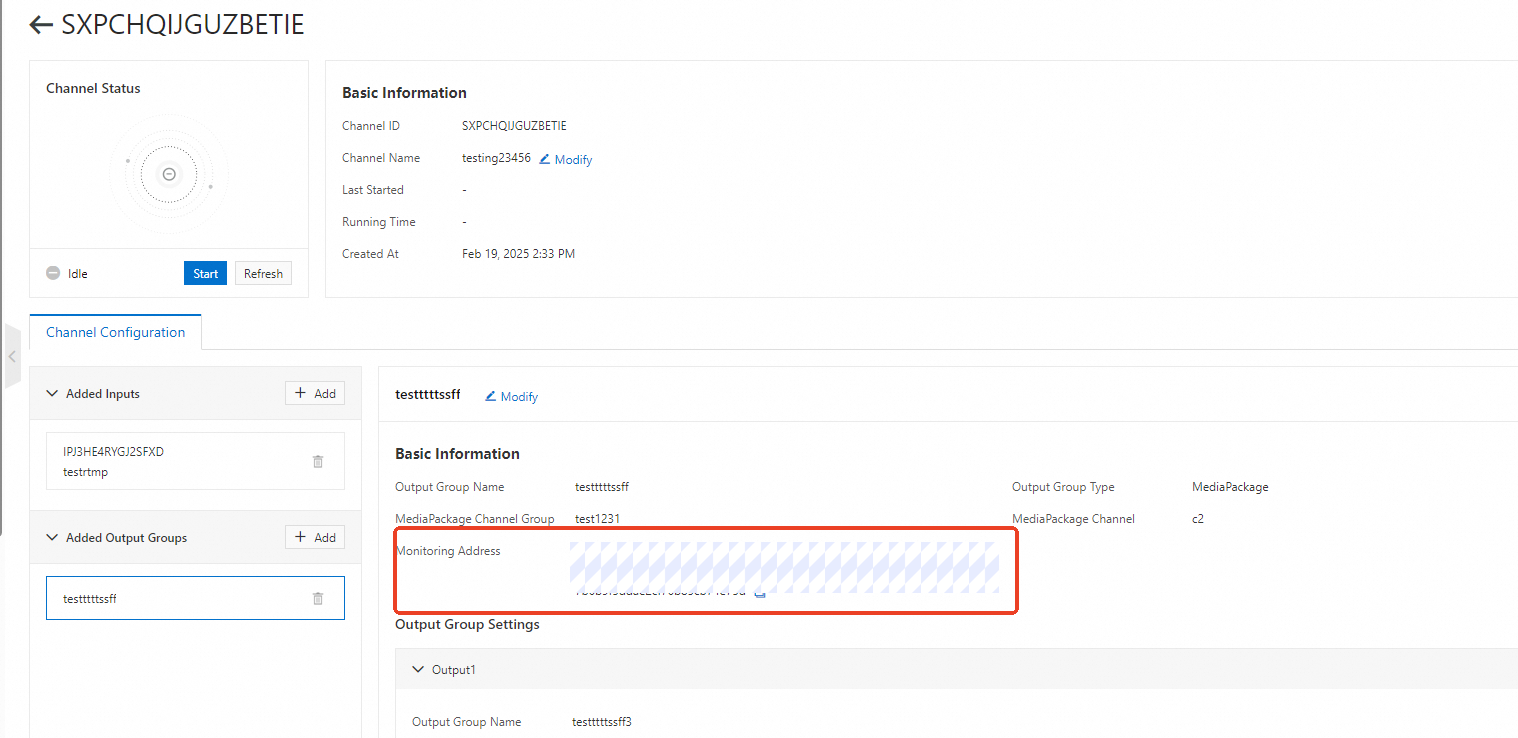
In the left-side navigation pane, choose MediaLive > Channels. On the Channels page, find the channel that you want to manage and click the channel ID in the Channel ID/Name column.
In the Channel Configuration tab, find the added output group for which you want to obtain the streaming URL.
The value of the Monitoring Address field in the Basic Information section is the streaming URL.
What to do next
For more MediaLive configuration options, see Feature configurations.
MediaLive is a paid service. For pricing details, see MediaLive billing.