Each security group has the following properties displayed in the list.
Security Group ID
A system-generated unique identifier for the security group.
Security Group Name
A user-defined name for the security group.
IP Address Whitelist
IP addresses in CIDR notation that are allowed to push media content. You can specify up to 10 values. If no access restriction is applied, 0.0.0.0/0 is displayed.
Associated Input
Displays the ID of the associated input. If no input is associated, a hyphen (-) is displayed.
To associate a security group with a new input, go to the Inputs page, click Create Input, and then select a security group on the Create Input panel. To associate a security group with an existing input, find the input, click Modify in the Actions column, select a security group on the Edit Input panel, and then click OK.
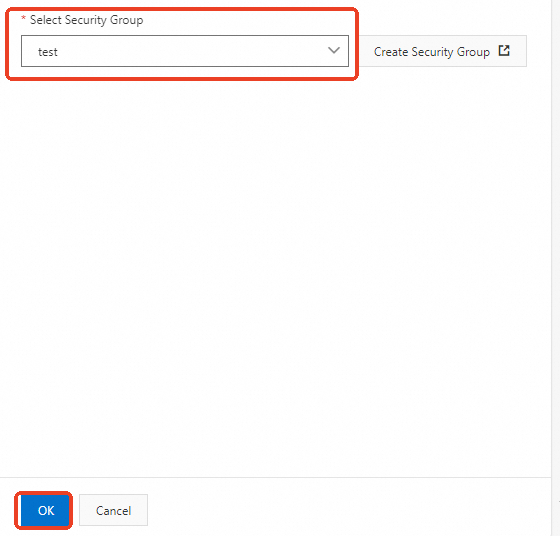
To disassociate a security group from an input, find the input, click Modify in the Actions column, select another security group on the Edit Input panel, and then click OK.
Actions
After you create a security group, find it on the Security Groups tab and click Modify or Delete in the Actions column to modify or delete it.

You can modify or delete a security group only when it is not associated with any input.