You can use workflow templates to process media assets when you upload them to Intelligent Media Services (IMS) or to process assets that are already uploaded.
Feature overview
Concepts
Concept | Description |
Media workflow (MediaWorkflow) | A workflow is a pre-orchestrated sequence of tasks. When a file is uploaded to a specified (or any) OSS bucket, the workflow can be triggered automatically or manually to execute jobs according to the predefined steps. Each workflow is uniquely identified by a workflow ID (MediaWorkflowId). |
Node (Activity) | Each step in a workflow is called a node or an activity. Every workflow must include a Start and an End node. Intermediate nodes can be freely arranged. Supported activities depends on the region, including transcoding and snapshot capture. |
Source (MediaType) | The source of the media file that triggers the workflow. Supported sources are the Media Library and Object Storage Service (OSS). |
Trigger mode (TriggerMode) | The trigger mode can only be set when the source is OSS. Supported modes are Automatic Trigger (default) and Manual Trigger. |
Workflow task instance (TaskId) | Each execution of a workflow generates a unique workflow task instance, identified by a TaskId. |
Media ID (MediaId) | A media asset includes one audio/video input and all of its associated outputs (such as transcoded files and snapshots). There is a one-to-one mapping between an input and a media asset, which is uniquely identified by a MediaId. All information generated by a workflow belongs to this MediaId. |
Limitations
By default, each Alibaba Cloud account can create up to 10 workflows per service region.
Feature support varies by region, which affects the available workflow activities. For details, see Supported regions.
Use workflows
Create a workflow
A workflow is automatically activated and set to an Enabled state upon creation. If a workflow's source is OSS and its trigger mode is set to Automatic Trigger, any file uploaded to the workflow's configured input path that meets the trigger rules will automatically start the workflow.
Log on to the IMS console.
In the navigation pane on the left, choose Media Convert > Workflow Management.
In the upper-left corner, select a region.
Click the Customize tab.
Click Create Workflow Template.

Parameter
Description
Template Name
A name for the workflow template. Supports letters, digits, hyphens (-), and underscores (_), with up to 64 characters.
Description
The description of the template.
Event Callback
Unified Callback: Use the HTTP or MNS callback configured in the global Callback Settings. See Configure callback events.
Custom Callback: Use a callback specific to this workflow template.
Callback Method
When Event Callback is set to Custom Callback, choose either HTTP Request or MNS Queue.
Callback URL
The URL to receive notifications. The server will send an HTTP POST request to this URL when a callback event occurs.
Queue Name
The MNS queue for receiving notifications. The queue name must start with ice-callback. If no queue is available, create one in the MNS console. See Create a queue.
Input & Output Settings
Media Library: The media library in the current region.
OSS:
Trigger Mode: Automatic Trigger or Manual Trigger.
Input Path: Click Select. Choose a bucket, and select a folder as the input path.
Node Configurations
Click
 to add a serial or parallel node.
Click
 to edit a workflow node.
Click
 to delete a workflow node.Important
A deleted node cannot be recovered. If the node has subsequent nodes, they will also be deleted.
Edit or disable a workflow
In the Actions column, you can view, edit, enable, disable, test, copy, or delete a workflow template.
System-preset templates can only be viewed, enabled, or disabled. They cannot be copied, edited, or deleted.
Only workflows in the Disabled state can be edited or deleted.
Only workflows in the Enabled state can be used for media processing.
Only workflows that are Enabled and use OSS source can be tested in the console.
Trigger a workflow
Workflows can be triggered from the media library or OSS. For OSS sources, there are three trigger methods based on the file path and trigger mode. For details, see Trigger a workflow.
Trigger method | Use case |
Automatic trigger | Process files immediately with a fixed workflow after they are uploaded to a specified path. |
Manual trigger (with path validation) |
|
Manual trigger (any path) | Process files that have the same processing requirements but are located in various paths that cannot be configured with a single prefix. |
Get execution results
Query in the console: Log on to the IMS console. Choose Media Convert > Task Management > Workflows to view the details.
Query via API: Call GetWorkflowTask with a
TaskIdto query the list of activities, job IDs, MNS notifications, user data, and the media ID for that execution.Receive MNS notifications: Configure an MNS message queue in the workflow's input node. The service will send messages to this queue when the workflow starts and completes.
Common workflow usage
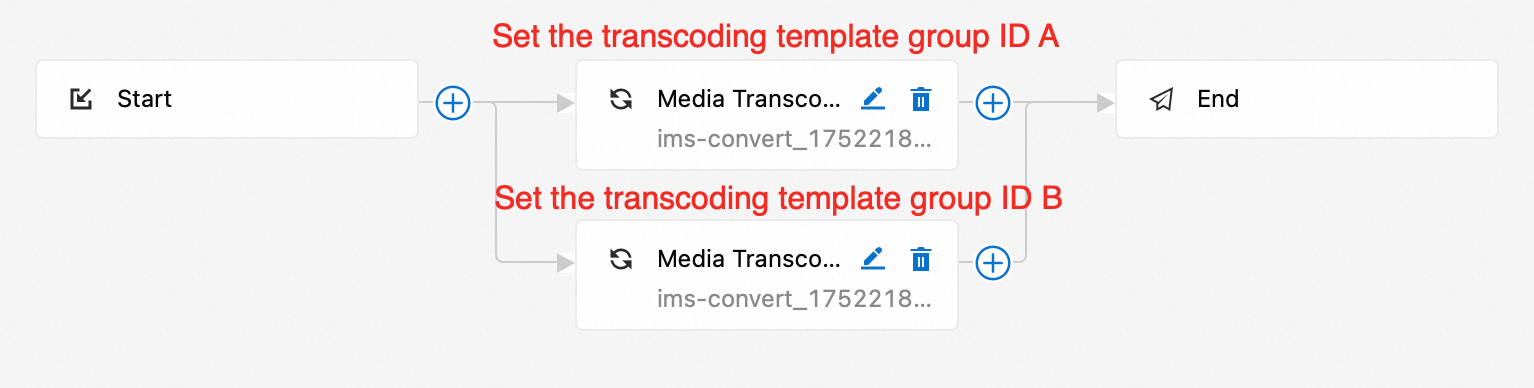
Multi-bitrate transcoding in parallel
This workflow produces multiple output streams according to the configured transcoding nodes.