The channel list page in the MediaLive console displays the status and key attributes of each channel. From this page, you can create, start, stop, edit, and delete channels, and manage the inputs and output groups of each channel.
Columns on the channel list page
The following table describes the columns on the channel list page.
| Column | Description |
| ID and name | The channel ID and the channel name. The system generates the channel ID, which uniquely identifies a MediaLive channel. You define the channel name when you create the channel. You can change the Channel Name when you edit the channel information. |
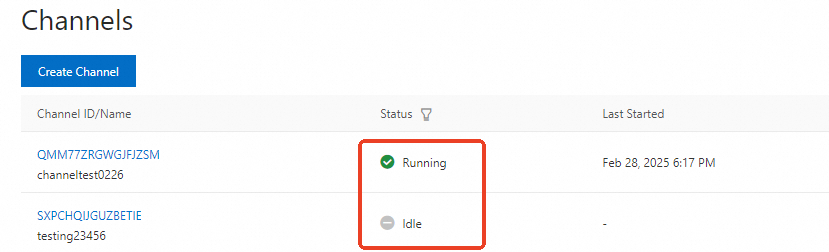
| Status | The current status of the channel: Running or Idle. For the operations available in each status, see Operations. |
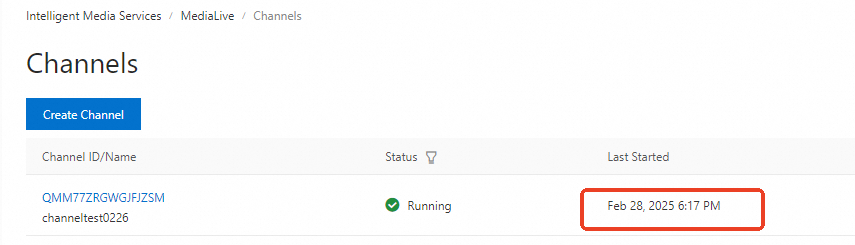
| Last start time | The time when the channel was last started. If the channel has never been started since it was created, a hyphen (-) is displayed. |
| Running time | The duration for which the channel has run since it was last started. If the channel is stopped, the duration of the last run is displayed. If the channel is running, the running time up to the current time is displayed. |
| Number of inputs | The number of inputs configured for the channel. A channel can have multiple inputs. |
| Number of output groups | The number of output groups configured for the channel. A channel can have multiple output groups. |
| Actions | The operations that you can perform on the channel: start, stop, edit, and delete. |
The following figure shows the Status column.
The following figure shows the Last start time column.
The following figure shows the Running time column.

The following figure shows the channel list page, including the Actions column.

Operations
The operations that you can perform on a channel depend on the channel status. When a channel is in the Idle state, you can Start the channel, view the basic information of the channel and its inputs and output groups, edit the channel name, and add and configure inputs and output groups.
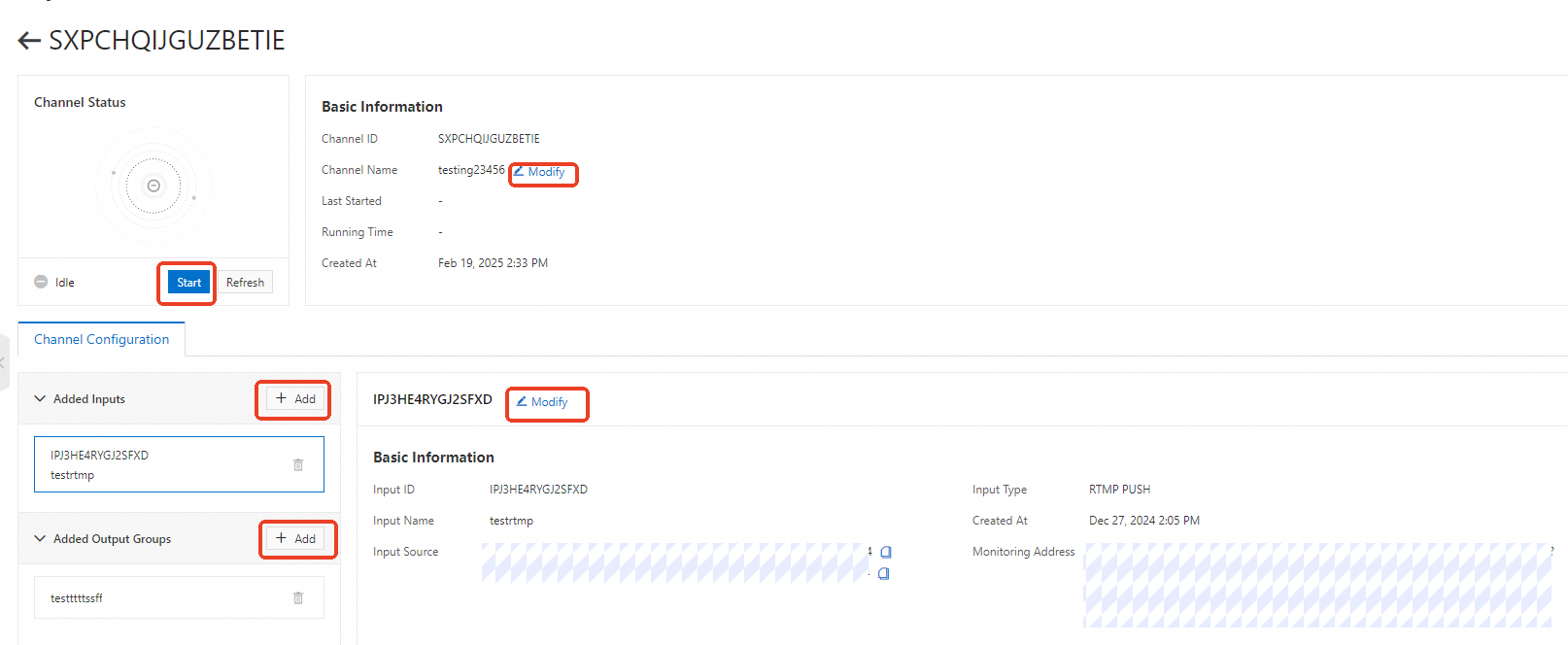
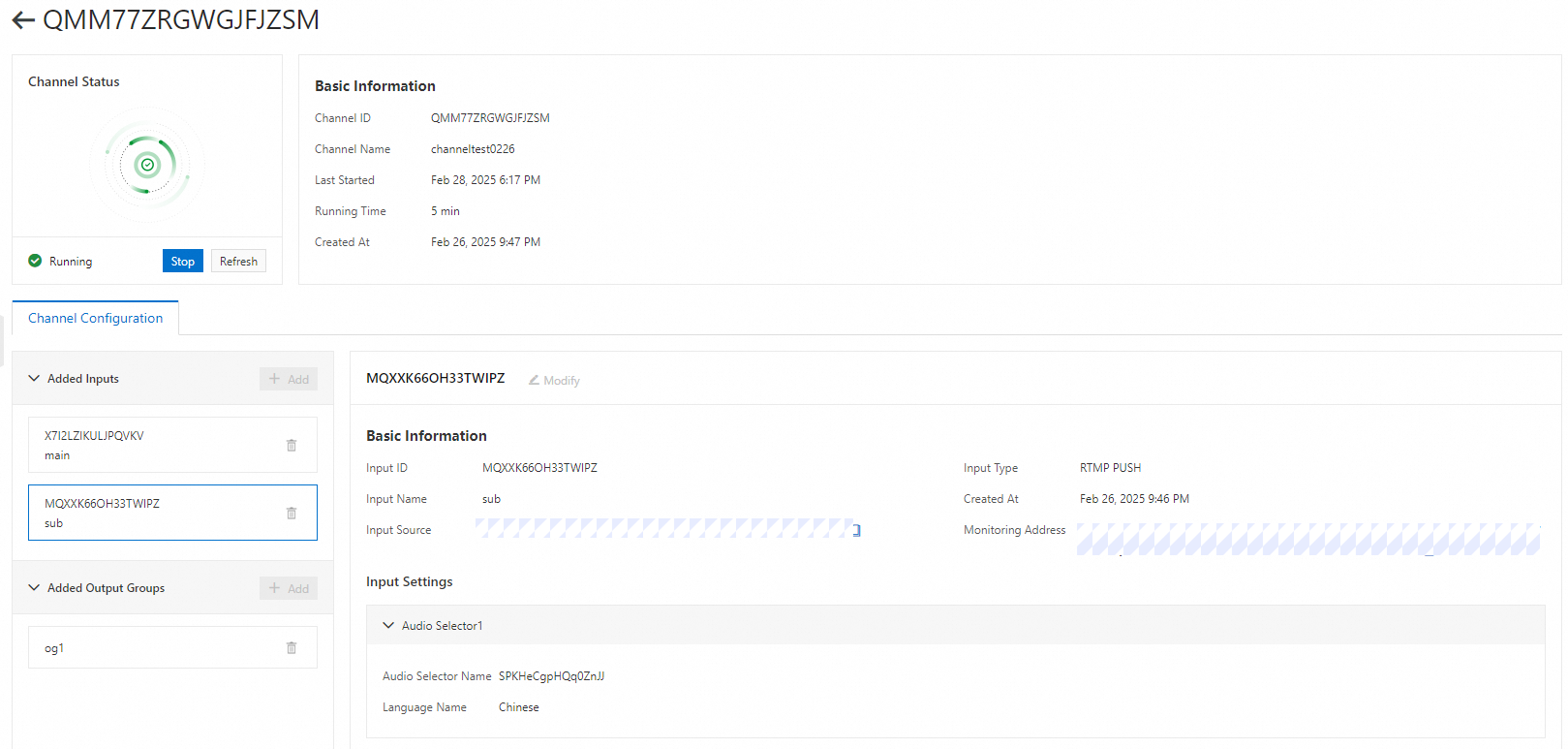
When a channel is in the Running state, you can only Stop the channel or view the basic information of the channel and its inputs and output groups. You cannot edit the channel name or add and configure inputs and output groups.
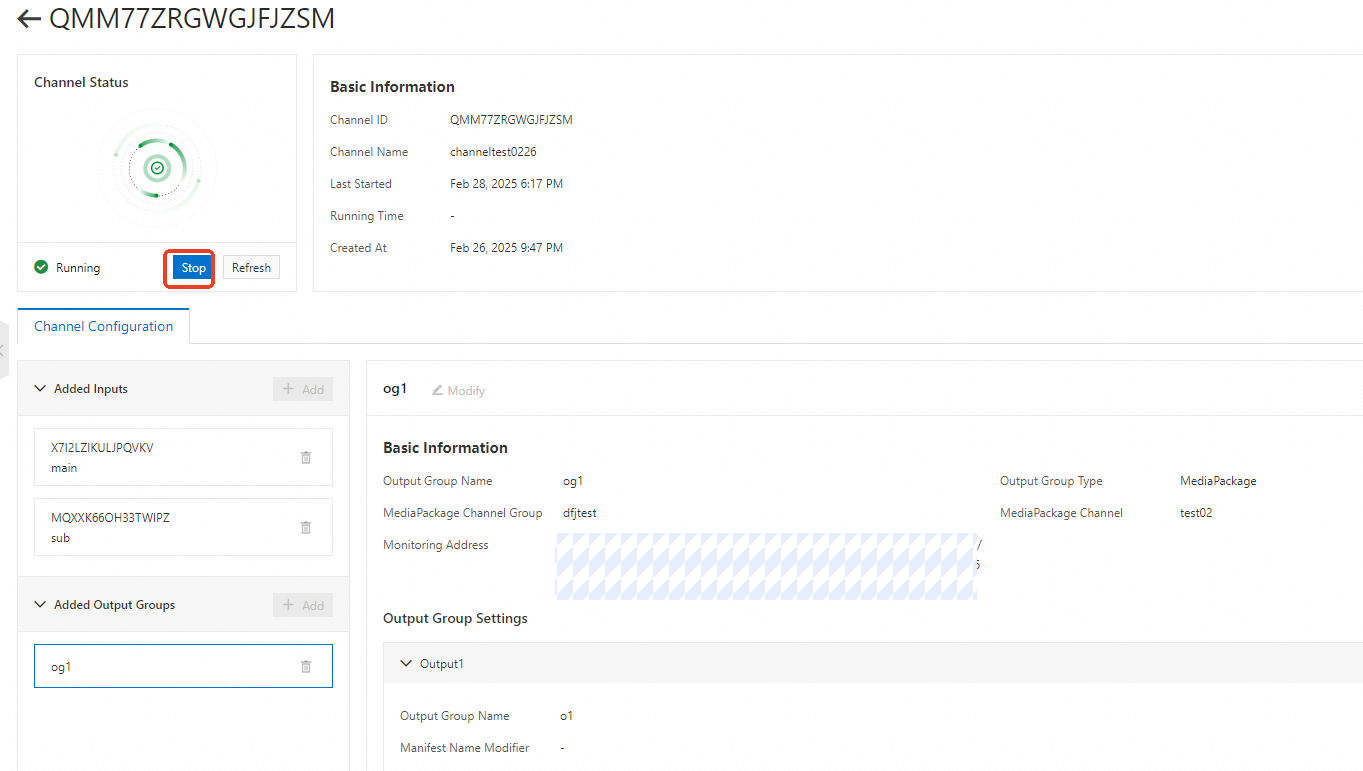
Configuration changes require the Idle state. To change the configuration of a running channel, stop the channel first.
The following table lists the operations that are available in each channel status.
| Operation | Idle | Running |
| Start the channel | Yes | - |
| Stop the channel | - | Yes |
| Delete the channel | Yes | - |
| Edit the channel name | Yes | - |
| Add and configure inputs | Yes | - |
| Add and configure output groups | Yes | - |
| View the basic information of the channel and its inputs and output groups | Yes | Yes |
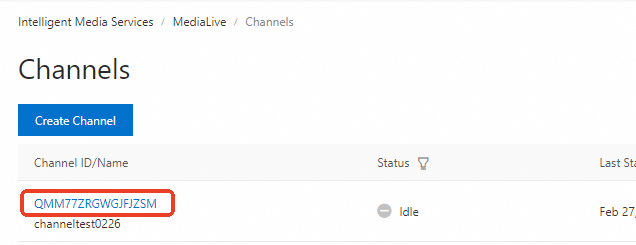
To configure a channel, open the channel control page by clicking the channel ID in the ID and name column, or by clicking the Edit button in the Actions column. On the channel configuration tab, you can modify the inputs and output groups, the channel status, and the Channel Name of the channel.
Manage channels
On the channel list page, click Create channel to create a channel.
In the Actions column, click Start, Stop, Edit, or Delete to start, stop, edit, or delete the channel. When a channel is in the Idle state, you can start, edit, or delete the channel. When a channel is in the Running state, you can only stop the channel, or open the channel configuration tab to view the configured inputs and output groups.
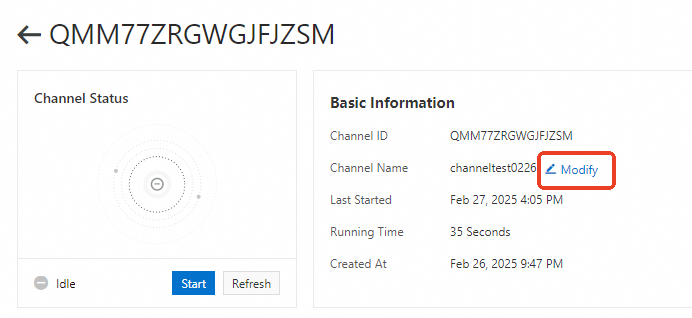
To rename a channel
Open the channel control page.
Click the Edit button and change the Channel Name in Basic Information. The channel must be in the Idle state.
Manage inputs
You can add or delete inputs only when the channel is in the Idle state.
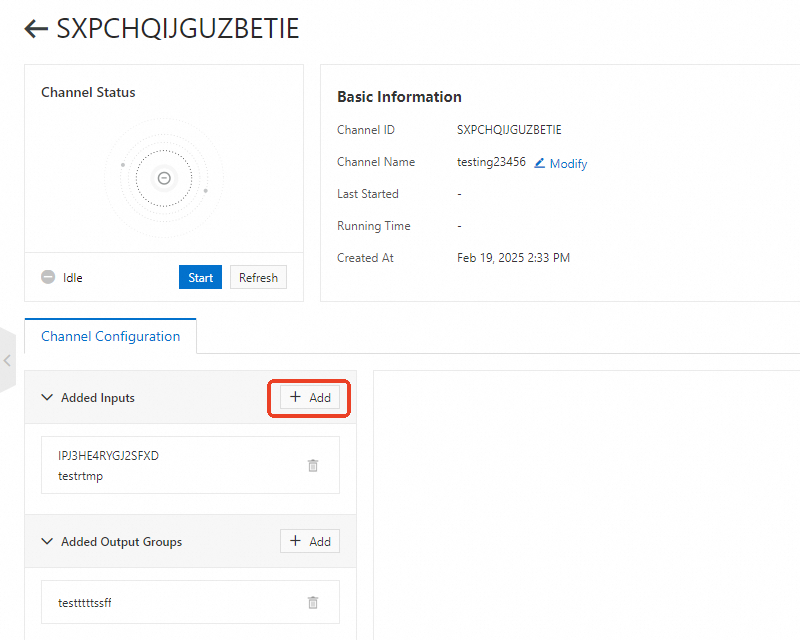
To add an input, click the Edit button in the Actions column to open the channel control page, and then click Add on the channel configuration tab.
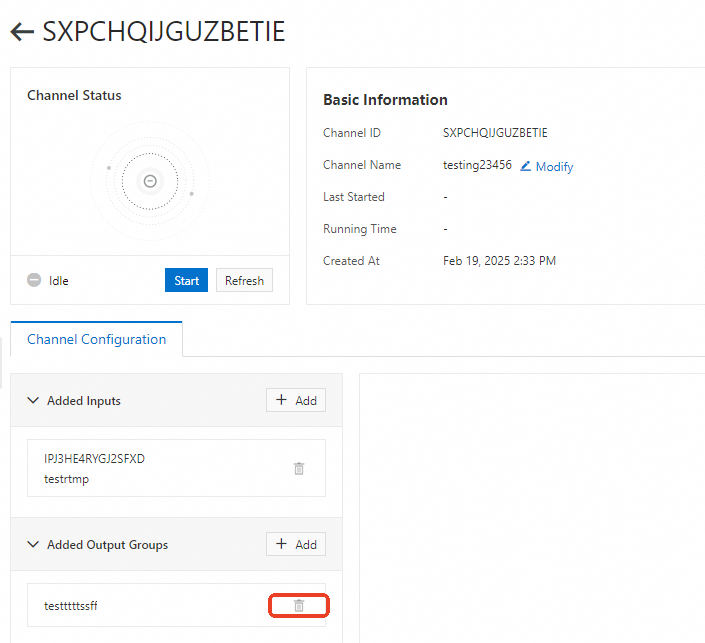
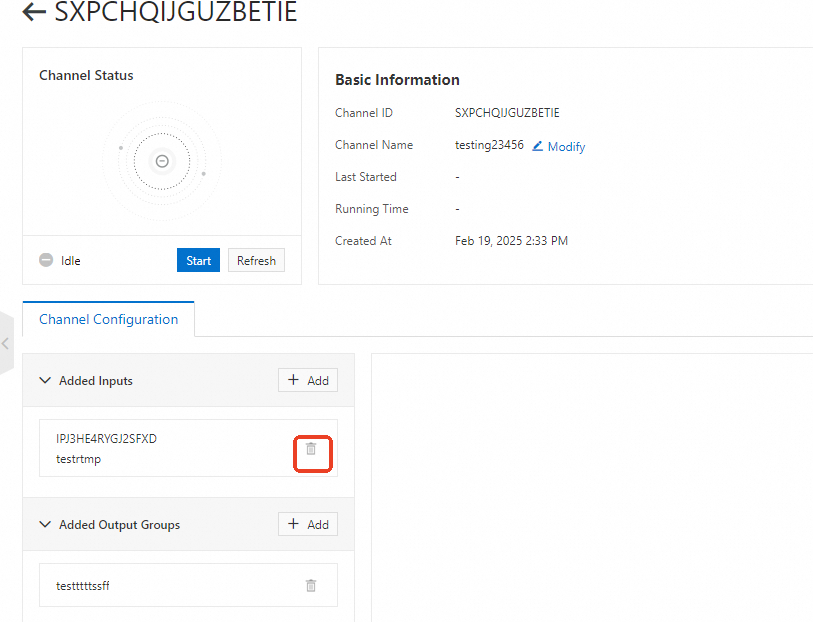
To delete an input, click the delete button on the right of the input on the channel configuration tab.

Manage output groups
You can add or delete output groups only when the channel is in the Idle state.
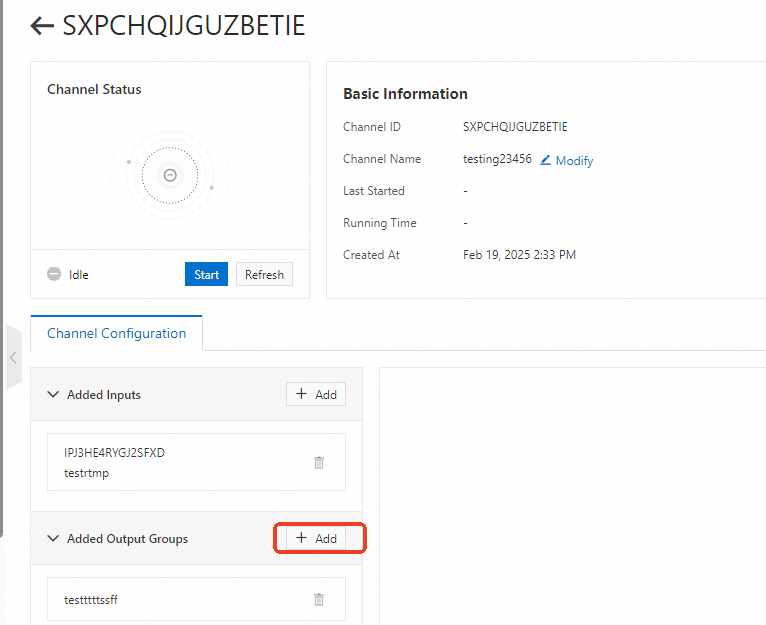
To add an output group, click Add on the channel configuration tab.
To delete an output group from a channel in the Idle state, click the delete button on the right of the output group on the channel configuration tab.