A media source represents a piece of video or audio content that you want to play in a channel. This topic describes how to configure media sources for channel assembly.
Create a source location
Log on to the Intelligent Media Services (IMS) console. In the top left corner, select a region based on your business requirements.
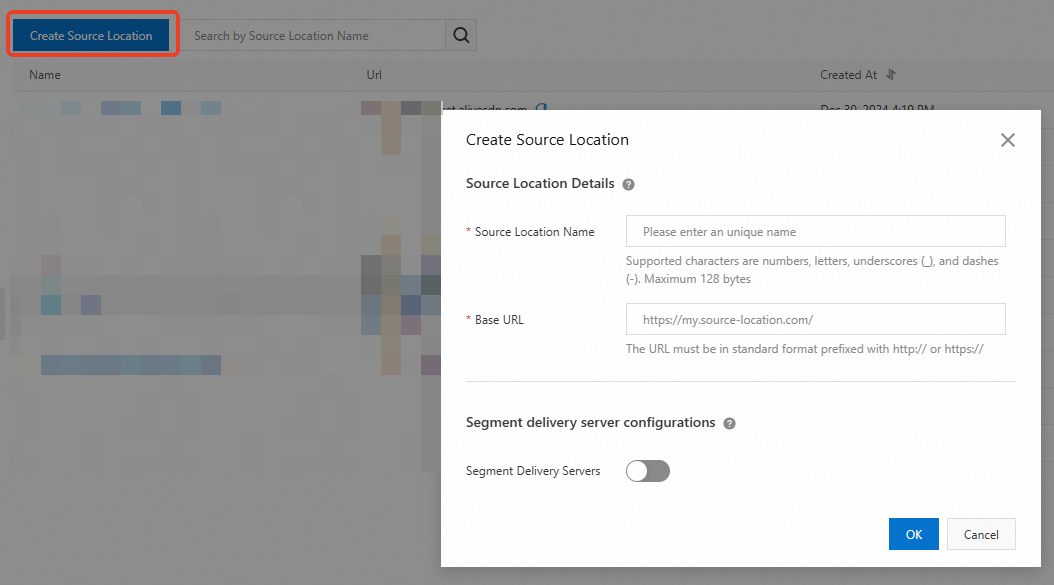
In the left-side navigation pane, choose . Click Create Source Location and configure the following parameters:
Parameter
Description
Source Location Details
Source Location Name
Enter a unique name for the source location.
Base URL
The protocol and hostname of the origin server where your content is stored. Channel assembly retrieves your content manifests from the source location and uses them to assemble a linear stream.
A source location can be Object Storage Service (OSS), a standard web server, a content delivery network (CDN), or a packaging origin such as MediaPackage provided by IMS.
Example:
If the path of your content manifest is http://myresource.aliyundoc.com/video1.m3u8, enter http://myresource.aliyundoc.com.
Segment Delivery Server Configurations
Segment Delivery Servers
Turn on this switch if you want players to access the manifests and segments using different domain names.
Default Segment Base URL
The domain name used for accessing the segments. If you do not enter a value, MediaWeaver defaults to the source location server (base URL) for segment delivery.
Modify a source location
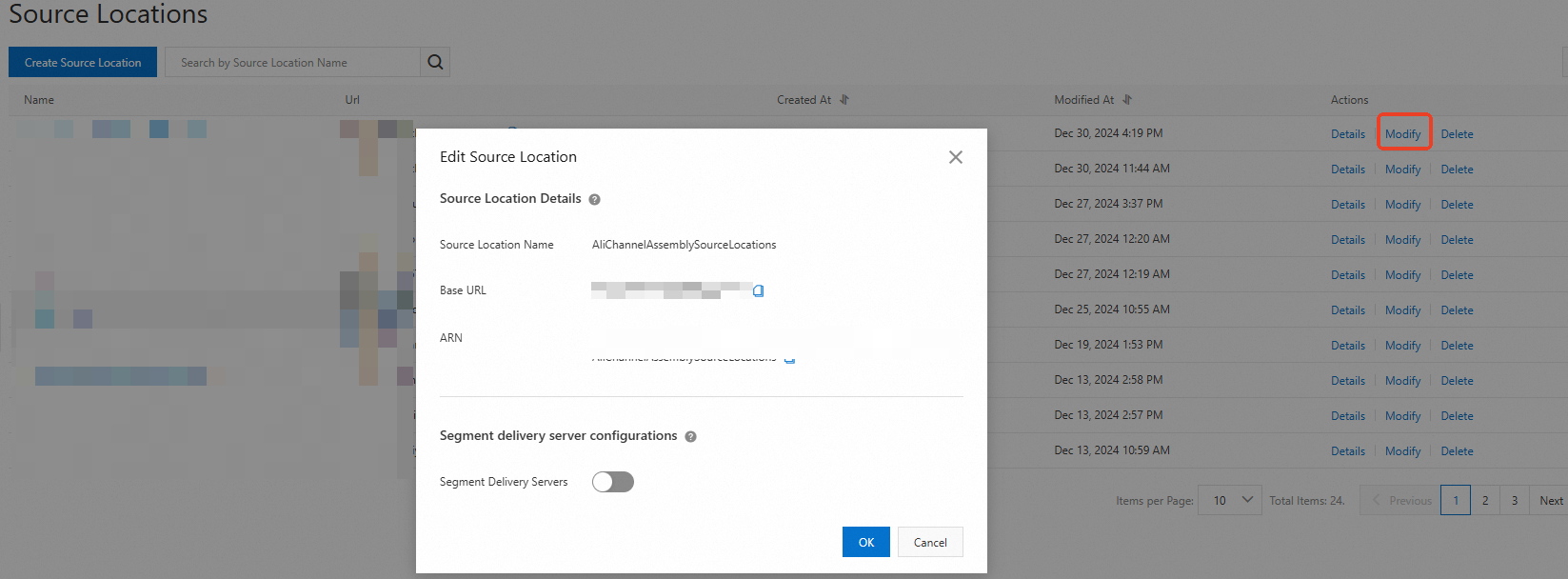
To modify a source location, click Modify in the Actions column and edit the configurations in the pop-up dialog box. You can modify only segment delivery server configurations.
If the source location is used in a channel, refresh the channel to apply the changes.
View a source location
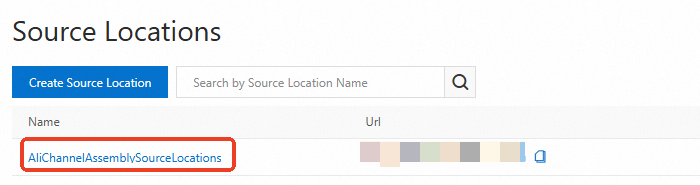
On the Source Locations page, find the one that you want to view, then click its name or Details in the Actions column. You can add sources on the source location details page.
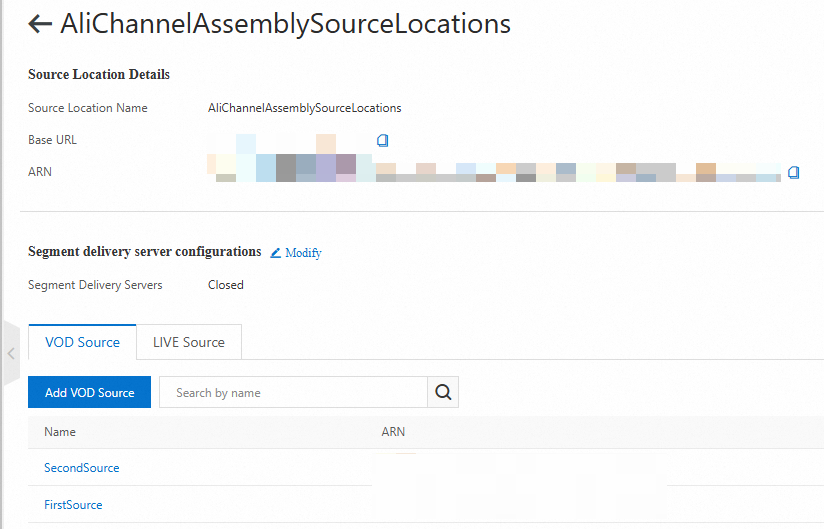
You must provide the path to the M3U8 master playlist for each source. All M3U8 master playlists in a channel must have the same number of media playlists and identical bitrate variants. To learn more about master and media playlists, see Supported protocol.
Add a video-on-demand (VOD) source
To add a VOD source, click the VOD Source tab on the source location details page. Then, click Add VOD Source and configure the following parameters:
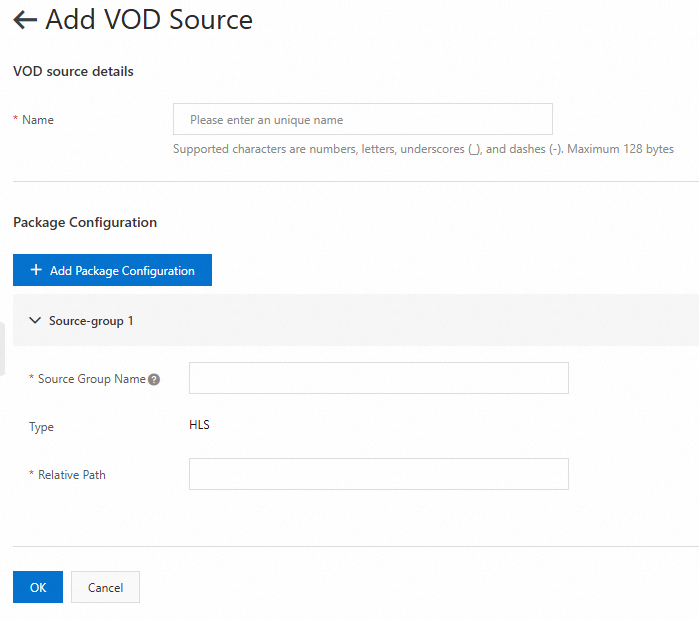
Parameter | Description |
VOD Source Details | |
Name | Enter a unique name for the VOD source. |
Package Configuration Note You can add multiple package configurations, each representing a specific version of the same video content, such as a specific resolution or encoding format. | |
Source Group Name | Enter a source group name that describes the package configuration. The name must be unique within the same VOD source. For example, if the VOD source is available in 720P, 1080P, and 4K resolutions, you can create three package configurations with source groups named 720P, 1080P, and 4K. When you create an output in a channel, you can specify a source group to associate the corresponding package configuration with the output. If you specify the source group as 4K, the VOD source in 4K resolution is retrieved for output. |
Type | The packaging format. Only HTTP Live Streaming (HLS) is supported. |
Relative Path | The relative path from the source location's base URL to the VOD source. For example, if the path of the M3U8 master playlist is http://myresource.aliyundoc.com/video1.m3u8, enter /video1.m3u8. |
After you configure the parameters, click OK to add the VOD source.
Add a live source
To add a live source, click the LIVE Source tab on the source location details page. Then, click Add Live Source and configure the following parameters:
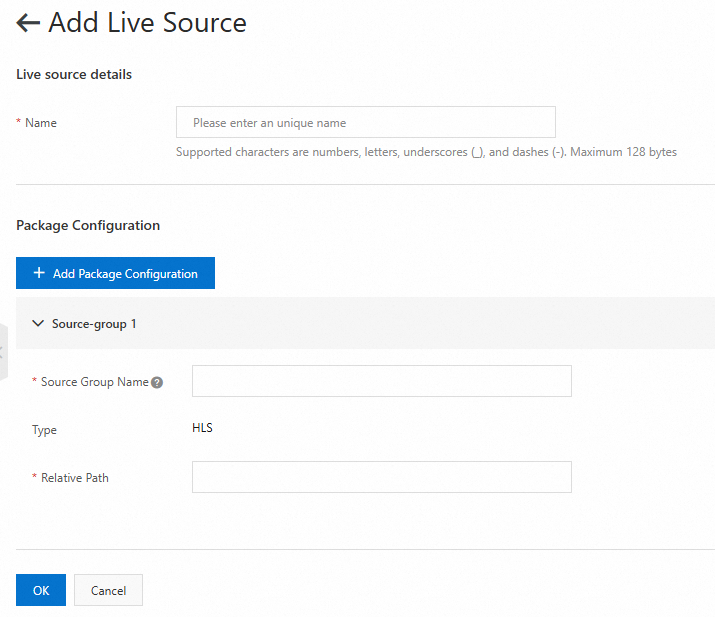
Parameter | Description |
Live Source Details | |
Name | Enter a unique name for the live source. |
Package Configuration Note You can add multiple package configurations, each representing a specific version of the same video content, such as a specific resolution or encoding format. | |
Source Group Name | Enter a source group name that describes the package configuration. The name must be unique within the same live source. For example, if the live source is available in 720P, 1080P, and 4K resolutions, you can create three package configurations with source groups named 720P, 1080P, and 4K. When you create an output in a channel, you can specify a source group to associate the corresponding package configuration with the output. If you specify the source group as 4K, the live source in 4K resolution is retrieved for output. |
Type | The packaging format. Only HTTP Live Streaming (HLS) is supported. |
Relative Path | The relative path from the source location's base URL to the live source. For example, if the path of the M3U8 master playlist is http://myresource.aliyundoc.com/video1.m3u8, enter /video1.m3u8. |
After you configure the parameters, click OK to add the live source.
Delete a source location
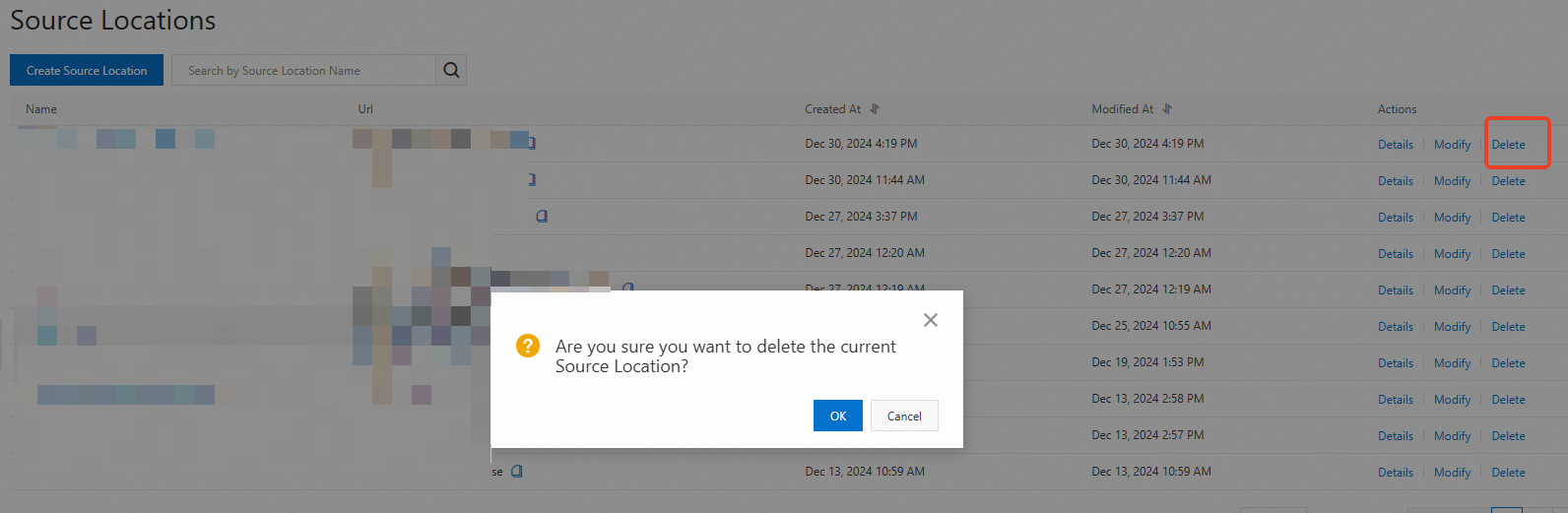
On the Source Locations page, find the one that you want to delete. First, delete all media sources added to the source location. Then, click Delete in the Actions column.